

Automate Meeting Bookings to Google Sheets, Newsletter & Telegram

Struggling to keep track of meeting attendees and update your newsletter subscribers manually? This n8n workflow automates booking data collection into Google Sheets, subscribes attendees to Beehiiv newsletters, and sends Telegram notifications instantly, saving hours of repetitive work.
calTrigger
googleSheets
httpRequest
+4
Workflow Identifier: 1956
NODES in Use: calTrigger, splitOut, set, googleSheets, httpRequest, telegram, stickyNote

Press CTRL+F5 if the workflow didn't load.

Learn how to Build this Workflow with AI:

Visit through Desktop for Best experience

1. Opening Problem Statement

Meet Aitor, an event coordinator who schedules dozens of client meetings weekly using Cal.com. Every time a new booking happens, Aitor spends at least 30 minutes manually copying attendee information into a Google Sheet for record-keeping, adding the attendees to the company newsletter hosted on Beehiiv, and notifying his team on Telegram about new bookings. This repetitive process is error-prone and time-consuming, causing delays in communication and missed opportunities for marketing outreach.

Without automation, Aitor risks inconsistent data entry, lost subscriber leads to his newsletter, and slow team updates. Manually managing these tasks for multiple attendees per meeting means wasted hours each week that could be spent on higher-value activities.

2. What This Automation Does

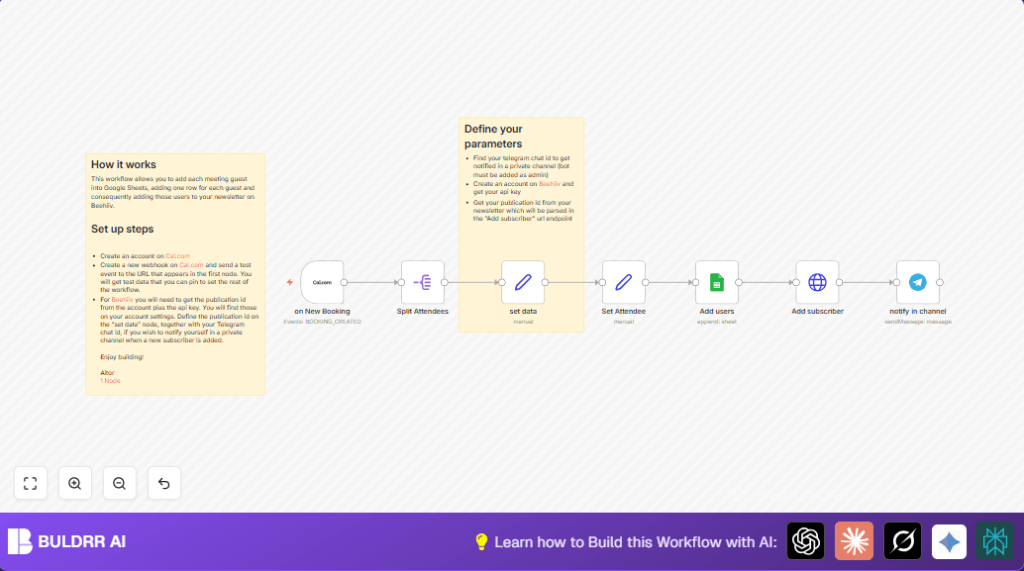
This specific n8n workflow connects Cal.com booking events directly to your newsletter management on Beehiiv, stores attendee details in Google Sheets, and notifies your team on Telegram—all automatically when a meeting is booked. Here’s what happens:

  • When a new meeting is scheduled on Cal.com, the booking data triggers the workflow immediately.
  • The list of attendees from the booking is split into individual entries for processing.
  • Each attendee’s details (name, email, timezone, meeting info) are appended as a new row in a Google Sheet for organized tracking.
  • The attendee’s email is used to subscribe them to your Beehiiv newsletter automatically, expanding your mailing list effortlessly.
  • A formatted Telegram message posts details about the new booking and attendees to a specified Telegram channel or group to keep your team instantly informed.
  • This entire process runs without manual intervention, saving hours per week and preventing human errors in data handling.

3. Prerequisites ⚙️

  • Cal.com account — to create and manage your meeting bookings.
  • Google Sheets account 📊 — for storing booking attendee data.
  • Beehiiv account 🔑 — to manage and send newsletters.
  • Telegram account 💬 — for instant team notifications.
  • n8n account 🔧 — to build and run the workflow (self-hosting supported for advanced users).
  • API credentials for Google Sheets OAuth2, Cal.com API, Beehiiv API key, and Telegram Bot API token.

4. Step-by-Step Guide

Step 1: Set up Cal.com Webhook Trigger “on New Booking”

Navigate to n8n → Create a new workflow → Add Calendar Trigger node from the node list.

Configure it to listen for the BOOKING_CREATED event. Enter your Cal.com API credentials here.

Copy the webhook URL provided by n8n. Then, go to your Cal.com settings → Webhooks → Add a new webhook using this URL and test the connection by making a test booking.

Once you see test data collected in the node’s output, proceed. Common mistake: forgetting to activate the webhook in Cal.com or using the wrong event type.

Step 2: Split Attendees List

Add the SplitOut node and connect it from the Calendar Trigger node.

In the node parameters, set the field to split as attendees, which contains all meeting guests.

This splits one booking event with multiple attendees into individual attendee objects for further processing.

Outcome: You’ll see multiple executions, one per attendee.

Step 3: Store Attendee Data in Google Sheets “Add users” Node

Add a Google Sheets node and link it to the output of the node where you set individual attendee data (after “Set Attendee” node).

Set operation to Append for adding new rows.

Configure columns such as title (event title), length (meeting duration), timeZone, createdAt, attendeeName, meetingStart, and attendeeEmail.

Use expressions to dynamically populate these fields based on the incoming booking data, e.g., {{ $('on New Booking').item.json.eventTitle }}.

Expected result: Each attendee’s info recorded as a new row in the specified Google Sheet.

Common mistake: Incorrect Google Sheets document or sheet ID setup.

Step 4: Subscribe Attendees to Beehiiv Newsletter “Add subscriber” Node

Configure an HTTP Request node for the POST method to the endpoint:

https://api.beehiiv.com/v2/publications/{{ publicationId }}/subscriptions

Under Body Parameters, send attendee’s email extracted with expression {{ $('Split Attendees').item.json.email }}.

Add Authorization header with Bearer token as your Beehiiv API key configured in a prior Set node.

This adds each attendee automatically to your newsletter mailing list.

Common mistake: Wrong API key or missing publication ID.

Step 5: Notify Team in Telegram “notify in channel” Node

Add the Telegram node connected to the ‘Add subscriber’ node.

Prepare a message template including booking details (event name, start time, attendee name/email, timezone) using expressions to dynamically fill content, for example:

📅 New meeting booked
Event name: {{ $('Add users').item.json.title }}
Start Date: {{ $('Add users').item.json.meetingStart }} UTC
Name: {{ $('Add users').item.json.attendeeName }}
Email: {{ $('Add users').item.json.attendeeEmail }}
User time zone: {{ $('Add users').item.json.timeZone }}

Set your Telegram Chat ID where you want to receive notifications.

Common mistake: Not adding the bot as admin in your Telegram channel or incorrect Chat ID.

Step 6: Define Static Data “set data” Node

Use a Set node to define static details like your Telegram chat ID, Beehiiv API key, and publication ID which you reuse across nodes using expressions.

This avoids hardcoding secrets in multiple nodes and centralizes configuration.

Step 7: Prepare Attendee Data “Set Attendee” Node

After splitting attendees, use another Set node to pick and rename fields such as name, email, and timeZone so downstream nodes can access them cleanly.

Step 8: Testing Your Workflow

Make a test booking on Cal.com with multiple attendees.

Check Google Sheets for new rows, verify newsletter subscription using Beehiiv’s dashboard or API, and confirm Telegram notification arrives as expected.

5. Customizations ✏️

  • Add Custom Meeting Data: In the Google Sheets node, add extra columns like “Meeting Location” or “Meeting Type” by mapping additional Cal.com booking data fields.
  • Send Customized Welcome Email: Add a Gmail or Email node after subscriber creation to send personalized welcome emails to attendees.
  • Notify Multiple Telegram Channels: Duplicate the Telegram node and set different chat IDs to notify multiple teams or stakeholders.
  • Filter Attendees by Domain: Add an IF node before subscription to only add attendees with specific email domains to the newsletter.
  • Extend to CRM: Integrate another node like HubSpot or Salesforce to add attendees as CRM contacts after Google Sheets addition.

6. Troubleshooting 🔧

Problem: “Webhook test data not triggering workflow”
Cause: Webhook URL not correctly set in Cal.com or webhook inactive.
Solution: Confirm webhook URL matches exactly from the calendar trigger node, reactivate webhook in Cal.com, and resend test booking.

Problem: “Google Sheets append fails with permission error”
Cause: Incorrect Google Sheets OAuth credentials or wrong spreadsheet ID.
Solution: Re-authenticate Google Sheets credentials in n8n, verify spreadsheet permissions, and ensure correct document ID is used.

Problem: “Beehiiv API 401 Unauthorized”
Cause: Invalid API key or missing Bearer token.
Solution: Double-check Beehiiv API key in the set node, ensure usage of Bearer token format, and verify presence of publication ID.

Problem: “Telegram messages not sent”
Cause: Bot not admin of the channel or wrong Chat ID.
Solution: Add your Telegram bot as admin in the channel and confirm chat ID; test sending messages manually through node.

7. Pre-Production Checklist ✅

  • Verify Cal.com webhook is activated and test booking triggers workflow.
  • Ensure Google Sheets node appends rows correctly with expected columns.
  • Confirm Beehiiv API and publication ID are correct by testing subscription requests.
  • Test Telegram notifications arrive in intended chat/channel.
  • Backup your Google Sheet data before first run to avoid accidental overwrites.

8. Deployment Guide

Activate your workflow in n8n by toggling the active switch after all configurations.

Monitor executions via n8n’s dashboard to ensure bookings are processed smoothly.

Set error workflows to handle issues gracefully for uninterrupted automation.

For self-hosting, consider using services such as Hostinger for reliable uptime and control.

9. FAQs

  • Can I use other calendar services? This workflow relies on Cal.com for its booking webhook event; substituting other calendars may require different triggers.
  • Does Beehiiv API usage cost extra? Beehiiv API calls typically are included in your plan but check API limits for large subscriber volumes.
  • Is my subscriber data secure? Using OAuth and API keys securely in n8n ensures data privacy; avoid exposing keys publicly.
  • Can this workflow handle bulk attendee bookings? Yes, the SplitOut node manages multiple attendees efficiently by processing them one at a time.

10. Conclusion

By following this guide, you have created a customized n8n automation that transforms new meeting bookings on Cal.com into organized Google Sheets entries, added newsletter subscribers in Beehiiv automatically, and keeps your team informed via Telegram notifications.

This reads booking data accurately and saves at least 30 minutes per booking session from tedious manual data entry while reducing errors and improving communication.

Next, you might want to explore adding automated follow-up emails, CRM integration for deeper contact management, or analytics tracking to measure your meeting engagement and newsletter growth.

Happy automating!

Promoted by BULDRR AI

Related Workflows

Automate Viral UGC Video Creation Using n8n + Degaus (Beginner-Friendly Guide)

Learn how to automate viral UGC video creation using n8n, AI prompts, and Degaus. This beginner-friendly guide shows how to import, configure, and run the workflow without technical complexity.
Form Trigger
Google Sheets
Gmail
+37
Free

AI SEO Blog Writer Automation in n8n

A complete beginner guide to building an AI-powered SEO blog writer automation using n8n.
AI Agent
Google Sheets
httpRequest
+5
Free

Automate CrowdStrike Alerts with VirusTotal, Jira & Slack

This workflow automates processing of CrowdStrike detections by enriching threat data via VirusTotal, creating Jira tickets for incident tracking, and notifying teams on Slack for quick response. Save hours daily by transforming complex threat data into actionable alerts effortlessly.
scheduleTrigger
httpRequest
jira
+5
Free

Automate Telegram Invoices to Notion with AI Summaries & Reports

Save hours on financial tracking by automating invoice extraction from Telegram photos to Notion using Google Gemini AI. This workflow extracts data, records transactions, and generates detailed spending reports with charts sent on schedule via Telegram.
lmChatGoogleGemini
telegramTrigger
notion
+9
Free

Automate Email Replies with n8n and AI-Powered Summarization

Save hours managing your inbox with this n8n workflow that uses IMAP email triggers, AI summarization, and vector search to draft concise replies requiring minimal review. Automate business email processing efficiently with AI guidance and Gmail integration.
emailReadImap
vectorStoreQdrant
emailSend
+12
Free

Automate Email Campaigns Using n8n with Gmail & Google Sheets

This n8n workflow automates personalized email outreach campaigns by integrating Gmail and Google Sheets, saving hours of manual follow-up work and reducing errors in email sequences. It ensures timely follow-ups based on previous email interactions, optimizing communication efficiency.
googleSheets
gmail
code
+5
Free