
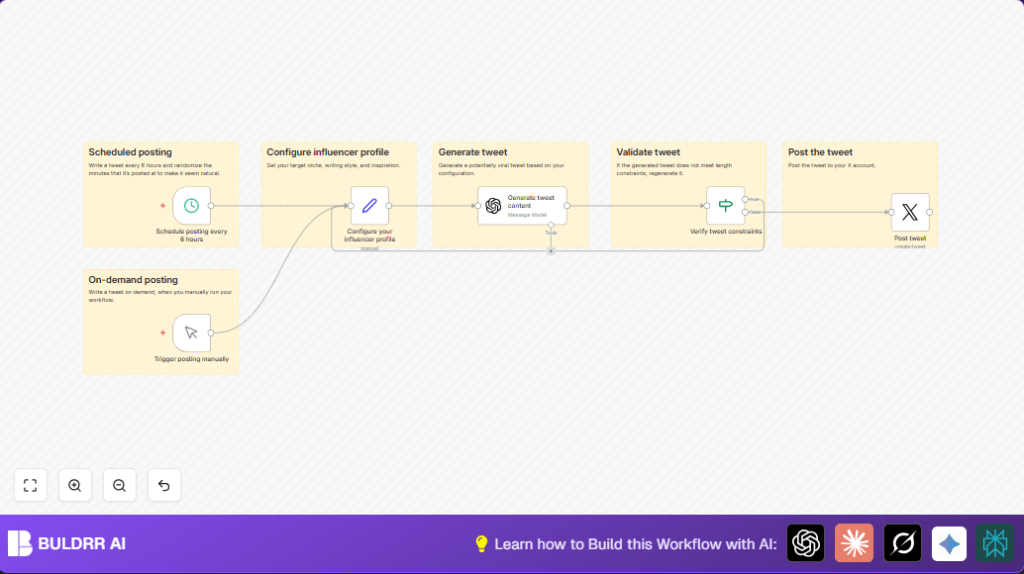

What This Automation Does
This workflow makes tweets automatically every 6 hours. It uses OpenAI GPT-4 Turbo to create tweets about your topic and style. Tweets are checked so they fit the 280 character limit. Each tweet posts at a random minute in the 6-hour period to feel natural. You can also run the workflow by hand to post on demand.
This saves time writing and posting tweets. It avoids robotic or wrong timed posts. The tweets go straight to Twitter with no mistakes.
Tools and Services Used
- n8n: Workflow automation platform.
- OpenAI GPT-4 Turbo: Creates tweet text based on your niche and style.
- Twitter API with OAuth 2: Posts tweets on your connected account.
You also need an n8n account and API keys configured.
Inputs, Processing Steps, and Outputs
Inputs
- Scheduled trigger every 6 hours with random minute.
- Manual trigger for on-demand tweet posting.
- Influencer profile details: niche, style, inspiration (set in Set node).
Processing Steps
- Generate tweet content using OpenAI with profile prompts.
- Check tweet length using an If node.
- If tweet too long, loop back to generate again.
- If tweet okay, send it to Twitter node for posting.
Outputs
- Published tweet on Twitter account.
- Logs of workflow executions in n8n.
Beginner step-by-step: How to use this workflow in n8n
Step 1: Import the Workflow
- Download the workflow file using the Download button on this page.
- Open your n8n editor.
- Click “Import from File” and select the downloaded workflow.
Step 2: Configure Credentials and Details
- Add your OpenAI API Key in the credentials section.
- Add your Twitter OAuth 2 credentials with write access.
- Edit the Set node to update niche, style, and inspiration texts if needed.
Step 3: Test the Workflow
- Manually trigger the workflow by running the Manual Trigger node.
- Check if the tweet gets generated and posted on Twitter.
Step 4: Activate for Production
- Turn on the workflow in n8n to enable scheduled automatic tweets.
- Make sure scheduling runs every 6 hours with random minute as set.
- Monitor workflow runs in n8n execution history.
For full control or hosting, consider self-host n8n.
Step-By-Step Workflow Details
Set Up Scheduled Trigger
Use the Schedule Trigger node set to repeat every 6 hours.
In the “triggerAtMinute” field, add expression
{{ Math.floor(Math.random() * 60) }}to send tweets at a random minute.
Add Manual Trigger
Add a Manual Trigger node for manual runs when needed.
Configure Influencer Profile
Use the Set node to define:
- niche – your tweet topic like “Modern Stoicism”.
- style – tweet voice, e.g., “personal”.
- inspiration – books or ideas influencing tweets.
Generate Tweets
The OpenAI (GPT-4 Turbo) node creates tweets. Set system prompt like:
You are a successful modern Twitter influencer. Your tweets go viral.
You have style: {{ $json.style }}
Follow principles from inspirations: {{ $json.inspiration }}
Your niche: {{ $json.niche }}
Keep tweets under 280 characters, including hashtags and emojis.
Validate Tweets
Use an If node to check:
$json.message.content.tweet.length > 280If true, loop back to regenerate tweet.
Post the Tweet
Use the Twitter node set to post with text {{$json.message.content.tweet}}.
Notes for Clarity
Add Sticky Note nodes in the workflow to explain parts.
Customization Ideas
- Change tweet frequency in Schedule Trigger to post more or less.
- Edit the Set node to switch niches or styles.
- Add hashtags dynamically by updating the OpenAI prompt messages.
- Add retweet or reply logic with more Twitter nodes.
- Use manual trigger only by removing the schedule node.
Troubleshooting Common Issues
Problem: Tweet not posted.
Cause: Twitter OAuth expired or wrong permission.
Fix: Re-authenticate Twitter credentials in n8n.
Problem: OpenAI node errors.
Cause: API key invalid or request format wrong.
Fix: Check API key and simplify prompts.
Problem: Tweets exceed 280 characters.
Cause: If node condition incorrect or skipped.
Fix: Verify length check in If node.
Pre-Production Checklist and Deployment
- Check OpenAI credentials by generating a test tweet.
- Confirm Twitter credentials by posting a test tweet.
- Run workflow manually to confirm proper operation.
- Check If node discards long tweets.
- Verify scheduled runs randomize post minute each 6 hours.
Turn on the workflow in n8n to start automated tweeting.
Keep an eye on API quotas to avoid limits.
Update influencer profile texts often to keep tweets fresh.
Summary
✓ Saves time by creating and posting tweets automatically.
✓ Posts tweets every 6 hours at random minutes to avoid robotic feel.
✓ Ensures tweets stay under Twitter’s 280 character limit.
✓ Lets user post on-demand with manual trigger.
