
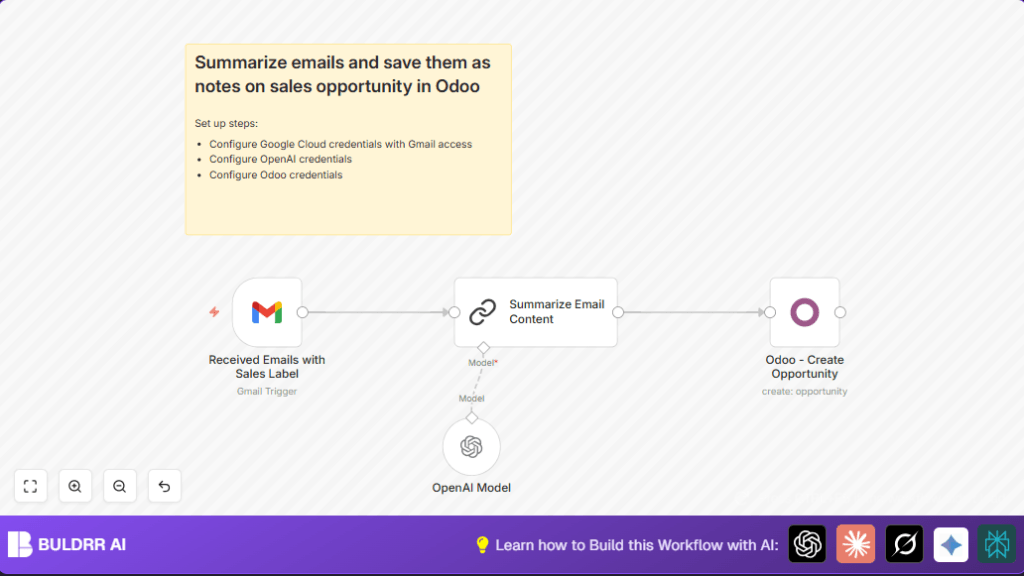

Automate Sales Opportunities with Gmail, OpenAI, and Odoo

This workflow automates capturing and summarizing sales inquiry emails from Gmail using OpenAI, then creates detailed sales opportunities in Odoo. It saves time and reduces manual data entry for sales teams.
gmailTrigger
lmOpenAi
chainSummarization
+2
Workflow Identifier: 1883
NODES in Use: gmailTrigger, lmOpenAi, chainSummarization, odoo, stickyNote

Press CTRL+F5 if the workflow didn't load.

Learn how to Build this Workflow with AI:

Visit through Desktop for Best experience

Opening Problem Statement

Imagine Alex, a Sales Manager at a tech company, struggling to keep up with a constant flood of sales inquiry emails each day. Every email contains valuable information about potential sales opportunities, but manually reading, summarizing, and entering this data into the company’s Odoo CRM takes hours each week. Sales leads slip through cracks, details get lost, and the team wastes precious time on repetitive data entry tasks instead of engaging with prospects.

Alex estimates that his team spends around 10-15 hours weekly just processing incoming sales emails. This results in delayed follow-ups, scattered data, and missed chances for closing deals. What if there was a way to instantly capture every sales inquiry from email, automatically generate a concise summary highlighting key details, and then save all that information directly into Odoo as a new sales opportunity? This exact scenario is what the “Save New Sales Opportunities” n8n workflow solves.

What This Automation Does

This n8n workflow integrates Gmail, OpenAI’s language model, and Odoo CRM to automate the processing of sales inquiry emails. When the workflow runs, it performs the following specific tasks:

  • Monitors a Gmail inbox for any new emails labeled specifically as “Sales” inquiries.
  • Extracts the full content of each incoming sales email for analysis.
  • Uses OpenAI’s GPT-3.5-turbo-instruct model to generate a concise, structured summary of the email, extracting key details like project budget, timelines, industry, and general intent.
  • Creates a new sales opportunity entry in Odoo CRM automatically using the summary and extracted email details such as sender address and email subject.
  • Ensures that the sales team always has up-to-date, well-organized lead information without manual data entry.

By automating these steps, the workflow saves approximately 10-15 hours weekly in manual work, reduces the risk of human error in transcribing sales lead data, and helps accelerate sales team responsiveness.

Prerequisites ⚙️

  • Gmail account with appropriate OAuth2 credentials and a label set up for “Sales” emails. 📧
  • OpenAI API access with key configured in n8n for GPT-3.5-turbo-instruct model usage. 🔑
  • Odoo CRM account with API credentials to create opportunities. 📁
  • An n8n automation platform account to build and run the workflow literally. 🔌
  • Optional: Self-hosting the n8n instance for private/internal use (learn more at https://buldrr.com/hostinger)

Step-by-Step Guide

Step 1: Configure Gmail Trigger Node to Listen for Sales Labeled Emails

Navigate to the n8n editor and add a new Gmail Trigger node.

Click Properties → Filters → LabelIds and enter the label ID or name that corresponds to your “Sales” label in Gmail. This setup ensures the workflow triggers only when an email arrives with this specific label.

Set the polling frequency to “Every hour” or your preferred interval under Poll Times.

You should see the node waiting for new emails labeled “Sales” to process.

Common mistake: Not entering the correct label ID causes the workflow not to trigger on sales emails.

Step 2: Add OpenAI Model Node to Generate Email Summary

Next, add the OpenAI Model node using the LangChain integration.

Configure the model selection to gpt-3.5-turbo-instruct and ensure you connect your OpenAI API credentials.

This node receives the email content via the workflow and sends a prompt to OpenAI to generate a concise, structured summary.

Input prompt example:

=Write a concise summary of the following sales inquiry:
" {{ $json.text }}"
Include structured information such as project budget, timelines, industry and a general summary

CONCISE SUMMARY: 

The output will be the summarized text passed to the next node.

Common mistake: Forgetting to connect OpenAI API credentials results in authentication errors.

Step 3: Add Summarize Email Content Node (Chain Summarization)

Insert the Summarize Email Content node, which leverages LangChain to orchestrate the summarization using custom prompts.

Set the summarization prompts as detailed above to extract critical info like budgets, timelines, and industry from the sales inquiry.

This node refines the input email text into a clean summary for clarity.

Common mistake: Using default or generic summarization prompts may not highlight the important sales data.

Step 4: Create Odoo Sales Opportunity with Email Summary

Add an Odoo node set to resource “Opportunity”.

Configure the opportunity name field to pull the email subject dynamically:

= $('Received Emails with Sales Label').item.json.headers.subject 

Map additional fields such as sender’s email address and the summarized text as the description.

Your parameters should look like:

{
  opportunityName: "={{ $('Received Emails with Sales Label').item.json.headers.subject }}",
  additionalFields: {
    email_from: "={{ $('Received Emails with Sales Label').item.json.from.value[0].address }}",
    description: "={{ $json.response.text }}"
  }
}

This step automatically enters new sales leads into Odoo’s CRM system, ready for follow-up.

Common mistake: API credential misconfiguration leads to failed opportunity creation.

Step 5: Deploy and Test Your Workflow

Activate the workflow within n8n and verify it triggers when receiving a new sales labeled email in Gmail.

The workflow should automatically summarize the email using OpenAI and save a new opportunity in Odoo consistent with the extracted details.

Test with a sample sales inquiry email like the one from Mihai Farcas to ensure smooth end-to-end operation.

Customizations ✏️

  • Adjust Summarization Detail: In the Summarize Email Content node, modify the prompt text to include extra fields such as client industry or urgency level to tailor the summaries.
  • Change Gmail Label: Update the Gmail Trigger node’s labelIds parameter to track other categories like “Marketing Leads” or “Partnership Inquiries”.
  • Extended Opportunity Fields: In the Odoo – Create Opportunity node, map additional fields available in your Odoo configuration, such as expected close date or sales team owner.
  • Use a Different OpenAI Model: Swap to a more advanced or cheaper model in the OpenAI Model node to balance cost and performance.
  • Add Email Attachments: Extend the workflow to download and attach email files to Odoo opportunity records by adding HTTP Request or File nodes.

Troubleshooting 🔧

Problem: Workflow Does Not Trigger on New Emails

Cause: Incorrect Gmail label ID configured in the trigger node.

Solution: Double-check label ID by inspecting Gmail label settings and ensure the exact ID or name is used in the Filters → LabelIds field of the Gmail Trigger node.

Problem: OpenAI Summarization Fails with Authentication Error

Cause: Missing or expired OpenAI API credentials in n8n.

Solution: Re-enter your OpenAI API key in n8n credentials and verify by testing the node independently with a sample prompt.

Problem: Odoo Opportunity Creation Fails

Cause: Invalid or expired Odoo API credentials or incorrect field mappings.

Solution: Ensure your Odoo credentials are current and test the connection from the node configuration. Check that all required fields like opportunityName are mapped properly.

Pre-Production Checklist ✅

  • Verify Gmail label ID and permissions to trigger on incoming emails.
  • Test OpenAI API credentials and validate the summarization output format is concise and relevant.
  • Confirm Odoo credentials are valid with permission to create opportunity records.
  • Test the entire workflow end-to-end with sample sales inquiry emails.
  • Back up existing CRM data before rolling out the automation live.

Deployment Guide

Once your workflow passes all tests, activate it on your n8n instance.

Monitor the workflow executions via the n8n dashboard to track emails processed and opportunities created.

Set alerts or logs for failures to quickly address any issues related to API limits or data parsing.

FAQs

Can I use a different email provider instead of Gmail?

Yes, but you would need to replace the Gmail Trigger node with a trigger supporting your email provider, plus adjust the data parsing accordingly.

Does this workflow consume OpenAI API credits?

Yes, each email summarization involves an API call to OpenAI which uses your allocated API credits.

Is the email data secure in this process?

Data security depends on your n8n hosting environment and your API provider policies. Make sure to use secure credentials and appropriate encryption where needed.

Can this automation handle high volumes of sales emails?

For typical SMB volumes, yes. For very high volumes, consider batching emails or upgrading your n8n infrastructure and API quotas.

Conclusion

By building and deploying this detailed n8n workflow, you’ve automated the tedious and error-prone task of processing sales inquiry emails. You now capture every sales opportunity efficiently, summarize key details using OpenAI, and create clean entries in Odoo CRM automatically.

This results in saving around 10-15 hours weekly, reducing lead data errors, and improving your sales team’s responsiveness — critical improvements that drive more closed deals.

Next, consider automations that integrate follow-up reminders for each opportunity or sync sales data to your marketing platforms for advanced lead nurturing. With n8n, the possibilities for sales automation are vast and customizable to your exact needs.

Happy automating!

Promoted by BULDRR AI

Related Workflows

Automate Viral UGC Video Creation Using n8n + Degaus (Beginner-Friendly Guide)

Learn how to automate viral UGC video creation using n8n, AI prompts, and Degaus. This beginner-friendly guide shows how to import, configure, and run the workflow without technical complexity.
Form Trigger
Google Sheets
Gmail
+37
Free

AI SEO Blog Writer Automation in n8n

A complete beginner guide to building an AI-powered SEO blog writer automation using n8n.
AI Agent
Google Sheets
httpRequest
+5
Free

Automate CrowdStrike Alerts with VirusTotal, Jira & Slack

This workflow automates processing of CrowdStrike detections by enriching threat data via VirusTotal, creating Jira tickets for incident tracking, and notifying teams on Slack for quick response. Save hours daily by transforming complex threat data into actionable alerts effortlessly.
scheduleTrigger
httpRequest
jira
+5
Free

Automate Telegram Invoices to Notion with AI Summaries & Reports

Save hours on financial tracking by automating invoice extraction from Telegram photos to Notion using Google Gemini AI. This workflow extracts data, records transactions, and generates detailed spending reports with charts sent on schedule via Telegram.
lmChatGoogleGemini
telegramTrigger
notion
+9
Free

Automate Email Replies with n8n and AI-Powered Summarization

Save hours managing your inbox with this n8n workflow that uses IMAP email triggers, AI summarization, and vector search to draft concise replies requiring minimal review. Automate business email processing efficiently with AI guidance and Gmail integration.
emailReadImap
vectorStoreQdrant
emailSend
+12
Free

Automate Email Campaigns Using n8n with Gmail & Google Sheets

This n8n workflow automates personalized email outreach campaigns by integrating Gmail and Google Sheets, saving hours of manual follow-up work and reducing errors in email sequences. It ensures timely follow-ups based on previous email interactions, optimizing communication efficiency.
googleSheets
gmail
code
+5
Free