

1. Opening Problem Statement ⚙️
Meet Sarah, a subscription-based SaaS business owner who processes dozens of payments daily through Stripe. Each payment requires manual entry into her QuickBooks Online account to generate sales receipts and track customers. Sarah spends over 5 hours weekly updating customer records and sales receipts manually, often leading to human errors like missed payments or incorrect customer data. These mistakes delay financial tracking, frustrate her accounting team, and risk compliance issues.
Sarah needs a reliable way to automatically sync payment information from Stripe to QuickBooks without lifting a finger, ensuring every customer is up-to-date and sales receipts are accurately posted. This task is critical for her business’s cash flow and audit readiness but currently consumes excessive time and invites costly mistakes.
2. What This Automation Does
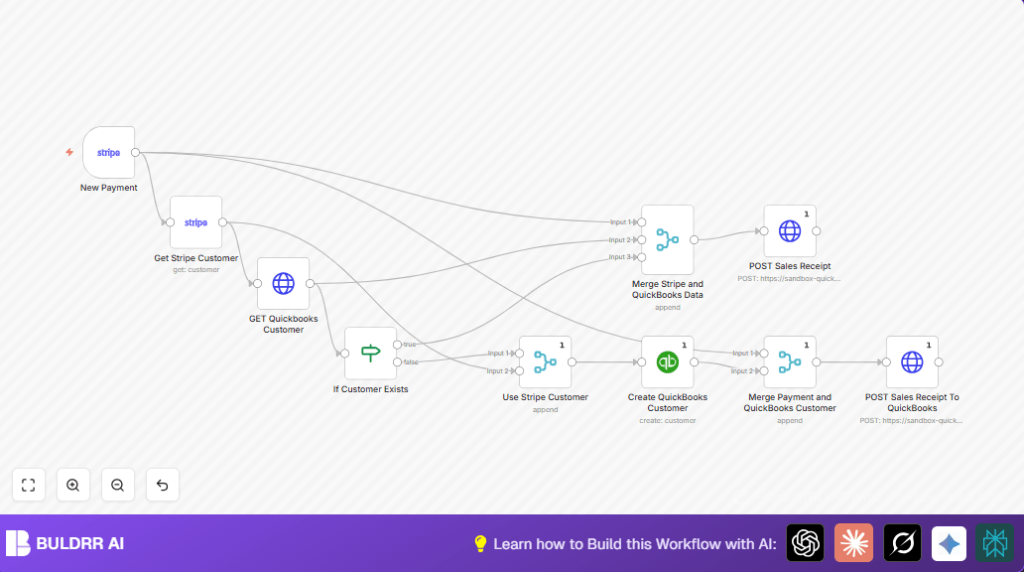
This n8n workflow automates the entire process of recognizing successful payment intents from Stripe, then verifying or creating the corresponding customer in QuickBooks Online and posting a sales receipt automatically. When this workflow runs, it:
- Listens for payment_intent.succeeded Stripe events in real-time
- Retrieves the Stripe customer information for the payment
- Queries QuickBooks Online to see if the customer already exists based on email
- Creates a new QuickBooks customer if not found, using Stripe details
- Posts a detailed sales receipt into QuickBooks, linking it to the correct customer with exact payment data
- Ensures currency and amounts are accurately converted and reflected
By automating this process, Sarah saves 5+ hours weekly and reduces errors that compromise her accounting. The workflow removes manual data entry steps, making bookkeeping seamless and real-time.
3. Prerequisites ⚙️
- n8n account (desktop cloud or self-hosted) 🔌
- Stripe account with API access configured 📧
- QuickBooks Online account with OAuth2 credentials set up 🔑
- Basic familiarity with n8n workflow editor
- Optional: Self-hosting environment for n8n (e.g., Hostinger) for full control 🔐
4. Step-by-Step Guide to Build This Workflow
Step 1: Set up Stripe Trigger for Successful Payments
In your n8n editor, add a new node: Stripe Trigger
- Navigate to the nodes panel → search and select Stripe Trigger.
- Set the event to
payment_intent.succeededso the workflow fires on successful payment. - Connect your Stripe API credentials.
- Save and activate the webhook generated by n8n in your Stripe dashboard under Webhooks.
Outcome: The workflow listens live for every completed payment intent.
Common Mistake: Forgetting to add the correct webhook URL to your Stripe dashboard can prevent triggers from firing.
Step 2: Retrieve the Stripe Customer Details
Add the Stripe node from the nodes panel.
- Select the resource as
customer. - Use an expression:
{{$json.data.object.customer}}to dynamically pull the customer ID from the Stripe event data. - Connect Stripe API credentials.
Outcome: You now have full details about the Stripe customer associated with the payment.
Common Mistake: Using an incorrect expression or missing to retrieve accurate customer ID.
Step 3: Query QuickBooks Online for Customer Email
Add an HTTP Request node to query QuickBooks customers.
- Set method to GET.
- Use this URL template with an expression:
https://sandbox-quickbooks.api.intuit.com/v3/company/{companyID}/query?query=select * from Customer Where PrimaryEmailAddr = '{{ $json.email }}'&minorversion=73 - Replace {companyID} with your QuickBooks sandbox or live company ID.
- Use QuickBooks OAuth2 credentials for authentication.
Outcome: The workflow checks if the customer already exists by email.
Common Mistake: Incorrect company ID or improper OAuth setup will block API requests.
Step 4: Evaluate if Customer Exists with an IF Node
Add an IF node to check the query result.
- Configure the condition to check if the field
QueryResponse.Customer[0].PrimaryEmailAddr.Addressexists. - If it exists, the customer exists already; if not, proceed to create a new customer.
Outcome: The workflow branches logically based on existing data.
Common Mistake: Not setting strict type validation or correct expression syntax will cause incorrect branching.
Step 5: Create QuickBooks Customer If Needed
If customer doesn’t exist, add the QuickBooks node.
- Set the operation to create.
- Map displayName and PrimaryEmailAddr from the Stripe customer data.
- Ensure balance and other relevant fields reflect Stripe customer’s balance.
- Use QuickBooks OAuth2 credentials.
Outcome: New customer record is created in QuickBooks automatically.
Common Mistake: Mapping incorrect fields or missing required data causes API errors.
Step 6: Merge Stripe Customer Data with QuickBooks Result
Add a Merge node (strategy: pass-through) to combine data from existing or newly created QuickBooks customer with Stripe info.
Outcome: Unified data stream for subsequent use.
Step 7: Merge Payment Event Data with Customer Data
Add another Merge node to bring together payment intent data and the QuickBooks customer details.
Outcome: The next node can access full, verified customer and payment data simultaneously.
Step 8: POST Sales Receipt to QuickBooks via HTTP Request
Add an HTTP Request node to create a sales receipt.
- Set method to POST.
- URL:
https://sandbox-quickbooks.api.intuit.com/v3/company/{companyID}/salesreceipt?minorversion=73(replace with real ID). - Authentication: Use QuickBooks OAuth2 credentials.
- Request body JSON (example):
{
"Line": [
{
"Description": "{{ $json.data.object.description }}",
"DetailType": "SalesItemLineDetail",
"SalesItemLineDetail": {
"TaxCodeRef": { "value": "NON" },
"Qty": 1,
"UnitPrice": {{ $json.data.object.amount_received / 100 }},
"ItemRef": {"name": "Subscription", "value": "10"}
},
"Amount": {{ $json.data.object.amount / 100 }},
"LineNum": 1
}
],
"CustomerRef": {
"value": {{ $input.all()[1].json.Id }},
"name": "{{ $input.all()[1].json.DisplayName }}"
},
"CurrencyRef": {"value": "{{ $json.data.object.currency.toUpperCase() }}"},
"PrivateNote": "Payment from Stripe Payment Intent ID: {{ $json.data.object.id }}"
}Outcome: Sales receipt posted and linked correctly to the customer.
Common Mistake: Errors in field mapping or currency formatting can cause receipt creation failures.
5. Customizations ✏️
- Change item description: In the HTTP Request node for sales receipt, modify the
"Description"field to reflect your product or service specifics. - Add tax calculations: Update the
"TaxCodeRef"value if you need to include different tax rules applicable to your region. - Use live QuickBooks environment: Replace sandbox URLs with your live QuickBooks company ID URL to automate real invoices.
- Expand customer data mapping: In the Create QuickBooks Customer node, add fields like phone, address, or custom metadata if available from Stripe.
6. Troubleshooting 🔧
Problem: “401 Unauthorized” error in HTTP Request nodes.
Cause: Incorrect or expired QuickBooks OAuth credentials.
Solution: Re-authenticate your QuickBooks account in n8n credentials panel and verify token validity.
Problem: Stripe trigger not firing on payment_intent.succeeded events.
Cause: Webhook URL not registered correctly with Stripe.
Solution: Double-check webhook URL in Stripe dashboard under Developers → Webhooks and verify it matches n8n URL.
Problem: Sales receipt creation fails with validation errors.
Cause: JSON body formatting errors or missing required fields.
Solution: Use the exact JSON template provided and test with sample inputs first.
7. Pre-Production Checklist ✅
- Confirm Stripe webhook is active and firing sample events.
- Test QuickBooks API connection with a test query.
- Run workflow manually with sample data to validate each node’s output.
- Backup QuickBooks data before first full run if viable.
8. Deployment Guide
- Activate the workflow in n8n after successful testing.
- Monitor webhook triggers and QuickBooks sales receipts in initial days to catch errors early.
- Use n8n execution logs for troubleshooting and performance tracking.
9. FAQs
- Can I use this with live QuickBooks accounts? Yes, simply replace the sandbox company ID and URLs with your live QuickBooks account details.
- Does this use Stripe API calls extensively? This workflow only responds to payment intent events, minimizing API usage to necessary calls.
- Is my payment data kept secure? Yes, all credentials use OAuth2. Keep your n8n instance secure and restrict access.
- Can I handle multiple currencies? Absolutely, the workflow uses dynamic currency mapping from Stripe data.
10. Conclusion
By implementing this n8n workflow, Sarah has transformed her manual bookkeeping into an automated, error-free system that handles Stripe payments and QuickBooks sales receipts seamlessly. She saves over 5 hours weekly and significantly reduces potential accounting mistakes.
Next, consider extending this with automated invoice reminders, syncing refunds, or integrating additional payment gateways to build a unified financial automation stack. This workflow is a solid foundation for robust financial operations automation.
Get started now to reclaim your time and sharpen your accounting accuracy with n8n, Stripe, and QuickBooks Online!