
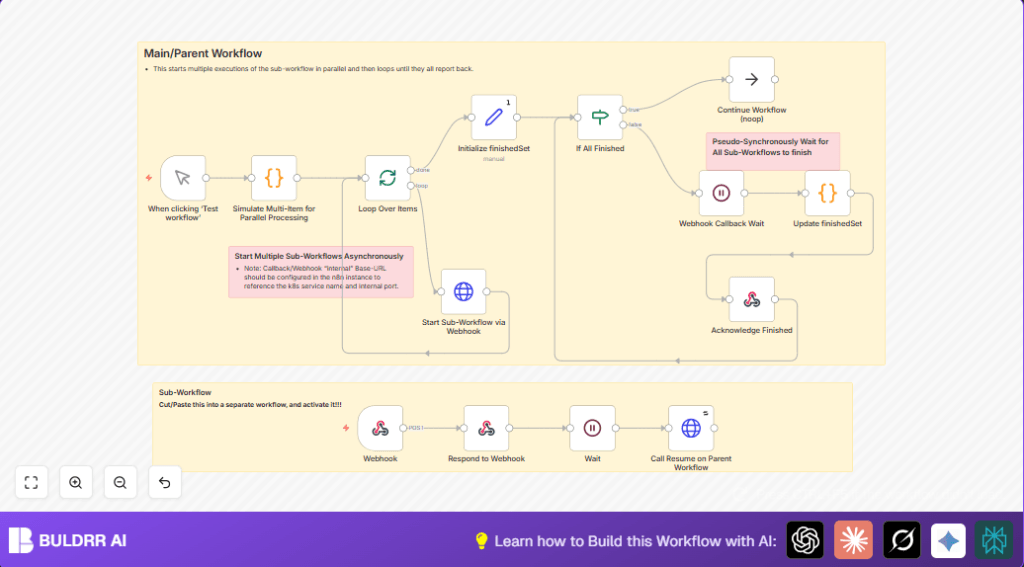

Manage Parallel Sub-Workflows in n8n with Webhook Callback

Discover how to orchestrate multiple parallel sub-workflows in n8n using webhook callbacks for pseudo-synchronous waiting. This workflow helps automate concurrent tasks, track their completion, and ensures all subtasks finish before proceeding, saving hours in manual coordination.
manualTrigger
httpRequest
webhook
+7
Workflow Identifier: 1852
NODES in Use: ManualTrigger, Code, SplitInBatches, Set, HttpRequest, Wait, If, RespondToWebhook, Webhook, NoOp

Press CTRL+F5 if the workflow didn't load.

Learn how to Build this Workflow with AI:

Visit through Desktop for Best experience

Opening Problem Statement

Meet Lisa, an operations manager at a growing e-commerce company. Every week, Lisa needs to run several automated checks and processes across different data sources, each handled by separate workflows. Previously, she ran these workflows sequentially, one after the other, which took hours and consumed valuable time she could spend on strategic projects. She also struggled to know exactly when all these parallel tasks finished, often requiring manual checks and follow-ups, leading to delays and occasional errors in her reports.

What Lisa needed was a way to start multiple workflows in parallel, monitor their completion effectively, and proceed only when all subtasks were done. Handling this coordination manually not only drained her productivity but also increased the risk of workflows overlapping or missing data due to timing issues.

What This Automation Does

This unique n8n workflow automates the orchestration of multiple parallel sub-workflows and waits for all of them to finish using webhook callbacks. Here’s what it accomplishes:

  • Starts Multiple Sub-Workflows Asynchronously: Initiates several parallel workflows simultaneously based on a list of tasks or requests.
  • Tracks Progress with a Finished Set: Maintains a dynamically updated list of completed tasks to monitor progress.
  • Waits Pseudo-Synchronously for All Sub-Workflows to Complete: Uses webhook callbacks from each sub-workflow to resume and update the main workflow’s state.
  • Avoids Race Conditions: Incorporates retry and delay logic in callbacks to handle simultaneous completions safely.
  • Confirms Completion to User: Proceeds only once all parallel tasks report completion, ensuring accurate downstream processing.
  • Simulates Multi-Item Input for Development: A code node mimics multiple tasks to demonstrate parallel execution without needing live data.

This allows Lisa to save several work hours each week and ensures error-free orchestration of concurrently running sub-processes.

Prerequisites ⚙️

  • n8n account with workflow creation and webhook permissions ⏱️
  • Environment variable configured for WEBHOOK_URL pointing to your n8n instance’s internal/external webhook base URL 🔌
  • Ability to create and activate multiple workflows in n8n (parent and sub-workflow) ⚙️
  • Basic understanding of webhooks in n8n and HTTP request node configuration 🔐

Step-by-Step Guide

1. Setup the Main Trigger with Manual Trigger Node

Navigate to the n8n editor and create a new workflow. Add the Manual Trigger node by clicking Nodes → Trigger → Manual Trigger. This node allows you to start the process manually during testing.

You should see a When clicking ‘Test workflow’ node appear. No parameters are needed here.

Expected outcome: Ready to start the workflow manually.

2. Simulate Parallel Task Input Using a Code Node

Add a Code node next, set its code to return an array of objects representing requests, such as:

return [
  {requestId: 'req4567'},
  {requestId: 'req8765'},
  {requestId: 'req1234'}
];

This simulates having three parallel tasks to process. Name this node Simulate Multi-Item for Parallel Processing.

Expected outcome: Workflow will have three parallel items to handle.

3. Split the Items into Batches

Add the SplitInBatches node from Flow → SplitInBatches. Connect it after the Code node. Name it Loop Over Items. This node iterates over each simulated request one by one.

Expected outcome: Each item will be processed individually in the subsequent nodes.

4. Initialize an Empty Finished Set Variable

Add a Set node and configure it to create an empty array named finishedSet. This is done by adding a new field with type array and value []. Name it Initialize finishedSet, and tick Execute Once to run this step only once at the start.

Expected outcome: Workflow state ready to track finished tasks.

5. Start Sub-Workflows via HTTP Request Node

Add an HTTP Request node configured to POST requests to the sub-workflow webhook URL. Use your environment variable {{ $env.WEBHOOK_URL }} concatenated with your sub-workflow endpoint path (e.g., /webhook/parallel-subworkflow-target).

In the body parameters, include the current item’s requestId using expression notation {{ $json.requestId }}. Add a custom header named callbackurl and set its value to {{ $execution.resumeUrl }}, which allows the sub-workflow to call back when it finishes.

Name this node Start Sub-Workflow via Webhook.

Expected outcome: Each item triggers a separate sub-workflow with callback support.

6. Wait for Sub-Workflow Completion with Webhook Wait Node

Add a Webhook Callback Wait node configured with method POST and response mode Response Node. It should be set to resume the workflow only when an HTTP POST webhook is received, acting as a hold point waiting for callbacks.

Expected outcome: Workflow pauses and waits for each sub-workflow to send its completion callback.

7. Update Finished Set in a Code Node

Add a Code node to update the finishedSet based on the data received via the webhook callback. Use this JavaScript snippet:

let json = $('If All Finished').first().json;
if (!json.finishedSet) json.finishedSet = [];
let finishedItemId = $('Webhook Callback Wait').item.json.body.finishedItemId;
if (!json.finishedSet.includes(finishedItemId)) json.finishedSet.push(finishedItemId);
return [json];

Name this node Update finishedSet.

Expected outcome: The finishedSet array grows with each completed sub-workflow ID.

8. Acknowledge Finished and Check Completion Status

Add a Respond to Webhook node to immediately reply to the sub-workflow’s HTTP POST, confirming the callback was received.

Then use an If node named If All Finished to compare the length of finishedSet with the total number of items initiated. If the numbers are equal or greater, this node routes the workflow to the next step; otherwise, it loops back to wait for more callbacks.

Expected outcome: The workflow only continues after all callbacks are received.

9. Continue Workflow or Loop Based on Completion

Connect the If All Finished node’s “true” branch to a NoOp node (used here to signify end or next steps). The “false” branch connects back to the Webhook Callback Wait node to continue waiting.

Expected outcome: Workflow handles asynchronous sub-workflows gracefully and proceeds only when all finish.

10. Setup Sub-Workflow:

Create a new workflow (sub-workflow) with a Webhook node waiting at path /parallel-subworkflow-target. This node accepts POST requests and triggers sub-workflow steps.

Add a Wait node here to simulate some processing delay.

Finish this sub-workflow with an HTTP Request node to POST back to the main workflow’s resume URL. Use the callback URL from received headers as the target and send back the finished item ID.

Finally, add a Respond to Webhook node to confirm the sub-workflow received the callback.

Activate this sub-workflow for parallel processing.

Expected outcome: The sub-workflow receives tasks, waits, reports completion back, and confirms success.

Customizations ✏️

  • Add Logging for Each Callback: Insert a Set or Code node after Update finishedSet to log finished item IDs to an external service or file for audit purposes.
  • Change Parallelism Level: Adjust the batch size or split node settings to run fewer or more sub-workflows concurrently based on your environment capacity.
  • Modify Sub-workflow URL Dynamically: Use expressions to route different tasks to different sub-workflow URLs depending on request properties.
  • Include Error Handling: Add an Error Trigger node to capture failed sub-workflow executions and notify a Slack or email channel.
  • Extend Wait Timeout: Configure timeout settings in the Webhook Callback Wait node to fail gracefully if callbacks take too long.

Troubleshooting 🔧

  • Problem: “Webhook Callback Wait node never resumes after receiving callback”

    Cause: Callback URL or HTTP method mismatch, or response mode incorrectly set.

    Solution: Verify the webhook node is set to POST with Response Node mode and the callback URL matches exactly.
  • Problem: “finishedSet not updating correctly”

    Cause: Logic in the Code node pushing to finishedSet might be adding duplicates or missing .includes check.

    Solution: Update the Code node to use includes method and push only unique IDs as shown.
  • Problem: “Race conditions cause multiple callbacks to conflict”

    Cause: Concurrent resuming of main workflow without delay or retry.

    Solution: Use retryOnFail with wait intervals in HTTP request callbacks to mitigate concurrency issues.

Pre-Production Checklist ✅

  • Verify webhook URLs are correctly configured both in main and sub-workflows.
  • Test the main workflow using the Manual Trigger with simulated multi-items.
  • Activate and test the sub-workflow independently to ensure proper callback functionality.
  • Confirm the environment variable WEBHOOK_URL is set and accessible.
  • Check the logic in Code nodes updates the finishedSet accurately without duplicates.

Deployment Guide

Once tested, activate both the main parent workflow and the sub-workflow in your n8n instance. Trigger the main workflow manually or link it to a real trigger as per your use case.

Monitor executions in the n8n dashboard to see each sub-workflow start and report back. Logs in the Code nodes or any logging extensions will help you track progress.

Ensure your n8n instance’s webhook base URL (environment variable) is stable and secured to prevent interception of callback data.

FAQs

  • Can I use this setup for any type of sub-workflow?
    Yes, as long as your sub-workflow can receive HTTP requests and call back via webhook, this pattern applies universally.
  • Does this consume extra API calls or credits?
    This workflow internally operates within n8n and its webhooks, so no external API credits are consumed unless your sub-workflows call external services.
  • Is there any risk of data loss?
    As long as the webhook callback and retry mechanisms work correctly, this approach safely tracks all parallel executions without data loss.

Conclusion

By implementing this n8n workflow, Lisa can now trigger multiple sub-workflows asynchronously and rely on webhook callbacks to accurately track their completion. This orchestration saves her hours each week, boosts reliability, and lets her focus on higher-value tasks.

Next steps might include extending this pattern to handle error retries, integrating notifications on completion, or scaling it to larger batch sizes for enterprise workflows.

With this practical, beginner-friendly guide, you too can master parallel sub-workflow management in n8n and streamline your automation with confidence.

Promoted by BULDRR AI

Related Workflows

Automate Viral UGC Video Creation Using n8n + Degaus (Beginner-Friendly Guide)

Learn how to automate viral UGC video creation using n8n, AI prompts, and Degaus. This beginner-friendly guide shows how to import, configure, and run the workflow without technical complexity.
Form Trigger
Google Sheets
Gmail
+37
Free

AI SEO Blog Writer Automation in n8n

A complete beginner guide to building an AI-powered SEO blog writer automation using n8n.
AI Agent
Google Sheets
httpRequest
+5
Free

Automate CrowdStrike Alerts with VirusTotal, Jira & Slack

This workflow automates processing of CrowdStrike detections by enriching threat data via VirusTotal, creating Jira tickets for incident tracking, and notifying teams on Slack for quick response. Save hours daily by transforming complex threat data into actionable alerts effortlessly.
scheduleTrigger
httpRequest
jira
+5
Free

Automate Telegram Invoices to Notion with AI Summaries & Reports

Save hours on financial tracking by automating invoice extraction from Telegram photos to Notion using Google Gemini AI. This workflow extracts data, records transactions, and generates detailed spending reports with charts sent on schedule via Telegram.
lmChatGoogleGemini
telegramTrigger
notion
+9
Free

Automate Email Replies with n8n and AI-Powered Summarization

Save hours managing your inbox with this n8n workflow that uses IMAP email triggers, AI summarization, and vector search to draft concise replies requiring minimal review. Automate business email processing efficiently with AI guidance and Gmail integration.
emailReadImap
vectorStoreQdrant
emailSend
+12
Free

Automate Email Campaigns Using n8n with Gmail & Google Sheets

This n8n workflow automates personalized email outreach campaigns by integrating Gmail and Google Sheets, saving hours of manual follow-up work and reducing errors in email sequences. It ensures timely follow-ups based on previous email interactions, optimizing communication efficiency.
googleSheets
gmail
code
+5
Free