

1. Opening Problem Statement
Meet Sarah, a cybersecurity analyst at a mid-sized company’s Security Operations Center (SOC). Every hour, Sarah faces the tedious task of manually downloading vulnerability scan reports from Qualys, then ensuring each report is logged and stored properly in TheHive incident response platform. Missing reports or duplications happen frequently, leading to delays in threat response and compliance gaps. Sarah spends nearly 4 hours a week on this repetitive work alone, time that could be better spent on analysis and mitigation.
This manual process also increases the risk of errors such as processing stale or duplicate reports, or losing track of critical scan data amidst email and file clutter. The result? Slower incident response, frustrated team members, and heightened security risk.
2. What This Automation Does
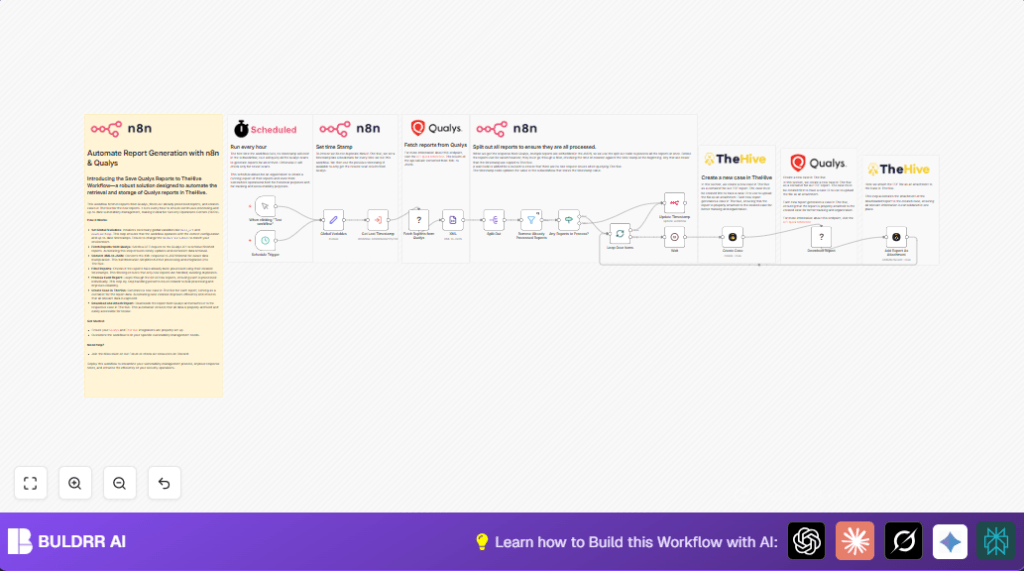
This n8n workflow automates Sarah’s manual Qualys report management by connecting directly to the Qualys API and TheHive. When run every hour, it:
- Fetches all finished vulnerability scan reports from Qualys.
- Converts the XML data response to JSON for easier processing.
- Filters out any reports already processed before, based on a stored timestamp.
- Loops through new reports, creating a dedicated case in TheHive for each.
- Downloads the full PDF report from Qualys and attaches it to the corresponding TheHive case.
- Updates the stored timestamp to mark the newest report processed, preventing duplicates in future runs.
With this automation, Sarah can save 4+ hours weekly, eliminate manual errors, and ensure continuous, up-to-date vulnerability tracking without lifting a finger.
3. Prerequisites ⚙️
- n8n account (self-hosting recommended for security-focused environments)
- Qualys account with API access and credentials set up in n8n (🔐)
- TheHive account with API credentials configured in n8n (🔐)
- Basic understanding of API tokens and workflow triggers
- Optional: Workflow environment with XML support (n8n XML node installed)
4. Step-By-Step Guide to Build This Workflow
Step 1: Setup an Hourly Schedule Trigger
Navigate to the n8n editor, then add a Schedule Trigger node (n8n-nodes-base.scheduleTrigger).
- Click + Add Node → search and select Schedule Trigger.
- Set the trigger to activate every hour by selecting “hours” in the interval field.
- This node starts the workflow automatically once every hour.
- Common mistake: Forgetting to set the interval correctly, resulting in no scheduled runs.
Step 2: Define Global Variables
Add a Set node (n8n-nodes-base.set) to define variables like your Qualys API base URL and a timestamp representing “now” in UTC.
- Click + Add Node and select Set.
- Configure two fields:
base_urlwith your Qualys API URL (e.g., https://qualysapi.qg3.apps.qualys.com), andnewtimestampusing the expression{{$now.toUTC().toString()}}. - This ensures API calls use the correct endpoint and capture the current run time.
- Common mistake: Using incorrect URL or missing double braces for expressions.
Step 3: Retrieve Last Processed Timestamp
To avoid duplicate processing, add an Execute Workflow node (n8n-nodes-base.executeWorkflow) that calls a sub-workflow storing the last timestamp when reports were processed.
- Create or prepare a workflow that stores the timestamp in a Set node and is triggered by an Execute Workflow Trigger.
- Add the Execute Workflow node, point it to the timestamp workflow’s ID.
- This fetches the last timestamp, ensuring filtering in the next step works correctly.
Step 4: Fetch Finished Reports from Qualys API
Add an HTTP Request node (n8n-nodes-base.httpRequest) to call the Qualys API.
- Use GET method to
{{$json.base_url}}/api/2.0/fo/report. - Set query parameters:
action=listandstate=Finished. - Use your stored Qualys credentials for authentication.
- This node pulls a list of all finished scan reports in XML format.
- Common mistake: Forgetting to select authentication, resulting in 401 errors.
Step 5: Convert XML Response to JSON
Add an XML node to transform the API’s XML response to JSON.
- Connect the HTTP Request node’s output to the XML node’s input.
- Configure the XML node to convert the full XML data into JSON format for easier manipulation.
- This simplifies extracting individual report entries in the next step.
Step 6: Split Reports into Individual Items
Since the response contains multiple reports, add a Split Out node (n8n-nodes-base.splitOut) to extract each report as a separate item.
- In the Split Out node, set the field to
REPORT_LIST_OUTPUT.RESPONSE.REPORT_LIST.REPORT. - This node ensures each report can be processed individually downstream.
Step 7: Filter Out Already Processed Reports
Add a Filter node (n8n-nodes-base.filter) to exclude reports with timestamps older than or equal to the last stored timestamp.
- Use the
dateTimeoperator “after” to only pass reports created after the stored timestamp. - This avoids duplicating already ingested reports in TheHive.
Step 8: Check if Any New Reports Exist
Add an If node (n8n-nodes-base.if) that verifies whether the filtered list has items with a valid ID field.
- If no reports are found, the workflow can end or update the timestamp immediately.
- This conditional step prevents errors from processing empty data.
Step 9: Loop Over New Reports in Batches
Add a Split In Batches node (n8n-nodes-base.splitInBatches) to handle each report separately without overloading API or TheHive limits.
- This node breaks down the input array into individual items for granular processing.
Step 10: Wait for 1 Second Before Creating Case
Add a Wait node (n8n-nodes-base.wait) with a 1-second wait time.
- This small delay helps avoid API rate limits or conflicts with TheHive case creation.
Step 11: Create a Case in TheHive
Add a TheHive node (n8n-nodes-base.theHiveProject) configured to create a new case for each new report.
- Fill in fields such as
title,tags(e.g., “Qualys Scan”), anddescriptionwith key report details from the JSON data like report ID, type, launch datetime, status, etc. - This action creates a container in TheHive to hold the attached report.
Step 12: Download the PDF Report from Qualys
Add another HTTP Request node to fetch the full PDF report using the report ID.
- Use GET method and query parameters
action=fetchandid={{$json.ID}}. - This node downloads the report file to be attached.
Step 13: Attach the Report to the TheHive Case
Add another TheHive node configured to upload the downloaded PDF as an attachment to the newly created case.
- Reference the case ID from the previous TheHive create case node dynamically.
Step 14: Update the Timestamp for Future Runs
Add an n8n node (n8n-nodes-base.n8n) to update the timestamp workflow with the new timestamp from the current run.
- This node calls the timestamp workflow with the current
newtimestamp. - Ensures next runs only get new reports.
5. Customizations ✏️
- Adjust fetch frequency: In the Schedule Trigger node, change the interval to every 30 minutes or daily as per your monitoring needs.
- Filter by report type: Add conditions in the Filter node to exclude or include specific scan types.
- Notify team on new cases: Add Slack or email nodes after case creation to alert analysts about new reports.
- Store reports externally: Add cloud storage nodes (like Google Drive or AWS S3) after downloading the report for archival.
- Customize TheHive case fields: Modify the fields in the TheHive Create Case node for severity, tags, or description to match your team’s workflow.
6. Troubleshooting 🔧
- Problem: “Unauthorized (401) from Qualys API”
Cause: Invalid or missing API credentials.
Solution: Double-check Qualys credential setup in n8n, test API keys, ensure access matches required scope. - Problem: “No new reports processed, workflow always processes all reports”
Cause: Timestamp not updating or incorrect datetime comparison.
Solution: Verify timestamp workflow stores and retrieves timestamps correctly; ensure datetime format alignment in filter node. - Problem: “TheHive attachment node fails to upload file”
Cause: Incorrect case ID reference or file format.
Solution: Check case ID passed to attachment node matches created case ID; confirm file download node returns proper binary data.
7. Pre-Production Checklist ✅
- Verify API credentials for both Qualys and TheHive are correctly configured.
- Test workflow manually with sample data to confirm report fetching and case creation.
- Check XML response parsing preserves report details accurately.
- Ensure timestamp workflow initializes correctly with an old timestamp for first-time runs.
- Confirm API rate limits are respected with Wait node delays.
- Backup your n8n workflows before deploying live.
8. Deployment Guide
Activate the workflow in n8n by saving and switching the schedule trigger node to active.
Let the workflow run hourly in your production environment. Monitor execution logs in n8n for any errors or rate limit warnings.
Optionally, set up notification nodes for alerts on failures.
9. FAQs
- Q: Can this workflow handle large volumes of reports?
A: Yes, the Split In Batches node helps process reports one at a time to avoid overload. - Q: Can I use other vulnerability scanners instead of Qualys?
A: This workflow is tailored for Qualys API, but can be adapted for other scanners with similar API structures. - Q: Are my reports stored securely?
A: Data storage depends on your environment; ensure secure credentials, HTTPS endpoints, and restricted access to TheHive.
10. Conclusion
You’ve now built an automated, reliable solution to keep your SOC’s vulnerability tracking up to date. By fetching new Qualys reports, creating TheHive cases, and attaching the relevant PDF reports automatically, you save valuable time and reduce human errors.
This workflow can save you 4+ hours of manual work weekly, improve reporting accuracy, and ensure swift incident response. Next, consider adding notifications or integrating with other tools like Slack or ticketing systems.
Happy automating!