

Automate HubSpot Deal Line Items with n8n Workflow

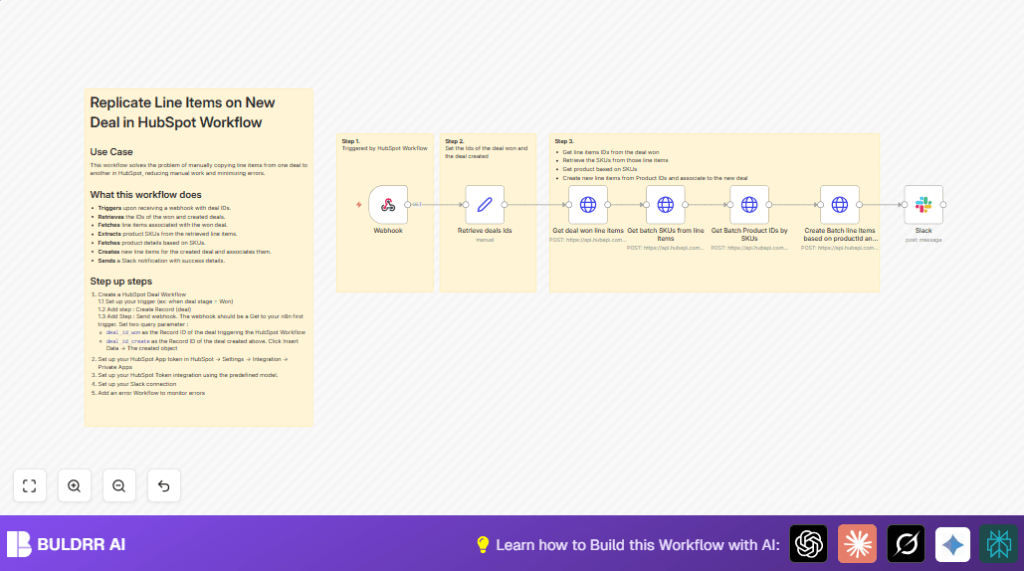
This n8n workflow automates copying line items from a won HubSpot deal to a newly created deal, saving hours of manual work and eliminating human errors. It seamlessly integrates HubSpot APIs with Slack notifications to keep your team informed of successful replications.
set
httpRequest
slack
+2
Workflow Identifier: 1842
NODES in Use: Set, HTTP Request, Slack, Webhook, Sticky Note

Press CTRL+F5 if the workflow didn't load.

Learn how to Build this Workflow with AI:

Visit through Desktop for Best experience

Opening Problem Statement

Meet Arnaud, a sales operations manager who spends countless hours each week manually copying line items from one closed deal to a newly created follow-up deal in HubSpot. Each time a deal moves to the “Won” stage, a new deal record is created, but line items—critical details like products and quantities—don’t automatically transfer over. This manual duplication takes at least 2 hours every day, leading to errors such as missing or incorrect product SKUs, which in turn causes billing delays and frustrated customers. Arnaud knows there must be a better way to reliably replicate these line items without the risk of human error.

What This Automation Does

This n8n workflow is precisely designed to solve Arnaud’s challenge. Here’s what happens when it runs:

  • Triggers via a webhook from a HubSpot deal workflow when a deal is marked “Won” and a new deal is created.
  • Retrieves the IDs of the won deal and the newly created deal from the webhook query parameters.
  • Fetches all line items associated with the won deal using HubSpot’s API.
  • Extracts product SKUs from these line items.
  • Fetches product details such as product IDs, recurring billing frequency, and price based on those SKUs.
  • Creates new line items in the newly created deal matching the products from the won deal, maintaining correct quantities and associations.
  • Sends a Slack notification to a designated channel confirming the successful replication of line items and linking to both deals.

By automating these steps, Arnaud saves approximately 10 hours a week and eliminates errors that previously led to costly billing issues.

Prerequisites ⚙️

  • HubSpot account with access to API and Private Apps for generating an App Token 🔑
  • Slack workspace and bot with permissions to post messages 💬
  • n8n automation platform account (cloud or self-hosted) ⏱️
  • Configured HubSpot Deal workflow to trigger the webhook with correct query parameters: deal_id_won and deal_id_created

Step-by-Step Guide

Step 1: Set Up HubSpot Deal Workflow to Trigger n8n Webhook

Navigate to your HubSpot portal.

  • Go to Automation > Workflows.
  • Create a new workflow that triggers When deal stage equals ‘Won’.
  • Add an action Create Record to generate a new deal referral or follow-up deal.
  • Add a webhook action to send a GET request to your n8n webhook URL.
  • Configure the webhook URL path exactly as in the n8n Webhook node (e.g., 833df60e-a78f-4a59-8244-9694f27cf8ae).
  • Add query parameters:
    deal_id_won = ID of the deal triggering workflow
    deal_id_created = ID of the deal newly created.
    To insert dynamic HubSpot values, click Insert data and choose the respective deal record IDs.

You should see the webhook triggering successfully when testing.

Common mistake: Forgetting to pass both query parameters or mistyping the webhook URL path will prevent workflow execution.

Step 2: Configure the Webhook Node in n8n

In your n8n editor, add a Webhook node.

  • Set the webhook path to 833df60e-a78f-4a59-8244-9694f27cf8ae.
    This path must exactly match your HubSpot webhook configuration.
  • Leave other settings as default and save the node.
  • When HubSpot triggers a webhook, this node receives the payload containing the query parameters deal_id_won and deal_id_created.

You should see incoming data when the webhook is called.

Common mistake: Not testing the webhook with real data from HubSpot may cause downstream nodes to fail.

Step 3: Extract Deal IDs from the Webhook Data

Add a Set node named Retrieve deals Ids.

  • Configure two string fields:
    deal_id_won with value {{ $json.query.deal_id_won }}
    deal_id_created with value {{ $json.query.deal_id_created.match(/0-3-(d+)$/)[1] }}

This step ensures the deal IDs are extracted cleanly from the webhook parameters for use in subsequent HTTP requests.

Common mistake: Incorrect regular expression syntax or variable names can cause failed ID extraction.

Step 4: Fetch Line Items from Won Deal Using HubSpot API

Add an HTTP Request node called Get deal won line items.

  • Set the method to POST.
  • The URL: https://api.hubapi.com/crm/v4/associations/deals/line_items/batch/read
  • Set authentication to use your HubSpot private app token.
  • Set the JSON body to:
    {
      "inputs": [
        { "id": "{{ $json.deal_id_won }}" }
      ]
    }
  • This pulls all line items associated with the won deal ID.

Test successful response containing line item associations.

Common mistake: Not using correct authentication tokens or malformed JSON body can cause authorization errors.

Step 5: Extract SKUs from Line Items

Add another HTTP Request node named Get batch SKUs from line items.

  • POST request to: https://api.hubapi.com/crm/v3/objects/line_items/batch/read
  • Use JSON body (example):
    {
      "idProperty": "hs_object_id",
      "inputs": $jmespath($json.results,`[].to[].{id: to_string(toObjectId)}`),
      "properties": ["hs_object_id", "name", "hs_sku"]
    }
  • Filters out the SKUs for line items retrieved.

You should now have a list of SKUs linked to the won deal’s line items.

Common mistake: Incorrect use of $jmespath expressions can lead to empty SKU lists.

Step 6: Fetch Product Details by SKU

Add a third HTTP Request node called Get Batch Product IDs by SKUs.

  • POST to: https://api.hubapi.com/crm/v3/objects/products/batch/read
  • JSON body example:
    {
      "idProperty": "hs_sku",
      "inputs": $jmespath($json.results,"[].properties.{id:to_string(hs_sku)}"),
      "properties": ["idProperty", "name", "hs_object_id", "recurringbillingfrequency", "hs_price_eur"]
    }
  • This fetches product details needed for new line items.

Confirm the product details response includes pricing and frequency.

Common mistake: Forgetting the correct property names or ID mapping can result in incomplete product data.

Step 7: Create New Line Items and Associate to New Deal

Use the final HTTP Request node named Create Batch line items based on productId and associate to deals.

  • POST request to https://api.hubapi.com/crm/v3/objects/line_items/batch/create
  • JSON body (simplified):
    {
      "inputs": $jmespath($json.results,"[].id")
      .map(id => ({
          "associations": [
              { "types": [{ "associationCategory": "HUBSPOT_DEFINED", "associationTypeId": 20 }],
                "to": {"id": $('Retrieve deals Ids').item.json["deal_id_created"] }
              }
          ],
          "properties": { "hs_product_id": id, "quantity": "1" }
      }))
    }
  • This creates line items using product IDs and associates them with the newly created deal.

Verify the new deal in HubSpot shows these replicated line items.

Common mistake: Incorrect association type IDs or missing quantities will cause incomplete data creation.

Step 8: Send Slack Notification of Success

Add a Slack node.

  • Configure channel ID and message text to notify success with rich links to the workflow and both deals.
  • Message example:
    :white_check_mark: successful on and

You should receive a confirmation message in Slack once line items are replicated.

Common mistake: Using an invalid Slack channel or expired bot token can block notifications.

Customizations ✏️

  • Change Slack Notification Channel: In the Slack node, update the channelId to your preferred Slack channel ID to direct messages where your team wants to be notified.
  • Modify Quantity for New Line Items: In the Create Batch line items HTTP Request node, change the quantity property value from "1" to any dynamic value based on your business logic.
  • Add Additional Product Properties: In the product fetching HTTP request, include more properties such as discounts, custom fields, or notes to enrich line items.
  • Trigger Workflow on Different Deal Events: Adjust your HubSpot workflow trigger to fire on different deal stages or events, for example, “Deal Renewed” instead of “Won”.

Troubleshooting 🔧

  • Problem: “401 Unauthorized” when fetching line items.
    Cause: Invalid or expired HubSpot App Token.
    Solution: Go to HubSpot > Settings > Integrations > Private Apps. Generate a new token and update it in your n8n credentials.
  • Problem: Slack messages not sending.
    Cause: Incorrect Slack channel ID or bot permissions.
    Solution: Verify Slack channel ID by opening the channel in Slack and check Bot User OAuth token scopes include “chat:write”.
  • Problem: No line items appear on the new deal.
    Cause: Incorrect deal ID extraction or API call errors.
    Solution: Inspect the output data from the “Retrieve deals Ids” and “Get deal won line items” nodes to ensure valid IDs and responses. Test API calls separately.

Pre-Production Checklist ✅

  • Test webhook trigger from HubSpot with real deal IDs.
  • Verify HubSpot API tokens and permissions.
  • Confirm that line items from won deal are correctly retrieved.
  • Check that SKUs and product details are populated as expected.
  • Validate that new line items are created and associated to the new deal.
  • Test Slack notification delivery.
  • Backup your HubSpot data before widespread automation.

Deployment Guide

Once you have tested successfully, activate your workflow in n8n by enabling the webhook node. Make sure the workflow is set to Active.

Set up monitoring by enabling error workflows or notifications inside n8n to catch any runtime issues.

In HubSpot, continue to maintain the deal workflow trigger as your single source of truth to initiate line item replication.

FAQs

  • Can I use OAuth instead of a Private App Token for HubSpot authentication?
    Yes. This workflow supports either HubSpot OAuth2 credentials or Private App Tokens. Ensure your credentials in n8n are configured accordingly.
  • Does this workflow consume a lot of HubSpot API calls?
    It depends on deal volume. Batch APIs help reduce calls, but frequent large batches may reach rate limits. Monitor usage in HubSpot developer tools.
  • Is my data secure with Slack notifications?
    Slack messages only contain public deal links and minimal info. Manage Slack bot permissions carefully to limit exposure.
  • Can this handle hundreds of deals simultaneously?
    Yes, but consider scaling by splitting workflows or using queues if many events occur at once.

Conclusion

By following this step-by-step guide, you now have a robust n8n workflow that automates the tedious process of copying line items from a won HubSpot deal to a newly created one. This saves Arnaud—and you—many hours each week, eliminates costly manual errors, and keeps your sales data consistent. Next, consider expanding this automation to update deal stages dynamically or integrate invoicing systems for a seamless sales-to-billing process. Embrace the power of automation with n8n and HubSpot for smarter sales operations!

Promoted by BULDRR AI

Related Workflows

Automate Viral UGC Video Creation Using n8n + Degaus (Beginner-Friendly Guide)

Learn how to automate viral UGC video creation using n8n, AI prompts, and Degaus. This beginner-friendly guide shows how to import, configure, and run the workflow without technical complexity.
Form Trigger
Google Sheets
Gmail
+37
Free

AI SEO Blog Writer Automation in n8n

A complete beginner guide to building an AI-powered SEO blog writer automation using n8n.
AI Agent
Google Sheets
httpRequest
+5
Free

Automate CrowdStrike Alerts with VirusTotal, Jira & Slack

This workflow automates processing of CrowdStrike detections by enriching threat data via VirusTotal, creating Jira tickets for incident tracking, and notifying teams on Slack for quick response. Save hours daily by transforming complex threat data into actionable alerts effortlessly.
scheduleTrigger
httpRequest
jira
+5
Free

Automate Telegram Invoices to Notion with AI Summaries & Reports

Save hours on financial tracking by automating invoice extraction from Telegram photos to Notion using Google Gemini AI. This workflow extracts data, records transactions, and generates detailed spending reports with charts sent on schedule via Telegram.
lmChatGoogleGemini
telegramTrigger
notion
+9
Free

Automate Email Replies with n8n and AI-Powered Summarization

Save hours managing your inbox with this n8n workflow that uses IMAP email triggers, AI summarization, and vector search to draft concise replies requiring minimal review. Automate business email processing efficiently with AI guidance and Gmail integration.
emailReadImap
vectorStoreQdrant
emailSend
+12
Free

Automate Email Campaigns Using n8n with Gmail & Google Sheets

This n8n workflow automates personalized email outreach campaigns by integrating Gmail and Google Sheets, saving hours of manual follow-up work and reducing errors in email sequences. It ensures timely follow-ups based on previous email interactions, optimizing communication efficiency.
googleSheets
gmail
code
+5
Free