
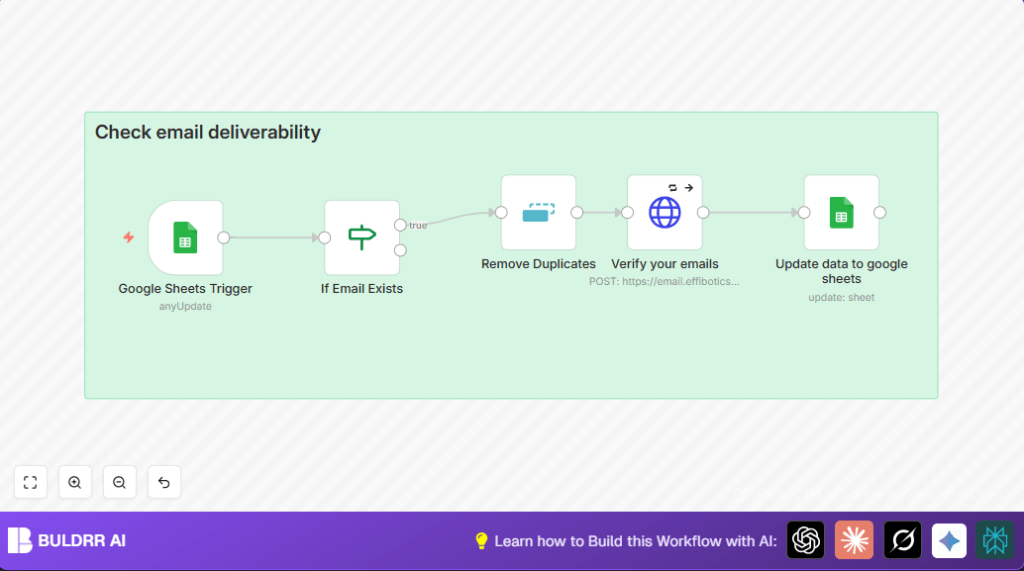

What This Workflow Does
This workflow checks email addresses in a Google Sheets list to find duplicates and validate if emails can receive messages.
It stops bad emails from being used in marketing campaigns.
It makes email lists clean by marking each email as valid or not.
This saves time and stops errors from sending to wrong emails.
Tools and Services Used
- Google Sheets Trigger: Watches your spreadsheet for changes.
- Remove Duplicates node: Finds and removes repeated emails.
- If node: Checks which emails need validation.
- HTTP Request node: Sends emails to Effibotics API to check deliverability.
- Google Sheets node: Updates the sheet with validation results.
- Effibotics API: Provides email validation service.
How this workflow works (Input → Process → Output)
Input
The input is your Google Sheets mailing list with emails and their current statuses.
Processing Steps
- The Google Sheets Trigger node runs every minute, looking for changes.
- The Remove Duplicates node removes repeated email addresses for unique entries.
- The If node checks which emails have empty status fields, so only new emails are sent for validation.
- The HTTP Request node sends each email to the Effibotics API to check if the email can receive mails.
- The Google Sheets node updates the row of each email with the validation result (valid or invalid).
Output
Your Google Sheets now show which emails are good and which are not.
This clean list helps avoid sending emails to invalid addresses.
Who Should Use This Workflow
Anyone who manages big email lists in Google Sheets and needs quick, automatic checking of emails.
This is perfect if manual checking takes too much time or causes errors.
Beginner Step-by-Step: How to Use This Workflow in n8n
Importing the Workflow
- Click the Download button on this page to get the workflow file.
- Open your n8n editor where you build your automations.
- Use Import from File to upload the downloaded workflow.
Configuring After Import
- Add your Google OAuth2 credentials to the Google Sheets Trigger and Google Sheets nodes.
- Enter your Google Sheet Document ID or select your sheet in both Google Sheets nodes.
- In the HTTP Request node, add your Effibotics API Key in the header section (e.g.,
api_key: YOUR_API_KEY). - Update any field names if your sheet uses different columns than
EmailandStatus.
Testing the Workflow
- Edit your Google Sheet by adding or changing an email.
- Run the workflow manually once to check if it processes the new data correctly.
Activating for Production
- Toggle the workflow to Active.
- The workflow will start running every minute to catch changes automatically.
- Monitor the workflow executions from the n8n dashboard to ensure it’s running smooth.
- If running self-host n8n, consult this resource for hosting guidelines.
Customization Ideas
- Change the validation API URL and headers in the HTTP Request node to use different email checking services.
- Modify the polling frequency in the Google Sheets Trigger node to run faster or slower.
- Add more fields like names or phone numbers to the duplicate check and validation results.
Edge Cases and Common Problems
Empty Status Field Blocks Email Processing
If emails are not getting validated, the If node’s condition might not match the exact field name or its capitalization.
HTTP Request Returns 401 Unauthorized
This means the API Key is missing or wrong in the HTTP Request node headers.
Double check the key and update it if needed.
Summary
✓ Keeps Google Sheets email list clean and updated.
✓ Finds and removes duplicate emails automatically.
✓ Marks each email as valid or invalid with a validation API.
✓ Saves time by automating email checking every minute.
→ Results in fewer bounced emails and better campaign success.
