
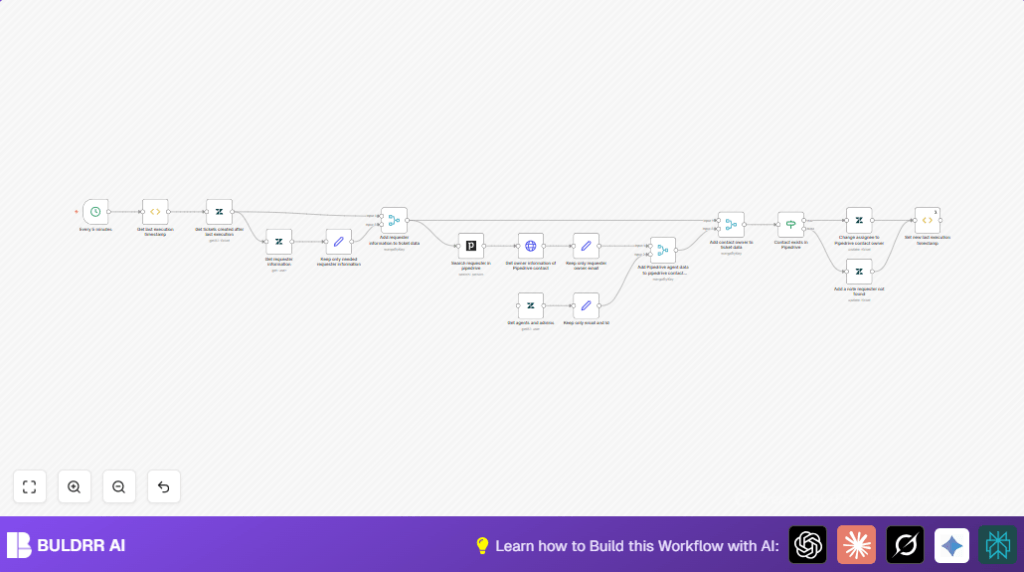

Automate Zendesk Ticket Assignment with n8n and Pipedrive

This workflow automates the assignment of Zendesk support tickets to the right Pipedrive contact owners by syncing requester information and updating ticket assignees. It reduces manual ticket triage and improves response time.
zendesk
pipedrive
functionItem
+5
Workflow Identifier: 1829
NODES in Use: functionItem, zendesk, set, merge, pipedrive, httpRequest, cron, if

Press CTRL+F5 if the workflow didn't load.

Learn how to Build this Workflow with AI:

Visit through Desktop for Best experience

Opening Problem Statement

Meet Sarah, a customer support manager juggling dozens of Zendesk tickets daily. Each ticket needs to be assigned to the right sales representative in Pipedrive based on who originally requested support. Without automation, Sarah spends hours manually cross-referencing ticket requesters with Pipedrive contacts and updating Zendesk assignees. This process is not only time-consuming but also error-prone, leading to delayed responses and unhappy customers. Sarah wished for a reliable way to automatically assign Zendesk tickets to the correct Pipedrive owners as soon as new tickets arrive.

What This Automation Does

This n8n workflow automatically bridges Zendesk and Pipedrive to assign support tickets smartly. When triggered every 5 minutes, it:

  • Retrieves Zendesk tickets created since the last workflow run.
  • Fetches requester details from Zendesk for each ticket.
  • Searches Pipedrive for matching contacts based on requester email.
  • Gets the owner information of the located Pipedrive contact.
  • Updates the Zendesk ticket assignee to the Pipedrive contact owner’s email.
  • Adds an internal note if no matching Pipedrive contact is found.

By automating these steps, Sarah saves over 3 hours weekly from manual ticket routing and eliminates assignment mistakes.

Prerequisites ⚙️

  • n8n account (cloud or self-hosted)
  • Zendesk account with API access and proper credentials set up in n8n
  • Pipedrive account with API access and credentials configured in n8n

Step-by-Step Guide

Setup the Cron Trigger Every 5 Minutes

In n8n, add a Cron node. Choose to run the workflow every 5 minutes:
Click +New Node → Search Cron → Select it.
Under Trigger Times, select Every X Minutes and set value to 5.
You should see the node configured to trigger periodically to catch new tickets promptly.

Common mistake: Forgetting to activate the cron schedule or setting an excessively long interval delaying ticket assignments.

Fetch Last Execution Timestamp

Add a Function Item node named Get last execution timestamp. It reads a stored global timestamp of the last run or initializes it the first time.
Paste this JavaScript code:

// Get or set the last execution time
const staticData = getWorkflowStaticData('global');
if(!staticData.lastExecution){
  staticData.lastExecution = new Date().getTime();
}
item.executionTimeStamp = new Date().getTime();
item.lastExecution = staticData.lastExecution;
return item;

This ensures we only fetch tickets created since we last checked.

Retrieve Tickets Created Since Last Run from Zendesk

Add a Zendesk node named Get tickets created after last execution.
Set operation to Get All and filter tickets by query:
created>={{ $json["lastExecution"] }}
Sort tickets by updated_at descending.
Use your Zendesk credentials.
You will receive tickets only new since last check.

Get Requester Information for Each Ticket

Add another Zendesk node Get requester information.
Set it to get user details by each ticket’s requester_id:
Use {{$json["requester_id"]}} in the ID field.
This fetches requester email needed to find them in Pipedrive.

Filter Requester Data

Add a Set node Keep only needed requester information.
Keep just the requester_id and email:
Use expressions:
{{$json["id"]} for requester_id and {{$json["email"]} for requester_email.
This reduces data to essentials for next steps.

Merge Ticket and Requester Data

Add a Merge node Add requester information to ticket data.
Merge the original ticket data with requester info by requester_id.
This creates a complete ticket profile including requester email.

Search Requester in Pipedrive by Email

Add a Pipedrive node Search requester in pipedrive.
Set to search person resource, operation search.
Use {{$json["requester_email"]}} as term.
Request only email fields.
This attempts to find the requester in sales contacts.

Get Owner Information of Pipedrive Contact

Add an HTTP Request node Get owner information of Pipedrive contact.
Use this GET URL:
https://n8n.pipedrive.com/api/v1/users/{{$json["owner"]["id"]}}
Use Pipedrive credentials for authentication.
This returns details about the sales rep who owns the contact.

Filter Owner Email and Link to Ticket

Add a Set node Keep only requester owner email.
Extract {{$node["Search requester in pipedrive"].json["primary_email"]}} for requester_pipedrive_email and {{$json["data"].email}} for owner email.
This prepares data for assigning tickets accurately.

Merge Owner Data to Ticket

Add a Merge node Add Pipedrive agent data to pipedrive contact information.
Merge owner email details keyed by owner email to bring all info together.
Then merge this with ticket data in Add contact owner to ticket data node.
This consolidates all relevant ticket assignment info.

Get Zendesk Agents and Admins for Matching

Add a Zendesk node Get agents and admins with filter role set to agent and admin.
Retrieve all users to identify valid ticket assignees.

Filter Agent Emails

Add Set node Keep only email and Id.
Extract only agent email and ID.
Prepare data for matching with Pipedrive owners.

Merge Agent Data with Pipedrive Owner Email

Use Merge node Add Pipedrive agent data to pipedrive contact information.
Merge by email fields to link Zendesk agents with Pipedrive owners.

Check if Contact Exists in Pipedrive

Add an If node Contact exists in Pipedrive.
Check if agent ID is not empty to confirm contact found in Pipedrive.
If yes, proceed to assign ticket.
If no, add a note on Zendesk ticket about missing contact.

Assign Ticket to Pipedrive Owner

Add Zendesk node Change assignee to Pipedrive contact owner.
Update the ticket’s assigneeEmail to the Pipedrive owner email:
Use {{$json["requester_pipedrive_owner_email"]}}.
This reassigns the ticket in Zendesk automatically.

Add Note if Requester Not Found

Add Zendesk node Add a note requester not found.
Update ticket with internal note Requester not found in Pipedrive.
This helps support team know why no assignment was made.

Update Last Execution Timestamp

Add final Function Item node Set new last execution timestamp.
Update static global data to the current execution time:

const staticData = getWorkflowStaticData('global');
staticData.lastExecution = $item(0).$node["Get last execution timestamp"].executionTimeStamp;
return item;

>This confirms next runs fetch only new tickets.

Customizations ✏️

  • Adjust Ticket Fetch Interval: In the Cron node, change “Every 5 minutes” to a longer or shorter time based on ticket volume to optimize API usage.
  • Add Additional Ticket Filters: Modify the Zendesk query in the “Get tickets created after last execution” node to filter by ticket status or priority, e.g., created>={{ $json["lastExecution"] }} status:open.
  • Log Unmatched Emails: Add a Code node to store unmatched requester emails to a database or spreadsheet for follow-up.
  • Notify Sales on Assignment: Integrate an email node to notify the Pipedrive owner when they receive a new ticket assignment.
  • Expand to Other CRMs: Replicate the search and owner-fetch steps for other CRM nodes if you use Salesforce or HubSpot.

Troubleshooting 🔧

Problem: “Zendesk API returns no tickets despite new ones created.”
Cause: Last execution timestamp might be set incorrectly or timezone mismatch.
Solution: Verify and adjust the timestamp logic in “Get last execution timestamp” node. Ensure the query in Zendesk node uses correct time format.

Problem: “Pipedrive search returns no results.”
Cause: Requester email may not exactly match Pipedrive records.
Solution: Double-check requester emails format, consider using fuzzy matching or partial email search if supported.

Problem: “Ticket assignment fails with authorization errors.”
Cause: Zendesk API credentials may lack permissions.
Solution: Confirm API tokens have ticket update rights and are correctly configured in n8n credentials.

Pre-Production Checklist ✅

  • Confirm Zendesk and Pipedrive API credentials are correctly set in n8n.
  • Test the flow with a single ticket manually created after workflow activation.
  • Verify the “lastExecution” timestamp initializes and updates appropriately.
  • Check that the requester email is correctly fetched and used to find Pipedrive contacts.
  • Ensure Zendesk ticket assignee updates as expected in test runs.

Deployment Guide

Activate the cron node to enable the workflow to run automatically every 5 minutes or your chosen interval.
Monitor executions in n8n’s UI to check for errors and successful ticket reassignment.
Consider setting up alert notifications in n8n for workflow failures.
If using n8n cloud, ensure your account allows frequent executions; for self-hosting, monitor resource usage accordingly.

FAQs

Q: Can I use another CRM besides Pipedrive?
A: Yes, you can replace the Pipedrive nodes with other CRM nodes like Salesforce or HubSpot, but you need to adjust API requests accordingly.

Q: Does this workflow consume many API calls?
A: It depends on ticket volume and execution frequency. Adjust cron frequency to balance between freshness and API limits.

Q: Is the data secure?
A: Yes, all credentials are stored securely in n8n, and data travels encrypted via APIs.

Q: Can this handle large ticket volumes?
A: For high volumes, consider batch processing or increasing interval times to prevent rate limits.

Conclusion

By implementing this n8n workflow, Sarah transformed her tedious manual ticket routing into a seamless automated system. She now saves hours weekly, reduces errors by aligning Zendesk tickets with the right Pipedrive owners, and improves customer response times dramatically. You’ve learned to set up a robust integration that automatically assigns Zendesk tickets based on requester-contact mapping in Pipedrive.
Want to take it further? Try adding notification emails for assigned owners or integrate other CRMs to extend your support automation. With this knowledge, you’re well on your way to smarter, faster customer service management.

Promoted by BULDRR AI

Related Workflows

Automate Viral UGC Video Creation Using n8n + Degaus (Beginner-Friendly Guide)

Learn how to automate viral UGC video creation using n8n, AI prompts, and Degaus. This beginner-friendly guide shows how to import, configure, and run the workflow without technical complexity.
Form Trigger
Google Sheets
Gmail
+37
Free

AI SEO Blog Writer Automation in n8n

A complete beginner guide to building an AI-powered SEO blog writer automation using n8n.
AI Agent
Google Sheets
httpRequest
+5
Free

Automate CrowdStrike Alerts with VirusTotal, Jira & Slack

This workflow automates processing of CrowdStrike detections by enriching threat data via VirusTotal, creating Jira tickets for incident tracking, and notifying teams on Slack for quick response. Save hours daily by transforming complex threat data into actionable alerts effortlessly.
scheduleTrigger
httpRequest
jira
+5
Free

Automate Telegram Invoices to Notion with AI Summaries & Reports

Save hours on financial tracking by automating invoice extraction from Telegram photos to Notion using Google Gemini AI. This workflow extracts data, records transactions, and generates detailed spending reports with charts sent on schedule via Telegram.
lmChatGoogleGemini
telegramTrigger
notion
+9
Free

Automate Email Replies with n8n and AI-Powered Summarization

Save hours managing your inbox with this n8n workflow that uses IMAP email triggers, AI summarization, and vector search to draft concise replies requiring minimal review. Automate business email processing efficiently with AI guidance and Gmail integration.
emailReadImap
vectorStoreQdrant
emailSend
+12
Free

Automate Email Campaigns Using n8n with Gmail & Google Sheets

This n8n workflow automates personalized email outreach campaigns by integrating Gmail and Google Sheets, saving hours of manual follow-up work and reducing errors in email sequences. It ensures timely follow-ups based on previous email interactions, optimizing communication efficiency.
googleSheets
gmail
code
+5
Free