

Create AI Chatbot in Slack with n8n Automation

Learn how to build a practical AI chatbot in Slack using n8n’s automation. This workflow handles slash commands to trigger AI responses, saving time and enabling seamless channel communication.
webhook
switch
lmChatOpenAi
+3
Workflow Identifier: 1805
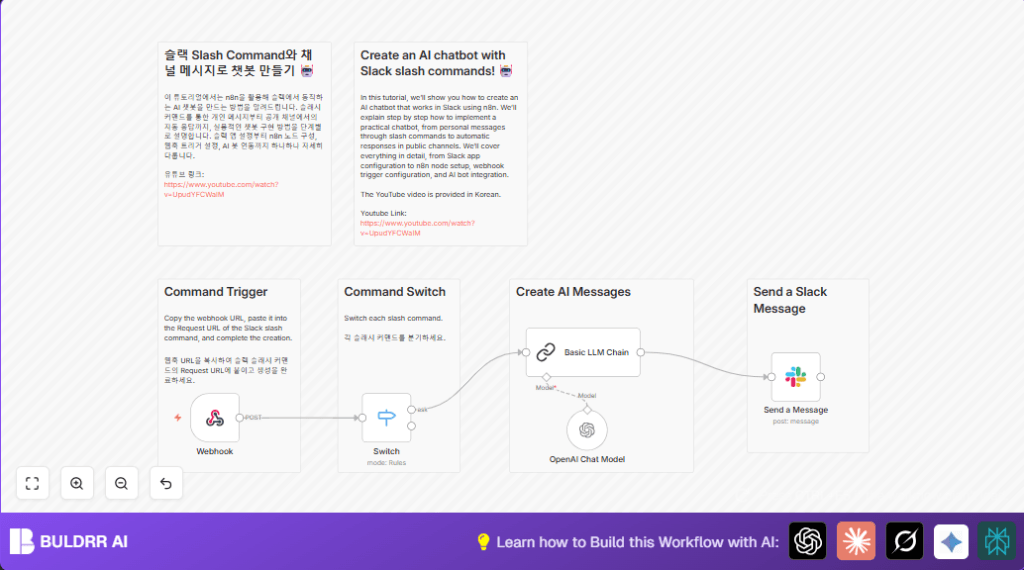
NODES in Use: Sticky Note, Webhook, Switch, Basic LLM Chain, OpenAI Chat Model, Slack

Press CTRL+F5 if the workflow didn't load.

Learn how to Build this Workflow with AI:

Visit through Desktop for Best experience

1. Opening Problem Statement

Meet Jenny, a community manager at a rapidly growing tech startup. Every day, she spends nearly two hours answering the same repetitive questions in Slack channels and personal messages. This constant back-and-forth not only drains her energy but also delays project updates and frustrates team members waiting for quick responses. Manual replies lead to occasional miscommunication, and scalably handling simple queries drains valuable company time that could be better spent on strategic work.

This workflow specifically addresses Jenny’s challenge by automating AI-powered chatbot responses within Slack. Instead of manually replying to slash commands or chats, the chatbot powered by OpenAI GPT-4 (via n8n) instantly crafts responses based on user inputs, making team collaboration faster and smoother with less human effort.

2. What This Automation Does

When this workflow runs, it transforms your Slack workspace by automating AI responses triggered through slash commands. Here’s what happens step-by-step:

  • Receives Slash Commands: Slack users type custom slash commands (e.g., /ask) that send data to n8n through a webhook.
  • Switches Commands: Based on the specific slash command text received, different paths or AI responses can be triggered.
  • Processes AI Response: The command text is sent to an OpenAI-powered language model (GPT-4o-mini) wrapped in Langchain for generating human-like answers.
  • Generates Contextual Replies: The AI constructs a message relevant to the user’s question or command text.
  • Sends Slack Messages: The generated AI response is sent back to the same Slack channel or direct message via a Slack node, enabling real-time chat interactions.
  • Streamlines Team Communication: It removes the need for manual replies, decreasing response time from minutes or hours to seconds.

This automation can save Jenny and her team an estimated 10-15 hours weekly otherwise spent responding to common queries, vastly improving workflow efficiency.

3. Prerequisites ⚙️

  • n8n account with workflow automation access
  • Slack app with slash commands configured (copy webhook URL from n8n and paste into Slack slash command Request URL) 📧
  • OpenAI API key for GPT-4o-mini language model access 🔑
  • Slack workspace permissions to send messages to channels or users 💬
  • Basic familiarity with n8n workflow editor

For those interested in self-hosting n8n, you might consider using services like Hostinger for cost-effective server options.

4. Step-by-Step Guide

Step 1: Set Up Slack Slash Commands

Go to your Slack app configuration and create slash commands like /ask or /another. For each command, paste the webhook URL from the n8n Webhook node (path: 1bd05fcf-8286-491f-ae13-f0e6bff4aca6) into the “Request URL” field.

You should see the slash command registered in Slack, ready to send POST requests to n8n when invoked.

Common Mistake: Forgetting to configure the command’s request URL or accidentally putting an incorrect URL. Make sure to copy it exactly from the Webhook node parameters.

Step 2: Configure the Webhook Node

In n8n’s workflow editor, find the Webhook node named “Webhook”. It listens for POST HTTP method requests on the path 1bd05fcf-8286-491f-ae13-f0e6bff4aca6.

This node is the entry point that captures Slack slash command data each time a user triggers a command.

Verify the node’s HTTP method and response settings to ensure Slack receives the correct HTTP 204 status code after successful reception.

Common Mistake: Not setting the HTTP method to POST or not replying with the 204 response code may cause Slack to retry or error out.

Step 3: Add a Switch Node to Branch Commands

Add and configure the Switch node named “Switch” to route incoming Slack commands based on the body.command property from the webhook payload.

Use conditions to check if the command equals /ask or /another. This way you can handle different commands with distinct downstream logic.

You’ll see two outputs named “ask” and “another” respectively, each leading to different AI response nodes or logic.

Common Mistake: Incorrect condition setup or misspelling of command names will divert the flow incorrectly.

Step 4: Link to OpenAI Chat Model

For the “ask” command output, the workflow sends the user input text to the OpenAI Chat Model node. This node is configured with the gpt-4o-mini model, part of the Langchain nodes in n8n.

This node generates AI responses based on the conversation prompt received.

Common Mistake: Missing or invalid OpenAI API credentials will cause model failures.

Step 5: Setup Basic LLM Chain Node

The output of the OpenAI Chat Model node connects to the Basic LLM Chain node. This node processes the AI response with default prompt definitions before sending it forward.

Check that the Text parameter is set to {{ $json.body.text }} to pass the user’s question correctly.

Step 6: Send AI Response Back to Slack

Finally, the processed AI response text is passed to the Send a Message Slack node. This node sends the AI-generated text back to the originating Slack channel or user by extracting the channel ID from the webhook payload ({{ $('Webhook').item.json.body.channel_id }}).

You should see the bot message appear in Slack instantly after a slash command.

Common Mistake: Using an incorrect channel ID or lacking message permissions in your Slack app will prevent the message from appearing.

Step 7: Testing the Workflow

Trigger the slash command on Slack, for example, typing /ask How does automation work?. Check the response from the bot.

The response should be contextually relevant, promptly generated by the AI, and delivered to the same channel or DM.

5. Customizations ✏️

  • Add More Slash Commands: In the Switch node, add more outputs by defining new conditions for additional slash commands like /help or /faq, then link those outputs to different AI models, code nodes, or message nodes.
  • Use Different AI Models: Swap out the OpenAI Chat Model’s model parameter to other Langchain-supported models depending on your use case (e.g., GPT-3.5 Turbo or custom fine-tuned models).
  • Customize Slack Message Formatting: In the Send a Message node, modify the text parameter with Slack’s rich text formatting such as bold, italics, or attachments to enhance message appearance.
  • Add Logging: Insert additional Code or Google Sheets nodes to log user queries and AI replies for analytics and monitoring.

6. Troubleshooting 🔧

  • Problem: “Slack slash command returns a 500 error or no response.”
    Cause: Incorrect Webhook URL or HTTP method mismatch.
    Solution: Confirm Webhook node URL is correctly copied and HTTP method is POST.
  • Problem: “AI response is blank or irrelevant.”
    Cause: Missing or invalid OpenAI credentials or misconfigured prompt data.
    Solution: Verify API keys and ensure the prompt references {{ $json.body.text }} correctly.
  • Problem: “Slack messages do not appear in channel.”
    Cause: Missing Slack app permissions or wrong channel ID mapping.
    Solution: Check Slack app scopes to include chat:write and confirm channel_id extraction from webhook payload is correct.

7. Pre-Production Checklist ✅

  • Confirm Slack slash commands are registered with correct Request URLs matching Webhook node paths.
  • Test Webhook node by checking received payloads in n8n’s execution logs.
  • Verify OpenAI API credentials and model configurations.
  • Test Slack message send permissions with a test message via the Slack node.
  • Run end-to-end slash command tests to ensure full workflow response accuracy.

8. Deployment Guide

When confident with testing, activate your workflow in n8n by toggling the active switch.

Ensure your n8n instance has uninterrupted network access to Slack and OpenAI services.

Monitor executions periodically in n8n’s monitor panel to catch errors and optimize performance.

9. FAQs

  • Can I use other AI providers besides OpenAI?
    Yes, n8n integrates with multiple AI services, but this workflow specifically uses OpenAI GPT-4o-mini through Langchain for optimal results.
  • Does this workflow consume many API credits?
    API usage depends on the length and frequency of user interactions; monitor OpenAI usage in your account dashboard.
  • Is my Slack data secure?
    All communication happens through secured webhook connections and authenticated API calls. Ensure your Slack app tokens are stored securely.

10. Conclusion

By following this tutorial, you’ve set up a powerful AI chatbot integrated into Slack using n8n. This automation reduces manual query handling time by up to 15 hours per week, improves response accuracy, and fosters quicker team collaboration.

Next, consider adding voice commands, integrating with databases to pull user-specific data, or scheduling recurring chatbot reminders to expand your automation capabilities.

You’re now equipped to enhance workplace productivity effortlessly with n8n and Slack combined!

Promoted by BULDRR AI

Related Workflows

Automate Viral UGC Video Creation Using n8n + Degaus (Beginner-Friendly Guide)

Learn how to automate viral UGC video creation using n8n, AI prompts, and Degaus. This beginner-friendly guide shows how to import, configure, and run the workflow without technical complexity.
Form Trigger
Google Sheets
Gmail
+37
Free

AI SEO Blog Writer Automation in n8n (Beginner Guide)

A complete beginner guide to building an AI-powered SEO blog writer automation using n8n.
AI Agent
Google Sheets
httpRequest
+5
Free

Automate CrowdStrike Alerts with VirusTotal, Jira & Slack

This workflow automates processing of CrowdStrike detections by enriching threat data via VirusTotal, creating Jira tickets for incident tracking, and notifying teams on Slack for quick response. Save hours daily by transforming complex threat data into actionable alerts effortlessly.
scheduleTrigger
httpRequest
jira
+5
Free

Automate Telegram Invoices to Notion with AI Summaries & Reports

Save hours on financial tracking by automating invoice extraction from Telegram photos to Notion using Google Gemini AI. This workflow extracts data, records transactions, and generates detailed spending reports with charts sent on schedule via Telegram.
lmChatGoogleGemini
telegramTrigger
notion
+9
Free

Automate Email Replies with n8n and AI-Powered Summarization

Save hours managing your inbox with this n8n workflow that uses IMAP email triggers, AI summarization, and vector search to draft concise replies requiring minimal review. Automate business email processing efficiently with AI guidance and Gmail integration.
emailReadImap
vectorStoreQdrant
emailSend
+12
Free

Automate Email Campaigns Using n8n with Gmail & Google Sheets

This n8n workflow automates personalized email outreach campaigns by integrating Gmail and Google Sheets, saving hours of manual follow-up work and reducing errors in email sequences. It ensures timely follow-ups based on previous email interactions, optimizing communication efficiency.
googleSheets
gmail
code
+5
Free