

Automate Academic Paper Summaries: Hugging Face + Notion + OpenAI

Discover how to automate fetching, analyzing, and storing Hugging Face research papers using n8n with Notion and OpenAI integration. This automation streamlines paper collection, deep abstract analysis, and organizes insights efficiently in Notion, saving hours of manual research work.
scheduleTrigger
notion
openAi
+5
Workflow Identifier: 1767
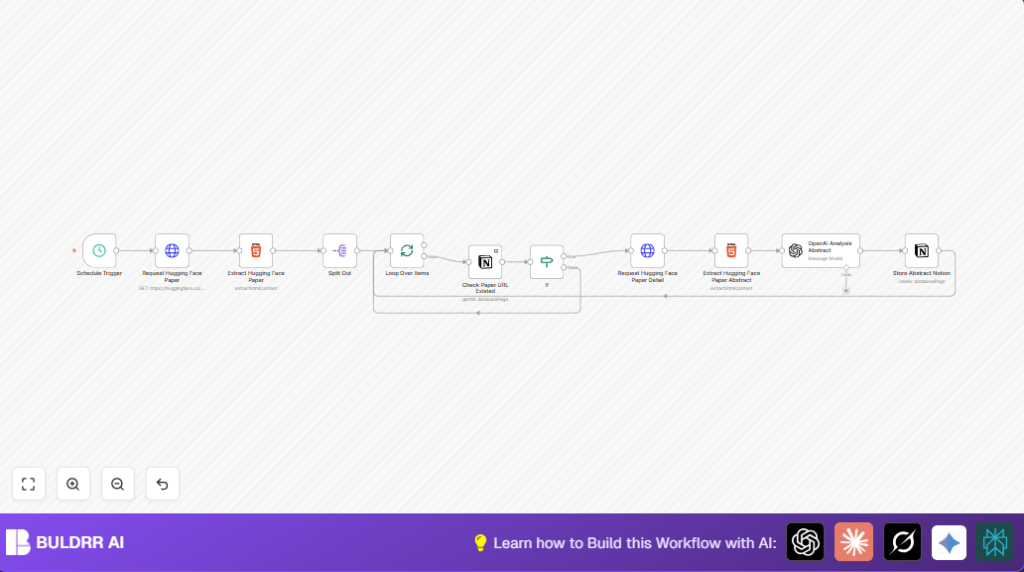
NODES in Use: Schedule Trigger, HTTP Request, HTML Extract, Split Out, Split In Batches, Notion, If, OpenAI LangChain

Press CTRL+F5 if the workflow didn't load.

Learn how to Build this Workflow with AI:

Visit through Desktop for Best experience

Opening Problem Statement

Meet Sarah, a graduate student and research assistant who spends countless hours every week manually sifting through new academic papers published on Hugging Face. Her task: find the most relevant AI papers, extract meaningful abstracts, analyze their key contributions, results, and technical details, and then organize this information neatly into her Notion workspace for easy reference. This tedious process eats into her valuable research time, introduces errors from manual copy-pasting, and leads to missed insights due to fatigue and inconsistent note-taking. Sarah estimates she wastes at least 4-5 hours weekly on these repetitive chores, which slows down her research progress significantly.

This is a real, specific pain point: many researchers and knowledge workers face the overwhelming volume of new papers daily without an efficient way to filter, analyze, and archive them systematically.

What This Automation Does

This n8n workflow provides a hands-free, fully automated solution for Sarah and others like her. When triggered on weekdays to align with new paper releases, it:

  • Fetches the latest Hugging Face research papers published the previous day via their web interface.
  • Extracts the URLs of new papers and filters out those already existing in a Notion database to avoid duplicates.
  • Retrieves detailed paper pages and extracts abstracts and titles programmatically.
  • Uses OpenAI (through the LangChain node) to analyze each abstract deeply, summarizing core introductions, extracting keywords, highlighting important data and results, and providing classification.
  • Stores these enriched summaries and metadata neatly into a Notion database for organized future access.
  • Handles batching and conditional logic to ensure smooth data processing and prevent duplicate entries.

This workflow eliminates manual searching and note-taking, saving Sarah an estimated 5 hours weekly. It reduces human error, improves the depth of analysis with AI support, and keeps research notes centralized and searchable in Notion.

Prerequisites ⚙️

  • n8n account for workflow automation (self-hosting option available for advanced users)
  • Hugging Face free account (optional, for access rights if needed)
  • Notion account with API integration and a prepared database to store paper metadata
  • OpenAI API key (used through n8n’s LangChain OpenAI node) for natural language understanding and summarization

Step-by-Step Guide

1. Set Up the Schedule Trigger Node

Navigate to Triggers and add a Schedule Trigger node. Configure it to run on weekdays (Monday to Friday) at 8 AM to align with when Hugging Face typically updates their papers.

Parameters: Interval set to weekly, trigger days set to Monday through Friday, trigger hour set to 8.

You should see the trigger scheduled and ready to fire automatically on those days.

Common Mistake: Forgetting to set the correct days, which can cause missing updates on weekends or extra runs on holidays.

2. Fetch Yesterday’s Papers from Hugging Face

Add an HTTP Request node (named “Request Hugging Face Paper”) connected to the trigger. Use the GET method to retrieve the papers page from https://huggingface.co/papers with a query parameter for the date set to yesterday dynamically like {{ $now.minus(1,'days').format('yyyy-MM-dd') }}.

This returns the HTML page listing papers published on the specified date.

Common Mistake: Incorrect date formatting or forgetting to use the dynamic date function results in retrieving the wrong set of papers.

3. Extract Paper URLs from the HTML

Use an HTML Extract node configured to pull links matching the paper entries. Target the selector .line-clamp-3 and extract the href attribute, returning an array of paper URLs.

This node outputs the raw URLs to be processed further.

4. Split URLs to Process Individually

Add a Split Out node to split the extracted URLs into individual items for batch processing.

This prevents one giant payload and allows processing one paper URL at a time.

5. Loop Over Each Paper Item

Use a Split In Batches node to chunk processed URLs for smoother flow and API rate limit handling. Recommended batch size is the default.

6. Check Each Paper’s Existence in Notion

Connect a Notion Get All node configured to search your Notion database for an existing page where the URL matches the Hugging Face paper link.

This step prevents duplicates from being stored.

7. Conditional Filtering to Skip Existing Papers

Use an If node to check if the Notion query returned any results. If yes (paper exists), skip processing; if no, continue fetching details.

8. Retrieve Detailed Paper Content

Use another HTTP Request node to fetch the full detail page of each new paper by appending the URL to “https://huggingface.co”.

9. Extract Abstract and Title

Use a second HTML Extract node configured to target CSS selectors .text-gray-700 for abstract and .text-2xl for title.

10. Analyze Abstract Using OpenAI LangChain Node

Add the OpenAI LangChain node to send the extracted abstract to GPT-4o (or specified model). Use a system prompt that instructs the AI to extract core introduction, keywords, data/results highlights, technical details, and classification, outputting in JSON format.

Example prompt snippet:

{
  "role": "system",
  "content": "Extract the following key details from the paper abstract:nnCore Introduction: Summarize the main contributions and objectives of the paper, highlighting its innovations and significance.nKeyword Extraction: List 2-5 keywords that best represent the research direction and techniques of the paper.nKey Data and Results: Extract important performance metrics, comparison results, and the paper's advantages over other studies.nTechnical Details: Provide a brief overview of the methods, optimization techniques, and datasets mentioned in the paper.nClassification: Assign an appropriate academic classification based on the content of the paper.nnOutput as json:n{...}"
}

This enhances the paper metadata with AI-powered insights.

11. Store Processed Data into Notion

Use a Notion Create node to insert a new page into your Notion database with properties mapped, including URL, title, abstract (truncated to 2000 characters), scraping date (today), classification, technical details, data/results, keywords, and core introduction.

Customizations ✏️

  • Adjust Schedule Timing: In the Schedule Trigger node, change the interval and trigger hours to match your preferred paper publication time.
    This lets you sync pulls with when new papers appear.
  • Expand Extraction Details: Add more CSS selectors in the Extract Hugging Face Paper Abstract HTML node to retrieve author names or publication dates for richer metadata.
  • Enhance AI Prompts: Modify the OpenAI prompt to extract additional insights like potential applications or limitations mentioned.
  • Batch Size Control: Adjust batch size in the Split In Batches node for faster processing or API quota management.
  • Notion Database Properties: Customize your Notion database schema to include additional fields like paper DOI or citation count and map them accordingly.

Troubleshooting 🔧

  • Problem: “No papers found or empty URL array after extraction”
    Cause: Selector .line-clamp-3 might have changed in the Hugging Face website HTML
    Solution: Inspect the Hugging Face papers page HTML to confirm the current selector; update the CSS selector accordingly in the HTML extract node.
  • Problem: “Notion duplicate check always returns false negatives or positives”
    Cause: URL format mismatch or incorrect Notion query filter setup
    Solution: Verify the exact URL string stored in Notion and the filter condition in the Notion node; ensure string formatting matches precisely (e.g., prepending ‘https://huggingface.co’ properly).
  • Problem: “OpenAI API fails or times out”
    Cause: Exceeded rate limits or invalid API key
    Solution: Check API usage dashboard; rotate keys or add retry logic in n8n; ensure correct API key is configured in credentials.

Pre-Production Checklist ✅

  • Verify Hugging Face URL endpoint and date parameter correctness.
  • Confirm Notion database schema matches properties mapped in the workflow.
  • Test API keys for OpenAI and Notion with simple calls before full run.
  • Run workflow manually with test data to check if all nodes execute without errors.
  • Backup your Notion database before injecting new pages to prevent data loss.

Deployment Guide

Activate the workflow in n8n by toggling it on. Make sure your credentials for OpenAI and Notion are valid and connected.

Monitor the workflow’s executions in n8n dashboard, checking for errors or failed runs, and review logs for troubleshooting.

You can set notifications or alerts for failures using additional nodes or third-party integrations if desired.

FAQs

  • Can I use another AI model instead of GPT-4o?
    Yes, you can replace the OpenAI LangChain node’s model ID with any supported OpenAI model in n8n.
  • Does this workflow consume many OpenAI API credits?
    It depends on the number and length of abstracts processed. Limit your batch size or frequency to control costs.
  • Is my data safe in Notion?
    Notion uses encrypted storage and secure API access, but always review your organization’s compliance policies.
  • Can this scale to hundreds of papers daily?
    Yes, with batch processing and proper API quota management this workflow can handle large volumes.

Conclusion

By the end of this tutorial, you’ve built a robust automation that fetches new AI research papers from Hugging Face, analyzes their abstracts with OpenAI’s powerful language models, and organizes rich metadata inside Notion automatically.

This solution saves at least 5 hours per week, eliminates human error in data collection and note-taking, and provides enhanced insights that accelerate academic research.

Next, consider expanding this workflow to include automated citation fetching, integration with other academic sites like arXiv, or even personalized paper recommendation systems.

Now, go ahead and automate your academic research workflow with confidence!

Promoted by BULDRR AI

Related Workflows

Automate Viral UGC Video Creation Using n8n + Degaus (Beginner-Friendly Guide)

Learn how to automate viral UGC video creation using n8n, AI prompts, and Degaus. This beginner-friendly guide shows how to import, configure, and run the workflow without technical complexity.
Form Trigger
Google Sheets
Gmail
+37
Free

AI SEO Blog Writer Automation in n8n

A complete beginner guide to building an AI-powered SEO blog writer automation using n8n.
AI Agent
Google Sheets
httpRequest
+5
Free

Automate CrowdStrike Alerts with VirusTotal, Jira & Slack

This workflow automates processing of CrowdStrike detections by enriching threat data via VirusTotal, creating Jira tickets for incident tracking, and notifying teams on Slack for quick response. Save hours daily by transforming complex threat data into actionable alerts effortlessly.
scheduleTrigger
httpRequest
jira
+5
Free

Automate Telegram Invoices to Notion with AI Summaries & Reports

Save hours on financial tracking by automating invoice extraction from Telegram photos to Notion using Google Gemini AI. This workflow extracts data, records transactions, and generates detailed spending reports with charts sent on schedule via Telegram.
lmChatGoogleGemini
telegramTrigger
notion
+9
Free

Automate Email Replies with n8n and AI-Powered Summarization

Save hours managing your inbox with this n8n workflow that uses IMAP email triggers, AI summarization, and vector search to draft concise replies requiring minimal review. Automate business email processing efficiently with AI guidance and Gmail integration.
emailReadImap
vectorStoreQdrant
emailSend
+12
Free

Automate Email Campaigns Using n8n with Gmail & Google Sheets

This n8n workflow automates personalized email outreach campaigns by integrating Gmail and Google Sheets, saving hours of manual follow-up work and reducing errors in email sequences. It ensures timely follow-ups based on previous email interactions, optimizing communication efficiency.
googleSheets
gmail
code
+5
Free