

Automate Pipedrive Organization Notes with GPT-4 & ScrapingBee

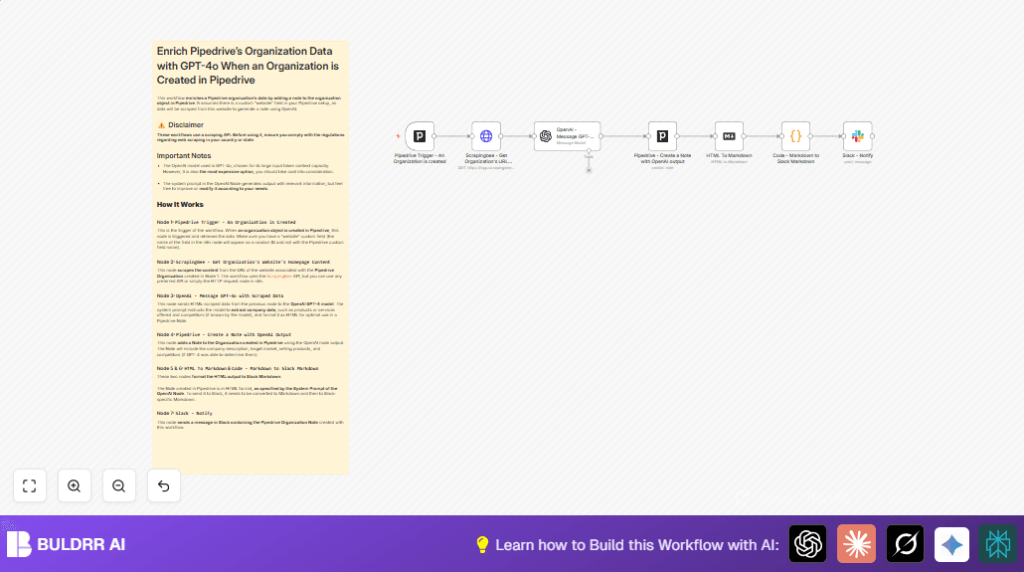
Save hours on enriching Pipedrive organization data by automatically scraping websites and summarizing with GPT-4. This workflow creates detailed notes in Pipedrive and notifies your Slack channel for real-time updates.
pipedriveTrigger
openAi
httpRequest
+4
Workflow Identifier: 1743
NODES in Use: pipedriveTrigger, httpRequest, openAi, pipedrive, markdown, code, slack

Press CTRL+F5 if the workflow didn't load.

Learn how to Build this Workflow with AI:

Visit through Desktop for Best experience

1. Opening Problem Statement

Meet Susan, a sales manager at a mid-sized tech company that uses Pipedrive to manage its leads and organizations. Every time a new organization is entered into the CRM, Susan spends hours manually researching the company’s website to gather key details—what products or services they offer, their target market, competitors, and unique selling points. This process is tedious, error-prone, and consumes valuable time that could be better spent closing deals.

On average, Susan spends about 20 minutes per organization researching and typing notes into Pipedrive. With dozens of new organizations added weekly, this quickly amounts to an overwhelming task, causing delays in follow-ups and inconsistencies in CRM data quality. Susan’s team has been looking for a way to automate this routine, accurate data enrichment to boost their productivity.

2. What This Automation Does

This workflow revolutionizes how organization data is enriched in Pipedrive, leveraging website scraping, AI summarization with GPT-4, and CRM automation to create rich, informative notes automatically. Here’s what happens when it runs:

  • The moment a new organization is created in Pipedrive, the workflow triggers automatically.
  • It scrapes the organization’s website URL stored in a custom “website” field using the ScrapingBee API.
  • The raw HTML content of the homepage is sent to OpenAI’s GPT-4 to generate a detailed summary including company description, target market, unique selling points, and likely competitors, formatted as HTML.
  • A new Note is added to the Pipedrive organization with this enriched data in HTML format.
  • For team collaboration, the HTML note is converted to Slack’s Markdown format and posted in a designated Slack channel to notify the sales team instantly.

By automating this entire flow, Susan saves about 20 minutes per organization, translating to several hours weekly and a more reliable, consistent CRM database.

3. Prerequisites ⚙️

  • n8n account with access to build workflows.
  • Pipedrive account with a custom “website” field for organizations and API access for authentication.
  • ScrapingBee API key for web content scraping.
  • OpenAI API key with access to the GPT-4o model (noting it’s the most capable but also the priciest option).
  • Slack account with OAuth2 access and a designated channel for notifications.
  • Basic awareness of Pipedrive’s custom fields and API credentials handling in n8n.

4. Step-by-Step Guide

Step 1: Set Up the Pipedrive Trigger

In n8n, click + Add Node → search for Pipedrive Trigger → select “An Organization is created” as the trigger action.

Configure the node by connecting your Pipedrive API credentials. This node listens for new organizations added in Pipedrive, triggering the workflow. You should see the webhook URL generated for your workflow.

Common mistake: Forgetting to authenticate the Pipedrive connection or not matching the “organization created” event exactly.

Step 2: Scrape Organization Website Content

Add an HTTP Request node and rename it “Scrapingbee – Get Organization’s URL content”.

Set the method to GET and URL to https://app.scrapingbee.com/api/v1. Under Query Parameters add:

  • api_key: Your ScrapingBee API key
  • url: Expression field referencing the organization’s custom website URL from the Pipedrive trigger node, e.g., {{$json.current.}}
  • render_js: false

You should see the response JSON containing the HTML content of the organization’s homepage upon test execution.

Common mistake: Using the wrong expression for the website URL or missing the ScrapingBee API key.

Step 3: Send Scraped Content to OpenAI GPT-4o

Add the OpenAI node and choose the GPT-4o model. Pass the scraped HTML content to the messages parameter.

Use this system prompt to instruct GPT-4o to create a company summary, as included in the workflow JSON:

You're an assistant that summarizes website content for CRM entries. The user will provide HTML content from a company's website. Your task is to analyze the HTML content and create a concise summary that includes:
1. A brief description of the company's services or products.
2. Any information about the company's target market or customer base.
3. Key points about the company's unique selling propositions or competitive advantages.
4. Based on the provided information, suggest potential competitors if you know any.

Format your response as HTML.

This node outputs a neatly formatted HTML summary, which will be used for creating notes.

Common mistake: Not selecting the GPT-4o model or formatting issues with the system prompt.

Step 4: Create a Note in Pipedrive with OpenAI Output

Add the Pipedrive node, select create note as the resource, and set content to {{$json.message.content}}, which contains the GPT-4 output.

Map the organization ID from the Pipedrive trigger node to the org_id field, so the note links correctly to the organization.

Common mistake: Forgetting to map the organization ID or mixing up the field IDs in Pipedrive.

Step 5: Convert HTML Note to Markdown

Use the HTML To Markdown node to convert the HTML content from the OpenAI note into Markdown format.

This prepares the data for Slack posting which prefers Markdown styling over raw HTML.

Common mistake: Not connecting the correct input data to the HTML To Markdown node.

Step 6: Convert Markdown to Slack-Specific Markdown

Add the Code node and paste the JavaScript code from the workflow that converts standard Markdown to Slack-flavored Markdown. This includes converting headers to bold, unordered lists to arrow points, and transforming tables into bullet lists.

The JavaScript snippet is:

const inputMarkdown = items[0].json.data;

function convertMarkdownToSlackFormat(markdown) {
 let slackFormatted = markdown;
 
 // Convert headers
 slackFormatted = slackFormatted.replace(/^# (.*$)/gim, '*$1*');
 slackFormatted = slackFormatted.replace(/^## (.*$)/gim, '*$1*');
 
 // Convert unordered lists
 slackFormatted = slackFormatted.replace(/^* (.*$)/gim, '➡️ $1');
 
 // Convert tables
 const tableRegex = /n|.*|n|.*|n((|.*|n)+)/;
 const tableMatch = slackFormatted.match(tableRegex);
 if (tableMatch) {
 const table = tableMatch[0];
 const rows = table.split('n').slice(3, -1);
 const formattedRows = rows.map(row => {
 const columns = row.split('|').slice(1, -1).map(col => col.trim());
 return `*${columns[0]}*: ${columns[1]}`;
 }).join('n');
 slackFormatted = slackFormatted.replace(table, formattedRows);
 }
 
 return slackFormatted;
}

const slackMarkdown = convertMarkdownToSlackFormat(inputMarkdown);
console.log(slackMarkdown);

// Return data
return [{ slackFormattedMarkdown: slackMarkdown }];

This converts the markup perfectly for Slack message formatting.

Step 7: Send Slack Notification

Add the Slack node, authenticate with OAuth2, and choose your target channel.

Map the message text to include the organization’s name from the Pipedrive trigger and the Slack-formatted Markdown from the previous node, so your team gets a crisp notification every time a new organization note is created.

Common mistake: Forgetting to select the Slack channel or misconfiguring OAuth2.

5. Customizations ✏️

  • Change the AI Model: In the OpenAI node, you can switch from GPT-4o to a cheaper model like GPT-3.5 to reduce cost, but expect less detailed summaries.
  • Use a different scraping service: Replace the ScrapingBee HTTP Request node with another web scraping API or use n8n’s HTTP Request node for self-managed scraping.
  • Modify OpenAI’s System Prompt: Tailor the prompt in the OpenAI node to extract additional information like company location, founding year, or key executive names for richer notes.
  • Adjust Slack message formatting: Enhance or simplify the JavaScript in the Code node to better fit your team’s Slack style preferences.
  • Extend to other CRM objects: Adapt the trigger and note creation nodes to enrich other Pipedrive objects like Deals or Contacts using the same method.

6. Troubleshooting 🔧

  • Problem: “Error 401 Unauthorized” on Pipedrive Trigger node.

    Cause: Invalid or expired API credentials.

    Solution: Go to the Pipedrive Trigger node → Credentials → Re-authenticate your Pipedrive API connection.
  • Problem: OpenAI node returns unexpected or blank response.

    Cause: System prompt too restrictive or input data missing.

    Solution: Double-check the scraped HTML content input and refine the system prompt. Also, verify the OpenAI API key is valid.
  • Problem: Slack notification not appearing.

    Cause: Incorrect channel ID or missing OAuth2 token.

    Solution: Confirm the Slack connection credentials and channel selection in the Slack node configuration.

7. Pre-Production Checklist ✅

  • Confirm Pipedrive has the custom “website” field populated for test organizations.
  • Test ScrapingBee API key for valid responses using a known URL.
  • Verify OpenAI API key has GPT-4o model access.
  • Run the workflow on a sample organization and check Pipedrive Note creation.
  • Ensure Slack notifications appear correctly with formatted markdown.

8. Deployment Guide

Once you have completed setup and testing, activate the workflow in n8n by toggling it to active.

Since this workflow uses webhooks from Pipedrive, ensure that your n8n instance is accessible over the internet for webhook calls.

Monitor in the n8n execution logs for any errors and confirm Slack and Pipedrive are updating as expected.

9. FAQs

  • Can I use another CRM instead of Pipedrive? The workflow is designed for Pipedrive’s organization creation webhook and API. Adapting it for other CRMs would require custom triggers and note creation nodes suited to those APIs.
  • Is this workflow expensive to run, considering GPT-4o? GPT-4o is the premium model, so it has a higher cost. Consider switching to GPT-3.5 for budget-conscious users.
  • Can I run this on my self-hosted n8n instance? Absolutely, as long as you can expose n8n’s webhook endpoint to receive Pipedrive calls. Self-hosting links like https://buldrr.com/hostinger could help.

10. Conclusion

By following this workflow, you’ve automated the tedious task of manually researching and enriching new Pipedrive organization records. Your CRM now sports rich, AI-generated notes with actionable insights on products, markets, and competitors—saving you at least 20 minutes per organization.

Plus, your sales team receives real-time Slack notifications, keeping everyone aligned and informed.

Next, consider extending this automation to deals or contacts to boost your CRM’s intelligence even further, or integrate sentiment analysis on customer communications for deeper insights.

Keep experimenting with n8n and AI to transform your business processes with smart automation!

Promoted by BULDRR AI

Related Workflows

Automate Viral UGC Video Creation Using n8n + Degaus (Beginner-Friendly Guide)

Learn how to automate viral UGC video creation using n8n, AI prompts, and Degaus. This beginner-friendly guide shows how to import, configure, and run the workflow without technical complexity.
Form Trigger
Google Sheets
Gmail
+37
Free

AI SEO Blog Writer Automation in n8n

A complete beginner guide to building an AI-powered SEO blog writer automation using n8n.
AI Agent
Google Sheets
httpRequest
+5
Free

Automate CrowdStrike Alerts with VirusTotal, Jira & Slack

This workflow automates processing of CrowdStrike detections by enriching threat data via VirusTotal, creating Jira tickets for incident tracking, and notifying teams on Slack for quick response. Save hours daily by transforming complex threat data into actionable alerts effortlessly.
scheduleTrigger
httpRequest
jira
+5
Free

Automate Telegram Invoices to Notion with AI Summaries & Reports

Save hours on financial tracking by automating invoice extraction from Telegram photos to Notion using Google Gemini AI. This workflow extracts data, records transactions, and generates detailed spending reports with charts sent on schedule via Telegram.
lmChatGoogleGemini
telegramTrigger
notion
+9
Free

Automate Email Replies with n8n and AI-Powered Summarization

Save hours managing your inbox with this n8n workflow that uses IMAP email triggers, AI summarization, and vector search to draft concise replies requiring minimal review. Automate business email processing efficiently with AI guidance and Gmail integration.
emailReadImap
vectorStoreQdrant
emailSend
+12
Free

Automate Email Campaigns Using n8n with Gmail & Google Sheets

This n8n workflow automates personalized email outreach campaigns by integrating Gmail and Google Sheets, saving hours of manual follow-up work and reducing errors in email sequences. It ensures timely follow-ups based on previous email interactions, optimizing communication efficiency.
googleSheets
gmail
code
+5
Free