
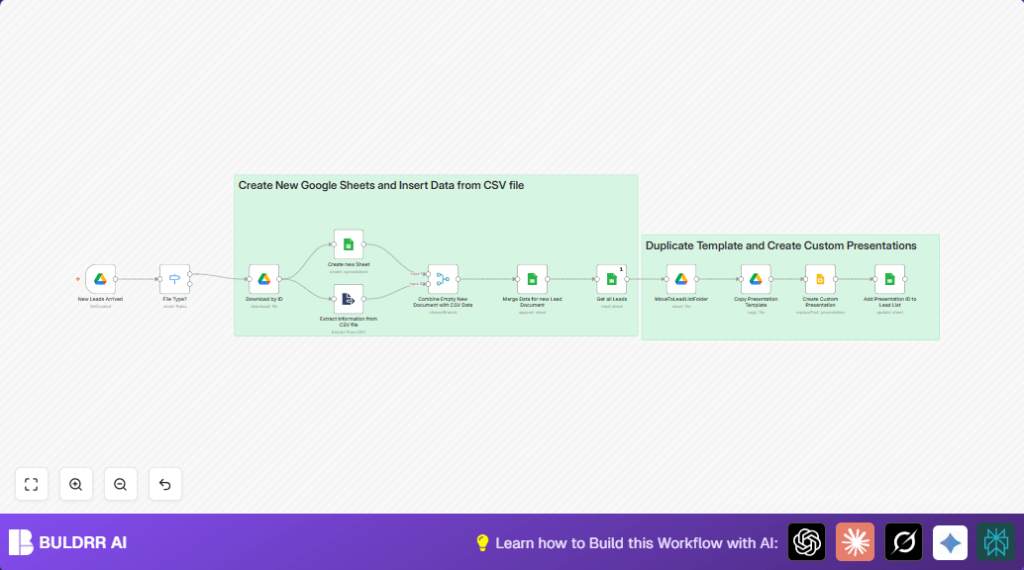

Automate Custom Sales Presentations with n8n Google Sheets & Slides

Struggling with manually creating personalized sales presentations for each lead? This unique n8n workflow automates generating custom Google Slides presentations from lead data in Google Sheets, saving you hours and eliminating errors.
googleDrive
googleSheets
googleSlides
+4
Workflow Identifier: 1737
NODES in Use: Google Drive, Switch, Extract From File, Google Sheets, Merge, Google Slides, Sticky Note

Press CTRL+F5 if the workflow didn't load.

Learn how to Build this Workflow with AI:

Visit through Desktop for Best experience

1. Opening Problem Statement

Meet Sarah, a sales manager at a fast-growing tech startup. Every week, she receives dozens of new leads via CSV files. To convert these leads into clients, Sarah needs to create tailored sales presentations highlighting each lead’s company details and unique data. However, manually copying and updating presentation templates for each lead consumes hours of her time, often leading to errors like outdated info or mismatched contacts. The consequences are lost client interest and missed revenue opportunities.

This is exactly the problem Sarah faces every week. How can she generate personalized presentations efficiently for each new lead, without the repetitive manual work?

2. What This Automation Does

This step-by-step n8n workflow automatically creates custom Google Slides presentations from new leads uploaded as CSV files to Google Drive. When a new lead CSV file appears in a specific folder, the automation triggers and performs these actions:

  • Detects new CSV or Excel files in a designated Google Drive folder.
  • Downloads the file and extracts lead data like names, companies, emails, and keywords.
  • Creates a new Google Sheets spreadsheet to store and merge the lead data.
  • Duplicates a master Google Slides presentation template and renames it for each lead.
  • Replaces placeholder text in the copied presentation with actual lead details (e.g., company name, first name).
  • Logs the presentation ID back to the lead list in Google Sheets and moves files into organized folders.

With this workflow, Sarah saves hours each week, eliminating manual errors and providing timely, personalized presentations to prospects — boosting her chances of closing deals faster.

3. Prerequisites ⚙️

  • Google Drive account with OAuth2 credentials configured in n8n 🔐
  • Google Sheets account with OAuth2 credentials 🔐
  • Google Slides account with OAuth2 credentials 🔐
  • n8n automation platform account (cloud or self-hosted) ⏱️ (Consider self-hosting for more control)
  • Folder in Google Drive to monitor for new lead files (CSV or XLSX)
  • A master Google Slides presentation template stored in Google Drive

4. Step-by-Step Guide

Step 1: Set Up Google Drive Folder Trigger for New Leads

In n8n, add a Google Drive Trigger node named “New Leads Arrived”. Configure it to watch a specific folder in your Google Drive where new lead CSV or Excel files will be uploaded. Set polling to “every minute” for timely detection.

Once a new file is detected here, the workflow kicks off automatically.

Common Mistake: Forgetting to select the correct folder or misconfiguring poll interval can delay or block triggering.

Step 2: Identify File Type with Switch Node

Use the Switch node called “File Type?” to check the MIME type of the incoming file. Configure it with these rules:

  • CSV: MIME type equals text/csv
  • XLSX: MIME type equals application/vnd.openxmlformats-officedocument.spreadsheetml.sheet

This ensures the workflow handles supported file formats correctly.

Expected Outcome: Files routed to appropriate downstream nodes based on their type.

Step 3: Download the Lead File by ID

Add a Google Drive node named “Download by ID” to download the detected file. Use the expression {{$json.id}} to dynamically fetch the file based on the trigger’s output.

This pulls the lead data file into the workflow for processing.

Step 4: Extract Lead Data from CSV

Connect to an Extract from File node called “Extract Information from CSV file”. Set encoding to UTF-8 and delimiter to comma. Enable “header row” to parse columns like First Name, Email, Company, Keywords, etc.

This converts the raw file into structured JSON data for later use.

Step 5: Create New Google Sheet to Store Leads

Insert a Google Sheets node named “Create new Sheet”. Configure to create a new spreadsheet titled like Leads_{{current_date}} dynamically using {{$now.setZone('Europe/Berlin').toFormat('yyyy-dd-MM')}}.

The new spreadsheet will hold the merged lead data for further processing.

Step 6: Combine Empty New Sheet with CSV Data

Use a Merge node called “Combine Empty New Document with CSV Data”. Set the mode to “choose branch” with data from the CSV extraction and the new sheet data.

This step effectively maps CSV lead rows into the newly created Google Sheet.

Step 7: Append Lead Data to New Sheet

Add a Google Sheets node named “Merge Data for new Lead Document” set to append data. The node is configured for auto-mapping CSV columns to the sheet.

This populates the new lead spreadsheet with all lead details.

Step 8: Retrieve All Leads from the New Sheet

Insert another Google Sheets node called “Get all Leads” to read all rows from the created sheet, enabling iteration for presentation creation.

Step 9: Move the Lead List Spreadsheet to Lead Folder

Use a Google Drive node named “MoveToLeadListFolder” to organize the lead list file inside a specific Google Drive folder dedicated to leads.

Step 10: Duplicate Google Slides Template

Add a Google Drive node named “Copy Presentation Template”. Configure it to copy your master presentation, renaming it with the lead’s company name and current date, then place it in the “Custom Presentations” folder.

Step 11: Personalize Each Copied Presentation

Use a Google Slides node called “Create Custom Presentation” to replace placeholders like {COMPANYNAME} or {First Name} with actual lead details.

For example, replacing {COMPANYNAME} with the lead’s company name dynamically.

Step 12: Log Presentation ID Back in Lead Sheet

Add a Google Sheets node “Add Presentation ID to Lead List” to update the lead’s row with the new presentation ID, helping track which presentations have been created.

Step 13: Workflow Summary and Notes

Sticky Notes in the workflow titled “Duplicate Template and Create Custom Presentations” and “Create New Google Sheets and Insert Data from CSV file” serve as helpful annotations explaining key workflow parts.

5. Customizations ✏️

  • Change Template Presentation: In the “Copy Presentation Template” node, replace the fileId with your own master Google Slides template ID to customize content and branding.
  • Add More Placeholder Replacements: Extend the “Create Custom Presentation” node’s text replacements to add more fields like Email, Title, or Industry for richer personalization.
  • Support Additional File Types: Add new conditions in the “File Type?” switch node to handle other spreadsheet formats like XLS or ODS.
  • Adjust Folder Organization: Change “MoveToLeadListFolder” node’s folderId to reorganize lead list spreadsheets into different folders as your drive structure evolves.
  • Change Sheet Naming Convention: In “Create new Sheet,” modify the title pattern to match your preferred date/time or naming style.

6. Troubleshooting 🔧

Problem: “Google Drive Trigger doesn’t detect new files.”
Cause: Folder ID is incorrect or insufficient permissions.
Solution: Verify folder ID in “New Leads Arrived” node, and ensure n8n OAuth credentials have read permissions.

Problem: “Presentation text replacements don’t happen.”
Cause: Placeholder tags mismatch between template and Google Slides node.
Solution: Make sure placeholders like {COMPANYNAME} exactly match the template text fields.

Problem: “Sheet update fails with ‘Not Found’ error.”
Cause: Using wrong Sheet ID or sheet name.
Solution: Confirm spreadsheet and sheet IDs from the “Create new Sheet” node outputs and use those with expressions.

7. Pre-Production Checklist ✅

  • Confirm Google OAuth2 credentials for Drive, Sheets, and Slides are accurate and authorized.
  • Have your master Google Slides template created with clear placeholders like {COMPANYNAME}.
  • Create and confirm a folder for new lead CSV files and a folder for generated presentations.
  • Test the workflow manually by uploading sample CSV files to the Google Drive folder.
  • Check that newly created Google Sheets have the correct lead data appended.
  • Ensure presentations are copied, renamed, and placeholders replaced correctly.
  • Monitor logs in n8n for errors and fix node-specific issues.

8. Deployment Guide

Activate the workflow in your n8n instance by toggling it on. Monitor executions during initial runs to ensure all nodes execute correctly with no errors.

Since it runs on file creation triggers, new files will automatically start processing without manual intervention.

Regularly review logs and Google Drive folder organization to maintain performance and avoid clutter.

9. FAQs

Q: Can I use a different presentation tool instead of Google Slides?
A: This workflow is specifically designed with Google Slides API nodes. Using other tools would require node replacements or API integrations.

Q: Does this workflow consume Google API quota?
A: Yes, each Google Sheets, Drive, and Slides API call counts towards your Google API usage limits.

Q: Is it secure to store lead data and presentations in Google Drive?
A: The workflow uses OAuth2 credentials and Google Drive’s security model. Ensure your accounts have strong passwords and 2FA enabled.

10. Conclusion

By following this guide, you’ve built a powerful automation that takes raw lead data files and turns them into tailored presentations automatically. This saves Sarah—and you—hours every week, reduces human error, and impresses potential clients with timely, personal outreach.

Next, consider automating email outreach to send these presentations directly, or integrating CRM updates with each new lead. With n8n’s extensibility, the possibilities are extensive and exciting.

Enjoy your automation journey!

Promoted by BULDRR AI

Related Workflows

Automate Viral UGC Video Creation Using n8n + Degaus (Beginner-Friendly Guide)

Learn how to automate viral UGC video creation using n8n, AI prompts, and Degaus. This beginner-friendly guide shows how to import, configure, and run the workflow without technical complexity.
Form Trigger
Google Sheets
Gmail
+37
Free

AI SEO Blog Writer Automation in n8n

A complete beginner guide to building an AI-powered SEO blog writer automation using n8n.
AI Agent
Google Sheets
httpRequest
+5
Free

Automate CrowdStrike Alerts with VirusTotal, Jira & Slack

This workflow automates processing of CrowdStrike detections by enriching threat data via VirusTotal, creating Jira tickets for incident tracking, and notifying teams on Slack for quick response. Save hours daily by transforming complex threat data into actionable alerts effortlessly.
scheduleTrigger
httpRequest
jira
+5
Free

Automate Telegram Invoices to Notion with AI Summaries & Reports

Save hours on financial tracking by automating invoice extraction from Telegram photos to Notion using Google Gemini AI. This workflow extracts data, records transactions, and generates detailed spending reports with charts sent on schedule via Telegram.
lmChatGoogleGemini
telegramTrigger
notion
+9
Free

Automate Email Replies with n8n and AI-Powered Summarization

Save hours managing your inbox with this n8n workflow that uses IMAP email triggers, AI summarization, and vector search to draft concise replies requiring minimal review. Automate business email processing efficiently with AI guidance and Gmail integration.
emailReadImap
vectorStoreQdrant
emailSend
+12
Free

Automate Email Campaigns Using n8n with Gmail & Google Sheets

This n8n workflow automates personalized email outreach campaigns by integrating Gmail and Google Sheets, saving hours of manual follow-up work and reducing errors in email sequences. It ensures timely follow-ups based on previous email interactions, optimizing communication efficiency.
googleSheets
gmail
code
+5
Free