

What This Automation Does
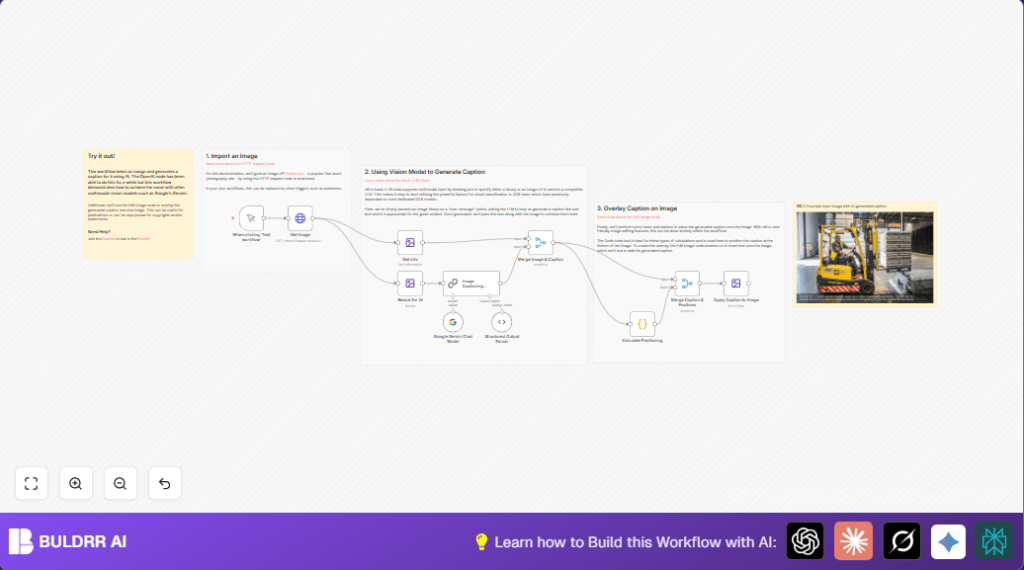
This workflow takes an image URL, resizes the image, creates a caption using Google Gemini AI, calculates where the caption fits best, and then adds the caption directly on the image.
It helps users save many hours by automating writing and placing captions on images.
The output is a ready-to-use image with a clear, creative caption layered on it.
Who Should Use This Workflow
If you spend a lot of time writing captions for photos on social media or marketing, this workflow is for you.
It is good for people who want reliable and nicely styled captions automatically added on their images.
Anyone managing brands, blogs, or social accounts with images can benefit.
Tools and Services Used
- n8n Platform: For building and running automation.
- Google Gemini Chat Model: To generate creative image captions in natural language.
- HTTP Request Node: To download images from provided URLs.
- Edit Image Node: To resize the image and place captions over it.
- Code Node: To calculate where and how to place captions on the image.
These elements combine to create a workflow that downloads, processes, captions, and styles images automatically.
Inputs, Processing Steps, and Output
Inputs
- Image URL (example: a free Pexels stock image).
- Google PaLM API Key for access to Gemini Chat Model.
Processing Steps
- Download the image from URL using the Get Image node.
- Resize the image to 512 by 512 pixels with Resize For AI node.
- Extract image size and info with Get Info node.
- Send the image to Google Gemini via Image Captioning Agent node to generate a caption with title and description.
- Parse the AI reply to separate caption title and text in Structured Output Parser node.
- Merge image data and AI output with Merge Image & Caption node.
- Calculate caption font size and position in the Calculate Positioning code node using JavaScript.
- Merge all data in Merge Caption & Positions node.
- Overlay caption with background rectangle and text on the image in Apply Caption to Image using Edit Image node.
Output
Final image with a white, readable caption placed near the bottom on a semi-transparent background.
Beginner Step-by-Step: How to Use This Workflow in Production
Import the Workflow
- Click the Download button on this page to save the workflow JSON file.
- Open n8n editor where workflows are created.
- Use the menu option “Import from File” and select the file downloaded.
Configure Credentials and Parameters
- Add or update Google PaLM API Key credentials inside n8n credentials manager.
- Check the Get Image node and replace the example image URL with any public image URL desired.
- If needed, update IDs, emails, channels, or folder fields in nodes to match your use case.
- Make sure font path and styles in Apply Caption to Image node meet your branding or preferences.
Run and Test
- Click “Execute Workflow” to run manually and observe each node’s output.
- Check the final image output for correct caption placement and styling.
- Correct any errors found during tests by checking nodes parameters and code.
Activate for Production
- Replace the manual trigger with real triggers such as webhook or scheduled triggers as fits workflow usage.
- Turn workflow activation on to run automatically.
- Monitor executions on the n8n dashboard for problems or API usage limits.
Using this way removes building difficulties and gets you a working solution quickly.
Code to Calculate Caption Positioning
The JavaScript code in the Calculate Positioning node figures out where to put the caption and the font size based on the image size.
It makes sure the text fits and stays readable.
const { size, output } = $input.item.json;

const lineHeight = 35;
const fontSize = Math.round(size.height / lineHeight);
const maxLineLength = Math.round(size.width/fontSize) * 2;
const text = `"${output.caption_title}". ${output.caption_text}`;
const numLinesOccupied = Math.round(text.length / maxLineLength);

const verticalPadding = size.height * 0.02;
const horizontalPadding = size.width * 0.02;
const rectPosX = 0;
const rectPosY = size.height - (verticalPadding * 2.5) - (numLinesOccupied * fontSize);
const textPosX = horizontalPadding;
const textPosY = size.height - (numLinesOccupied * fontSize) - (verticalPadding/2);

return {
 caption: {
 fontSize,
 maxLineLength,
 numLinesOccupied,
 rectPosX,
 rectPosY,
 textPosX,
 textPosY,
 verticalPadding,
 horizontalPadding,
 }
}
Customization Ideas
- Change the image URL to any publicly accessible image in the Get Image node.
- Use a different AI model to generate captions by replacing the Image Captioning Agent node with other AI nodes available like OpenAI.
- Edit the caption style in the Apply Caption to Image node by changing font, colors, or background transparency.
- Modify the prompt in the AI node to change caption tone or detail.
Troubleshooting Common Problems
- API authentication error in Google Gemini Chat Model:
Check if Google PaLM API Key is correct and not expired. Refresh credentials in n8n. - Image does not show or caption is missing:
Verify connections between merge nodes and the edit image node. Confirm font paths and drawing steps. - Caption text cutoff or overlapping:
Adjust font size and positions by editing JavaScript in the Calculate Positioning node.
Pre-Production Checklist
- Check if Google PaLM API Key is valid and tested.
- Make sure image URL is accessible.
- Run the workflow manually before activating.
- Back up workflow JSON before changes.
- Review output images for caption quality.
Deployment Guide
After successful tests, connect the manual trigger node to other triggers as needed, like webhooks or schedules.
Activate the workflow to run automatically.
Watch workflow runs in n8n dashboard for errors.
Increase API call limits on Google Cloud if processing many images.
Consider self-host n8n for full control on running long or heavy workflows.
Summary
→ Saves hours spent on writing image captions.
→ Automatically downloads, resizes, captions, and styles images.
→ Uses Google Gemini AI for creative, pun-filled captions.
→ Adds captions on images so they are ready for social media.
→ Easy to set up in n8n by importing and adding your API keys.
