
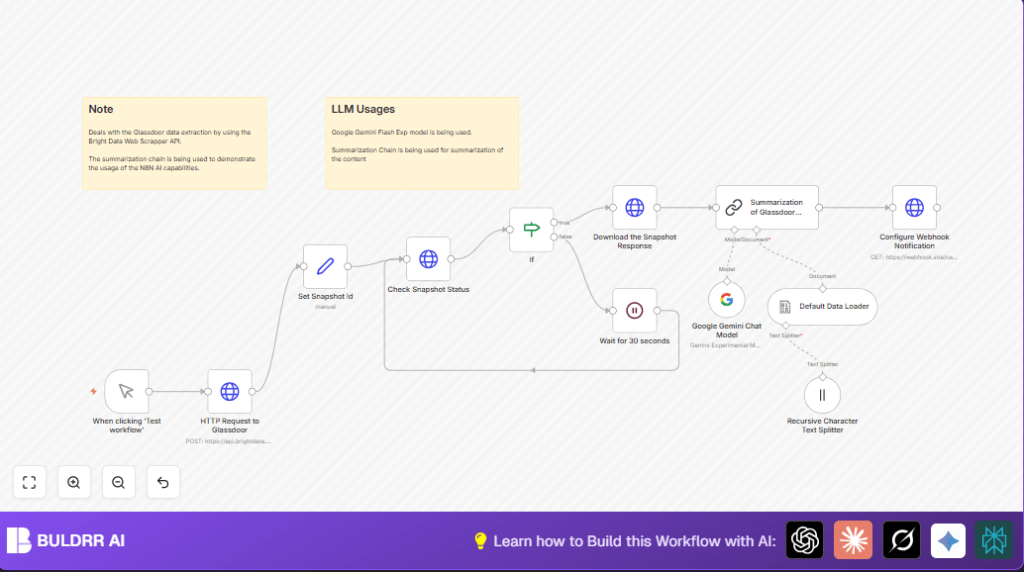

What This Automation Does
This workflow gets company review data from Glassdoor automatically. It stops a user from doing slow, manual copy-pasting of reviews. The data is checked, cleaned, and sliced into small parts for an AI to read. Then, the AI makes a short clear summary. The final summary is sent to a webhook URL for quick use.
This saves time and gives accurate, fresh company info for HR decisions or reports.
Who Should Use This Workflow
This workflow helps HR teams, researchers, or anyone who needs updated company reviews fast. It is good for people who want less manual work and clear, short summaries of employee opinions. It fits users with Bright Data and Google Gemini account access.
No deep coding skill needed to run it inside n8n but basic API key setup is required.
Tools and Services Used
- Bright Data API: Starts and checks scraping jobs for Glassdoor snapshots.
- Google Gemini Flash Thinking Model: Creates AI summaries from text chunks.
- n8n Automation Platform: Runs and links each workflow step.
- External Webhook URL: Receives summarized results to deliver where wanted.
Inputs, Processing Steps, and Output
Inputs
The workflow begins with the Glassdoor company page URL set inside the Bright Data request. It also needs valid API credentials for Bright Data and Google Gemini.
Processing Steps
- Submit a scraping job to Bright Data to get the latest snapshot.
- Repeat checks on the job status every 30 seconds until it is ready.
- Download the JSON snapshot once the job is done.
- Split the large text into smaller parts with overlap for good AI input handling.
- Feed text chunks into Google Gemini model for summarization.
- Combine AI outputs into a final, clean summary.
- Send summary to a user-defined webhook endpoint.
Output
The outcome is a short, easy-to-read text summary showing key employee insights about the company from Glassdoor.
Beginner Step-by-Step: How to Use This Workflow in n8n Production
Step 1: Download and Import Workflow
- Click the Download button on this page to get the workflow file.
- Inside the n8n editor, go to Import from File and upload the downloaded file.
Step 2: Configure Credentials
- Add your Bright Data API Key under HTTP Request to Glassdoor node credentials.
- Add your Google PaLM API Key in the Google Gemini Chat Model node.
Step 3: Update Parameters
- Change the company Glassdoor URL in the HTTP Request to Glassdoor node JSON body if needed.
- Update any webhook URL in the Configure Webhook Notification node to your own endpoint.
Step 4: Test the Workflow
- Click the Manual Trigger node and then Execute Workflow to run once.
- Watch the workflow steps progress and check the webhook for the summary.
Step 5: Activate for Production
- After successful test, click Activate on top-right to enable automated runs.
- Optionally, set a schedule or webhook trigger to run regularly or on demand.
If self hosting n8n is planned, use self-host n8n resources to set up a reliable environment.
Edge Cases and Failures to Watch For
- 401 Unauthorized Errors: Usually caused by wrong or missing Bright Data API Key. Fix by checking HTTP Request to Glassdoor node credentials.
- AI Summarization Failure: Happens if Google PaLM API credentials are invalid or missing. Verify on Google Gemini Chat Model node.
- Stuck on Snapshot Status: If scraping job never shows “ready”, the job may be delayed or broken. Check Bright Data dashboard and increase wait time in the Wait node.
- Infinite Polling: Bad wait or if node condition isn’t correct can cause endless loops. Confirm the If node condition is set to pass only on “ready” status.
Customization Ideas
- Change Company URL: Replace the example Glassdoor URL to target any company.
- Adjust Text Split Size: Modify the Recursive Character Text Splitter node to use larger chunks or overlap as needed.
- Use Different Gemini Models: Swap to other models in the Google Gemini Chat Model node to change summary style.
- Send Summaries Elsewhere: Update the webhook URL node to put summaries in Slack, email, or databases.
Summary and Result
✓ Automated grabbing of Glassdoor reviews using Bright Data API.
✓ Checks scraping completion before continuing.
✓ Breaks long data into parts suited for AI reading.
✓ Creates short, clear summaries powered by Google Gemini.
✓ Sends summary instantly to your chosen webhook endpoint.
✓ Saves you hours of manual work and keeps insights fresh.
