
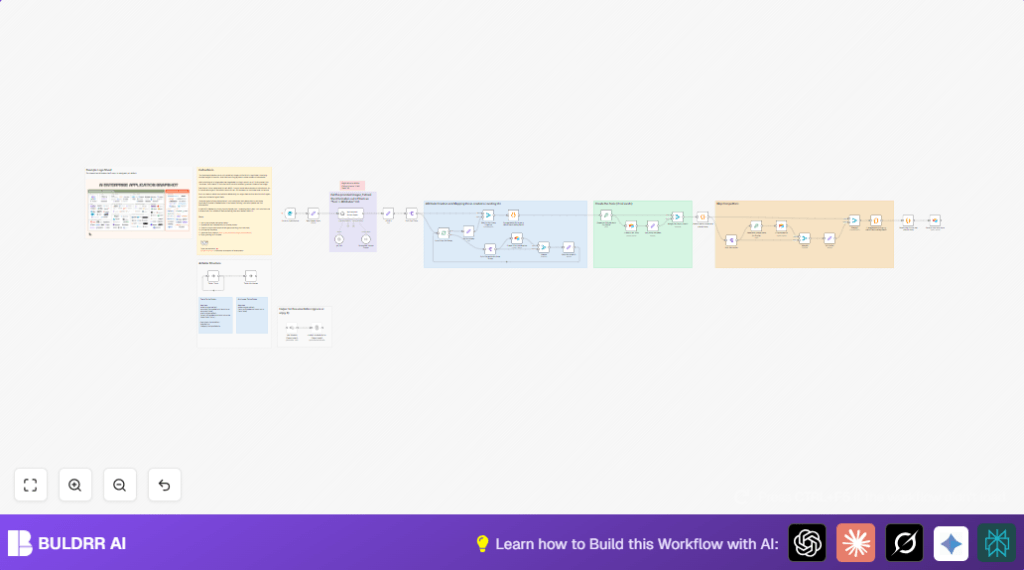

Extract AI Tool Data from Logo Sheets with n8n

Tired of manually extracting AI tool information from complex logo sheets? This n8n workflow automates the extraction of tool names, attributes, and similarities from images and stores them in Airtable for easy management and analysis.
formTrigger
agent
airtable
+10
Workflow Identifier: 1721
NODES in Use: formTrigger, agent, set, outputParserStructured, airtable, merge, splitInBatches, splitOut, code, crypto, stickyNote, noOp, lmChatOpenAi

Press CTRL+F5 if the workflow didn't load.

Learn how to Build this Workflow with AI:

Visit through Desktop for Best experience

Opening Problem Statement

Meet Anna, a product manager at a tech startup who frequently handles large image sheets displaying logos of multiple AI tools and software products. These logo sheets are rich with valuable context, showing how various solutions stack up against each other. To research competitors and plan integrations, Anna needs to gather detailed information from these images—tool names, attributes, categories, and even competitor relationships.

Currently, Anna manually types out this information from images into her Airtable database. It takes her 2-3 hours per sheet, with frequent errors and missed details, delaying product decisions and team updates. She wishes there was a smarter way to get that data directly from the logo sheets, including how each tool relates to others, without repetitive work.

What This Automation Does

This n8n workflow transforms the way Anna handles AI tool data from logo sheets:

  • Provides a simple form to upload logo sheet images with optional prompts for context.
  • Leverages an AI Vision-powered LangChain agent to analyze uploaded images and extract structured JSON data listing each tool’s name, relevant attributes, and similar tools from the image context.
  • Automatically checks and upserts tool data into an Airtable base, creating any missing attribute records or tools with unique hashes for consistent identification.
  • Maps relationships between tools (similar competitors) and their attributes, preserving this rich metadata in Airtable.
  • Saves Anna hours of manual data entry, reduces errors, and helps maintain an up-to-date database of AI tools and their competitive landscape.

Prerequisites ⚙️

  • n8n account (cloud or self-hosted) to deploy and activate the workflow.
  • Airtable account with a base and tables set up for “Tools” and “Attributes” as detailed in the blog.
  • A LangChain AI agent API access configured in n8n to process images and extract structured context from them.
  • OpenAI API key for GPT-4o model usage.
  • Optional: Web server to host the form (n8n built-in or external).

Step-by-Step Guide to Set Up and Use This Workflow

Step 1: Prepare Your Airtable Base

Set up your Airtable base with two tables:

  • Tools Table with fields: Name (single line text), Attributes (linked records to Attributes table), Similar (linked records to same table), Hash (single line text), plus optional Description, Website, Category.
  • Attributes Table with fields: Name (single line text), Tools (linked records to Tools table).

This structure supports bidirectional linking and accurate record-keeping.

Step 2: Import and Activate Workflow in n8n

Import the provided n8n JSON workflow file into your n8n instance.

Navigate to Workflows > Import, select the JSON file, and save it.

Update credentials for all Airtable nodes using your Airtable personal access token.

Configure your LangChain and OpenAI API credentials.

Activate the workflow once all nodes are correctly configured.

Step 3: Customize the LangChain Agent Prompt

Inside the Retrieve and Parser Agent node, there’s a system message prompt instructing the AI on how to analyze and extract tool data. Adjust this prompt based on your specific logo sheet context or product categories to improve accuracy.

Step 4: Use the Upload Form

Access the embedded form (via the webhook URL linked to the On form submission trigger node) to upload your logo sheet images.

Include an optional prompt to provide more context about the image (e.g., “It’s a graph chart comparing AI Tools”).

The form submission triggers the workflow to start processing.

Step 5: Image Processing and AI Extraction

The workflow sends the uploaded image to the LangChain AI agent, which interprets the logos and any text context, outputting a structured JSON array of tools with names, attributes, and similar tool lists.

Step 6: Split and Parse Data

Using SplitOut and Loop Over Attributes nodes, the workflow breaks down the JSON array and prepares each tool, attribute, and similar tool for database operations.

Step 7: Check and Create Attributes in Airtable

Before inserting tools, the workflow checks if attribute records exist in Airtable. If not, it creates new ones.

This ensures every attribute linked to a tool is properly represented in your database.

Step 8: Map Attribute IDs and Prepare Tools

A code node maps attribute names to Airtable record IDs, replacing string names with proper references.

Step 9: Generate Unique Hashes for Tools and Similar Tools

The workflow creates MD5 hashes from normalized tool names for deterministic upserting to Airtable.

Step 10: Upsert Tools and Similar Competitor Links in Airtable

Finally, the workflow upserts tool records, linking attributes and similar tools by their Airtable record IDs. It also merges old data with new IDs to avoid duplication.

Customizations ✏️

  • In the Retrieve and Parser Agent node, update the system message prompt to tailor extraction categories or target software domains.
  • Modify the form fields in the On form submission node to capture additional metadata, such as uploader name or date.
  • Adjust the hashing strategy in the Generate Unique Hash nodes if you want to use a different scheme or include more fields (e.g., tool category) for uniqueness.
  • Add a notification node (e.g., Slack or email) after successful Airtable updates to alert your team about new tools added.
  • Expand the workflow with validation steps by adding additional LangChain agents to cross-check extracted data accuracies.

Troubleshooting 🔧

Problem: “LangChain agent returns empty or incomplete tool list.”
Cause: Image quality is low or context prompt is unclear.
Solution: Improve image resolution, clarify the prompt in the form or better train the agent with enhanced prompts.

Problem: “Airtable upsert fails due to missing attribute records.”
Cause: The attribute checking node did not create missing attributes properly.
Solution: Check the Check if Attribute exists node configuration and confirm Airtable field mappings and permissions.

Problem: “Hash collision causing unintended overwrites in Airtable.”
Cause: Different tools with similar normalized names generate the same hash.
Solution: Consider adding more unique information into the hashing input or switch to UUIDs.

Pre-Production Checklist ✅

  • Verify Airtable base and tables are correctly set up and accessible with correct field types.
  • Test API credentials for Airtable and OpenAI.
  • Check that the LangChain agent returns JSON in the expected format when tested with sample images.
  • Confirm the form trigger URL works and allows image file uploads.
  • Run test workflow execution with known image and check Airtable for accurate record creation.
  • Backup existing Airtable data before deployment in case rollbacks are needed.

Deployment Guide

Activate the workflow in n8n and share the form URL with your team for submitting logo sheets.

Monitor the workflow executions and Airtable record updates to ensure proper functioning.

Enable error notifications in n8n to get alerts about workflow failures.

Schedule periodic reviews of data quality and agent prompt effectiveness to keep the process accurate over time.

FAQs

Q: Can I use a different AI model instead of GPT-4o?
A: Yes, you can configure other OpenAI or LangChain-compatible models if they support image input and JSON output parsing.

Q: Does this consume many API credits?
A: Image analysis and GPT requests consume OpenAI API credits; optimize prompts and batch uploads to reduce cost.

Q: Is my data safe?
A: Airtable data is stored securely; ensure API keys are kept private and use n8n credentials securely.

Q: Can this handle large volumes of logo sheets?
A: Yes, with n8n’s queueing and batch split nodes, you can process multiple uploads sequentially without data loss.

Conclusion

By implementing this n8n automation, Anna and her team can now effortlessly extract AI tool data from complex logo sheets and maintain a rich, linked Airtable database. This saves hours of manual work, minimizes errors, and provides a dynamic resource for competitive analysis and product planning.

Next, you might explore automations to visualize this data as online dashboards or trigger alerts for new competitor entries. Or extend the AI parsing with multi-agent validations for even higher accuracy.

Go ahead, upload your first logo sheet, and start growing your AI tools database today!

Promoted by BULDRR AI

Related Workflows

Automate Viral UGC Video Creation Using n8n + Degaus (Beginner-Friendly Guide)

Learn how to automate viral UGC video creation using n8n, AI prompts, and Degaus. This beginner-friendly guide shows how to import, configure, and run the workflow without technical complexity.
Form Trigger
Google Sheets
Gmail
+37
Free

AI SEO Blog Writer Automation in n8n

A complete beginner guide to building an AI-powered SEO blog writer automation using n8n.
AI Agent
Google Sheets
httpRequest
+5
Free

Automate CrowdStrike Alerts with VirusTotal, Jira & Slack

This workflow automates processing of CrowdStrike detections by enriching threat data via VirusTotal, creating Jira tickets for incident tracking, and notifying teams on Slack for quick response. Save hours daily by transforming complex threat data into actionable alerts effortlessly.
scheduleTrigger
httpRequest
jira
+5
Free

Automate Telegram Invoices to Notion with AI Summaries & Reports

Save hours on financial tracking by automating invoice extraction from Telegram photos to Notion using Google Gemini AI. This workflow extracts data, records transactions, and generates detailed spending reports with charts sent on schedule via Telegram.
lmChatGoogleGemini
telegramTrigger
notion
+9
Free

Automate Email Replies with n8n and AI-Powered Summarization

Save hours managing your inbox with this n8n workflow that uses IMAP email triggers, AI summarization, and vector search to draft concise replies requiring minimal review. Automate business email processing efficiently with AI guidance and Gmail integration.
emailReadImap
vectorStoreQdrant
emailSend
+12
Free

Automate Email Campaigns Using n8n with Gmail & Google Sheets

This n8n workflow automates personalized email outreach campaigns by integrating Gmail and Google Sheets, saving hours of manual follow-up work and reducing errors in email sequences. It ensures timely follow-ups based on previous email interactions, optimizing communication efficiency.
googleSheets
gmail
code
+5
Free