

Build OpenAI Assistant with Google Drive Integration Using n8n

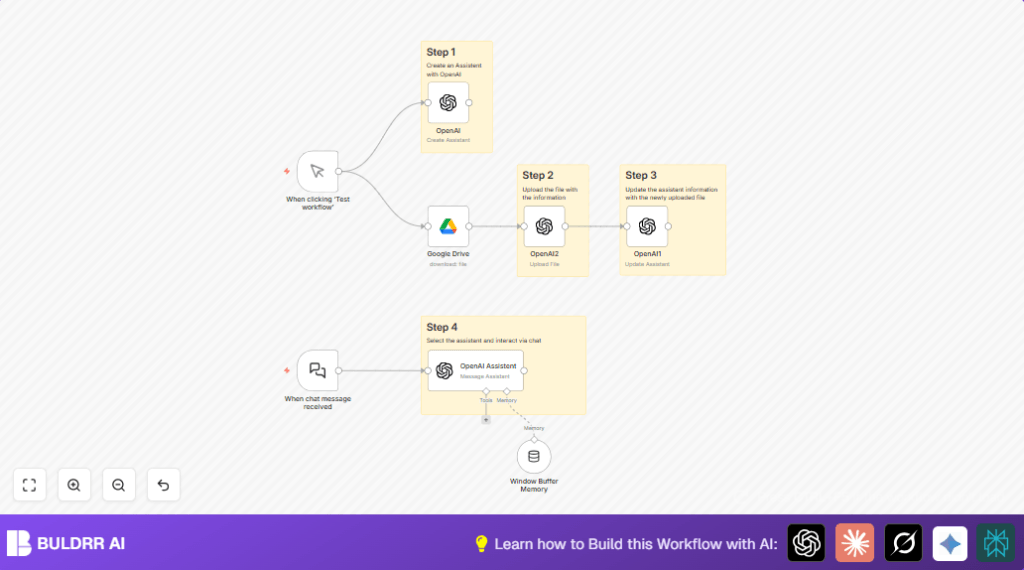
This workflow automates building a custom OpenAI assistant using Google Drive documents to provide precise travel agency information. It streamlines updating assistant knowledge from uploaded files and enables chat interaction, saving hours of manual data entry.
manualTrigger
openAi
googleDrive
+5
Workflow Identifier: 1670
NODES in Use: Manual Trigger, OpenAI, Google Drive, OpenAI, OpenAI, Chat Trigger, Window Buffer Memory, OpenAI

Press CTRL+F5 if the workflow didn't load.

Learn how to Build this Workflow with AI:

Visit through Desktop for Best experience

Opening Problem Statement

Meet Anna, a travel agency owner who manages hundreds of customer inquiries daily. She struggles to provide timely, accurate, and consistent answers to her clients about travel packages and policies. Anna spends over 5 hours a week manually updating her team on changes found in official travel documents stored in Google Drive. Errors and delayed communication lead to frustrated clients and lost bookings.

Anna needs a way to automate this process—creating a smart assistant that can instantly pull up-to-date information from official travel documents and answer customer questions accurately without human intervention. Without automation, Anna risks continued inefficiency, customer dissatisfaction, and lost revenue.

What This Automation Does

This n8n workflow creates a tailored OpenAI assistant that uses a Google Drive document as its single source of truth. Here is what happens when it runs:

  • Manually trigger the workflow to create the OpenAI assistant configured specifically for Anna’s travel agency.
  • Download a designated Google Drive document (PDF) containing updated travel information.
  • Upload this document to OpenAI as a knowledge file associated with the assistant.
  • Update the assistant with the new file so it can provide precise, document-backed responses.
  • Keep the chat session active with window buffer memory, allowing context-aware conversations with users.
  • Allow customers or agents to interact with the assistant via chat messages through a webhook trigger.

Benefits include saving 5+ hours weekly on manual updates, reducing errors, and delivering fast, consistent customer support tailored to real-time document changes.

Prerequisites ⚙️

  • n8n account (cloud or self-hosted for workflow automation) 🔌
  • Google Drive account with OAuth2 credentials for file access 📁🔑
  • OpenAI account with proper API key credentials for assistant creation and file uploads 🔐

Step-by-Step Guide

Step 1: Create the OpenAI Assistant

In n8n, start by setting up a Manual Trigger node to launch your workflow manually.

Add the OpenAI node (type: @n8n/n8n-nodes-langchain.openAi) configured as:

  • Resource: assistant
  • Operation: create
  • Model: gpt-4o-mini
  • Name: “Travel with us” Assistant
  • Instructions: Include detailed directives limiting responses strictly to the travel agency and referencing only the attached knowledge file.

Connect the Manual Trigger output to this node.

Run the workflow and verify the assistant is created. This serves as the foundational AI for travel inquiries.

Common mistake: Forgetting to set the instructions properly will cause the assistant to give generic or inaccurate answers.

Step 2: Download the Knowledge Document from Google Drive

Add a Google Drive node (n8n-nodes-base.googleDrive) configured to download a specific file:

  • Operation: download
  • File ID: Use the ID of your travel info document in Google Drive, for example, 1JG7ru_jBcWu5fvgG3ayKjXVXHVy67CTqLwNITqsSwh8.
  • Conversion: Convert the Google Doc to PDF format (application/pdf) for OpenAI upload.

Connect the output of the OpenAI assistant creation to this node.

Outcome: You get a binary PDF file ready for upload.

Common mistake: Wrong file ID or insufficient Google Drive OAuth permissions will cause failure.

Step 3: Upload the PDF to OpenAI and Update Assistant

Add another OpenAI node (named “OpenAI2”) configured as:

  • Resource: file
  • Operation: upload a file
  • Binary Property Name: data.pdf (the output from Google Drive node)

Connect Google Drive node output to this node to upload the file.

Then add another OpenAI node (“OpenAI1”) configured as:

  • Resource: assistant
  • Operation: update
  • Assistant ID: Select the assistant created earlier.
  • File IDs: The file ID returned from the previous upload node (use expression referencing file upload node output).

Link OpenAI2 output to OpenAI1 input.

Outcome: The assistant’s knowledge base is refreshed with the new document content.

Common mistake: Not passing the correct file ID will cause update failure.

Step 4: Enable Chat Interaction with Memory Buffer

Add the Chat Trigger node (@n8n/n8n-nodes-langchain.chatTrigger) to receive incoming chat messages via webhook.

Connect it to the OpenAI Assistant Chat node (@n8n/n8n-nodes-langchain.openAi) configured with:

  • Resource: assistant
  • Assistant ID: The updated assistant ID

Add the Window Buffer Memory node (@n8n/n8n-nodes-langchain.memoryBufferWindow) to maintain context between messages.

Connect the chat trigger to OpenAI Assistant node, and connect the OpenAI Assistant node to the Window Buffer Memory node configured for ai_memory.

Outcome: Users can chat live with the assistant that remembers earlier parts of the conversation.

Common mistake: Forgetting to connect memory node prevents context-sensitive replies.

Customizations ✏️

  • Use a different Google Drive document: In the Google Drive node, change the File ID to any other Google Docs file that contains your updated knowledge base.
  • Modify assistant instructions: In the OpenAI node that creates the assistant, update the instructions field to better suit your specific agency tone or policies.
  • Switch AI model: Change the model from “gpt-4o-mini” to a more powerful or cost-effective OpenAI model in the assistant creation node.
  • Adjust memory size: Tune the Window Buffer Memory node settings to remember more or less conversation history depending on your needs.

Troubleshooting 🔧

Problem: “Failed to download file from Google Drive”

Cause: Incorrect File ID or expired OAuth credentials.

Solution: Double-check the file ID in the Google Drive node settings. Refresh or reconfigure OAuth credentials under n8n credentials.

Problem: “Assistant update failed due to missing file ID”

Cause: File upload to OpenAI did not return a valid file ID.

Solution: Use expressions to correctly reference the OpenAI file upload node’s output. Ensure connections between nodes are accurate.

Pre-Production Checklist ✅

  • Verify Google Drive OAuth credentials have read access to the document.
  • Confirm the OpenAI API key has permissions to create and update assistants.
  • Test manual triggering to create and update the assistant successfully.
  • Send test chat messages via webhook URL to verify assistant responses.
  • Backup current assistant configurations if you plan to overwrite.

Deployment Guide

Activate your workflow by switching it ON in n8n. Use the manual trigger for initial setup to create and update the assistant.

Then share the Chat Trigger webhook URL with your customer-facing chat interface or internal tools.

Monitor workflow executions and errors from the n8n dashboard. Enable logging for detailed insights if needed.

FAQs

  • Can I use Dropbox instead of Google Drive? This workflow is designed specifically with Google Drive integration, but you could adapt file upload nodes to Dropbox with custom API calls.
  • Does this consume OpenAI API credits? Yes, each assistant creation, file upload, and chat interaction counts as API usage.
  • Is data secure? All data flows through authenticated APIs, but always review your credentials and environment security in n8n.
  • Can it handle high chat volume? n8n and OpenAI can scale, but monitor usage limits and optimize assistant instructions.

Conclusion

By following this tutorial, you have built a powerful OpenAI assistant integrated with Google Drive that dynamically updates its knowledge base from official travel documents. This automation saves Anna over 5 hours weekly, reduces errors, and ensures fast, accurate customer support.

Next steps include adding multiple document support, integrating SMS or email channels for customer inquiries, and building a dashboard to monitor chat interactions.

Keep exploring n8n and OpenAI to automate and enhance your business processes!

Promoted by BULDRR AI

Related Workflows

Automate Viral UGC Video Creation Using n8n + Degaus (Beginner-Friendly Guide)

Learn how to automate viral UGC video creation using n8n, AI prompts, and Degaus. This beginner-friendly guide shows how to import, configure, and run the workflow without technical complexity.
Form Trigger
Google Sheets
Gmail
+37
Free

AI SEO Blog Writer Automation in n8n

A complete beginner guide to building an AI-powered SEO blog writer automation using n8n.
AI Agent
Google Sheets
httpRequest
+5
Free

Automate CrowdStrike Alerts with VirusTotal, Jira & Slack

This workflow automates processing of CrowdStrike detections by enriching threat data via VirusTotal, creating Jira tickets for incident tracking, and notifying teams on Slack for quick response. Save hours daily by transforming complex threat data into actionable alerts effortlessly.
scheduleTrigger
httpRequest
jira
+5
Free

Automate Telegram Invoices to Notion with AI Summaries & Reports

Save hours on financial tracking by automating invoice extraction from Telegram photos to Notion using Google Gemini AI. This workflow extracts data, records transactions, and generates detailed spending reports with charts sent on schedule via Telegram.
lmChatGoogleGemini
telegramTrigger
notion
+9
Free

Automate Email Replies with n8n and AI-Powered Summarization

Save hours managing your inbox with this n8n workflow that uses IMAP email triggers, AI summarization, and vector search to draft concise replies requiring minimal review. Automate business email processing efficiently with AI guidance and Gmail integration.
emailReadImap
vectorStoreQdrant
emailSend
+12
Free

Automate Email Campaigns Using n8n with Gmail & Google Sheets

This n8n workflow automates personalized email outreach campaigns by integrating Gmail and Google Sheets, saving hours of manual follow-up work and reducing errors in email sequences. It ensures timely follow-ups based on previous email interactions, optimizing communication efficiency.
googleSheets
gmail
code
+5
Free