

What This Workflow Does
This workflow creates social media captions automatically using AI when a new post is added in Airtable.
It solves the problem of spending hours writing captions and missing the right tone for each audience.
The result is fast, creative captions that match the brand and audience and show up in Airtable ready for use.
Inputs, Processing Steps, and Output
Inputs
- New post record: Created in Airtable editorial planning table.
- Briefing details: Written in Airtable for post and target audience.
- Background info: Audience and brand data from Airtable tables.
- API keys: OpenAI and Airtable credentials connected in n8n.
Processing Steps
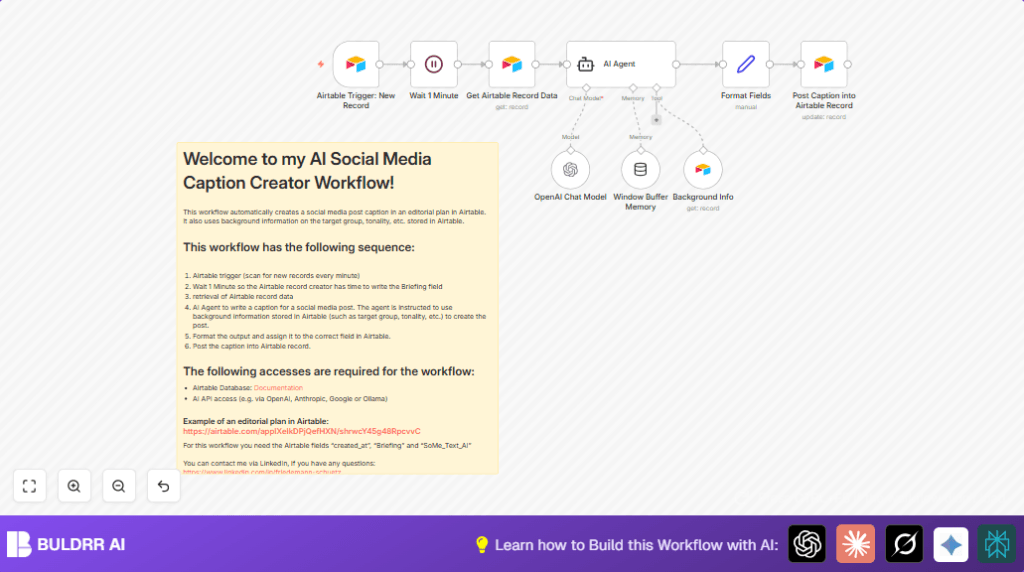
- Trigger catches new Airtable records.
- Wait node pauses 1 minute to allow briefing completion.
- Airtable node fetches full record data using the record ID.
- AI Agent reads the briefing and background info and generates a creative caption, including a call to action, tuned for the audience.
- Set node formats the caption output.
- Airtable node updates the original record with the AI caption in the correct field.
Output
The newly created Airtable post record now includes a polished AI-generated caption.
Who Should Use This Workflow
This workflow suits social media managers and marketers working with multiple brands.
It helps anyone who wants to save hours writing captions and reduce mistakes in tone or messaging.
It fits teams that use Airtable for editorial planning and want faster content creation.
Tools and Services Used
- n8n: Automates the workflow.
- Airtable API: Triggers and updates post records.
- OpenAI GPT-4 via Langchain: Creates social media captions.
- Wait node: Ensures briefing data completeness.
- Set node: Formats caption text.
Beginner Step-by-Step: How to Use This Workflow in n8n
Step 1: Import the Workflow
- Click the Download button on this page to save the workflow file.
- Open the n8n editor where you manage workflows.
- Choose Import from File and select the downloaded workflow file.
Step 2: Configure Credentials and IDs
- In n8n, enter required credentials: Airtable API Key and OpenAI API Key.
- Update Airtable Base ID, Table names, and Record IDs in nodes if your setup uses different values. Use this example for the record ID expression:
= {{ $json.id }}
Step 3: Test the Workflow
- Create a new post record in Airtable with a briefing filled out.
- Run the workflow once manually or wait for the trigger to fire.
- Check Airtable to see if the AI-generated caption appears in the correct field.
Step 4: Activate for Continuous Use
- Toggle the workflow active in n8n to let it listen for new post records.
- Monitor initial runs and correct any errors in credentials or field mapping.
If hosting n8n yourself, consult self-host n8n resources for running this workflow reliably on your server.
Customization Ideas
- Change the AI Agent system prompt to generate captions for different platforms like TikTok or LinkedIn.
- Adjust the wait time if your team needs longer to complete the briefing before the workflow continues.
- Add extra Airtable data fields such as trending hashtags or competitor analysis to enrich AI input.
- Include multilingual support by modifying the prompt to create captions in various languages based on Airtable fields.
- Extend the workflow to post captions directly to Instagram or other social networks via API after creation.
Common Problems and Fixes
- Issue: AI Agent node returns no caption or errors.
Fix: Check OpenAI API Key in Langchain OpenAI Chat Model node and confirm node connections. - Issue: Airtable node does not update the caption field.
Fix: Verify the correct field ID, the record ID, and ensure API key has write permissions. - Issue: Workflow triggers too early before briefing is complete.
Fix: Ensure the Wait node is present and set to pause at least 1 minute.
Summary
✓ Automates caption writing using AI.
✓ Saves time by reducing manual editing.
✓ Makes captions match audience and brand style better.
✓ Works with Airtable editorial planning system.
→ Produces creative, ready-to-use captions quicker.
→ Lowers risk of errors in messaging.
