

Automate Customer Feedback Analysis with n8n and OpenAI

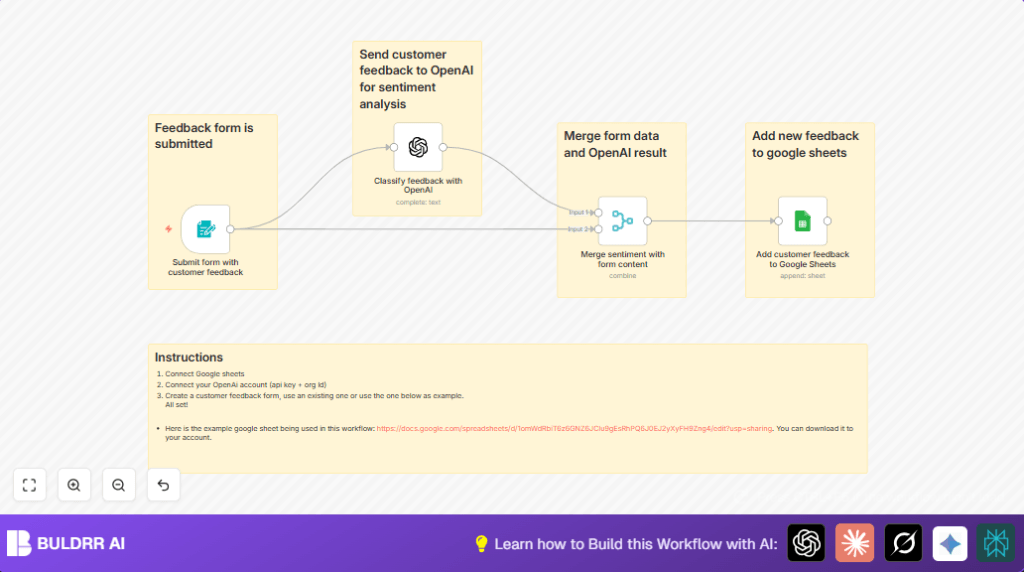
Discover how to automate customer feedback processing using n8n, Google Sheets, and OpenAI’s sentiment analysis. This workflow streamlines feedback form submissions, classifies sentiments, and stores data efficiently.
formTrigger
openAi
merge
+2
Workflow Identifier: 1661
NODES in Use: formTrigger, openAi, merge, googleSheets, stickyNote

Press CTRL+F5 if the workflow didn't load.

Learn how to Build this Workflow with AI:

Visit through Desktop for Best experience

Opening Problem Statement

Meet Laura, a customer service manager at a growing e-commerce business. Every day, Laura receives dozens—sometimes hundreds—of customer feedback entries through various channels. Manually categorizing this feedback, understanding the sentiment behind each comment, and compiling reports is a tedious, error-prone task. It takes Laura and her team hours each week, delaying insights that could improve products and service. Without automation, critical feedback risks being overlooked, leading to missed opportunities for business growth and unhappy customers.

This specific challenge of real-time, automated sentiment classification and data organization from customer feedback forms is exactly what this n8n workflow addresses.

What This Automation Does

This workflow automates the entire process from when a customer submits feedback until the data is analyzed and logged, eliminating manual work and speeding up response times. Here’s what happens:

  • Feedback form submission trigger: The workflow listens for new survey responses via an integrated form submission node.
  • Sentiment analysis with OpenAI: It sends each feedback entry to OpenAI to classify the sentiment (positive, negative, neutral).
  • Merge form data with analysis: Combines the original feedback and customer details with the sentiment classification.
  • Append data to Google Sheets: Automatically adds the feedback, categorized by sentiment and other fields, to a centralized Google Sheet for easy access and reporting.
  • Streamlined data consolidation: Ensures no data is lost or duplicated—everything flows smoothly end-to-end.

With this automation, Laura saves hours every week and gains near-instant insights into customer sentiment, enabling proactive business decisions.

Prerequisites ⚙️

  • n8n Workflow Automation Platform: An n8n cloud or self-hosted instance where you can create and run workflows.
  • Google Sheets account 📊: Access to a Google Sheets document where feedback will be logged.
  • OpenAI account 🔑: API key and organization ID to use OpenAI’s sentiment analysis capabilities.
  • Web-accessible feedback form: This workflow includes a form trigger node to collect feedback.
  • Optional: If interested in self-hosting your n8n instance, services like Hostinger provide easy deployment options.

Step-by-Step Guide

Step 1: Set Up the Form Trigger Node

Navigate to your n8n editor and add the Form Trigger node. Name it Submit form with customer feedback. Configure it as follows:

  • Set the Form title to “Customer Feedback”.
  • Under Form fields, add:
    • Name (required)
    • What is your feedback about? (dropdown with options: Product, Service, Other – required)
    • Your feedback (textarea, required)
    • How do we get in touch with you? (optional contact field)
  • Customize form description as: “Please give feedback about our company or products.”
  • Save the node and note the generated webhook URL. This URL is where form submissions will be sent.

Common mistake: Forgetting to mark required fields properly can lead to incomplete submissions.

Step 2: Connect the OpenAI Node for Sentiment Analysis

Add the OpenAI node named Classify feedback with OpenAI. Set up using your OpenAI API credentials:

  • Set prompt to:
    =Classify the sentiment in the following customer feedback: {{ $json['Your feedback'] }}
  • Leave options blank (default).
  • Link this node’s input from the Form Trigger node’s output.

This node processes the feedback text and returns the sentiment classification (e.g., Positive, Negative, Neutral).

Step 3: Merge Feedback Data with Sentiment Results

Use the Merge node called Merge sentiment with form content. Configure the mode to combine and combination mode to multiplex.

This merges the original form submission and the sentiment analysis output side-by-side so you can work with one combined dataset.

Step 4: Append Feedback to Google Sheets

Add a Google Sheets node named Add customer feedback to Google Sheets:

  • Connect your Google Sheets OAuth2 credentials.
  • Select the document ID of your feedback sheet (an example Google Sheet here).
  • Choose the sheet (gid=0 as default).
  • In the Columns mapping, map fields as follows (example to copy):
  • {
      "Category": "={{ $json['What is your feedback about?'] }}",
      "Sentiment": "={{ $json.text }}",
      "Timestamp": "={{ $json.submittedAt }}",
      "Entered by": "=Form",
      "Customer Name": "={{ $json.Name }}",
      "Customer contact": "={{ $json['How do we get in touch with you?'] }}",
      "Customer Feedback": "={{ $json['Your feedback'] }}"
    }
  • Operation: Append (adds new rows).

After successful connection, each new feedback record with sentiment will be appended automatically.

Step 5: Activate and Test Your Workflow

Turn on the workflow and submit a test form entry to your webhook URL. You should see the sentiment classification processed and a new row appear in your Google Sheet with all the feedback details.

Visual confirmation: Check the sheet to confirm new data entry with sentiment and other fields filled.

Customizations ✏️

  • Change Sentiment Prompt: In the OpenAI node, customize the prompt to classify specific emotions (e.g., “Analyze the customer tone as happy, frustrated, or neutral”) for more granular insights.
  • Add Urgent Flagging: Add additional logic nodes to flag urgent feedback based on keywords like “urgent” or “complaint” and write that info as an “Urgent?” column in Google Sheets.
  • Expand Form Fields: Edit the Form Trigger node to add custom rating fields or product categories as dropdowns to capture more feedback dimensions.
  • Notify Team via Slack: Add a Slack node triggered after the Google Sheets append to alert your support team of new negative or urgent feedback.
  • Store Raw Feedback JSON: Create a separate Google Sheet or database node to save original JSON responses for audit and traceability.

Troubleshooting 🔧

  • Problem: “OpenAI node returns empty or error response.”

    Cause: API key misconfiguration, or quota exceeded.

    Solution: Recheck OpenAI credentials in n8n credentials manager; verify your API usage isn’t exceeded; regenerate API keys if needed.
  • Problem: “Google Sheets node fails to append data.”

    Cause: Incorrect sheet name or insufficient permissions.

    Solution: Verify the correct document ID and sheet gid; check OAuth scopes and re-authenticate your Google Sheets connection.
  • Problem: “Form submissions not triggering workflow.”

    Cause: Webhook URL not properly linked to your hosted form or network issues.

    Solution: Confirm webhook URL is the target of form submissions; test webhook with tools like Postman; check network firewall rules.

Pre-Production Checklist ✅

  • Ensure your Google Sheets document is shared with the Google account used for OAuth credentials.
  • Confirm your OpenAI API key and organization ID are valid and tested.
  • Test the webhook URL with a sample form submission using Postman or a browser.
  • Verify field mappings in the Google Sheets node match your sheet columns exactly.
  • Double-check the Form Trigger node form fields and their required settings.
  • Backup the Google Sheet data before live deployment to avoid accidental data loss.

Deployment Guide

Once tested, activate your workflow by toggling it on in n8n. Ensure your webhook URL is publicly accessible for form submissions.

To monitor workflow execution, use n8n’s execution logs and enable notifications for failures.

Consider scheduling periodic exports or backups of your Google Sheets data as a precaution.

FAQs

  • Q: Can I use other AI providers instead of OpenAI?

    A: Yes, but you’ll need to replace the OpenAI node with equivalent HTTP or API request nodes configured for your provider.
  • Q: Does this consume OpenAI API credits?

    A: Yes, each sentiment classification is a paid API call. Monitor usage to avoid costs overruns.
  • Q: Is my customer data secure?

    A: n8n handles data securely, but always follow best practices for credential management and avoid logging sensitive info unnecessarily.
  • Q: Can this handle high volume feedback submissions?

    A: It depends on your n8n instance capacity and OpenAI API rate limits. For very high volume, consider batching or additional error handling.

Conclusion

By setting up this n8n workflow, you’ve automated the tedious process of customer feedback analysis, combining effortless form submissions, instant sentiment classification using OpenAI, and organized data storage in Google Sheets.

Laura and her team can now focus on acting on insights instead of manual data entry, saving hours weekly and improving customer satisfaction proactively.

Next steps could include integrating Slack alerts for critical feedback, expanding feedback dimensions in your form, or even linking results to your CRM for seamless customer relationship management.

With this groundwork laid, you’re well on your way to smarter, data-driven customer engagement.

Promoted by BULDRR AI

Related Workflows

Automate Viral UGC Video Creation Using n8n + Degaus (Beginner-Friendly Guide)

Learn how to automate viral UGC video creation using n8n, AI prompts, and Degaus. This beginner-friendly guide shows how to import, configure, and run the workflow without technical complexity.
Form Trigger
Google Sheets
Gmail
+37
Free

AI SEO Blog Writer Automation in n8n

A complete beginner guide to building an AI-powered SEO blog writer automation using n8n.
AI Agent
Google Sheets
httpRequest
+5
Free

Automate CrowdStrike Alerts with VirusTotal, Jira & Slack

This workflow automates processing of CrowdStrike detections by enriching threat data via VirusTotal, creating Jira tickets for incident tracking, and notifying teams on Slack for quick response. Save hours daily by transforming complex threat data into actionable alerts effortlessly.
scheduleTrigger
httpRequest
jira
+5
Free

Automate Telegram Invoices to Notion with AI Summaries & Reports

Save hours on financial tracking by automating invoice extraction from Telegram photos to Notion using Google Gemini AI. This workflow extracts data, records transactions, and generates detailed spending reports with charts sent on schedule via Telegram.
lmChatGoogleGemini
telegramTrigger
notion
+9
Free

Automate Email Replies with n8n and AI-Powered Summarization

Save hours managing your inbox with this n8n workflow that uses IMAP email triggers, AI summarization, and vector search to draft concise replies requiring minimal review. Automate business email processing efficiently with AI guidance and Gmail integration.
emailReadImap
vectorStoreQdrant
emailSend
+12
Free

Automate Email Campaigns Using n8n with Gmail & Google Sheets

This n8n workflow automates personalized email outreach campaigns by integrating Gmail and Google Sheets, saving hours of manual follow-up work and reducing errors in email sequences. It ensures timely follow-ups based on previous email interactions, optimizing communication efficiency.
googleSheets
gmail
code
+5
Free