

What this workflow does
This workflow helps you manage Google Calendar using natural language commands. It lets you view, add, update, and delete calendar events by talking or typing simple requests. The goal is to save time and avoid mistakes like double-booking or missing events.
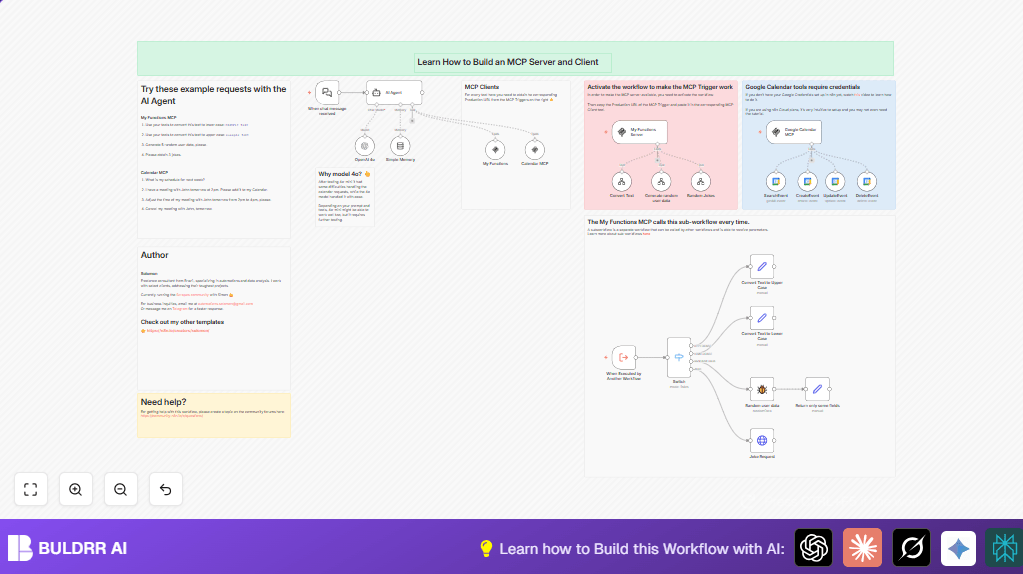
You interact with an AI assistant that understands everyday language. It talks to Google Calendar through n8n nodes. The assistant remembers past conversations to improve replies.
Who should use this workflow
This setup is best for busy people who want to skip manual calendar updates. If you often juggle meetings and deadlines, this saves you from looking up details or fixing errors by hand. It also works well for teams or multiple users sharing calendars.
Users should have basic n8n knowledge and access to Google Calendar and OpenAI services.
Tools and services used
- n8n: Automation platform to build and run the workflow.
- Google Calendar API: For creating, reading, updating, and deleting events using OAuth2 authentication.
- OpenAI GPT-4o: Language model that understands natural language input and manages conversations.
- LangChain: AI agent node inside n8n that processes text commands and calls calendar nodes.
- n8n MCP triggers: Webhooks that handle AI tool requests and text conversion tasks.
These tools work together to let users talk to their Google Calendar using simple sentences.
Inputs, processing steps, and outputs
Inputs
- User text commands, such as “Add meeting tomorrow at 2pm” or “Show my next week’s events”.
- Google Calendar events data via API calls.
- Function names for auxiliary text tools like uppercase/lowercase conversion.
Processing steps
- The AI Agent node interprets the user commands using OpenAI GPT-4o and the system prompt.
- The Multi-Client Processing (MCP) triggers receive and route requests to Google Calendar nodes or helper functions.
- Google Calendar nodes perform event searches, creations, updates, or deletions based on AI-decided parameters.
- Simple memory nodes save conversation history so the AI has context for better dialogue.
- Switch nodes send requests to proper workflows, like text case changes or joke generation, if requested.
Outputs
- Successful additions, updates, or deletions of calendar events.
- Lists of events matching user date queries.
- Processed text output or data from helper functions.
- Conversational responses from the AI agent acknowledging tasks or asking follow-ups.
Beginner step-by-step: How to use this workflow in n8n production
Step 1: Import the workflow
Download the workflow file using the Download button on this page.
Open the n8n editor and select “Import from File”.
Choose the downloaded file to add it to your workflows.
Step 2: Configure credentials and settings
Add your Google Calendar OAuth2 credentials in n8n Credentials.
Add your OpenAI API Key in the relevant credential node.
Check all Google Calendar nodes (SearchEvent, CreateEvent, UpdateEvent, DeleteEvent) and update calendar email addresses if needed.
If there are MCP triggers or clients, verify their webhook URLs fit your setup.
Step 3: Test the workflow
Run test inputs by sending chat messages like “Add a meeting with Anna at 3pm” or “Show events on Friday” through the chat trigger or the API.
Verify the expected Google Calendar changes and AI responses occur.
Step 4: Activate the workflow for production
Activate the workflow in n8n to enable all triggers and webhook URLs.
Start sending real requests through the provided URLs or interfaces.
Monitor the workflow executions to catch issues early.
If self hosting n8n, consider self-host n8n for more control and stability.
Customization ideas
- Change the calendar by updating email settings in the calendar nodes to work with different Google Calendars.
- Switch the OpenAI model to control cost or improve response quality by editing the model parameter.
- Add more functions to the Switch node and create workflows for them, like email handling or notifications.
- Modify the AI Agent system message to adjust how polite, detailed, or professional the assistant sounds.
Common edge cases and troubleshooting
Issue: “Invalid Credentials” for Google Calendar nodes
This means OAuth2 credentials are expired or wrong.
Fix by re-authenticating Google Calendar credentials in n8n and saving again.
Issue: AI Agent gives wrong or no answers
Could be a bad or missing OpenAI API Key, or unclear system prompt.
Check the API key in n8n is correct and refine the system message to be clear.
Issue: MCP triggers not working
Usually caused by workflow not activated or webhook URLs copied wrong.
Activate the workflow and verify the URL matches the MCP trigger settings.
Summary of results
✓ Easily manage Google Calendar using your own words.
✓ Automate schedule updates without manual Google Calendar edits.
✓ Reduce errors like double-bookings or missed events.
✓ Keep conversations remembered for better task handling.
→ Save hours every week by cutting down calendar management work.
