

What This Automation Does
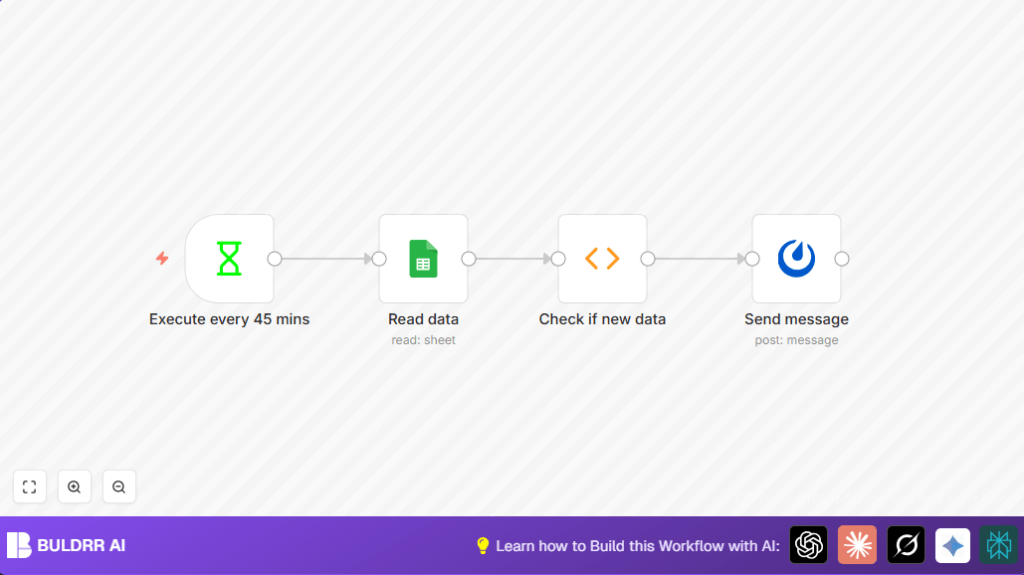
This workflow reads a Google Sheet every 45 minutes and finds new rows added since last check.
Then it sends messages about these new entries to a Mattermost channel.
This saves manual copying and posting, avoiding duplicates and delays.
It stores which rows were sent using static data, so it only alerts for new items.
The messages include important info like ID, Name, and Email.
Who Should Use This Workflow
This is for people who want to automatically watch a shared Google Sheet for changes.
Anyone tired of copying data by hand and sending manual updates will save time.
It is good for teams using Google Sheets as a data source and Mattermost as their chat tool.
It works well if frequent updates come in and timely notifications are needed.
Tools and Services Used
- n8n: The automation platform running the workflow.
- Google Sheets API: Provides access to the spreadsheet data.
- Mattermost API: Sends messages to the team chat.
- OAuth2 Credentials: For secure Google Sheets access.
Inputs, Processing, and Output
Inputs
- Google Sheet with columns named “ID”, “Name”, and “Email”.
- Mattermost channel details and API credentials.
- n8n workflow scheduled to run every 45 minutes.
Processing Steps
- Interval timer triggers every 45 minutes.
- Google Sheets node reads all rows.
- Function node compares current row IDs with stored IDs to find new entries.
- Static data in Function node stores seen IDs to prevent repeats.
- Mattermost node sends messages to the channel with new info.
Output
- Formatted messages posted in Mattermost for each new Google Sheet data row.
- No duplicate messages for rows already sent.
Beginner Step-by-Step: How to Use This Workflow in n8n
Download and Import Workflow
- Click the Download button on this page to get the workflow file.
- Open n8n editor.
- Use “Import from File” to upload the workflow.
Configure Credentials and IDs
- Add Google Sheets OAuth2 credentials inside n8n.
- Add Mattermost API credentials with correct URL and API Key.
- Update the Google Sheet ID to match your sheet.
- Update Mattermost channel or team information if needed.
Test and Activate
- Run the workflow manually once to check if data pulls and messages send.
- Look for messages in the Mattermost channel.
- Fix any errors in credentials or sheet ID if no messages appear.
- Activate the workflow to run automatically every 45 minutes.
If self hosting n8n, make sure server uptime is good to avoid missed runs. See self-host n8n info for help.
Details of the Check for New Data Code
The Function node runs JavaScript code that compares current rows with saved row IDs.
Rows with IDs already saved are skipped.
Only rows with unseen IDs get sent as new items.
After processing, the saved IDs list updates to current row IDs.
const new_items = [];
const data = this.getWorkflowStaticData("node");
data.ids = data.ids || [];
for (let i = items.length - 1; i >= 0; i--) {
  if (data.ids.includes(items[i].json.ID)) {
    break;
  } else {
    new_items.push({
      json: {
        id: items[i].json.ID,
        name: items[i].json.Name,
        email: items[i].json.Email
      },
    });
  }
}
data.ids = items.map((item) => item.json.ID);
return new_items;
Column names like “ID”, “Name”, and “Email” must match exactly with your sheet.
Otherwise the code won’t find data properly.
Customization Ideas
- Change how often the Interval node runs; for example, every 30 or 60 minutes.
- Add extra Google Sheet columns in the Function node code and Mattermost message.
- Filter rows in the Function code to send only based on criteria like a status column.
Common Problems and Fixes
Function Node Returns No Data
Possible cause is the Google Sheets node returned no data or column names mismatched.
Check Sheet ID and OAuth2 credentials.
Verify that sheet columns are exactly “ID”, “Name”, and “Email”.
Mattermost Node Fails to Send Message
This happens due to wrong API credentials or wrong API URL.
Check Mattermost API token and base URL.
Try sending a simple test message.
Pre-Production Checklist
- Confirm correct Google Sheet ID and OAuth2 permissions to read data.
- Make sure Mattermost API token has permission to post messages.
- Test the Function node logic with sample data before activating.
- Run a manual test to verify messages post in Mattermost.
- Backup Google Sheet data in case rollback is needed.
Deployment Guide
After testing is complete, activate the workflow.
It will run every 45 minutes automatically.
Watch the execution history in n8n dashboard to catch errors quickly.
Set error notifications in n8n if possible.
If running on your own server, visit self-host n8n to ensure reliable uptime.
Summary
✓ Saves time by automatically reading Google Sheets and posting updates.
✓ Prevents repeated notifications by tracking processed data.
✓ Keeps team informed regularly every 45 minutes.
✓ Easy to set up with clear configuration steps.
✓ Can customize frequency and data fields.
✓ Works well for those using Google Sheets and Mattermost together.
