
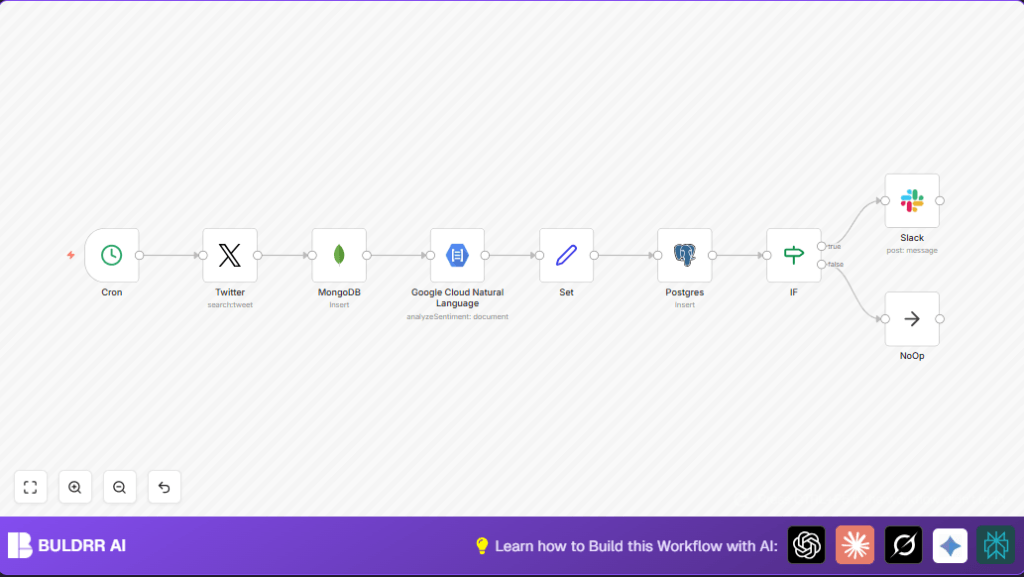

What This Automation Does
This workflow fetches tweets tagged #OnThisDay each morning at 6 AM.
It saves raw tweets to MongoDB, then analyzes tweet emotions with Google Cloud NLP.
It stores sentiment scores and tweet text in Postgres.
When tweets have a positive feeling, it sends messages to a Slack channel.
Negative or neutral tweets do not generate alerts.
This saves time and helps teams see moods quickly.
Tools and Services Used
- Twitter API (OAuth1): Gets tweets with #OnThisDay.
- MongoDB: Stores raw tweet texts.
- Google Cloud Natural Language API (OAuth2): Performs sentiment analysis.
- Postgres Database: Saves analyzed tweet data with sentiment.
- Slack API: Sends positive sentiment alerts to a channel.
- n8n automation platform: Runs and connects all nodes.
Inputs, Processing Steps, and Outputs
Inputs
- Search term ‘#OnThisDay’ from Twitter API every day at 6 AM.
- MongoDB database connection for storing raw tweets.
- Google Cloud NLP API credentials for sentiment evaluation.
- Postgres database for saving final sentiment records.
- Slack channel destination for positive sentiment alerts.
Processing Steps
- Extract tweets by searching latest 3 tweets with #OnThisDay.
- Insert raw tweet text into MongoDB collection named ‘tweets’.
- Run sentiment analysis on tweet text using Google Cloud NLP.
- Structure sentiment score, magnitude, and original text via Set node.
- Insert sentiment data and tweet text into Postgres ‘tweets’ table.
- Use IF node to check if sentiment score is greater than 0.
- If sentiment is positive, send message to Slack channel.
- If sentiment is not positive, proceed silently with NoOp node.
Outputs
- Raw tweets saved in MongoDB.
- Sentiment scores and text saved in Postgres.
- Slack notifications showing positive tweets with scores.
- No Slack messages for neutral or negative tweets.
Who Should Use This Workflow
This workflow is for social media analysts who check tweet moods daily.
It fits teams wanting fast, error-free sentiment reports without manual work.
Users who want automatic alerts about positive tweets benefit a lot.
Beginner Step-by-Step: How to Use This Workflow in n8n
Download and Import Workflow
- Click the Download button on this page to get the workflow file.
- Open n8n editor and choose “Import from File”.
- Select the downloaded workflow file to add it to your workspace.
Configure Credentials and Settings
- Add credentials for Twitter API with OAuth1.
- Add credentials for Google Cloud NLP API with OAuth2.
- Connect MongoDB and Postgres database credentials.
- Set Slack API token and confirm Slack channel name.
- Update table names, channel names, or IDs if your setup differs.
Test and Activate Workflow
- Run the workflow manually once to check the data flow.
- Look at output logs to ensure no errors.
- Toggle the active switch in n8n to turn the workflow on.
- Monitor the workflow at 6 AM daily for data and alerts.
For users controlling their own servers, check self-host n8n for hosting options.
Customizations and Extensions
- Change sentiment threshold by editing IF node (e.g., score > 0.2) to show only stronger positives.
- Increase the tweet fetch limit in Twitter node (e.g., from 3 to 10) for more data.
- Add tweet timestamp or user info fields into MongoDB insertion for richer raw data.
- Add an IF branch to notify on negative sentiment (scores below -0.5) for alerting bad buzz.
- Modify Cron node to run multiple times per day such as 6 AM, 12 PM, and 6 PM for frequent tracking.
Troubleshooting
Twitter Node Returns No Tweets or Authorization Error
Cause: Twitter OAuth1 token expired or invalid.
Solution: Re-authenticate Twitter OAuth1 API credentials inside n8n.
Google Cloud Natural Language Node Fails Authentication
Cause: Missing or wrong OAuth2 credentials.
Solution: Generate new OAuth2 credentials in Google Cloud Console and update in n8n.
Postgres Node Insert Errors due to Schema Mismatch
Cause: Table columns do not match Insert fields.
Solution: Verify Postgres table has exactly columns named “text”, “score”, “magnitude”.
Pre-Production Checklist
- Ensure Twitter API keys have read permissions.
- Check database connections and schema match for MongoDB and Postgres.
- Test Google Cloud NLP API separately to confirm expected responses.
- Confirm Slack channel exists and API token can post messages.
- Perform a manual test run of the workflow before scheduling.
- Backup database data before running workflow in production.
Deployment Guide
Activate workflow by toggling “active” in n8n after setup finishes.
Watch execution logs regularly to catch errors or slow runs.
Update Cron timing if different schedule is wanted.
Summary and Results
✓ Automates daily tweet fetching, analyzing, and saving with #OnThisDay.
✓ Gives instant alert for positive tweets via Slack.
✓ Removes manual work and errors from social sentiment reporting.
→ Enables teams to quickly see and act on tweet moods every morning.
→ Saves multiple hours weekly in tweet analysis tasks.
