
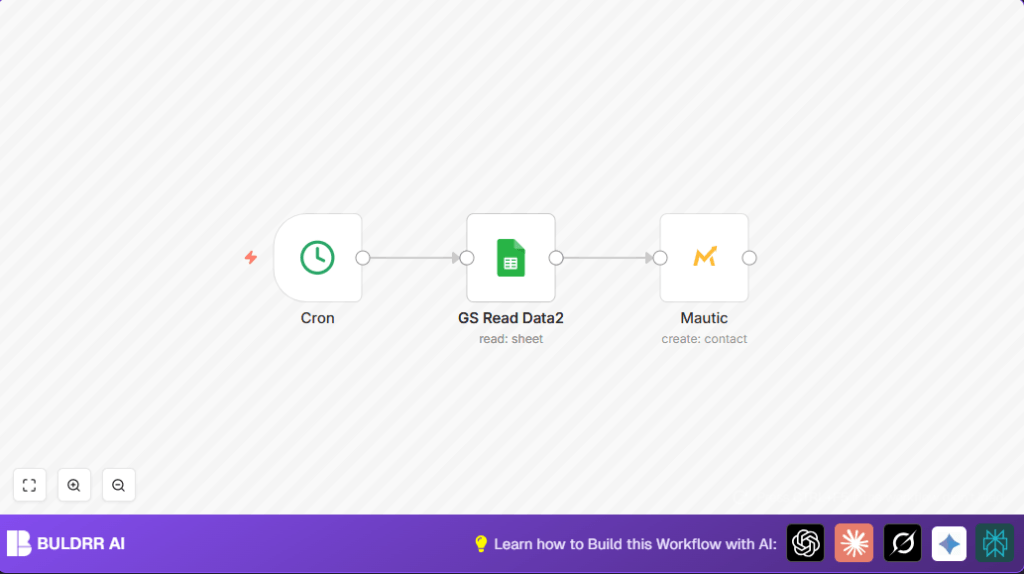

What This Automation Does
This workflow syncs contact info from Google Sheets to Mautic automatically every 5 minutes.
It stops you from copying data by hand and missing updates.
The outcome is a fresh email list in Mautic for better campaigns.
It triggers on a schedule, reads data from a Google Sheet, and sends emails, names, and phones to Mautic nodes.
It updates existing contacts or adds new ones without manual work.
Inputs, Processing, and Outputs
- Input: Google Sheets data including email, first name, and mobile number.
- Processing: Cron node runs every 5 minutes.
Google Sheets node fetches contact rows.
Mautic node creates or updates contacts with fetched info. - Output: Updated Mautic contact database with latest Google Sheets data.
Who Should Use This Workflow
If managing contacts in Google Sheets and needing them fresh in Mautic sounds familiar, this workflow helps.
It fits marketing coordinators, sales teams, or anyone syncing contacts often.
You need to use this if copying and pasting contacts takes too much time or causes mistakes.
Anyone wanting quicker, accurate email lists benefits.
Tools and Services Used
- Google Sheets API: Reads contact data.
- Mautic API: Creates or updates email marketing contacts.
- n8n Automation Platform: Orchestrates nodes and scheduling.
If choosing to self-host n8n, use self-host n8n resources for setup.
Beginner Step-by-Step: How to Use This Workflow in n8n
Step 1: Import the Workflow
- Click the Download button on this page to get the workflow file.
- Inside n8n editor, click Import from File and select the downloaded file.
Step 2: Configure Credentials and Parameters
- Add your Google Sheets API credentials in n8n if not already saved.
- Add your Mautic API credentials in n8n.
- Update the Google Sheet ID if your sheet is different.
- Check the sheet range (e.g.,
Data!A:P) matches your sheet setup. - If needed, modify any email or name fields in the Mautic node expressions to fit your data.
Step 3: Test and Activate
- Run the workflow manually once to confirm data flows correctly.
- After successful test, activate the workflow to run every 5 minutes.
- Monitor execution logs for any errors during initial runs.
Inputs and Outputs Explained
Input Details: The workflow reads a defined range in a Google Sheet.
This range should have the columns for email, first name, and mobile number.
Processing Steps: The Cron node triggers workflow.
Google Sheets node fetches all rows inside the range.
Each contact is passed to the Mautic node one by one.
Output: Mautic gets contact records created or updated with the latest info.
This keeps the email marketing database current.
Customization Ideas
- Change how often sync runs by setting a different time in the Cron node.
- Add fields like last name or tags by editing the Mautic node’s Additional Fields.
- Put in a filter node before Mautic to send only contacts meeting certain rules like having a phone number.
- Switch the Google Sheet range or ID to read data from another spreadsheet or tab.
Common Errors and Fixes
Issue: Google Sheets node returns no data.
Cause: Sheet ID or range is incorrect or missing permissions.
Fix: Confirm Sheet ID matches sheet URL.
Check range like Data!A:P is correct.
Ensure API key has read access to that sheet.
Issue: Mautic node fails at contact creation.
Cause: API Key wrong or expressions for fields are wrong.
Fix: Re-enter Mautic API credentials in n8n.
Validate the expression syntax like {{$node["GS Read Data2"].json["email"]}}.
Pre-Production Checklist
- Make sure the Cron node triggers manually.
- Run the Google Sheets node alone to verify it fetches data.
- Run the Mautic node with sample data.
- Check all API credentials are saved correctly.
- Backup your Google Sheets before running live.
Deployment Guide
Activate the workflow in n8n after successful testing.
Watch logs for errors on the first few runs.
Keep API keys up-to-date.
Mind any API limits on Google Sheets and Mautic.
Summary
✓ Saves hours of manual data entry each week.
✓ Keeps Mautic contacts updated every 5 minutes.
→ Results in accurate, timely email campaigns.
→ Reduces errors from copying data by hand.
✓ Easy to use with n8n by importing and configuring.
Expressions to Use in Mautic Node
Set these expressions to fetch fields from Google Sheets node (GS Read Data2):
- Email:
{{$node["GS Read Data2"].json["email"]}} - First Name:
{{$node["GS Read Data2"].json["firstname"]}} - Mobile Phone (in Additional Fields):
{{$node["GS Read Data2"].json["mobile"]}}
Sample Google Sheets Specifications
The sheet should have this structure in the range Data!A:P:
- Email column named “email”.
- First name column named “firstname”.
- Mobile number column named “mobile”.
Ensure the data starts from row 2 or adjusted as per your sheet.
