

Automate Incident Alerts with TheHive and SIGNL4 Using n8n

Struggling to efficiently manage security incidents? This n8n workflow automates alert creation and resolution between TheHive and SIGNL4, saving you hours and reducing missed updates during critical security events.
theHive
signl4
webhook
+2
Workflow Identifier: 1591
NODES in Use: TheHive, IF, SIGNL4, Webhook, Manual Trigger

Press CTRL+F5 if the workflow didn't load.

Learn how to Build this Workflow with AI:

Visit through Desktop for Best experience

1. Opening Problem Statement

Meet Sarah, a security analyst at a mid-sized IT firm responsible for monitoring and responding to security incidents. Daily, she juggles multiple alerts generated by TheHive, her security incident response platform, and manually pushes notifications to her team using SIGNL4, a mobile alerting app. The manual process consumes hours, risks missed or delayed communications, and increases the chance of errors during high-pressure situations.

For Sarah, the challenge is clear: how can she streamline the handoff of alerts between TheHive and SIGNL4 to accelerate response times, improve accuracy, and reduce stress? This exact need is what the n8n workflow “TheHive” solves.

2. What This Automation Does

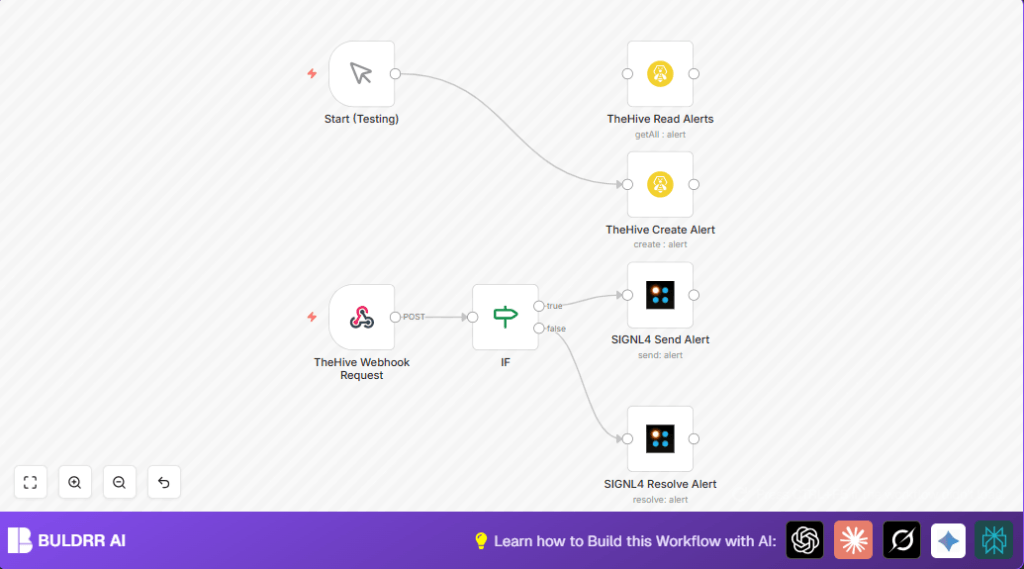
This automation connects TheHive with SIGNL4 to manage security incident alerts seamlessly. When TheHive generates or updates an alert, the workflow:

  • Receives incoming alert data via a webhook from TheHive, allowing real-time updates.
  • Checks whether the alert status is “Closed” to decide the next action.
  • Sends a new alert notification to SIGNL4 if the incident is still open, ensuring the team is immediately informed.
  • Resolves the alert in SIGNL4 when TheHive marks the alert as closed, keeping alert management synchronized.
  • Supports manual testing trigger to create a test alert in TheHive, facilitating easy workflow validation.
  • Automates alert lifecycle management between two powerful tools, removing hours of manual intervention daily.

3. Prerequisites ⚙️

  • n8n account for workflow automation setup.
  • TheHive API access and credentials configured.
  • SIGNL4 account and webhook API credentials.
  • Basic knowledge of webhooks and API authentication.

4. Step-by-Step Guide

Step 1: Set Up TheHive Webhook Node

Start by dragging the Webhook node into your n8n canvas. Set the HTTP Method to POST and specify a unique path (e.g., 22c76955-3f52-469e-a8ae-3f62e8e87ebe). This will be the endpoint TheHive will send alert updates to.

Visual Tip: You will see the webhook URL generated at the top of the node once saved. Use this URL in your TheHive instance to configure outgoing alerts.

Common Mistake: Not setting the method to POST will make the webhook fail to receive alert data.

Step 2: Configure the IF Node to Check Alert Status

Add an IF node connected to the webhook node. Set the condition to compare the incoming alert’s stage from TheHive’s JSON body against the string Closed. Use the “notEqual” operation to test if the alert is still active.

Outcome: Alerts not marked ‘Closed’ will pass to one workflow branch; ‘Closed’ alerts go down another.

Step 3: Send New Alerts to SIGNL4

Under the condition for open alerts, add a SIGNL4 Send Alert node. Fill in the message using the TheHive alert description from the webhook payload: {{$node["TheHive Webhook Request"].json["body"]["details"]["description"]}}. Set the title and external ID similarly from alert details to keep references intact.

Note: Ensure your SIGNL4 credentials are correctly linked.

Step 4: Resolve Alerts in SIGNL4 When Closed

For the closed alert branch, add a SIGNL4 Resolve Alert node. Use the external ID field mapped to the alert’s object ID from TheHive to tell SIGNL4 exactly which alert to resolve.

Step 5: Manual Trigger to Create Test Alerts

Add a Manual Trigger node to enable testing the workflow. Connect it to a TheHive Create Alert node pre-filled with sample data like alert title, description, date, and tags.

Result: Manually triggering this node creates a new alert in TheHive for testing notification flow.

5. Customizations ✏️

  • Change Alert Tags: In the TheHive Create Alert node, modify the tags field to match your organization’s priority levels, e.g., tlp:amber.
  • Update SIGNL4 Message Content: Customize the message property in the SIGNL4 Send Alert node to include more details such as alert severity or timestamps from the webhook payload.
  • Filter Alerts by Source: Enhance the IF node or add an additional filter node to process alerts only from specific sources by checking the alert’s source parameter.
  • Add Alert Escalation: Extend the workflow by adding an email node to notify managers if an alert remains open beyond a threshold time.

6. Troubleshooting 🔧

  • Problem: “Webhook does not receive alert updates.”
    Cause: Incorrect webhook path or HTTP method.
    Solution: Double-check the webhook path matches in TheHive and is set to POST in n8n.
  • Problem: “SIGNL4 alerts not sending.”
    Cause: API credentials missing or invalid.
    Solution: Re-authenticate SIGNL4 credentials in n8n and test the connection.
  • Problem: “Alerts never marked as resolved in SIGNL4.”
    Cause: Mismatch in external ID field.
    Solution: Verify that the external ID in the resolve node matches exactly with TheHive alert object ID.

7. Pre-Production Checklist ✅

  • Ensure TheHive API credentials are valid and have necessary permissions.
  • Test the webhook URL by sending test alerts from TheHive.
  • Verify SIGNL4 API credentials and test sending both alert and resolve operations.
  • Use the manual trigger to create test alerts and confirm notifications are received and cleared.
  • Create backup configuration in n8n before deploying live.

8. Deployment Guide

Activate the workflow by toggling the active switch in n8n. Ensure TheHive is configured to send alerts to the webhook URL. Monitor the SIGNL4 dashboard to track alerts sent and resolved.

Set up notifications or logs in n8n for any errors during processing to promptly address issues.

10. Conclusion

By following this guide, you have built an automation that connects TheHive with SIGNL4 using n8n, enabling real-time alert management without manual intervention. This saves countless hours weekly by automating alert creation, notification, and resolution.

Next, consider expanding this automation by integrating email notifications for escalations, logging alerts in a spreadsheet for audits, or adding AI-based alert prioritization.

You’re now equipped with a powerful workflow that boosts your security response efficiency and reliability.

Promoted by BULDRR AI

Related Workflows

Automate Viral UGC Video Creation Using n8n + Degaus (Beginner-Friendly Guide)

Learn how to automate viral UGC video creation using n8n, AI prompts, and Degaus. This beginner-friendly guide shows how to import, configure, and run the workflow without technical complexity.
Form Trigger
Google Sheets
Gmail
+37
Free

AI SEO Blog Writer Automation in n8n

A complete beginner guide to building an AI-powered SEO blog writer automation using n8n.
AI Agent
Google Sheets
httpRequest
+5
Free

Automate CrowdStrike Alerts with VirusTotal, Jira & Slack

This workflow automates processing of CrowdStrike detections by enriching threat data via VirusTotal, creating Jira tickets for incident tracking, and notifying teams on Slack for quick response. Save hours daily by transforming complex threat data into actionable alerts effortlessly.
scheduleTrigger
httpRequest
jira
+5
Free

Automate Telegram Invoices to Notion with AI Summaries & Reports

Save hours on financial tracking by automating invoice extraction from Telegram photos to Notion using Google Gemini AI. This workflow extracts data, records transactions, and generates detailed spending reports with charts sent on schedule via Telegram.
lmChatGoogleGemini
telegramTrigger
notion
+9
Free

Automate Email Replies with n8n and AI-Powered Summarization

Save hours managing your inbox with this n8n workflow that uses IMAP email triggers, AI summarization, and vector search to draft concise replies requiring minimal review. Automate business email processing efficiently with AI guidance and Gmail integration.
emailReadImap
vectorStoreQdrant
emailSend
+12
Free

Automate Email Campaigns Using n8n with Gmail & Google Sheets

This n8n workflow automates personalized email outreach campaigns by integrating Gmail and Google Sheets, saving hours of manual follow-up work and reducing errors in email sequences. It ensures timely follow-ups based on previous email interactions, optimizing communication efficiency.
googleSheets
gmail
code
+5
Free