
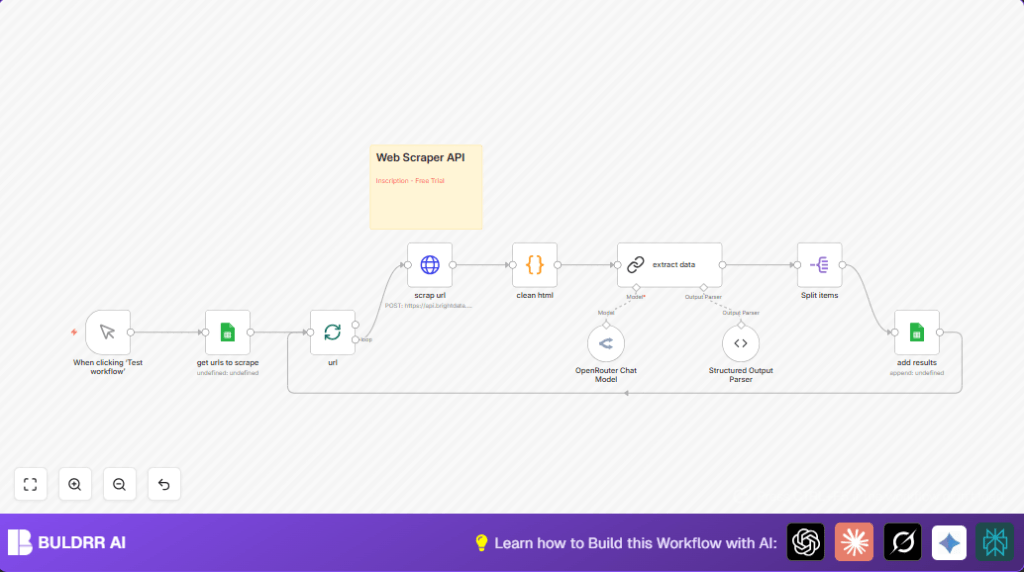

Automated Web Scraping with n8n and OpenRouter GPT-4

This n8n workflow automates scraping product data from URLs listed in Google Sheets using BrightData API and OpenRouter’s GPT-4, cleaning and extracting structured product details efficiently. It saves hours and eliminates manual errors in data collection.
lmChatOpenRouter
httpRequest
googleSheets
+6
Workflow Identifier: 1586
NODES in Use: Manual Trigger, Google Sheets, Split In Batches, HTTP Request, Code, OpenRouter Chat Model, Chain LLM, Structured Output Parser, Split Out

Press CTRL+F5 if the workflow didn't load.

Learn how to Build this Workflow with AI:

Visit through Desktop for Best experience

Opening Problem Statement

Meet Sarah, a digital marketing analyst at an e-commerce company. Every week, Sarah needs to gather updated product data from multiple competitor websites to stay ahead in pricing strategy and market trends. Manually visiting each URL, copying product names, ratings, reviews, descriptions, and prices not only consumes 4-5 hours weekly but also risks errors in missed data or outdated info. This tedious process affects decision quality and takes time away from higher-value tasks. Sarah urgently needs a reliable, automated solution that scrapes accurate product data from URLs in a structured format with minimal oversight.

What This Automation Does

This n8n workflow automates product information scraping from URLs listed in a Google Sheet, using BrightData web scraping API and powerful natural language processing (NLP) via OpenRouter Chat Model (GPT-4.1). Specifically, it:

  • Fetches a list of product URLs from a Google Sheet.
  • Uses BrightData’s API to scrape raw HTML data from each URL, bypassing scraping blocks with proxy zones.
  • Cleans the received HTML by removing scripts, styles, comments, and non-essential tags for focused content extraction.
  • Employs OpenRouter’s GPT-4 language model to analyze and extract structured product details like name, description, rating, reviews count, and price using a strict JSON schema.
  • Separates extracted product entries and uploads them back into a specified Google Sheet for further analysis and reporting.
  • Loops through all URLs in batches until all product pages are processed without manual intervention.

This workflow can save Sarah several hours of manual data collection each week, reduce errors, and provide consistent, structured product insights to inform pricing and marketing strategies.

Prerequisites ⚙️

  • n8n account with workflow editing and execution permissions.
  • Google Sheets account with at least two sheets: one for URLs (input) and one for storing scraped results (output).
    📊
  • BrightData account with API access and an active token to bypass website scraping restrictions.
    🔐
  • OpenRouter account connected to the GPT-4.1 model for advanced text extraction.
    🧠
  • Basic familiarity with spreadsheet IDs and OAuth2 credential setup in n8n.
    🔑

Step-by-Step Guide

1. Set Up Manual Trigger to Start the Workflow

In n8n, create a Manual Trigger node and name it “When clicking ‘Test workflow’”. This node allows you to manually start the workflow for testing and development.

Navigation: Drag & drop → Select “Manual Trigger” → Name it accordingly.

Expected Outcome: You can now trigger the scraping process manually.

Common Mistake: Forgetting to connect this node to subsequent nodes, resulting in no data flow.

2. Retrieve URLs to Scrape from Google Sheets

Add a Google Sheets node named “get urls to scrape” to read URLs. Enter your Google Sheets document ID and set your input sheet name containing URLs (defined as environment variables here).

Navigation: Click “+” → Search “Google Sheets” → Configure OAuth2 credentials → Enter documentId and sheetName.

Expected Outcome: The node fetches a list of URLs stored in the sheet to process.

Common Mistake: Incorrect sheet or document ID causing empty or failed reads.

3. Batch Process URLs

Add a Split In Batches node named “url” following the Google Sheets node. This breaks down multiple URLs into manageable chunks, avoiding overload on the API.

Navigation: Add “Split In Batches” → Connect from Google Sheets node → Leave default options or customize batch size.

Expected Outcome: URLs flow one batch at a time into the scraping node.

Common Mistake: Not batching URLs can lead to API throttling or timeouts.

4. Scrape Raw HTML from Each URL using BrightData API

Add an HTTP Request node named “scrap url” to send a POST request to BrightData’s web scraping API. Configure the node as below:

  • Method: POST
  • URL: https://api.brightdata.com/request
  • Headers: Include Authorization with your BrightData token ({{BRIGHTDATA_TOKEN}} environment variable)
  • Body Parameters: zone (e.g., web_unlocker1), url (dynamic URL from the batch), and format as raw

Example JSON body:

{
  "zone": "web_unlocker1",
  "url": "={{ $json.url }}",
  "format": "raw"
}

Expected Outcome: HTML content of the web page returned in the response.

Common Mistake: Incorrect token or zone causing authentication failure or blocked scraping.

5. Clean and Filter Unwanted HTML Elements

Next, add a Code node named “clean html” to process the raw HTML string. Use the provided JavaScript code that:

  • Removes the doctype, scripts, styles, comments, and head section
  • Strips all class attributes
  • Preserves only allowed tags for cleaner content (headings, paragraphs, lists, strong, em, anchors, blockquotes, code blocks)
  • Condenses excess blank lines

Copy-paste the entire JavaScript snippet exactly as it is in the node.

Expected Outcome: The output is a sanitized HTML snippet ready for NLP extraction.

Common Mistake: Modifying the allowed tags section incorrectly can remove important content.

6. Extract Structured Product Data Using OpenRouter GPT-4

Add the OpenRouter Chat Model node configured to use GPT-4.1 model upstream of the Chain LLM node named “extract data”. This node connects to the Language Model component that reads cleaned HTML and extracts product details using GPT-assisted NLP.

Parameters include a prompt asking for JSON output containing product name, description, rating, reviews, and price based on the URL.

Expected Outcome: A JSON array output with product data matching the schema.

Common Mistake: Skipping the structured output parser node may result in unstructured text easier to misinterpret.

7. Parse and Split Extracted Data for Google Sheets

Add the Structured Output Parser node right after the OpenRouter node to enforce the JSON schema. Then, use the Split Out node named “Split items” to separate each product object for individual insertion.

Expected Outcome: Clean JSON records ready individually for sheet append.

Common Mistake: Not splitting the data makes appending difficult and leads to errors in the target sheet.

8. Append Product Data to Output Sheet in Google Sheets

Finally, configure the Google Sheets node named “add results” to append each product’s structured data back into a designated results sheet. Map the fields precisely:

  • name
  • description
  • rating
  • reviews
  • price

Expected Outcome: Your Google Sheet fills row-by-row with clean, actionable product data.

Common Mistake: Incorrect field mapping causes data to go into wrong columns or fail entirely.

9. Loop Back to Process All URL Batches

The workflow loops from the “add results” node back to the “url” batch splitter node, continuing until all URLs are processed.

Expected Outcome: Complete scraping of your entire URL list in an automated sequence.

Customizations ✏️

  • Change Scraping Zone: In the HTTP Request node “scrap url,” update the zone parameter to different BrightData zones to target different proxy environments, useful if some sites block the current zone.
  • Adjust Batch Size: Modify the batch size in the “url” Split In Batches node to control API load and speed of processing depending on your BrightData plan limits.
  • Extend Product Details: Enhance the prompt in the “extract data” Chain LLM node to extract additional product attributes like stock status, shipping details, or seller information.
  • Switch Language Models: Replace OpenRouter Chat Model with other LLM nodes like OpenAI GPT-4 or Anthropic Claude depending on your preferred API or pricing.

Troubleshooting 🔧

Problem: HTTP Request fails with 401 Unauthorized

Cause: Incorrect or expired BrightData API token.

Solution: Go to the “scrap url” node headers, update or re-enter the Authorization token. Test API access separately to ensure validity.

Problem: Extracted data JSON is malformed or empty

Cause: OpenRouter model not correctly parsing raw HTML or prompt issues.

Solution: Ensure the “clean html” node outputs valid HTML snippets. Check prompt syntax and structured output schema carefully in the LangChain nodes.

Problem: Google Sheets data append fails or misaligned columns

Cause: Field mapping errors or OAuth token expiration.

Solution: Double-check field mappings in the “add results” node, re-authenticate Google Sheets credentials if needed.

Pre-Production Checklist ✅

  • Verify Google Sheets documentId and sheet names for URL input and results output.
  • Confirm valid BrightData API token with active scraping zone permissions.
  • Check OpenRouter GPT-4 API access and correct model selected.
  • Run manual trigger and monitor each node’s output to catch errors early.
  • Test with a small subset of URLs to ensure data correctness before scaling.
  • Backup your Google Sheets data before starting automated writes.

Deployment Guide

After testing successfully, activate the workflow in n8n for scheduled or on-demand runs. Monitor execution logs via n8n’s interface to review errors or performance bottlenecks. Consider setting up email alerts for failures if processing critical data. Setup environment variables for tokens and sheet IDs securely to avoid credential leaks.

FAQs

Can I use another scraping API instead of BrightData?

Yes, you can replace the HTTP Request node’s URL and parameters with another API’s endpoint, adjusting authentication headers accordingly.

Does this workflow consume OpenRouter API credits quickly?

Since the workflow sends the entire HTML page for NLP parsing, credit use depends on page size and number of URLs but is generally efficient due to batch processing.

Is my scraped data stored securely?

Data flows through authorized APIs and your Google Sheets account, which should be secured with appropriate permissions. Keep your API tokens confidential.

Can this workflow handle hundreds of URLs?

Yes, batching and looping make it scalable. Just adjust batch size and API limits accordingly.

Conclusion

By following this detailed tutorial, you have built a robust automated scraper using n8n, BrightData, and OpenRouter GPT-4. You transformed a tedious weekly task into an efficient, reliable process that brings structured product insights directly into Google Sheets without manual copy-pasting. This automation saves you hours and improves data accuracy, empowering smarter business decisions.

Next, consider automating price change alerts, competitor sentiment analysis, or integrating with Slack for instant product update notifications.

With a little practice, you’re on your way to mastering web scraping and NLP-powered automation in n8n.

Promoted by BULDRR AI

Related Workflows

Automate Viral UGC Video Creation Using n8n + Degaus (Beginner-Friendly Guide)

Learn how to automate viral UGC video creation using n8n, AI prompts, and Degaus. This beginner-friendly guide shows how to import, configure, and run the workflow without technical complexity.
Form Trigger
Google Sheets
Gmail
+37
Free

AI SEO Blog Writer Automation in n8n (Beginner Guide)

A complete beginner guide to building an AI-powered SEO blog writer automation using n8n.
AI Agent
Google Sheets
httpRequest
+5
Free

Automate CrowdStrike Alerts with VirusTotal, Jira & Slack

This workflow automates processing of CrowdStrike detections by enriching threat data via VirusTotal, creating Jira tickets for incident tracking, and notifying teams on Slack for quick response. Save hours daily by transforming complex threat data into actionable alerts effortlessly.
scheduleTrigger
httpRequest
jira
+5
Free

Automate Telegram Invoices to Notion with AI Summaries & Reports

Save hours on financial tracking by automating invoice extraction from Telegram photos to Notion using Google Gemini AI. This workflow extracts data, records transactions, and generates detailed spending reports with charts sent on schedule via Telegram.
lmChatGoogleGemini
telegramTrigger
notion
+9
Free

Automate Email Replies with n8n and AI-Powered Summarization

Save hours managing your inbox with this n8n workflow that uses IMAP email triggers, AI summarization, and vector search to draft concise replies requiring minimal review. Automate business email processing efficiently with AI guidance and Gmail integration.
emailReadImap
vectorStoreQdrant
emailSend
+12
Free

Automate Email Campaigns Using n8n with Gmail & Google Sheets

This n8n workflow automates personalized email outreach campaigns by integrating Gmail and Google Sheets, saving hours of manual follow-up work and reducing errors in email sequences. It ensures timely follow-ups based on previous email interactions, optimizing communication efficiency.
googleSheets
gmail
code
+5
Free