
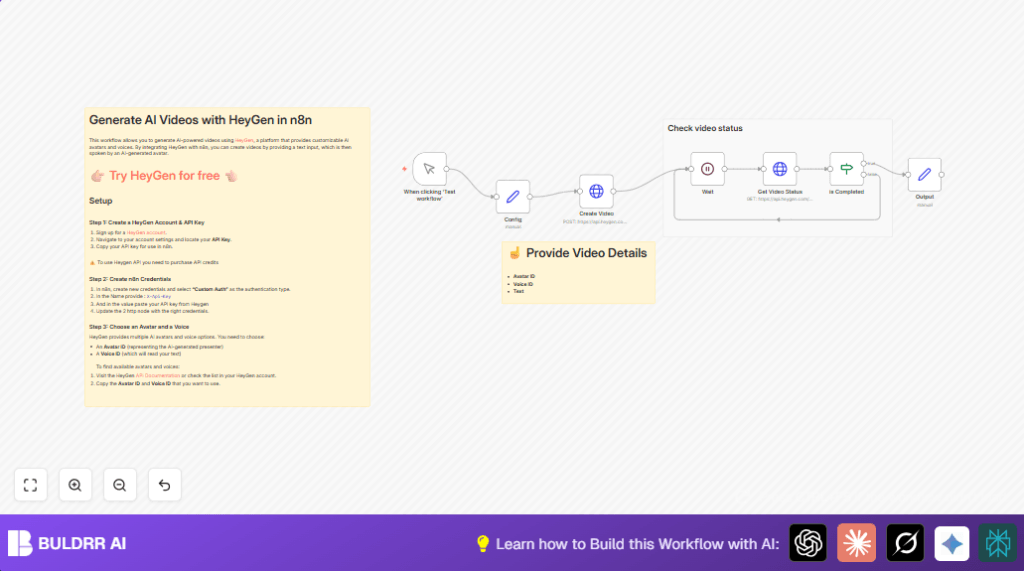

What This Workflow Does
This workflow helps make videos with AI avatars automatically using HeyGen’s API. It fixes the problem of having to watch and check video creation many times by itself. It sends a request to create a video, waits some time, checks if the video is done, and then gives you the video link to download.
You save hours and avoid errors by not repeating manual API calls or status checks. The final result is a video URL ready to use without you clicking many buttons.
Who Should Use This Workflow
This workflow is for content creators who make many AI avatar videos using HeyGen. It fits people who want to save time on manual video management and video status tracking.
It works well for people who know how to run n8n workflows but do not want to write complex code or keep checking their video generation progress by hand.
Tools and Services Used
- HeyGen API: Creates AI avatar videos and returns video creation status.
- n8n Automation Platform: Runs the workflow, connects API calls, and controls timing.
- Custom Auth Credentials in n8n: Store HeyGen API Key safely for authentication.
Inputs, Processing Steps, and Outputs
Inputs
- avatar_id: The ID for the AI avatar to use in the video.
- voice_id: The voice ID to speak the input text.
- text: The script the avatar will say in the video.
- API key: HeyGen API key used to authenticate requests.
Processing Steps
- Send video creation request with avatar_id, voice_id, and text using HeyGen API.
- Wait a set amount of time (default 10 seconds) to give HeyGen time to generate the video.
- Check video generation status by querying HeyGen with the returned video ID.
- Use a conditional check to see if video status is “completed”.
- If not completed, the workflow waits again and checks status repeatedly.
Output
- Once completed, output the downloadable video URL.
Beginner Step-by-Step: How to Use This Workflow in n8n
1. Import the Workflow
- Download the workflow JSON file using the Download button on this page.
- Open your n8n editor interface.
- Click on “Import from File” and select the downloaded file.
2. Configure Credentials and Settings
- Go to “Credentials” in n8n and add Custom Auth credentials with header name “X-Api-Key” and your HeyGen API Key as the value.
- Update the Config node with your chosen avatar_id, voice_id, and text for the video.
- If needed, adjust wait time in the Wait node.
3. Test the Workflow
- Run the workflow manually by clicking “Test workflow” on the Manual Trigger node.
- Watch the execution and confirm the output gives you the video URL.
4. Activate for Production
- Switch the workflow ON to allow automatic running.
- Replace the Manual Trigger if needed with another trigger (schedule or webhook) for full automation.
If running self hosting n8n or hosting n8n on a server, consider trusted services such as self-host n8n for reliable performance.
Common Edge Cases and Failures
If an authentication error like 401 happens, double-check the HeyGen API Key in the Custom Auth credential and ensure header name is exactly “X-Api-Key”.
If the workflow loops without video completing, the video may take longer. Try increasing delay in the Wait node.
Also add logic to detect failed statuses from HeyGen to avoid endless loops.
Customization Ideas
- Adjust Wait node delay to fit how long videos take in usual conditions.
- Make Config node text dynamic by connecting external form inputs or other triggers.
- Swap different avatar and voice IDs to vary the presenters.
- Add error handling nodes after status check to manage failed or error responses.
Summary of Results
✓ Automates AI video creation from text input, avatar, and voice IDs.
✓ Saves time by stopping manual status polling and API calling.
✓ Produces direct downloadable video URLs for fast content use.
→ Simplifies video production and allows more time for creativity.
→ Improves reliability by reducing manual errors and delays.
Sample JSON for Video Creation HTTP Request Node Body
Use this JSON body in the Create Video HTTP Request node. It uses expressions for dynamic data:
{
  "video_inputs": [
    {
      "character": {
        "type": "avatar",
        "avatar_id": "{{ $json.avatar_id }}",
        "avatar_style": "normal"
      },
      "voice": {
        "type": "text",
        "input_text": "{{ $json.text }}",
        "voice_id": "{{ $json.voice_id }}",
        "speed": 1
      }
    }
  ],
  "caption": true,
  "dimension": {
    "width": 1080,
    "height": 1920
  }
}
This JSON tells HeyGen which avatar and voice to use and what text the avatar should speak.
