

What This Automation Does
This workflow lets you upload many files to Google Drive fast.
You give it files and a folder name.
It looks if the folder is already there.
If the folder is missing, it makes one for you.
Then it puts all files in that folder.
This saves hours of work and stops mistakes like putting files in wrong folders.
Inputs, Processing, and Outputs
Inputs
- Multiple files uploaded by users.
- A folder name typed in the form.
Processing Steps
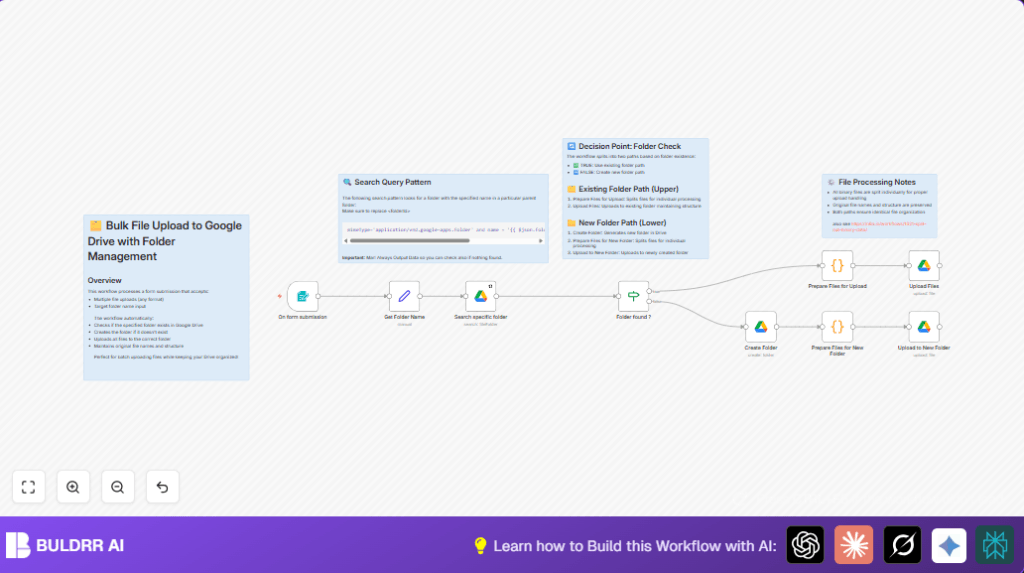
- Form Trigger receives files and folder name.
- Set node saves the folder name to use in next steps.
- Google Drive node searches for the folder inside a chosen parent folder.
- If node checks if folder exists or not.
- If missing, Google Drive creates the folder.
- Code nodes split multiple files so each uploads individually.
- Google Drive nodes upload all files to the found or made folder.
Outputs
- Files uploaded with correct original names inside correct Google Drive folder.
- No duplicate folder creation cases.
- Time saved and less upload errors.
Who Should Use This Workflow
This is good for anyone who uploads many files to Google Drive often.
It helps project managers, marketing teams, and any group sharing lots of files weekly.
No need to be tech expert to get more organized with file uploads.
Tools and Services Used
- n8n automation platform: Runs the workflow.
- Google Drive API: Searches, creates folders, and uploads files.
- Google OAuth Credentials: Allows secure Drive access without passwords in workflow.
- Form Trigger node: Receives files and folder names from users.
- Set, If, and Code nodes: Handle data flow and file preparation.
- self-host n8n (optional): Use this if hosting workflow on your own server.
Beginner Step-by-Step: How to Use This Workflow in n8n Production
Step 1: Import Workflow
- Download the workflow file using the Download button on this page.
- In n8n editor, click “Import from File.”
- Select downloaded file to load workflow in n8n.
Step 2: Configure Required Settings
- Add Google Drive OAuth credentials in Credentials area.
- Update parent folder ID in Google Drive nodes for your Drive folder.
- If you changed node names, check the Code node’s expressions and update folderName references accordingly.
Step 3: Test Workflow
- Click Execute once on the Form Trigger node to get webhook URL.
- Submit multiple files and a folder name to this webhook URL to test live upload.
- Watch workflow run logs to confirm files upload correctly.
Step 4: Activate Workflow
- When satisfied, click Activate to run workflow automatically on form submissions.
- Use the webhook URL as your file upload form or integrate it into your own app.
Important Code Snippet Explanation
This Code node snippet splits all uploaded files into separate items.
Each file keeps its original name and binary data to upload one by one.
let results = [];
const items = $("On form submission").all()

for (item of items) {
    for (key of Object.keys(item.binary)) {
        results.push({
            json: {
                fileName: item.binary[key].fileName
            },
            binary: {
                data: item.binary[key],
            }
        });
    }
}

return results;
Change the node name inside $(“On form submission”) if your form node has a different name.
Customization Ideas
- Change parent folder ID in Google Drive nodes to upload files to different folders.
- Add extra form fields like description or tags and update workflow to store them.
- Include email notifications after upload to alert team.
- Validate file types in the Code node to block disallowed files.
Common Issues and Troubleshooting
Issue: Folder search finds no folder and creation fails.
Cause: Wrong parent folder ID or missing drive permission.
Fix: Double-check Google Drive parent folder ID in nodes and verify OAuth credential scopes.
Issue: Uploaded files are empty or damaged.
Cause: Binary data not passed correctly from Code node to upload nodes.
Fix: Ensure Code node outputs binary field named “data” and upload node input is set to “data”.
Pre-Production Checklist
- Verify Google Drive OAuth credentials are active with correct scope.
- Test form trigger with sample files and folder names.
- Confirm folder search returns right folders.
- Check If node branches based on folder presence properly.
- Test uploading files to both existing and created folders.
Deployment Guide
After testing, activate workflow to run automatically.
Use Form Trigger’s webhook URL to submit files from your form or app.
Watch workflow runs for errors and fix as needed.
Summary
✓ Saves time by automating many file uploads to Google Drive.
✓ Prevents folder duplication by checking if folder exists.
✓ Uploads files with original file names into correct folders.
→ Result is faster, accurate, organized file storage in Google Drive.
