
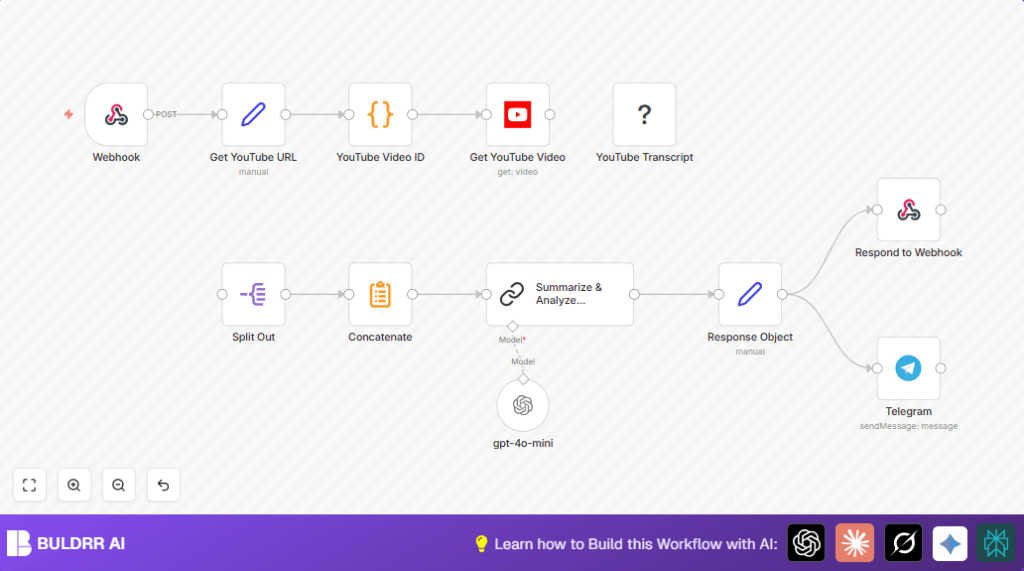

1. Opening Problem Statement
Meet Sarah, a content creator who reviews and discusses trending YouTube videos on her blog and social channels daily. Sarah spends hours copying YouTube video URLs, extracting transcripts manually, and then trying to condense lengthy spoken content into digestible summaries for her audience. This tedious process easily takes over 3 hours each day, leading to delays, errors, and missed publishing deadlines.
She often wonders if there’s a way to automate this entire workflow so she can spend more time creating original content rather than repetitive data extraction and summarization work. That’s exactly what this n8n workflow solves by automating transcript retrieval, summarization, and instant sharing on messaging platforms — freeing Sarah from manual drudgery and making her workflow more efficient and error-free.
2. What This Automation Does
This workflow listens for new YouTube URLs sent via a webhook POST request. Upon receiving a URL, it:
- Extracts the YouTube video ID from the URL accurately, handling various URL formats.
- Retrieves video metadata such as title and description directly from YouTube’s API.
- Fetches the video transcript using the dedicated YouTube Transcript node, splitting and concatenating it for processing.
- Uses advanced AI (GPT-4o Mini via Langchain) to generate a detailed, structured summary and analysis of the transcript.
- Prepares a well-structured JSON response with summary, topics, and video metadata.
- Sends the summary and video link as a formatted message to a Telegram chat for instant notification.
The workflow saves Sarah over 3 hours per video, eliminates manual copy-pasting errors, and provides professional-quality content summaries automatically.
3. Prerequisites ⚙️
- n8n account (cloud or self-hosted with Webhook support)
- Telegram Bot API credentials to post messages to a chat.
- YouTube API Access enabled in n8n for the YouTube Video node.
- YouTube Transcript Node installed in n8n (community node from n8n-nodes-youtube-transcription)
- OpenAI API Key for Langchain nodes to use GPT-4o Mini AI model
4. Step-by-Step Guide
Step 1: Setting Up the Webhook Node to Receive YouTube URLs
Navigate to the n8n editor, click + New Node, and select the Webhook node under core nodes.
Configure:
- HTTP Method: POST
- Path: ytube (or customize as you want)
- Response Mode: Select Response Node to allow responding from later nodes.
Save and activate the webhook. You’ll get a URL like https://your-n8n-instance/webhook/ytube, which will accept POST requests with JSON bodies containing the youtubeUrl field.
Common Mistake: Forgetting to set method to POST, which causes the webhook to ignore incoming data.
Step 2: Extracting the YouTube URL from Webhook Payload
Add a Set node named Get YouTube URL connected to the Webhook node.
Configure the node to create a new string field youtubeUrl assigned to the incoming JSON property body.youtubeUrl using an expression like {{ $json.body.youtubeUrl }}.
This isolates the raw YouTube URL for subsequent processing.
Common Mistake: Incorrect JSON path results in empty URLs downstream.
Step 3: Extracting YouTube Video ID with a Code Node
Insert a Code node named YouTube Video ID after the Set node.
Paste this JavaScript code to reliably parse the youtubeUrl for its video ID:
const extractYoutubeId = (url) => {
// Regex pattern for common YouTube URLs
const pattern = /(?:youtube.com/(?:[^/]+/.+/|(?:v|e(?:mbed)?)/|.*[?&]v=)|youtu.be/)([^"&?/s]{11})/;
const match = url.match(pattern);
return match ? match[1] : null;
};
const youtubeUrl = items[0].json.youtubeUrl;
return [{
json: {
videoId: extractYoutubeId(youtubeUrl)
}
}];
This ensures your workflow handles all types of YouTube URL variations safely.
Expected Outcome: The node outputs a JSON object with videoId property.
Step 4: Fetch YouTube Video Metadata
Add a YouTube node connected to the Code node.
Configure it for the Get Video operation with videoId set via expression: {{ $json.videoId }}.
You’ll retrieve the video title, description, and other metadata, which will be used in the summary and notification message.
Step 5: Retrieve YouTube Video Transcript
Insert the YouTube Transcript community node linked after the metadata node.
This node uses the video ID internally to fetch the transcript as an array of text chunks.
Common Mistake: Not having the node installed or configured properly, which causes empty transcripts.
Step 6: Split Transcript Array into Single Text Items
Use a Split Out node targeting the transcript field.
Each array element becomes a separate item, allowing detailed processing later.
Step 7: Concatenate Transcript Text
Connect a Summarize node (named Concatenate) right after Split Out.
Set it to concatenate all transcript text fields into one block, separating by spaces.
Step 8: Analyze and Summarize Transcript with AI
Add a Chain LLM node (named Summarize & Analyze Transcript) to send the full transcript to OpenAI’s GPT-4o Mini with a custom prompt.
The prompt instructs the AI to create a clean, structured markdown summary with topics and bullet points, perfect for readers.
This is the core value that transforms raw transcript data into actionable insights.
Step 9: Format the Final Response Object
Add a Set node called Response Object to organize summary, topics, YouTube video info, and URL into a neat JSON object for response.
Step 10: Send Responses and Telegram Notification
Connect the Respond to Webhook node to send the JSON summary back to the original requester.
Add a Telegram node set to post a formatted message with the video title and URL to a chat.
This completes the workflow by notifying Sarah’s team or followers immediately.
5. Customizations ✏️
- Change Output Format: In the Summarize & Analyze Transcript node, modify the prompt text to change summary detail level or add keywords to highlight.
- Post to Different Messaging Platforms: Replace the Telegram node with Slack or Discord nodes for alternative notifications.
- Filter by Video Duration: Add a IF node after the YouTube metadata to skip videos longer than desired duration.
- Store Summaries in Database: Insert a database node (e.g., PostgreSQL) before Respond node to keep summaries for later archival or analysis.
6. Troubleshooting 🔧
Problem: “No transcript available” from YouTube Transcript node.
Cause: The video doesn’t have captions or transcript data.
Solution: Verify the video actually has captions. Alternatively, enable community captions or switch to manual transcript uploads.
Problem: “Failed to extract video ID” from URL.
Cause: The provided URL is malformed or uses unsupported format.
Solution: Check the regex in the Code node and test URLs manually. Update the pattern if needed.
Problem: Telegram message not sent.
Cause: Incorrect API credentials or chat ID.
Solution: Re-enter valid Telegram bot token and chat ID in the Telegram node settings and test connection.
7. Pre-Production Checklist ✅
- Confirm Webhook URL is publicly accessible and running.
- Test sending a sample POST request with a valid YouTube URL in the body.
- Check YouTube API quota to avoid hitting limits.
- Verify OpenAI API key permissions and usage limits.
- Run workflow step-by-step to inspect outputs at each node.
8. Deployment Guide
Activate the workflow in your n8n dashboard by toggling the active state.
Share the webhook URL with your integration source to start sending YouTube URLs.
Monitor recent executions for errors and logs from the n8n UI.
Adjust Telegram chat or AI prompt as needed for optimization.
9. FAQs
Q: Can I use another AI model instead of GPT-4o Mini?
A: Yes, you can switch to any supported OpenAI model or alternatives compatible with Langchain nodes in n8n.
Q: Does this workflow consume many API credits?
A: The main API usage is OpenAI calls, which depend on transcript length. YouTube API quota is generally generous but monitor usage.
Q: Is my data secure?
A: Yes, your data is processed within your n8n environment and OpenAI’s secure API. Use environment variables for sensitive keys.
Q: Can this handle hundreds of URLs?
A: The workflow is scalable depending on your n8n deployment and API limits. Consider batching for high volume.
10. Conclusion
By following this guide, you’ve created a powerful n8n workflow that automates the retrieval, summarization, and notification of YouTube video transcripts using advanced AI.
You saved Sarah (and yourself) several hours of manual work per video, improved accuracy, and got immediate updates via Telegram.
Next steps to expand this automation include adding multi-language transcript support, integrating social media posting, or archiving summaries in cloud storage.
This workflow turns a tedious, time-consuming task into an effortless, reliable process — perfect for content creators and marketers alike.