
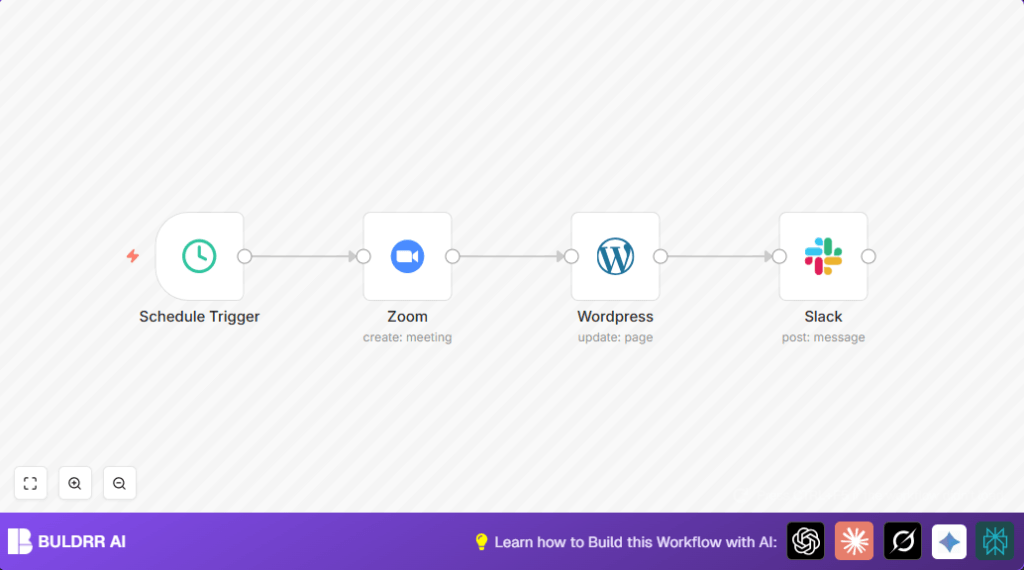

What this workflow does
This workflow automatically refreshes a recurring Zoom meeting every 360 days at 3 AM EST.
It updates a WordPress page to redirect visitors to the new meeting link.
It also sends a message to a Slack channel to notify the team about the new Zoom link.
This removes manual work and prevents errors from outdated links.
Who should use this workflow
Anyone who hosts regular Zoom webinars needing a fresh meeting link yearly.
It helps website owners who want to keep redirect pages up to date automatically.
Teams needing quick Slack alerts of meeting link changes also benefit.
Tools and services used
- n8n: Workflow automation platform for task scheduling and API calls.
- Zoom API: To create or refresh the recurring meeting and get the join URL.
- WordPress REST API: To update the meeting redirect page content automatically.
- Slack API: To send a message notifying the team of the updated meeting link.
How the workflow works: Inputs, Process, and Output
Inputs
- Scheduled trigger to start every 360 days at 3 AM EST.
- OAuth2 credentials for Zoom to authenticate API calls.
- WordPress page ID and API access to edit page content.
- Slack channel ID and bot token to send messages.
Process
- The Schedule Trigger node fires the workflow based on timing.
- The Zoom node creates or refreshes a recurring Zoom meeting and outputs the join URL.
- The WordPress node updates a specific page by inserting a meta refresh tag with the Zoom join URL.
- The Slack node sends a message to a designated channel with the new Zoom link.
Output
- An active recurring Zoom meeting with custom settings like muted entry and participant video ON.
- A WordPress page updated with a redirect that sends visitors immediately to the new Zoom meeting link.
- A Slack message posted to the channel with the fresh Zoom meeting link.
Beginner step-by-step: How to use this workflow in n8n
Step 1: Import the workflow
- Click the Download button on this page to get the workflow file.
- In n8n editor, click > Import > Import from File, then select the downloaded file.
Step 2: Add credentials
- Open each node needing authentication, like Zoom, WordPress, and Slack.
- Add your API credentials or OAuth2 tokens as required.
Step 3: Update IDs and channels
- Set the correct WordPress page ID in the WordPress node to target your redirect page.
- Enter the Slack channel ID where you want notification messages sent.
Step 4: Test the workflow
- Manually trigger the workflow once to check Zoom meeting creation, WordPress page update, and Slack message sending.
- Fix any errors such as authentication failures or wrong IDs.
Step 5: Activate the workflow
- Switch the workflow to Active so it runs automatically every year at 3 AM ET.
- Monitor initial runs with logs to confirm smooth operation.
For users hosting n8n themselves, refer to self-host n8n resources for help.
Customization ideas
- Change the scheduled frequency by editing the Schedule Trigger node interval to any number of days or different hour.
- Adjust Zoom meeting settings like mute on entry, participant video, or allowing join before host in the Zoom node.
- Update the WordPress
pageIdto refresh a different redirect page. - Change the Slack channel ID to notify another team group.
- Add extra info like meeting time or agenda in the Slack message text by using additional Zoom data fields.
Common problems and fixes
- Zoom node authentication failed: OAuth2 token expired or not set. Refresh credentials in n8n and retry node test.
- WordPress page update failed: Wrong
pageIdor lack of edit permissions. Verify page ID and check API user access. - Slack messages not sent: Invalid channel ID or missing chat:write permission for bot. Confirm IDs and bot scopes.
Summary of results
✓ Saves time by removing manual updates of meeting links.
✓ Keeps website meeting redirect always current automatically.
✓ Teams are informed immediately of new Zoom links via Slack.
→ Reduces errors and attendee confusion from outdated links.
→ Runs quietly without needing human help after setup.
