

1. Opening Problem Statement
Meet Sarah, a project manager at a busy digital agency. Every week, Sarah receives multiple DOCX files from clients that need to be converted into PDFs for consistent formatting and easy sharing. Doing this manually means opening each DOCX, exporting to PDF, renaming files, and saving them — a repetitive task consuming hours each week. Mistakes like incorrect file naming or missed conversions often happen, causing delays in client deliverables and costing her team valuable time and professionalism.
This exact scenario is where this n8n workflow shines, automating the entire DOCX to PDF conversion process with minimal intervention, allowing Sarah to focus on higher-impact work.
2. What This Automation Does
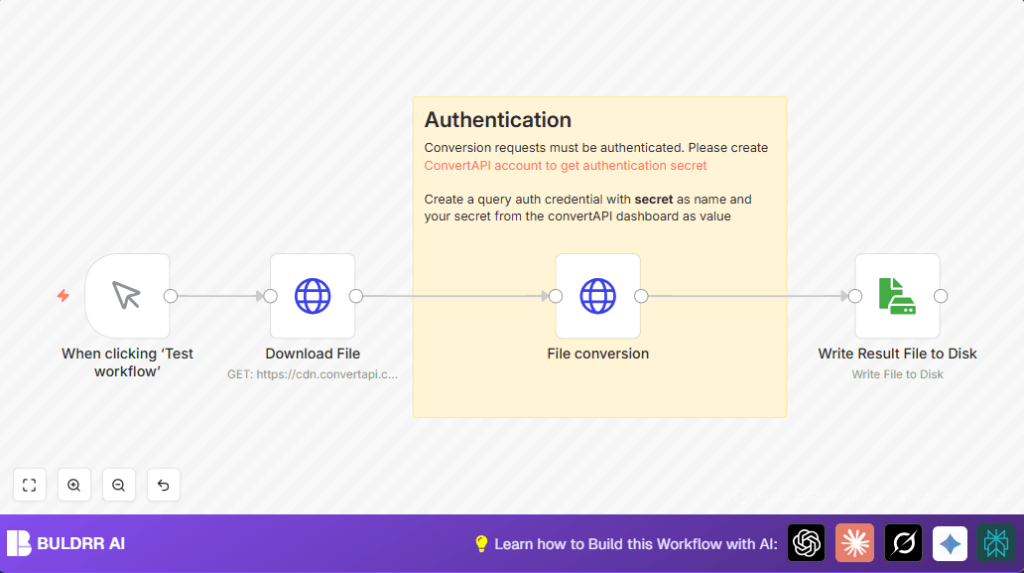
This workflow triggers manually and performs a seamless automated file conversion from DOCX to PDF by leveraging ConvertAPI, a powerful online file conversion service. Here’s what happens when it runs:
- The workflow downloads a sample DOCX document from a preset URL.
- It sends this DOCX file to ConvertAPI’s REST endpoint for conversion to PDF, using authenticated API access.
- Receives the converted PDF file as a binary stream in response.
- Saves the PDF file locally to disk with the filename document.pdf.
- The entire process runs on-demand via a manual trigger node, making it easy to initiate and test.
- This ensures consistent, error-free file conversion without any manual software operation.
By automating this chain, users save valuable time typically spent in manual file handling and conversion. For Sarah, this means cutting down conversions that took 20-30 minutes per batch to just seconds, improving operational efficiency.
3. Prerequisites ⚙️
- n8n account (desktop or cloud) to build and run this workflow.
- ConvertAPI account (https://www.convertapi.com/a/signin) to get your API secret key — needed for authentication.
- HTTP Request node configured to send authenticated requests.
- File system access to save the resulting PDF locally using n8n’s Read & Write File node.
- Basic understanding of file formats DOCX and PDF.
4. Step-by-Step Guide
Step 1: Set Up Manual Trigger
Launch n8n and drag in the Manual Trigger node. This node starts the workflow on your command, perfect for testing and one-off conversions.
- Click + Add Node → Search “Manual Trigger” → Select it.
- You should see a node labeled “When clicking ‘Test workflow’” in the canvas.
- No parameters need configuring here.
- Common mistake: Forgetting to trigger this node manually after setup.
Step 2: Configure HTTP Request to Download DOCX
Add an HTTP Request node named “Download File” connected to the Manual Trigger.
- Set the URL to
https://cdn.convertapi.com/cara/testfiles/document.docx. - In Options > Response Format, choose
Fileto make sure the DOCX is treated as a binary file. - Result: This node downloads the DOCX file as binary to pass along.
- Common mistake: Not setting response to file, which causes binary data issues downstream.
Step 3: Add HTTP Request to Convert DOCX to PDF Using ConvertAPI
Place another HTTP Request node named “File conversion” following the download node.
- Set Method to
POST. - URL:
https://v2.convertapi.com/convert/docx/to/pdf. - Content Type:
multipart/form-datafor file upload. - Under Body Parameters, add a parameter:
- Name:
file - Type:
formBinaryData(to upload the file) - Value: Use
=dataas input data from the downloaded file. - Authentication: Use HTTP Query Auth credentials with your
secrettoken from ConvertAPI. - Headers: Add
Accept: application/octet-streamto accept binary PDF response. - Result: Compile POST request to ConvertAPI and get back PDF as binary.
- Common mistake: Incorrect authentication leading to 401 Unauthorized errors.
Step 4: Write Converted PDF to Disk
Add a Read & Write File node named “Write Result File to Disk” connected after conversion node.
- Operation:
write - File Name:
document.pdf - Data Property Name:
=data(the binary output from conversion) - Result: Saves the converted PDF file on your local disk for use.
- Common mistake: Writing without binary data or missing property name leads to corrupt files.
5. Customizations ✏️
- Switch Input File Source: Change Download File node URL to point at different DOCX files or incorporate a Webhook node to upload your own files dynamically.
- Change Output Filename: In Write Result File to Disk, modify the
fileNameparameter to save files with custom naming conventions like including timestamps. - Automate Trigger: Replace the Manual Trigger node with a Schedule Trigger node to automate DOCX to PDF conversions on a recurring basis.
- Add Error Handling: Introduce a IF node after conversion step to verify success before saving the file, or send Slack/Email alerts on failure.
- Use Environment Variables: Store your ConvertAPI secret key in environment credentials for safer deployment and easier updates.
6. Troubleshooting 🔧
Problem: 401 Unauthorized Error From ConvertAPI
Cause: Invalid or missing API secret token.
Solution: Recheck your HTTP Query Auth credentials. Go to Credentials in n8n, verify your ConvertAPI token is correctly entered with exact spelling and no extra spaces.
Problem: Saved PDF is Corrupt or Empty
Cause: The binary data was not correctly handled or written by the Read & Write File node.
Solution: Ensure the Write Result File to Disk node’s dataPropertyName field matches the binary output from the previous node (=data) and the node operation is set to “write”.
Problem: HTTP Request Fails to Download DOCX
Cause: Incorrect URL or network issues.
Solution: Test the Download File node URL in a browser to confirm it’s accessible. Also, verify internet connection and retry.
7. Pre-Production Checklist ✅
- Confirm ConvertAPI credentials are active and authorized.
- Test Manual Trigger to verify file download and conversion outputs in n8n execution logs.
- Check that the output PDF is saved correctly and opens without errors.
- Validate that HTTP Request nodes have correct URL, method, and header configurations.
- Ensure file permissions allow writing to the target folder/disk.
8. Deployment Guide
Once tested successfully, activate the workflow by toggling it to “Active” in n8n. From there, you can manually trigger as needed or schedule to run automatically if desired by swapping the Manual Trigger.
Keep an eye on execution logs in the n8n dashboard for any failed runs. As the workflow handles files locally, ensure your server or machine has adequate disk space.
9. FAQs
Can I use other file formats?
Yes, ConvertAPI supports many formats. You’d need to adjust the HTTP Request URL and parameters accordingly.
Does this consume API credits?
ConvertAPI typically has usage limits depending on your plan. Monitor your usage in their dashboard.
Is my file data safe?
ConvertAPI uses secure HTTPS and requires authentication. However, for highly sensitive files, consider local conversion tools.
Can I automate this on a schedule?
Absolutely! Replace Manual Trigger with Schedule Trigger to run conversion regularly.
10. Conclusion
By following this guide, you’ve automated a previously tedious DOCX to PDF conversion using n8n and ConvertAPI. This workflow dramatically reduces manual effort, saves up to 30 minutes per file batch, and ensures flawless PDF output every time.
Next, consider extending this automation to include file uploads via Webhook, notifications upon completion, or integration with cloud storage like Google Drive for streamlined document management.
Enjoy your new efficient document conversion process and the time it frees up!