

Opening Problem Statement
Meet Sarah, a community manager for a popular Telegram group that focuses on art and digital creation. Every day, Sarah receives countless requests from the community members asking for unique AI-generated images based on their text prompts. Before automation, she spent hours manually decoding each request, generating images through external AI platforms, then sharing them back on Telegram—all one-by-one. This process was not only time-consuming, sometimes taking 3-4 hours daily, but also prone to errors such as delayed replies or lost images, resulting in frustrated community members and wasted opportunities.
Sarah needed a way to handle this growing workload automatically to keep her engaged audience happy without sacrificing hours of her workday.
What This Automation Does
This unique n8n workflow transforms Sarah’s manual effort into a seamless AI-powered process integrated directly within Telegram. Here’s what happens:
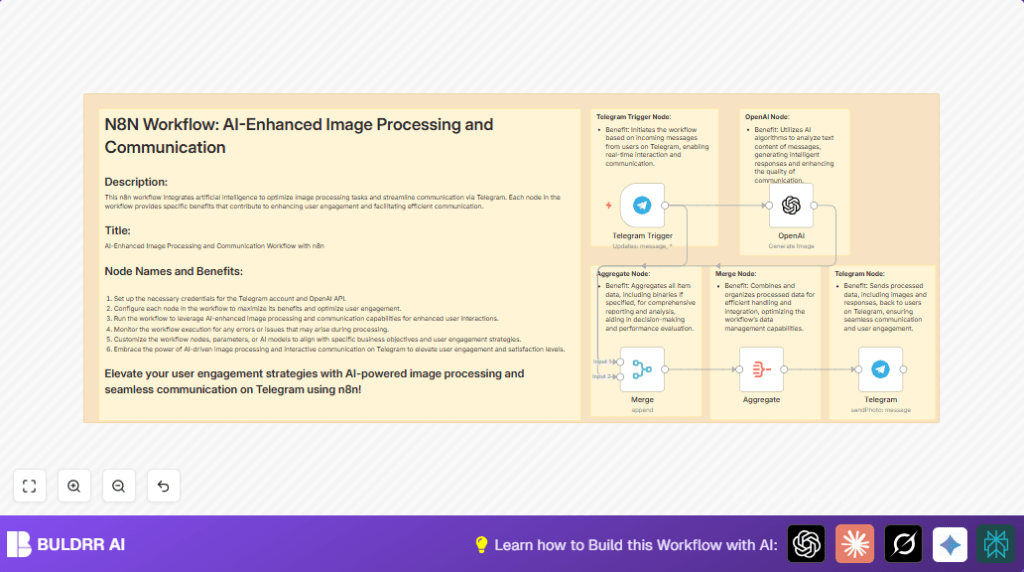
- Listens for incoming messages from Telegram users with text prompts for AI image generation via the Telegram Trigger node.
- Forwards the received text prompt to OpenAI’s image generation API through the OpenAI node, requesting an AI-generated image based on the text.
- Aggregates the AI-generated image data and merges all relevant message and binary data together with the Aggregate and Merge nodes for streamlined handling.
- Sends the generated image back to the correct Telegram user using the Telegram node, ensuring the response is timely and targeted.
- Maintains a smooth flow of data by efficiently combining message and binary outputs to keep the entire process adaptable and resilient.
- Enables real-time interactive AI image responses right inside Telegram chat, enhancing user engagement and satisfaction almost instantly.
With this workflow, Sarah saves hours daily and eliminates errors caused by manual handling, delivering fast, reliable AI-generated images that delight her community.
Prerequisites ⚙️
- n8n account (cloud or self-hosted) to create and run the workflow.
- Telegram account with bot API access to use Telegram Trigger and Telegram nodes 📧.
- OpenAI API key for image generation via the OpenAI node 🔐.
- Basic familiarity with n8n interface for node configuration.
If self-hosting n8n, reliable server infrastructure is recommended. For easy hosting options, consider services like Hostinger.
Step-by-Step Guide to Create This Workflow
Step 1: Set Up Telegram Bot and Credentials
Log into your Telegram account and create a new bot using BotFather. Note the API token provided.
In n8n, go to Credentials → New Credential → Telegram API. Enter your bot token and test the connection.
Tip: Ensure your bot is an admin in the Telegram group if you want messages from that group.
Step 2: Add the Telegram Trigger Node
Click + Add Node → search for Telegram Trigger.
Configure it to listen for all kinds of message updates by selecting message and * under updates.
Choose the Telegram API credentials created in Step 1.
Now this node waits for any new incoming Telegram messages, starting the automation.
Step 3: Configure the OpenAI Node for Image Generation
Add an OpenAI node (specifically the Langchain OpenAI node).
Set the prompt input to the incoming Telegram message text using an expression: ={{ $json.message.text }}.
Under resource, select image to request image generation.
Link your OpenAI API credentials.
This node sends the Telegram user’s prompt to OpenAI’s image generation API.
Step 4: Add Merge Node to Combine Streams
Drag in a Merge node. This will gather input from both the Telegram Trigger and OpenAI node.
Connect the Telegram Trigger node to the second input of Merge (index 1), and the OpenAI node to the first input (index 0).
This node aligns the AI-generated image data with the original Telegram message data for easy processing.
Step 5: Aggregate All Item Data (Including Binaries)
Place an Aggregate node after the Merge node.
In its settings, select aggregateAllItemData as the aggregation type.
Enable the option to includeBinaries so image files coming from OpenAI are captured.
This node collects all relevant data together as one complete package.
Step 6: Send the Generated Image Back to Telegram
Add a Telegram node.
Set operation to sendPhoto.
For chatId, use an expression to get the Telegram user ID from the merge output, usually at ={{ $json.data[1].message.from.id }}.
Connect the previous Aggregate node’s output.
This sends the AI-generated image back to the requesting user.
Step 7: Test the Workflow
Activate the workflow.
Send a Telegram message to your bot with a text prompt describing an image you want.
You should see the bot reply with the generated image shortly.
Check for any errors in the execution logs.
Customizations ✏️
- Change AI model or prompt style: In the OpenAI node, modify
promptto add prefix/suffix text (e.g., “Create a surrealistic image of ” + user text) for artistic effect. - Handle different message types: Adjust Telegram Trigger node to listen for commands only or specific keywords instead of all messages.
- Store generated images: Add Google Drive or AWS S3 nodes to archive generated images for later use or analytics.
- Add user feedback: Include a Telegram node step that asks users to rate the image and store feedback in a Google Sheet.
Troubleshooting 🔧
Problem: “No response from OpenAI node”.
Cause: Incorrect API key or network issues.
Solution: Verify your OpenAI API credentials under n8n, test network connectivity, and ensure your API key has image generation permissions.
Problem: “Telegram chatId is undefined”.
Cause: Incorrect expression to fetch Telegram user ID.
Solution: Confirm the path $json.data[1].message.from.id exists by inspecting node outputs, adjust expression accordingly.
Problem: “Image not sending back to user”.
Cause: Aggregate node missing includeBinaries option enabled.
Solution: Make sure the Aggregate node is configured to include binaries so image data is passed properly to the Telegram node.
Pre-Production Checklist ✅
- Verify Telegram API credentials are all functional and linked correctly in n8n.
- Confirm OpenAI API key has permissions for image generation and is active.
- Test sending a message to Telegram bot and ensure workflow triggers and completes successfully.
- Check that the Telegram node correctly sends images back to the appropriate user.
- Review all node connections and parameter mappings, especially expressions for user ID and prompt.
Deployment Guide
Activate your workflow in n8n by switching it on after setup.
Monitor the executions on the n8n dashboard, watch for any errors or performance issues.
Consider setting up logging or notification alerts for failures to ensure smooth operation in production.
FAQs
Q: Can I use a different AI service instead of OpenAI?
A: Yes, but you would need to replace the OpenAI node with an HTTP request node targeting another API with the correct authentication and request format.
Q: Will this workflow consume a lot of OpenAI credits?
A: Image generation API calls do consume credits; plan usage according to your OpenAI pricing plan.
Q: Is my data secure using this workflow?
A: All data passes through your n8n instance and secured API channels. Make sure your n8n is hosted securely and API keys are kept confidential.
Q: Can this workflow handle multiple simultaneous users?
A: Yes, n8n handles concurrent executions well, but monitor resource usage on your server.
Conclusion
By building this AI-enhanced Telegram image generation workflow with n8n, you can automate tedious manual tasks and deliver instant creativity to users. Sarah’s example shows how hours of work daily are saved, and her Telegram community stays happy and engaged with fresh AI art at their fingertips.
Once comfortable, consider expanding this workflow by adding image storage, user feedback loops, or handling advanced commands to maximize interactivity.
Embrace AI automation on Telegram now to elevate your digital interactions and save valuable time.