

1. Opening Problem Statement
Imagine you’re Anna, a finance analyst who needs to provide daily updated Euro exchange rates for multiple foreign currencies for your team. Manually searching for the current rates from the European Central Bank’s website, parsing XML data, and then filtering out specific currency information wastes you at least an hour every day. In addition, manually copying exchange rates leads to errors that can mess up financial planning or client reporting. This repeated, tedious task means valuable time lost and potential inaccuracies that can cost clients trust.
2. What This Automation Does
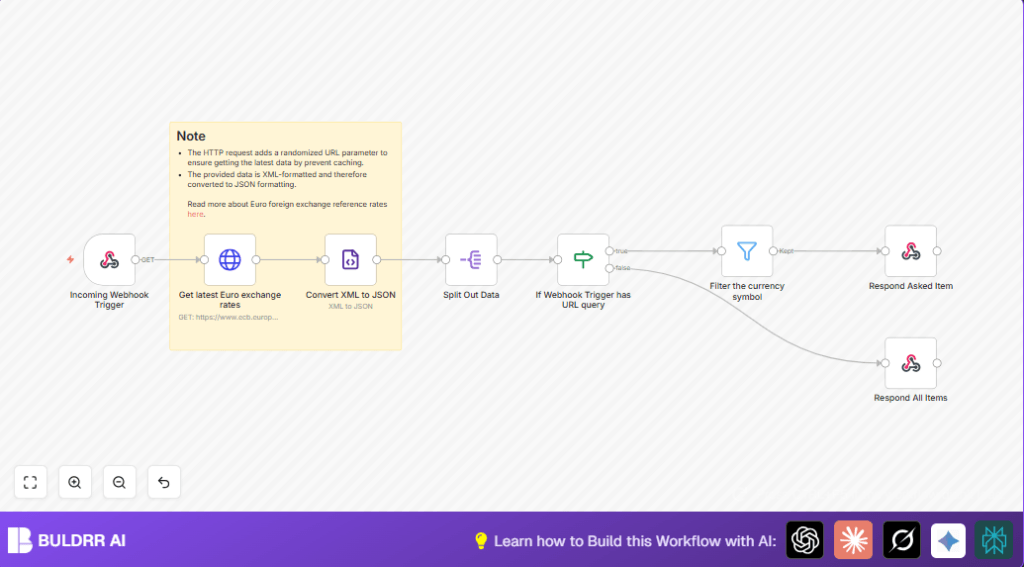
This n8n workflow solves Anna’s challenge by automating the retrieval and serving of Euro exchange rates on-demand through a webhook call. When triggered, it fetches the latest exchange rate data directly from the European Central Bank (ECB) source, converts it from XML to JSON, and allows users to either retrieve rates for a specific currency or all available currency rates. Here are the specific outcomes:
- Automatically request the daily updated Euro foreign exchange rates from the ECB in XML format with a cache-busting parameter.
- Convert the received XML data to a more usable JSON format for easier filtering and manipulation.
- Split the currency data into individual items to handle specific currency queries efficiently.
- If a currency symbol is included in the webhook query parameters, filter and return only that currency’s exchange rate.
- If no currency query is supplied, return all currency exchange rates at once.
- Respond instantly via the webhook with the requested data, enabling integration with other systems or direct user queries.
By automating these tasks, it saves users like Anna upwards of an hour daily, eliminates manual errors, and streamlines the process of currency data retrieval for reporting or calculations.
3. Prerequisites
⚙️
- n8n account (cloud or self-hosted) 🔌
- Access to make HTTP requests (no special API key needed as ECB data is public) 🔐
- No additional accounts are strictly necessary, but knowledge of handling webhooks and HTTP requests in n8n is beneficial.
- Optional: For self-hosting guidance, consider Hostinger via buldrr.com/hostinger
4. Step-by-Step Guide to Build This Workflow
Step 1: Create an Incoming Webhook Trigger Node
Navigate to Triggers > Webhook and add a new node named Incoming Webhook Trigger.
- Set the webhook path to
eu-exchange-rate. - Keep Response Mode set to Response Node to handle responses later.
- This node waits for incoming HTTP requests that trigger the workflow.
Expected Outcome: You will have a webhook URL that you can call to trigger the workflow.
Common Mistake: Forgetting to set the response mode correctly, which might result in no response sent back.
Step 2: Add HTTP Request Node to Get Latest Euro Exchange Rates
Connect the webhook node output to an HTTP Request node named Get latest Euro exchange rates.
- Set method to GET.
- URL: Use the expression
=
"https://www.ecb.europa.eu/stats/eurofxref/eurofxref-daily.xml?" + Math.floor(Math.random() * (999999999 - 100000000 + 1)) + 100000000This random parameter prevents caching and ensures fresh data.
Expected Outcome: The node retrieves the ECB’s daily XML data for Euro exchange rates.
Common Mistake: Not including the randomized URL parameter, causing cached/old XML data retrieval.
Step 3: Convert the XML Data to JSON
Add an XML node named Convert XML to JSON connected to the HTTP request node.
- This node transforms the response from XML format into JSON, making it easier to access nested data.
Expected Outcome: The output will be JSON-formatted exchange rate data.
Common Mistake: Forgetting to connect the HTTP request output to this node or misconfiguring the XML node.
Step 4: Split Out Currency Data Items
Add a Split Out node named Split Out Data connected to the XML node.
- Set the field to split out to
['gesmes:Envelope'].Cube.Cube.Cube, which contains individual currency exchange rate entries.
Expected Outcome: Each currency rate will be treated as a separate item for further filtering.
Common Mistake: Incorrect syntax for the field path may lead to empty outputs.
Step 5: Add an IF Node to Check for Currency Query
Add an IF node named If Webhook Trigger has URL query linked from the Split Out node.
- Configure the condition to check if the incoming webhook’s query parameter is not empty:
Conditions: not empty Field:
{{$json.query}}from the webhook node
Expected Outcome: The workflow branches depending on whether a query parameter is present.
Common Mistake: Using the wrong expression or confusing query parameter name.
Step 6: Filter Currency Based on Query Parameter
On the TRUE branch of the IF node, add a Filter node named Filter the currency symbol.
- Configure it to filter items where
$json.currencyequals{{$('Incoming Webhook Trigger').item.json.query.foreign}}.
Expected Outcome: Only the requested currency’s exchange rate passes through.
Common Mistake: Typos in the field name or query parameter name causing no items to pass filter.
Step 7: Respond with the Filtered Currency Data
Add a Respond to Webhook node named Respond Asked Item connected from the Filter node.
- This node sends back the filtered currency exchange rate as a webhook response.
Expected Outcome: The API caller receives JSON data for the requested currency rate.
Common Mistake: Forgetting to connect this node or incorrect node parameter settings.
Step 8: Respond with All Currency Data if No Query
On the FALSE branch of the IF node, add another Respond to Webhook node named Respond All Items.
- This node sends the entire list of currency exchange rates if no specific currency is queried.
Expected Outcome: The API caller receives JSON data for all currencies in one response.
Common Mistake: Not setting this node to respond with all items, resulting in empty or partial data returns.
5. Customizations
- Expand currency query parameters: In the
If Webhook Trigger has URL querynode, change the condition to allow multiple query keys likeforeignor add base currency queries for advanced filtering. - Add caching with a delay node: Introduce a delay node before the HTTP request to limit frequency if API polling is an issue.
- Output formatting: Add a
FunctionorCodenode before response nodes to customize JSON output layout for easier client consumption. - Add error handling: Use a
Switchor additional IF nodes to return meaningful error messages if currency is not found or data is unavailable from ECB. - Use alternative data sources: Modify the HTTP request URL and parsing logic to support other currency APIs if desired.
6. Troubleshooting
Problem: “No data returned” or empty JSON in the response.
Cause: The URL random parameter is missing or XML parsing failed.
Solution: Ensure the HTTP node URL contains the randomized parameter and the XML node is correctly configured to convert XML to JSON.
Problem: “Filter node does not match any items.”
Cause: The currency symbol query parameter does not match any item in the filtered JSON data.
Solution: Verify the query parameter spelling and case sensitivity. Match it exactly to the currency code in the incoming data.
7. Pre-Production Checklist
- Test the webhook URL by accessing it with and without query parameters for different currencies.
- Verify the HTTP request successfully pulls fresh ECB data by inspecting the raw XML output.
- Check that the XML node output is valid JSON containing the expected currency arrays.
- Confirm the Split Out node correctly breaks down the currency data into individual JSON items.
- Test the IF condition to route correctly based on the presence or absence of currency query parameters.
- Ensure the Respond nodes send back accurate JSON payloads matching expected filtered or full dataset.
8. Deployment Guide
Activate the workflow by toggling it ON in n8n.
Share the provided webhook URL with your team or clients who need Euro exchange rates.
Monitor usage via n8n’s execution logs to spot any errors or irregularities.
You can integrate this webhook URL into web applications, dashboards, or financial tools to fetch real-time Euro conversion rates on demand.
9. FAQs
Q: Can I query multiple currencies in one request?
A: This workflow currently filters only one currency per request, but you can customize the IF and Filter nodes to support multiple querying.
Q: Does using the ECB data consume API credits?
A: No, the ECB API is public and free to use without limits.
Q: Is my financial data safe?
A: Yes, this workflow handles only publicly available data, but you should always secure your webhook URLs.
Q: Can this handle heavy usage?
A: For moderate loads, yes. For high-frequency access, consider adding caching or rate limits.
10. Conclusion
By building this n8n workflow, you’ve automated the tedious task of retrieving daily Euro exchange rates from the ECB and providing them instantly via webhook. This eliminates manual errors and saves valuable time—potentially an hour each day for finance analysts like Anna.
Next steps could include extending the workflow to support multiple currency queries, formatting outputs for specific client needs, or integrating it with automated financial reporting systems for seamless updates.
With this workflow, you now have a reliable, easy-to-access Euro exchange rate API at your fingertips powered by n8n automation.