

1. Opening Problem Statement
Meet Emily, a sales manager at a mid-sized tech company. Every day, her team generates dozens of new leads in HubSpot, but not all leads are equal. The most valuable leads — those representing companies with more than $5 million in annual revenue — often get buried in the noise. Emily and her sales reps spend hours daily sifting through HubSpot entries, trying to find the right companies to prioritize. This manual process is error-prone, time-consuming, and sometimes leads to missed opportunities, costing the company potential deals worth millions.
What if there was an automated way to instantly alert Emily’s sales team about only the most promising leads, directly within the communication tool they use every day — Slack? That’s exactly what this n8n workflow solves.
2. What This Automation Does
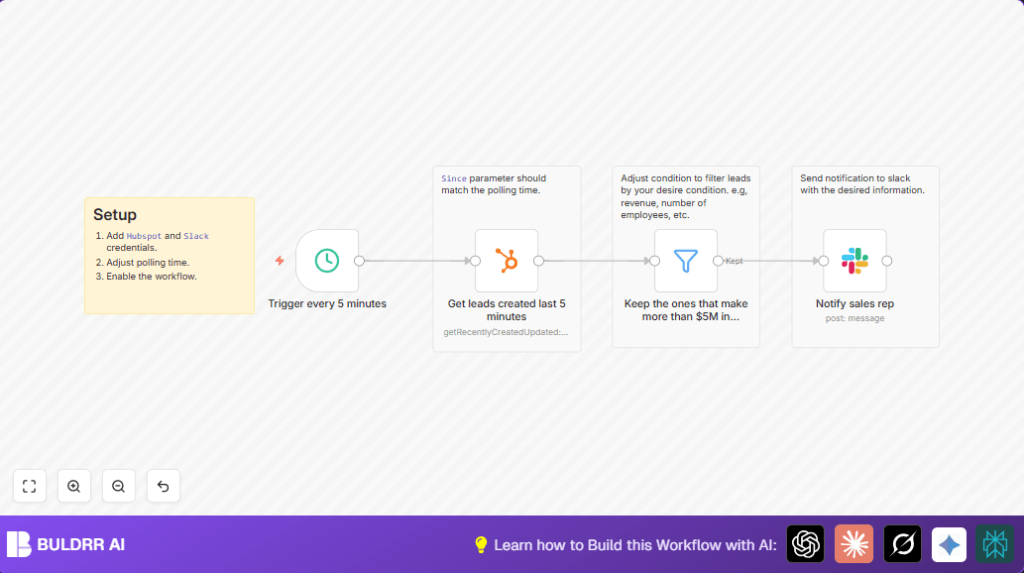
This custom n8n workflow connects HubSpot and Slack to automatically identify and notify your sales team about high-value leads in near real-time. Here’s what happens when it runs:
- Polls HubSpot every 5 minutes to fetch leads created within the last 5 minutes.
- Filters leads by annual revenue, keeping only those companies whose reported revenue exceeds $5 million.
- Composes a detailed Slack message including company name, website, revenue, and employee count.
- Sends an instant Slack notification to the assigned sales rep to prompt immediate follow-up.
- Helps eliminate manual checking in HubSpot, saving hours every day.
- Ensures no high-value lead slips through unnoticed, increasing sales team responsiveness and closing rates.
3. Prerequisites ⚙️
- n8n account (cloud or self-hosted) to run the automation.
- HubSpot account with API access (configured with OAuth2 credentials in n8n).
- Slack workspace account and an authenticated Slack OAuth2 token configured in n8n.
- Basic understanding of n8n’s Schedule Trigger, HubSpot node, Filter node, and Slack node.
- Optional: Self-hosting your n8n instance for full control (consider platforms like Hostinger).
4. Step-by-Step Guide to Build This Workflow
Step 1: Add Schedule Trigger to Poll Every 5 Minutes
Navigate to Nodes > Trigger > Schedule Trigger. Set the interval to every 5 minutes by selecting the minutes field and adding one interval of 5 minutes.
You should see the trigger firing every 5 minutes when you run the workflow in manual mode or activate it.
Common mistake: Forgetting to match this interval with the HubSpot node’s since parameter, causing discrepancies in fetched leads.
Step 2: Fetch Recently Created Leads from HubSpot
Add the HubSpot node, select Resource: company, and under Operation: choose getRecentlyCreatedUpdated. Ensure you connect your HubSpot OAuth2 credentials.
In the Additional Fields, set the since parameter to: {{ $now.minus({ "minutes": 5 }) }} to fetch leads created in the last 5 minutes matching the Schedule Trigger.
This ensures you only retrieve fresh leads every time the workflow runs.
Common mistake: Not updating the since value to match the polling frequency, leading to missed or duplicate leads.
Step 3: Filter Leads Generating More than $5 Million Revenue
Insert an IF or Filter node to keep only leads with significant value.
Configure the filter condition as:
{{ $json.properties.annualrevenue.value.toInt() }} > 5000000
This will ensure downstream nodes only get the best leads.
Common mistake: Using string instead of integer conversion causing filtering to fail.
Step 4: Notify the Sales Rep via Slack
Add a Slack node with the Send Message action.
Set recipient to the specific user ID of your sales rep (e.g., U0361884CU9 for Ricardo).
In the message field, craft a text message using expressions to pull in lead data:
New high-quality lead 🤑
*Company Name*: {{ $json.properties.name.value }}
*Website*: {{ $json.properties.website.value }}
*Revenue*: {{ $json.properties.annualrevenue.value }}
*Number of employees*: {{ $json.properties.numberofemployees.value }}Send this message each time a qualifying lead passes the filter.
Common mistake: Incorrect Slack user ID or missing OAuth2 authentication causes message failures.
Step 5: Add Sticky Notes for Clear Documentation
Use Sticky Note nodes placed around the workflow to document setup requirements, polling intervals, and filtering conditions for easier future maintenance.
Common mistake: Overlooking documentation leads to confusion later or by other team members.
5. Customizations ✏️
- Filter by Number of Employees: In the Filter node, change the condition to
{{ $json.properties.numberofemployees.value.toInt() }} > 100to target large companies by staff size. - Notify a Slack Channel Instead of User: In the Slack node, change the recipient mode to “channel” and specify your sales team channel ID to broadcast alerts.
- Adjust Polling Frequency: Modify the Schedule Trigger interval and match the HubSpot node since parameter accordingly, for example 10 minutes, to reduce API calls or increase responsiveness.
- Include Additional Lead Details: Enhance the Slack message with more HubSpot properties such as lead owner, lifecycle stage, or deal amount for richer context.
- Add a Code Node for Custom Logic: Insert a JavaScript Code node after the HubSpot node to refine lead scoring logic or format data before filtering or messaging.
6. Troubleshooting 🔧
Problem: “No leads returned from HubSpot node.”
Cause: The since parameter is misaligned with the polling interval or no leads created in that timeframe.
Solution: Verify the polling interval in the Schedule Trigger node and ensure the since parameter in the HubSpot node matches exactly. Test by temporarily extending the since timeframe.
Problem: “Slack message not sending or user not found.”
Cause: Incorrect Slack user ID or expired/incorrect OAuth2 token.
Solution: Double-check the Slack user ID in the Slack node, confirm your OAuth2 credentials in n8n are valid, and reauthenticate if needed. Use Slack API tools to confirm user IDs.
Problem: “Filter node excludes all leads unexpectedly.”
Cause: Property names might vary or type conversion failed.
Solution: Inspect incoming lead data JSON to verify the property path and data type conversions (toInt()). Adjust filter accordingly.
7. Pre-Production Checklist ✅
- Verify HubSpot OAuth2 credentials authenticate correctly.
- Confirm Slack OAuth2 credentials are active and sending test messages successfully.
- Test Schedule Trigger fires at correct intervals manually before enabling.
- Run the workflow manually and confirm expected leads pass filter and trigger Slack notifications.
- Ensure Sticky Notes accurately document the workflow for your team.
- Backup workflow JSON before major changes for easy rollback.
8. Deployment Guide
Once you complete testing, activate the workflow in n8n by switching the toggle at the top right.
Monitor the executions dashboard for successful runs and Slack notifications.
Adjust your polling interval based on API limits and lead volume.
Ensure your team members acknowledge and act on Slack alerts promptly to maximize value.
9. FAQs
- Can I use a different CRM instead of HubSpot? Yes, but you would need to replace the HubSpot node with another CRM node and adjust API calls accordingly.
- Does this workflow consume many API credits? Because the polling is every 5 minutes and data requests are limited to recent leads, it uses API calls efficiently; monitor your usage in HubSpot settings.
- Is my data safe? Yes, n8n uses OAuth2 and securely handles credentials; always keep your tokens secure and rotate when necessary.
- Can I scale this workflow for larger teams? Absolutely, just adjust Slack notifications to channels or multiple users and increase polling frequency with care.
10. Conclusion
With this tailored n8n workflow, you have automated the tedious task of finding high-value leads from HubSpot and alerting your sales reps in Slack instantly. Emily’s team can now focus their energy on engaging potential million-dollar clients instead of digging through all leads manually. This automation saves her team several hours each day and drastically reduces missed opportunities, directly boosting sales efficiency and revenue potential.
Next steps could be to add more complex lead scoring, automate follow-ups, or integrate with calendars for scheduling demos immediately from Slack notifications. You’ve set a powerful foundation for smarter sales automation!