
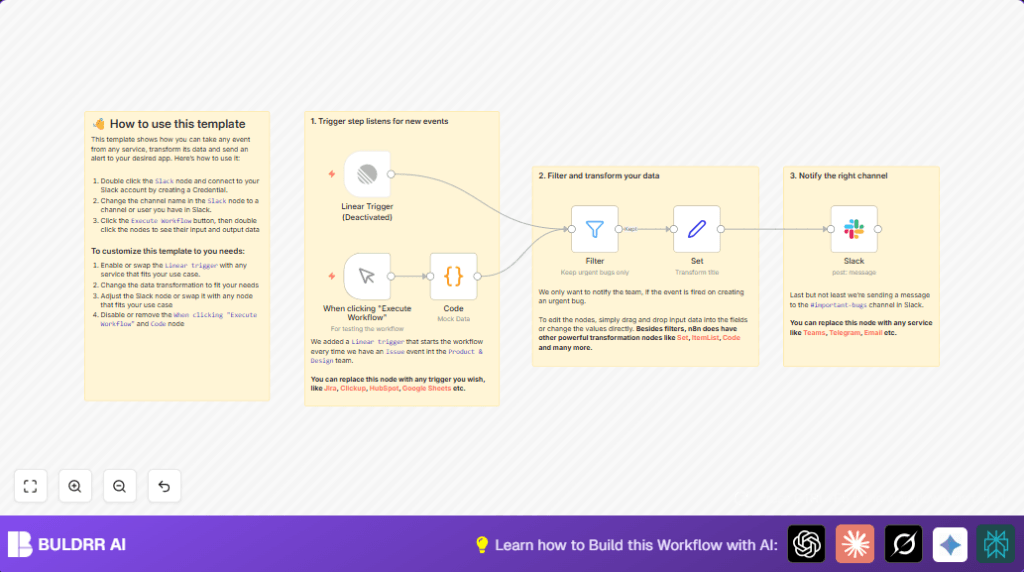

Automate Slack Alerts for Urgent Bugs with n8n Linear Trigger

Solve the challenge of missing critical bug alerts with this n8n workflow using Linear Trigger and Slack. Automatically filter urgent bugs and notify your team instantly to reduce response times and improve product quality.
linearTrigger
slack
code
+4
Workflow Identifier: 1462
NODES in Use: Linear Trigger, Manual Trigger, Code, Filter, Set, Slack, Sticky Note

Press CTRL+F5 if the workflow didn't load.

Learn how to Build this Workflow with AI:

Visit through Desktop for Best experience

1. Opening Problem Statement

Meet Laura, a product manager at a fast-growing software company. Every day, her team juggles dozens of issues and bugs reported during development. But Laura notices a persistent problem—urgent bugs often get buried among less critical tasks, causing delayed responses and unhappy customers. The manual effort to sift through issue trackers, check priorities, and copy details into chat tools wastes hours weekly and leads to errors and missed alerts. Laura wants a way to automate alerting her Slack channel only when an urgent bug arises, so her team can act immediately without manual intervention.

This is the specific challenge that this custom-built n8n workflow solves: automating the detection and notification of urgent bugs from Linear’s issue tracking system directly into Slack, saving precious time and improving team responsiveness.

2. What This Automation Does

When this workflow runs, it listens for new issue events from the Linear app but only triggers notifications for urgent bugs, then sends well-formatted alerts to a dedicated Slack channel. Here’s what it accomplishes:

  • Trigger on new issue events: Automatically start the workflow when an issue is created or updated in Linear, specifically within the Product & Design team.
  • Filter urgent bugs: Only issues with a priority level of 3 or higher and labeled as “bug” pass through the filter node.
  • Transform data title: The bug title is formatted to title case for clear, professional notifications.
  • Send Slack alerts: Notify the #important-bugs channel with a clickable link and alert mention for maximum visibility.
  • Mock data support: Includes a manual trigger and code node to simulate events for testing without waiting for real Linear webhooks.
  • Highly customizable: Swap the trigger and Slack nodes easily to fit other services like Jira, Teams, or Email.

By automating this flow, Laura’s team saves at least 2-3 hours per week on manual tracking and ensures no urgent bugs slip through unnoticed—leading to faster fixes and happier users.

3. Prerequisites ⚙️

  • n8n account: Must have access to n8n automation platform to build and run workflows.
  • Linear account and API access: To configure the Linear Trigger node for catching new issue events.
  • Slack account with permission to post to channels: Needed for setting up Slack credentials and choosing the #important-bugs channel.
  • Basic JavaScript knowledge: Helpful to understand and customize the Code node that mocks event data.

4. Step-by-Step Guide

Step 1: Set up the Linear Trigger node

Navigate to your n8n workflow editor screen.
Click +20Add node → Search for Linear Trigger → Select it.
In the node parameters, enter your Linear Team ID (e.g., “583b87b7-a8f8-436b-872c-61373503d61d”) and select the resource as issue.
Connect your Linear account under credentials or create a new credential by inputting your API key.
You should see the node ready and waiting for issue events.
Tip: This node is disabled in the example for testing purposes.

Step 2: (Optional) Use Manual Trigger and Code node for testing

Add a Manual Trigger node named “When clicking Execute Workflow” for manual invocation.
Connect it to a Code node that returns mock issue data—a JavaScript snippet is already provided in the workflow that simulates urgent bug issues.
Running the manual trigger will output test data identical to a real Linear event.
This helps verify your entire flow before going live.
Common mistake: Forgetting to disable the manual trigger or mock code nodes before production.

Step 3: Configure the Filter node to pass only urgent bugs

Add a Filter node named “Keep urgent bugs only”.
Set conditions so it only passes data where priority >= 3 and the first label’s name equals “bug”.
This ensures only high priority bugs get processed.
Expected result: Only urgent bug issues move to the next step.

Step 4: Transform issue title with the Set node

Add a Set node, configuring it to create two fields:
title: Set this to the issue’s title converted to title case (using {{ $json.data.title.toTitleCase() }}).
url: Set to the issue URL field.
Use the option Keep Only Set so the node’s output is streamlined.
Result: Your outgoing data has a clean, formatted title and direct URL.

Step 5: Send notification using Slack node

Add a Slack node.
Connect it from the Set node.
Log into your Slack account by creating or selecting Slack API credentials.
Set the channel mode to “name” and enter #important bugs.
Enter the message text as: = New urgent bug *<{{ $json.url }}|{{ $json.title }}>*.
Test sending the message to confirm your configuration.
Expected outcome: All urgent bugs get notified in Slack with clickable links and channel-wide alerts.

Step 6: Enable and activate the Linear Trigger

Once testing is complete, disable the manual trigger and code nodes.
Enable the Linear Trigger node to start listening for live events.
Activate your workflow.
This puts the automation live, alerting your team on actual urgent bugs as they happen.

5. Customizations ✏️

  • Swap trigger source: Replace the Linear Trigger node with a Jira Trigger node to listen to Jira issues instead.
    In n8n, add Jira Trigger, connect your Jira credentials, and update filters accordingly.
  • Use Microsoft Teams instead of Slack: Remove the Slack node and add a Microsoft Teams node.
    Configure your Teams credentials and channel to get alerts there.
  • Adjust priority threshold: Modify the Filter node and change priority >= 3 to another value, for instance, 2 to capture more issues.
  • Enhance the message format: In the Slack node, include more fields like the issue creator or labels to enrich the alert content.
  • Add additional transformation: Use a Code node before the Set node to create more complex message logic or include additional metadata.

6. Troubleshooting 🔧

Problem: “No nodes are triggering on Linear events”

Cause: The Linear Trigger node may be disabled or invalid credentials.
Solution: Go to the node → Ensure it is enabled → Check API credentials under the “Credentials” tab → Re-enter if needed → Save and activate the workflow.

Problem: “Slack message fails to send”

Cause: Invalid Slack API token or wrong channel name.
Solution: In the Slack node → Verify Slack credential validity → Check channel name spelling (include # symbol if using name mode) → Test sending a message inside the node settings.

Problem: “Filter node passes no data”

Cause: Filter conditions not matching JSON structure.
Solution: Inspect input data from previous node → Adjust condition values and JSON paths (e.g., make sure the labels array is accessed correctly) → Test changes.

7. Pre-Production Checklist ✅

  • Verify Linear credentials by testing webhook connection.
  • Confirm Slack API token with permission to post messages.
  • Test manual trigger and mock data nodes to ensure flow works end-to-end.
  • Check Filter node conditions match your data fields and logic.
  • Check message formatting in Slack node for accurate links and mentions.
  • Backup existing workflow versions before activating live triggers.

8. Deployment Guide

Activate the workflow in n8n by enabling the Linear Trigger node and disabling any manual test nodes.
Monitor workflow runs using n8n’s execution logs to catch any errors early.
Set up alert notifications within n8n for failures or add email steps for error reports.
This ensures that your team’s critical bug alerts continue without interruption.

9. FAQs

Q: Can I use this workflow for other issue trackers?

A: Absolutely! This workflow is designed to be modular. Replace the Linear Trigger node with Jira, ClickUp, or GitHub triggers compatible with n8n.

Q: Does sending Slack alerts consume API credits?

A: Slack limits depend on your workspace tier and API usage. Normal message posting typically remains within free-tier limits for most teams.

Q: Is my data safe with n8n?

A: Yes. n8n can be self-hosted or cloud-hosted. Use secured credentials features in n8n and follow best practices to protect API keys and sensitive information.

Q: How scalable is this workflow?

A: It can handle typical volumes of issue notifications for small to medium teams efficiently. For large scale, consider optimizing node executions and splitting workflows.

10. Conclusion

By following this detailed guide, you’ve set up a powerful n8n automation that listens for new issue events in Linear, filters for urgent bugs, and sends targeted Slack alerts. This reliable workflow saves your team hours of manual monitoring and accelerates incident response, directly impacting product quality and customer satisfaction.

You can now explore further automation such as integrating with Jira for cross-platform issue tracking, expanding notifications to Teams and Email, or enhancing message contents with richer metadata.

Keep experimenting with n8n to build workflows that fit your team’s unique needs. Your automation journey just got a big boost!

Promoted by BULDRR AI

Related Workflows

Automate Viral UGC Video Creation Using n8n + Degaus (Beginner-Friendly Guide)

Learn how to automate viral UGC video creation using n8n, AI prompts, and Degaus. This beginner-friendly guide shows how to import, configure, and run the workflow without technical complexity.
Form Trigger
Google Sheets
Gmail
+37
Free

AI SEO Blog Writer Automation in n8n

A complete beginner guide to building an AI-powered SEO blog writer automation using n8n.
AI Agent
Google Sheets
httpRequest
+5
Free

Automate CrowdStrike Alerts with VirusTotal, Jira & Slack

This workflow automates processing of CrowdStrike detections by enriching threat data via VirusTotal, creating Jira tickets for incident tracking, and notifying teams on Slack for quick response. Save hours daily by transforming complex threat data into actionable alerts effortlessly.
scheduleTrigger
httpRequest
jira
+5
Free

Automate Telegram Invoices to Notion with AI Summaries & Reports

Save hours on financial tracking by automating invoice extraction from Telegram photos to Notion using Google Gemini AI. This workflow extracts data, records transactions, and generates detailed spending reports with charts sent on schedule via Telegram.
lmChatGoogleGemini
telegramTrigger
notion
+9
Free

Automate Email Replies with n8n and AI-Powered Summarization

Save hours managing your inbox with this n8n workflow that uses IMAP email triggers, AI summarization, and vector search to draft concise replies requiring minimal review. Automate business email processing efficiently with AI guidance and Gmail integration.
emailReadImap
vectorStoreQdrant
emailSend
+12
Free

Automate Email Campaigns Using n8n with Gmail & Google Sheets

This n8n workflow automates personalized email outreach campaigns by integrating Gmail and Google Sheets, saving hours of manual follow-up work and reducing errors in email sequences. It ensures timely follow-ups based on previous email interactions, optimizing communication efficiency.
googleSheets
gmail
code
+5
Free