
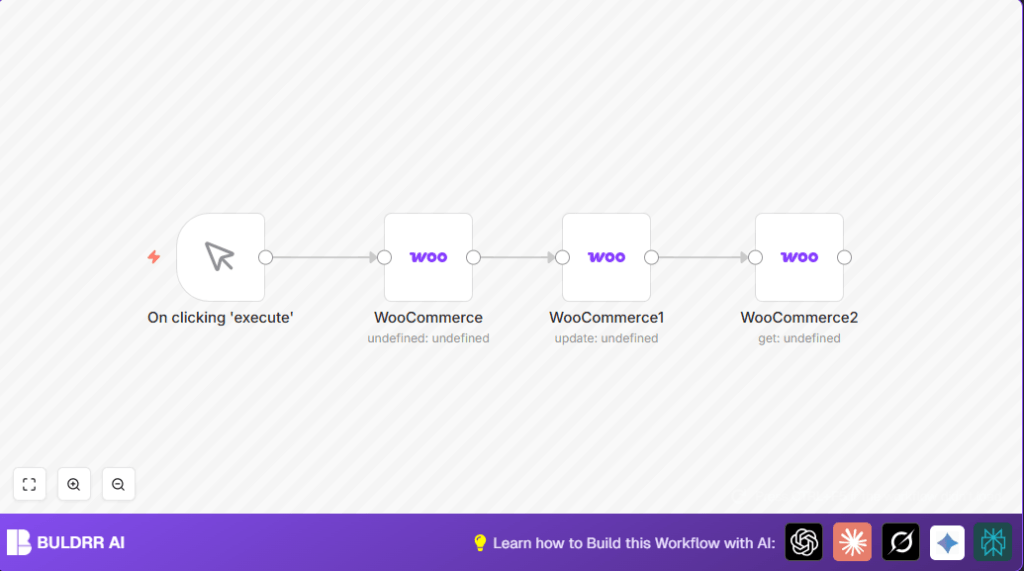

What This Automation Does
This workflow automatically creates a product in WooCommerce, then updates its stock quantity, and finally fetches the updated product details. This saves time and avoids mistakes of doing these steps manually. The user gets a new product with correct inventory shown in WooCommerce right after running the workflow.
Every run inputs new product data, processes these in three steps, and outputs the full current product info.
- Inputs: product details to create the product.
- Processing: create product, update stock using the created product’s ID, then get product data.
- Output: product info confirming changes made.
Tools and Services Used
- n8n Automation Platform: runs and connects all nodes to process tasks.
- WooCommerce API: receives commands to create, update, and retrieve products.
Who Should Use This Workflow
Anyone managing products in a WooCommerce store who wants to save time and avoid mistakes. It helps users who want to automate creating products and managing inventory.
It is useful when the user often inputs new stock or product updates. It is also good for beginners who want simple automation without coding.
Beginner Step-by-Step: How to Use This Workflow in n8n
Step 1: Import the Workflow
- Click the Download button on this page to get the workflow file.
- Open the n8n editor, click on the main menu, and choose “Import from File”.
- Select the downloaded workflow file to load it inside n8n.
Step 2: Configure Credentials
- Find all WooCommerce nodes inside the workflow.
- Add your WooCommerce API Key and Secret in each node’s credential section.
- Make sure the keys have permission to create and update products in WooCommerce.
Step 3: Update Any IDs or Fields
- Check if any product IDs, emails, or channels need editing in the nodes, especially for real store use.
- Change product name, price, or description fields if you want different products.
Step 4: Test the Workflow
- Click on the Manual Trigger node called “On clicking ‘execute'”.
- Press “Execute Workflow” to run it once and see if new product gets created and stock updated.
Step 5: Activate for Production
- When testing works, toggle the workflow to active.
- Use the manual trigger to run whenever needed or connect to other triggers for automation.
For users interested in hosting options, consider self-host n8n.
Detailed Workflow Process
Input Step
The workflow starts with a manual trigger that begins the process on user command.
Process Steps
- Create Product Node: Sends product name, description, and price to WooCommerce API to make a new product.
- Update Stock Quantity Node: Takes product ID from creation step and sets stock quantity to 100 using API update command.
- Get Product Node: Uses product ID to request updated product data from WooCommerce for verification or further use.
Output Step
The workflow outputs full product details including the new stock amount. This information can be shown in n8n or sent to other systems.
Customization Ideas
- Change product name, price, or description in the create node to match store catalog.
- Make stock quantities dynamic by pulling quantity data from external sources or user input.
- Expand the get product node to include more product attributes like reviews or metadata.
Troubleshooting
Invalid API credentials error
This means the WooCommerce API key or secret is wrong or permissions are missing.
Fix by regenerating proper API keys and checking credential settings in n8n.
Product ID not found during update
This happens if the first step failed or expression to get product ID is wrong.
Check that the create product node outputs a valid ID and the update node’s expression matches exactly {{$node["WooCommerce"].json["id"]}}.
Pre-Production Checklist
- Verify WooCommerce API credentials and access permissions.
- Run the workflow once manually and confirm product creation and stock updates.
- Confirm all node connections and expressions use the correct product ID.
- Make sure changes appear properly in WooCommerce admin panel.
Deployment Guide
Activate the workflow in n8n after tests succeed.
Run the workflow manually or connect to events like form submissions or scheduled triggers for automation.
Monitor the workflow runs in n8n and troubleshoot any errors using logs.
Summary
✓ Simplifies creating and updating WooCommerce products with fewer errors.
✓ Saves time by automating multiple steps into one workflow run.
→ Gives you a ready product in WooCommerce with correct stock data.
→ Provides a clear process that is easy to test, change, and expand as needed.
