

Opening Problem Statement
Meet Sarah, an independent investor managing her diverse stock portfolio manually each morning. Every day, she spends over an hour scrolling through multiple websites like Tradegate to check current bid prices, then updates her records in Baserow. She manually calculates gains or losses, creates summaries, and emails herself reports. This tedious routine is time-consuming, error-prone, and stressful, especially when juggling other work commitments.
Imagine losing an hour each weekday, accumulating to five hours weekly. Manual copying leads to mistakes in stock counts or current values, potentially costing Sarah money or clouding investment decisions.
What This Automation Does
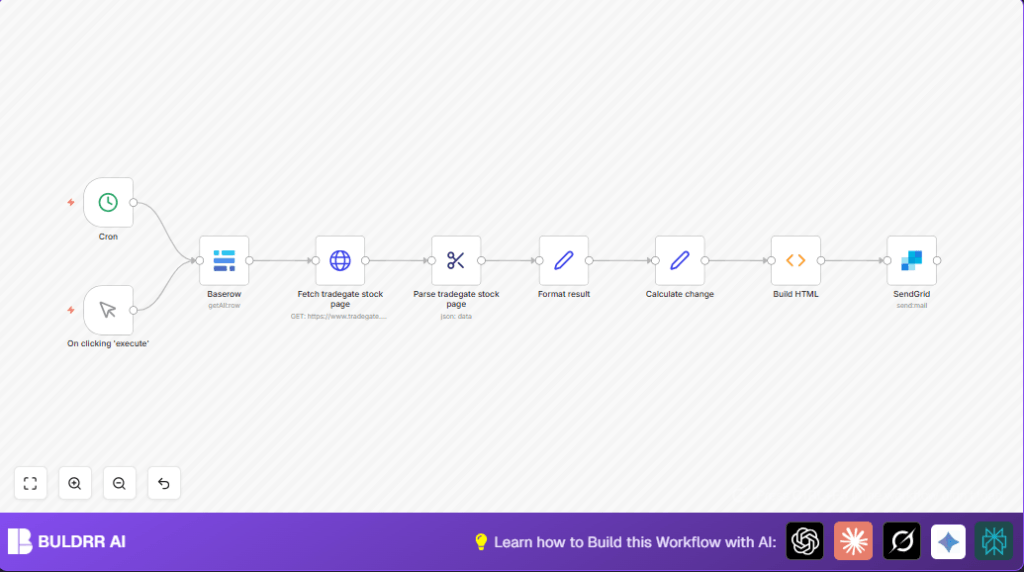
This specialized n8n workflow streamlines Sarah’s tedious process by automatically fetching, computing, formatting, and emailing her stock portfolio report each weekday morning at 7:15 AM. Here’s what happens when you run this automation:
- Pulls Sarah’s investment list from Baserow, where stock names, ISINs, counts, and purchase prices are stored.
- For each stock, fetches real-time current bid and ask prices from the Tradegate website using HTTP requests and extracts HTML data.
- Calculates the current value of stock holdings based on bid price and units owned, plus the change in value and percentage gain/loss versus purchase price.
- Builds a detailed, styled HTML table summarizing all stocks including relevant financial data and timestamps.
- Sends the complete portfolio report as an HTML email via SendGrid to Sarah, ready to review without opening multiple sites.
- Runs on a schedule (Monday to Saturday mornings) and supports manual triggering for instant report generation.
The automation saves hours weekly, removes manual entry errors, and delivers consistent, accurate investment summaries.
Prerequisites ⚙️
- n8n Account: Either cloud or self-hosted (self-hosting can be set up with providers like Hostinger).
- Baserow Account with your investment data table configured (stocks with fields like Name, ISIN, Count, Purchase Price).
- SendGrid Account with API credentials for sending HTML emails.
- Internet Access to make HTTP requests to Tradegate.
Step-by-Step Guide
Step 1: Set up the Trigger Using Cron and Manual Trigger
In your n8n Editor, create two triggers: a Cron node and a Manual Trigger node.
- Click + Add Node → search for “Cron” → add it.
- Set the Cron node to run at 7:15 AM (15 minutes after 7) Monday through Saturday by entering the cron expression
15 7 * * 1-6. - Add a Manual Trigger node for on-demand report execution.
- Both triggers should connect downstream to the Baserow node to initiate workflow.
This allows automated daily runs and manual test runs anytime.
Step 2: Connect and Configure the Baserow Node
Add the Baserow node, connect either trigger output to this node.
- Select your Baserow API credentials.
- Input the Database ID and Table ID where your stock portfolio data is saved (in the example, database ID: 146, table ID: 680).
- No advanced options needed here unless you want to filter or sort data.
- Execute this node alone to confirm it fetches your stock items such as Name, ISIN, Count, and Purchase Price.
Step 3: Add HTTP Request node to Fetch Tradegate Stock Page
Add an HTTP Request node connected after Baserow.
- Set the URL to
https://www.tradegate.de/orderbuch.php. - Add a query parameter named
isin, mapping the ISIN dynamically from Baserow:{{$json["ISIN"]}}. - Set response format to String so you can parse HTML next.
When executed, this node downloads the full HTML page for the stock based on its ISIN code.
Step 4: Extract Stock Data Using HTML Extract Node
Add an HTML Extract node to parse specific values:
- Use CSS selectors to locate and extract:
- WKN from
#col1_content > table > tbody > tr:nth-child(2) > td:nth-child(1) - ISIN from
#col1_content > table > tbody > tr:nth-child(2) > td:nth-child(3) - Currency from
#col1_content > table > tbody > tr:nth-child(2) > td:nth-child(4) - Name from
#col1_content > h2 - Bid price from
#bid - Ask price from
#ask
Executing this extracts the live trading prices required for portfolio valuation.
Step 5: Format and Calculate Stock Values
Next insert a Set node named “Format result” to structure data for calculations.
- Create fields for Name, ISIN, Count, Purchase Price, and Current Value.
- Calculate Current Value by multiplying the Bid price by Count. Ensure bid decimal comma in the data is converted for calculations.
- Next, add a Set node named “Calculate change” to compute:
- Change = Current Value – Purchase Price
- Change (%) = ((Current Value – Purchase Price) / Purchase Price) * 100
This automation aspect gives a real-time gain/loss overview.
Step 6: Build a Styled HTML Table in a Function Node
Use a Function node “Build HTML” with the provided JavaScript code to:
- Create a HTML table with headers for all fields (Name, ISIN, Count, Bid, Ask, Current Value, Change, Change %).
- Include a timestamp formatted for Europe/Dublin timezone.
- Calculate and add a total portfolio value below the table.
- Envelope it in a simple, clean HTML email body style.
The code snippet in this node is the exact script you can reuse, making it easy to customize your table styling.
Step 7: Send the Report via SendGrid
Add a SendGrid node connected to your Function node.
- Enter your SendGrid API credentials.
- Set the email subject to “Investment report”.
- Use the HTML property from the Function node output as the email content.
- Specify recipient and sender emails (often the same for personal reports).
- Example:
[email protected]in this demo.
Execute the full workflow to send your portfolio update email.
Customizations ✏️
- Add More Data Fields from Baserow: In the Baserow node, include more columns like “Sector” or “Dividend Yield” and update the HTML Extract and table code accordingly.
- Change Report Schedule: Modify the Cron expression to send reports weekly or monthly. For example, set it for Fridays at 5 PM.
- Switch Email Provider: Replace SendGrid node with SMTP or Gmail node if you prefer different email services.
Troubleshooting 🔧
Problem: “Baserow API returned empty results”
Cause: Incorrect database or table ID, expired API token, or permission issues.
Solution: Verify database and table IDs in the Baserow node parameters. Confirm API credentials are active and have proper access rights.
Problem: “HTTP Request node fails to fetch Tradegate page”
Cause: Incorrect ISIN parameter passed or Tradegate site is down.
Solution: Ensure that the ISIN field from Baserow is correctly mapped. Try opening the request URL in a browser to confirm it loads.
Problem: “HTML Extract returns empty fields”
Cause: Tradegate webpage HTML structure changed.
Solution: Inspect the webpage source for updated CSS selectors, update them in the HTML Extract node accordingly.
Pre-Production Checklist ✅
- Test Baserow node independently to confirm it pulls all expected stock items.
- Validate HTTP Request and HTML Extract nodes in pairs by testing against known ISINs.
- Review Function node output for correct HTML structure and accurate calculations.
- Send test emails through SendGrid node to confirm delivery and formatting.
- Backup your Baserow data before wide deployment to prevent data loss.
Deployment Guide
Activate your n8n workflow by enabling the Cron and Manual triggers so reports run automatically and on-demand.
Monitor email delivery through SendGrid logs and n8n execution history for errors or delays.
Consider adding alerting nodes or logging to flag failures in data fetching or email sending.
Conclusion
Congratulations! You’ve built an automated stock portfolio update and email reporting system using n8n, Baserow, and live Tradegate stock data. This workflow saves you multiple hours weekly and eliminates costly manual errors.
By consistently receiving accurate, formatted investment summaries, you can make better-informed decisions faster.
Next, consider enhancing this workflow by integrating with portfolio analytics tools, adding SMS alerts, or automating trades based on thresholds.
Happy automating!