

Automate Stripe Charge Notes Creation with n8n & Pipedrive

Discover how to streamline adding detailed Stripe charge notes to Pipedrive organizations automatically. This n8n workflow saves hours of manual data entry and ensures accurate, up-to-date client charge records.
Stripe
Pipedrive
Set
+5
Workflow Identifier: 1436
NODES in Use: Stripe, Set, Merge, Pipedrive, FunctionItem, HTTP Request, Cron, Item Lists

Press CTRL+F5 if the workflow didn't load.

Learn how to Build this Workflow with AI:

Visit through Desktop for Best experience

Opening Problem Statement

Meet Sarah, a diligent sales manager at a growing subscription-based company. Every morning, Sarah spends at least 2 hours manually correlating payment charges from Stripe to the right organizations in Pipedrive to keep her sales pipeline updated. This tedious task often leads to errors — misplaced charges, missed updates, or duplicate entries — resulting in inaccurate financial tracking and frustrated clients. The manual effort also drains Sarah’s time, which she could better spend closing deals and strategizing growth.

Sarah needs an automated solution that reliably links successful Stripe charges to the correct Pipedrive organizations by creating informative notes. Her goal is to save time, reduce errors, and keep the sales team perfectly informed about recent payments.

What This Automation Does ⚙️

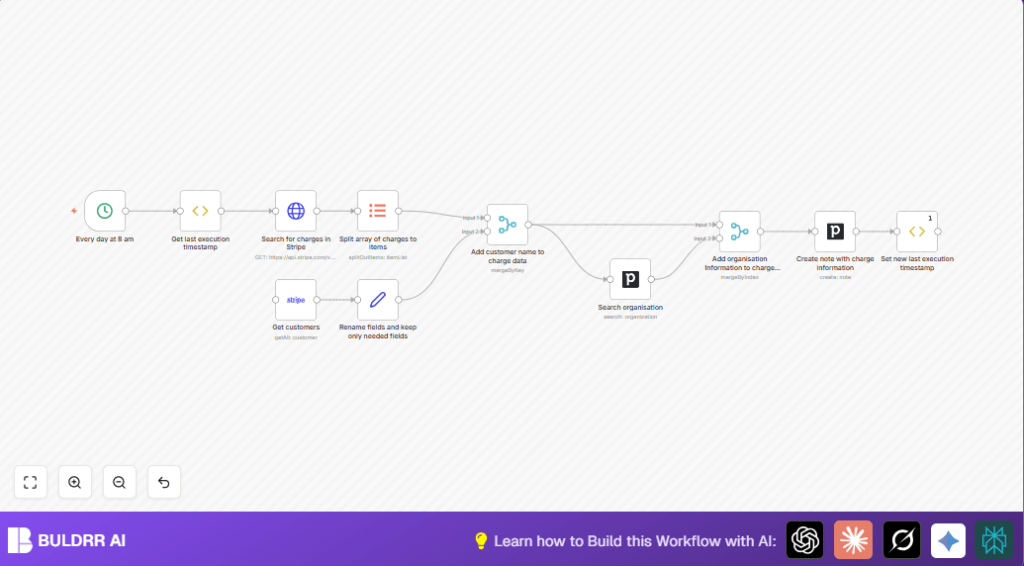
This n8n workflow automates the daily synchronization of Stripe charges with Pipedrive organizations. Here’s what happens when the workflow runs each morning at 8 AM:

  • Fetches the timestamp of the last successful run to avoid duplicate processing.
  • Searches Stripe for all succeeded charges created after the last run time.
  • Splits charges into individual items for detailed handling.
  • Retrieves customer details from Stripe to get clear customer names and IDs.
  • Matches customers with Pipedrive organizations via search by customer name.
  • Creates detailed notes in Pipedrive organizations with Stripe charge descriptions and amounts.

Benefits for Sarah and her team include:

  • Eliminating 2+ hours of daily manual data entry and reducing human errors.
  • Ensuring up-to-date, perfectly matched payment records linked to sales data.
  • Enabling proactive follow-up with clients informed by the latest charge information.
  • Freeing up team resources to focus on revenue-generating activities rather than tedious admin.

Prerequisites ⚙️

  • 📧 Stripe account with API access to retrieve charges and customers.
  • 💬 Pipedrive account with API access to manage organizations and notes.
  • 🔐 n8n account (Cloud or Self-hosted). Optional: Self-host with Hostinger for cost savings and extra control.
  • 🔑 Valid API credentials for Stripe and Pipedrive configured in n8n.
  • ⏱️ Ability to schedule workflows in n8n (installed Cron node).

Step-by-Step Guide to Build This Workflow ✏️

Step 1: Set up a Cron node for daily automation
Navigate to Nodes → Add node → Cron, configure it to trigger at 8 AM every day by adding an hour time entry (hour=8). You should see the node run daily, initiating the workflow without manual intervention. Ensure your timezone is correct to match your operational hours.

Common mistake: Forgetting to set the correct hour or timezone, causing unexpected trigger times.

Step 2: Get last execution timestamp with FunctionItem node
Add a FunctionItem node named “Get last execution timestamp.” Paste this JavaScript code to store and retrieve the last workflow execution time globally:

const staticData = getWorkflowStaticData('global');
if(!staticData.lastExecution){
  staticData.lastExecution = Math.round(new Date().getTime() / 1000);
}
item.executionTimeStamp = Math.round(new Date().getTime() / 1000);
item.lastExecution = staticData.lastExecution;
return item;

This code initializes or retrieves the last run time in Unix timestamp seconds. When the workflow runs first time, it sets the current time as last execution.

Common mistake: Altering variable names or removing staticData access will break persistence between runs.

Step 3: Search for charges in Stripe after last execution
Add an HTTP Request node named “Search for charges in Stripe.” Configure it as follows:

  • Method: GET
  • URL: https://api.stripe.com/v1/charges/search
  • Authentication: Stripe API credential (predefined in n8n)
  • Query Parameters: Set query to =created>{{$json["lastExecution"]}} AND status:"succeeded"

This fetches all successful charges made after the last run.

Expected outcome: API returns an array of charge objects ready for processing.

Common mistake: Invalid Stripe credentials or malformed query parameter causing API errors.

Step 4: Split array of charges into individual items
Add an Item Lists node called “Split array of charges to items.” Configure it to split the data array from the Stripe response into individual items for separate processing.

Expected outcome: Each charge is now a separate item in the workflow to handle separately.

Step 5: Get all Stripe customers
Add a Stripe node named “Get customers.” Set the operation as getAll on the customer resource. Leave filters empty and enable returnAll. This retrieves all customer records from Stripe.

Common mistake: Forgetting API credentials or putting wrong resource – the node will error out.

Step 6: Rename fields and keep only needed ones
Add a Set node named “Rename fields and keep only needed fields.” Map the Stripe customer fields to simpler names:

customerName = {{$json["name"]}}
customerId = {{$json["id"]}}

Make sure to enable keepOnlySet to discard unwanted data and pass only these two fields forward.

Step 7: Merge customer data with charges
Add a Merge node named “Add customer name to charge data.” Set the mode to mergeByKey. Use customer from charge data and customerId from customer data as the merge keys. This attaches customer names to each charge.

Step 8: Search for matching organization in Pipedrive
Add a Pipedrive node named “Search organisation.” Configure it to search resource organization using the customerName from the merged data as the term. Set your Pipedrive API credentials.

Expected outcome: Returns matching organizations in Pipedrive based on customer names.

Step 9: Merge Pipedrive organization info with charge data
Add another Merge node named “Add organisation Information to charge data.” Use inner join and mergeByIndex mode to combine charge + customer data with matched organization details from previous search.

Step 10: Create a note in Pipedrive with charge info
Add a final Pipedrive node named “Create note with charge information.” Configure it to create a note resource with content:

{{$json["description"]}}: {{$json["amount"] / 100}} {{$json["currency"]}}

Set the note’s org_id field to the Pipedrive organization ID from merged data.

Expected outcome: Pipedrive organization gets a new note recording the Stripe charge description and amount, automating your sales team’s updates.

Step 11: Update last execution timestamp for next run
Add a FunctionItem node named “Set new last execution timestamp.” Use this code snippet:

const staticData = getWorkflowStaticData('global');
staticData.lastExecution = $item(0).$node["Get last execution timestamp"].executionTimeStamp;
return item;

This updates the global static data to the current execution time, ensuring new charges will be picked up next day only.

Customizations ✏️

  • Change triggering time: In the Cron node, adjust the hour field to your preferred daily scanning time.
  • Filter charge types: Modify the HTTP Request node’s query string to include or exclude specific charge conditions (e.g., by currency or metadata) to focus on relevant charges.
  • Add more customer fields: Extend the Set node to include email or phone fields from Stripe for richer contact data in notes.
  • Enhance note details: Customize the Pipedrive note content to include charge date, payment method, or other Stripe metadata by modifying the note’s content field in the Pipedrive node.

Troubleshooting 🔧

  • Problem: “Stripe API authentication failed.”

    Cause: Invalid or expired API keys in the Stripe credential configuration.

    Solution: Go to n8n Credentials → Stripe account → update keys carefully, then retest the node.

  • Problem: “Pipedrive search returns empty results.”

    Cause: Customer names in Stripe do not exactly match organization names in Pipedrive.

    Solution: Use partial matching or enrich organization names in Pipedrive for better results; consider adding fuzzy matching via a Code node if needed.

  • Problem: “Workflow does not trigger at expected time.”

    Cause: Wrong timezone configuration or Cron node misconfigured hours.

    Solution: Check your n8n instance’s timezone setting and validate the Cron node hour parameter.

Pre-Production Checklist ✅

  • Verify Stripe and Pipedrive API credentials by testing nodes individually.
  • Confirm the workflow triggers correctly at 8 AM using Cron node manual run and schedule tests.
  • Simulate the workflow with known Stripe charges to ensure notes create correctly in Pipedrive.
  • Backup your workflow JSON configuration before deploying live.

Deployment Guide

Activate the workflow in your n8n environment by clicking the Activate button. Monitor the first few runs carefully, checking the execution logs for errors or unexpected behavior. Enable n8n’s built-in error handling or add additional notification nodes for alerting if integration breaks.

This workflow runs once daily, so minimal system resources are used. Consider setting alerts for failed Pipedrive or Stripe calls to ensure uninterrupted syncing.

FAQs

  • Q: Can I use HubSpot instead of Pipedrive?

    A: Yes, but you would need to swap the Pipedrive nodes for equivalent HubSpot API nodes and adjust field mappings accordingly.

  • Q: Does this workflow consume a lot of API credits?

    A: The workflow performs a limited daily query and note creation, so it’s efficient in API usage, but check your Stripe and Pipedrive API limits.

  • Q: Is my data safe using this automation?

    A: Yes, all credentials and data flow within your secure n8n instance or self-hosted environment with encrypted API keys.

Conclusion

By setting up this specific n8n workflow, Sarah and her sales team have automated the tedious task of syncing Stripe charges with Pipedrive organizations. They save over 10 hours a week previously spent on manual entry, reduce costly mistakes, and keep financial data perfectly aligned with their sales pipeline.

Next, consider enhancing this automation by integrating payment failure alerts, monthly revenue reports in Google Sheets, or Slack notifications for big sales.

This carefully tailored automation empowers you to reclaim your time and improve business accuracy with n8n, Stripe, and Pipedrive working seamlessly together.

Promoted by BULDRR AI

Related Workflows

Automate Viral UGC Video Creation Using n8n + Degaus (Beginner-Friendly Guide)

Learn how to automate viral UGC video creation using n8n, AI prompts, and Degaus. This beginner-friendly guide shows how to import, configure, and run the workflow without technical complexity.
Form Trigger
Google Sheets
Gmail
+37
Free

AI SEO Blog Writer Automation in n8n

A complete beginner guide to building an AI-powered SEO blog writer automation using n8n.
AI Agent
Google Sheets
httpRequest
+5
Free

Automate CrowdStrike Alerts with VirusTotal, Jira & Slack

This workflow automates processing of CrowdStrike detections by enriching threat data via VirusTotal, creating Jira tickets for incident tracking, and notifying teams on Slack for quick response. Save hours daily by transforming complex threat data into actionable alerts effortlessly.
scheduleTrigger
httpRequest
jira
+5
Free

Automate Telegram Invoices to Notion with AI Summaries & Reports

Save hours on financial tracking by automating invoice extraction from Telegram photos to Notion using Google Gemini AI. This workflow extracts data, records transactions, and generates detailed spending reports with charts sent on schedule via Telegram.
lmChatGoogleGemini
telegramTrigger
notion
+9
Free

Automate Email Replies with n8n and AI-Powered Summarization

Save hours managing your inbox with this n8n workflow that uses IMAP email triggers, AI summarization, and vector search to draft concise replies requiring minimal review. Automate business email processing efficiently with AI guidance and Gmail integration.
emailReadImap
vectorStoreQdrant
emailSend
+12
Free

Automate Email Campaigns Using n8n with Gmail & Google Sheets

This n8n workflow automates personalized email outreach campaigns by integrating Gmail and Google Sheets, saving hours of manual follow-up work and reducing errors in email sequences. It ensures timely follow-ups based on previous email interactions, optimizing communication efficiency.
googleSheets
gmail
code
+5
Free