
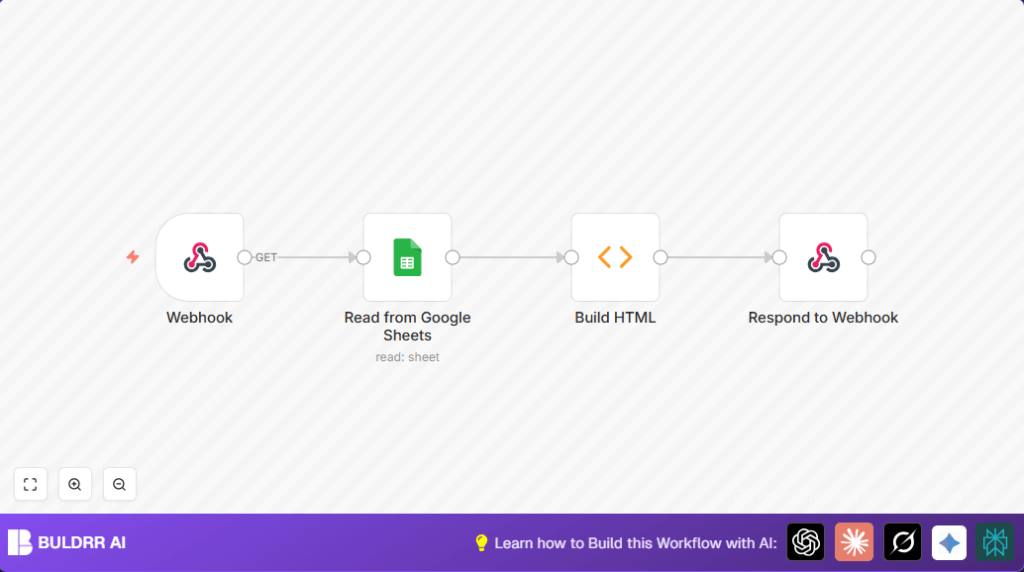

What This Automation Does
This workflow takes data from a Google Sheets file and makes it into a pretty HTML table with Bootstrap style.
It helps people who need to show fresh data on a website, without manually copying or coding each time.
The workflow is started by a webhook URL. When the URL is opened, it reads data from the selected Google Sheet, creates the full HTML page with the table, and sends that page back immediately.
This way, the webpage always shows live data pulled straight from the sheet.
Tools and Services Used
- n8n Platform: Hosts the automation workflow.
- Webhook node: Triggers workflow on demand.
- Google Sheets node: Reads rows from a Google Sheets document.
- Function node (Build HTML): Turns sheet data into a proper HTML page with a Bootstrap table.
- Respond to Webhook node: Sends back the HTML as the HTTP response.
Inputs, Processing Steps, and Outputs
Input
- A webhook request hits a special URL.
- Google Sheets spreadsheet ID and OAuth2 credentials to access the data.
Processing Steps
- Webhook node receives the request.
- Google Sheets node reads live rows from the given spreadsheet.
- Function node builds an HTML page string with Bootstrap styling using the sheet data.
- Respond to Webhook node returns the HTML page as the HTTP response.
Output
The output is a fully formed HTML page showing the spreadsheet data as a styled table.
This can be shown directly in browsers or embedded in other web pages.
Beginner Step-by-Step: How to Use This Workflow in n8n
Import the Workflow
- Download the workflow file using the Download button on this page.
- Open the n8n editor where you want to run the workflow.
- Click on “Import from File” and select the downloaded workflow file.
Configure Credentials and IDs
- Add your Google Sheets OAuth2 credentials inside n8n if not already set.
- Find the Google Sheets node in the imported workflow.
- Replace the Sheet ID with your own Google Sheets document ID. This is the string found between “/d/” and “/edit” in the sheet URL.
Test the Workflow
- Run the workflow once by triggering the webhook URL in a browser or API tool like Postman.
- Check the response to see the live HTML table generated from your sheet data.
Activate the Workflow
- In the n8n editor, click “Activate” to make the workflow live.
- Use the webhook URL to fetch the table anytime from any system or browser.
If hosting n8n on your own server, consider self-host n8n for full control.
Common Issues and How to Fix Them
Google Sheets node returns no data or empty array
Check if the Sheet ID is exactly copied from the URL.
Make sure the Google Sheets document has data starting from the first row.
Webhook responds with empty content or HTML does not show
Ensure the Respond to Webhook node uses {{$json["html"]}} exactly as the response body.
Verify all node connections are correct and the workflow runs without errors.
Customization Ideas
- Change Bootstrap classes in Build HTML Function node to adjust table style, like adding
table-stripedortable-bordered. - Switch the Google Sheets node to a different sheet to show other data.
- Add pagination controls by editing the HTML building code if the sheet is very large.
- Embed the webhook URL output in existing websites using an
<iframe>tag. - Enable security on the Webhook node for Basic Auth or API key protection.
Summary
✓ Reads live data from Google Sheets.
✓ Creates a styled HTML table with Bootstrap.
✓ Sends the result back via webhook as a full HTML page.
✓ Saves time by removing manual export and formatting.
✓ Works instantly when called via webhook.
✓ Easy to configure and customize inside n8n.
