
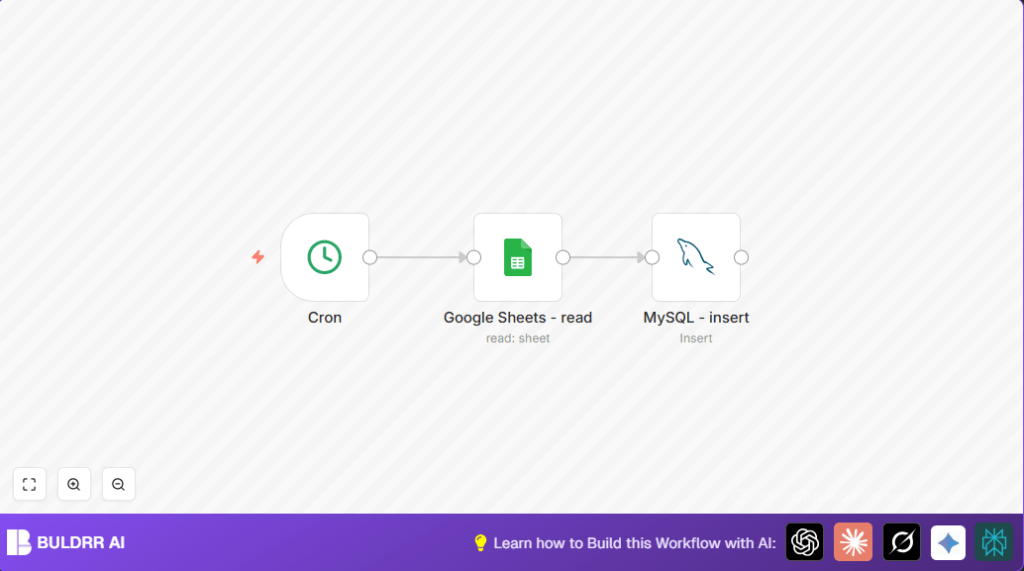

Automate Daily Book Prices Import Using Google Sheets and MySQL with n8n

Save hours by automating daily imports of book prices from Google Sheets directly into MySQL using n8n’s Cron, Google Sheets, and MySQL nodes. This workflow eliminates manual data entry errors and streamlines your e-commerce database updates.
cron
googleSheets
mySql
Workflow Identifier: 1428
NODES in Use: Cron, Google Sheets, MySQL

Press CTRL+F5 if the workflow didn't load.

Learn how to Build this Workflow with AI:

Visit through Desktop for Best experience

Opening Problem Statement

Meet Sarah, an independent book retailer who manages dozens of book titles and their pricing details in a Google Sheets document. Every morning at 5 AM, she spends significant time manually importing updated price lists from her spreadsheet into her MySQL database to keep her online store accurate. This repetitive task wastes at least 30 minutes daily, and typos in data entry often cause costly pricing errors. Sarah desperately needs a reliable way to automate this routine to save time and avoid mistakes.

What This Automation Does

This n8n workflow automatically runs every week day at 5 AM and performs the following key actions:

  • Triggers a scheduled task using the Cron node at 5 AM each weekday.
  • Reads the latest book pricing data directly from a designated Google Sheets spreadsheet via the Google Sheets node.
  • Inserts each book’s title and price data into a MySQL database table using the MySQL node with error handling.
  • Skips duplicate entries gracefully with the “ignore” option enabled, preventing insertion errors.
  • Reduces manual data entry time by at least 30 minutes per day, eliminating typing errors.
  • Ensures your e-commerce platform pricing database is always up-to-date and ready for customers.

Prerequisites ⚙️

  • An n8n account to build and run the workflow.
  • A Google Sheets account with OAuth2 credentials setup in n8n for reading sheet data.
  • A MySQL database with credentials properly configured in n8n.
  • A Google Sheets document containing your book titles and prices, with a known sheet ID (e.g., “qwertz” in this workflow).
  • Basic familiarity with n8n’s UI for connecting nodes.

Step-by-Step Guide to Build This Workflow

Step 1: Schedule the Automation with the Cron Node

Navigate to Nodes → Add Node → Cron. Configure the Cron node to trigger the workflow every weekday at 5 AM exactly as in this workflow’s setup:

  • Set “Mode” to “Every Week”
  • Select the hour as “5”
  • Leave minutes at “0” (default)

After setup, you should see the Cron node scheduled to trigger weekly at 5 AM. This node acts as the starting point for your automation.

Common mistake: Forgetting to specify the “Every Week” mode leads to the workflow not triggering on weekdays only.

Step 2: Connect Google Sheets to Read Data

Add a Google Sheets node by clicking Add Node → Google Sheets. Configure the node to read data from your sheet:

  • Set Authentication to your configured OAuth2 credentials.
  • Enter the Sheet ID exactly as it appears from your Google Sheets URL. For example, use “qwertz” or your actual sheet identifier.
  • Leave other options default to read all data.

Upon execution, this node fetches all rows including book titles and prices.

Tip: Ensure your first row contains column headers like “title” and “price” to map data correctly.

Step 3: Insert Data into MySQL

Add a MySQL node (Add Node → MySQL) and configure it:

  • Choose your MySQL credentials from the dropdown.
  • Set the Table parameter to “books” where you want data inserted.
  • In the Columns field, enter “title, price” to specify the columns you are updating.
  • Enable the “Ignore” option under insertion options to avoid errors on duplicates.
  • Set the Priority to “LOW_PRIORITY” to minimize database locking.

Connect the Google Sheets node’s output to the MySQL node so data flows seamlessly.

Note: This node reads each row’s title and price and inserts them into the corresponding database columns.

Customizations ✏️

  • Adjust Schedule: Change the Cron node “hour” value to match your preferred update time.
  • Add More Columns: Expand the Columns field in MySQL and your Google Sheets data to include author, ISBN, etc.
  • Error Logging: Add a Function or Set node after MySQL to capture any insertion errors and log them to a file or Slack.
  • Conditional Insert: Use an IF node before MySQL to insert only books whose price has changed since the last import.

Troubleshooting 🔧

Problem: “OAuth2 authentication failed when reading Google Sheets.”
Cause: Invalid or expired OAuth2 credentials.
Solution: Reconfigure the Google Sheets node with fresh OAuth2 tokens, or reauthenticate your Google account in n8n.

Problem: “MySQL insert returns duplicate key error despite ignore flag.”
Cause: Ignore flag does not work if table constraints are not set properly.
Solution: Verify your MySQL table has appropriate unique keys on the “title” column to avoid duplicate inserts.

Pre-Production Checklist ✅

  • Confirm your MySQL credentials are correct and tested.
  • Verify your Google Sheets Sheet ID is accurate.
  • Ensure Cron node triggers on the desired days and time.
  • Run manual test executions and monitor if the MySQL table populates as expected.
  • Backup your MySQL database before running the automation for the first time.

Deployment Guide

Activate your workflow by turning it ON in the n8n editor after completing all node configurations.

Monitor your executions from the n8n dashboard to ensure successful runs and review any errors under node executions.

If self-hosting, consider deploying n8n on a service like Hostinger for 24/7 uptime and automated reliability.

FAQs

Q: Can I use a different database instead of MySQL?
A: Yes. n8n supports various databases like PostgreSQL; you’d just need to use the corresponding database node and adapt the SQL syntax.

Q: Will this workflow consume API credits?
A: Reading Google Sheets with OAuth2 has quota limits but for typical usage, it should not be significant.

Q: Is my data secure in this workflow?
A: Data stays within your secure database and Google Sheets accounts; ensure you use secure credentials in n8n.

Conclusion

You’ve successfully automated the tedious task of importing book prices from Google Sheets into your MySQL database every weekday at 5 AM. This workflow not only saves Sarah 30 minutes daily but also virtually eliminates manual entry errors, improving data reliability for her bookstore’s inventory system. As a next step, consider automating price comparison alerts or integrating Slack notifications for database updates. Keep exploring n8n’s powerful nodes to streamline other repetitive tasks!

Promoted by BULDRR AI

Related Workflows

Automate Viral UGC Video Creation Using n8n + Degaus (Beginner-Friendly Guide)

Learn how to automate viral UGC video creation using n8n, AI prompts, and Degaus. This beginner-friendly guide shows how to import, configure, and run the workflow without technical complexity.
Form Trigger
Google Sheets
Gmail
+37
Free

AI SEO Blog Writer Automation in n8n (Beginner Guide)

A complete beginner guide to building an AI-powered SEO blog writer automation using n8n.
AI Agent
Google Sheets
httpRequest
+5
Free

Automate CrowdStrike Alerts with VirusTotal, Jira & Slack

This workflow automates processing of CrowdStrike detections by enriching threat data via VirusTotal, creating Jira tickets for incident tracking, and notifying teams on Slack for quick response. Save hours daily by transforming complex threat data into actionable alerts effortlessly.
scheduleTrigger
httpRequest
jira
+5
Free

Automate Telegram Invoices to Notion with AI Summaries & Reports

Save hours on financial tracking by automating invoice extraction from Telegram photos to Notion using Google Gemini AI. This workflow extracts data, records transactions, and generates detailed spending reports with charts sent on schedule via Telegram.
lmChatGoogleGemini
telegramTrigger
notion
+9
Free

Automate Email Replies with n8n and AI-Powered Summarization

Save hours managing your inbox with this n8n workflow that uses IMAP email triggers, AI summarization, and vector search to draft concise replies requiring minimal review. Automate business email processing efficiently with AI guidance and Gmail integration.
emailReadImap
vectorStoreQdrant
emailSend
+12
Free

Automate Email Campaigns Using n8n with Gmail & Google Sheets

This n8n workflow automates personalized email outreach campaigns by integrating Gmail and Google Sheets, saving hours of manual follow-up work and reducing errors in email sequences. It ensures timely follow-ups based on previous email interactions, optimizing communication efficiency.
googleSheets
gmail
code
+5
Free