

What this workflow does
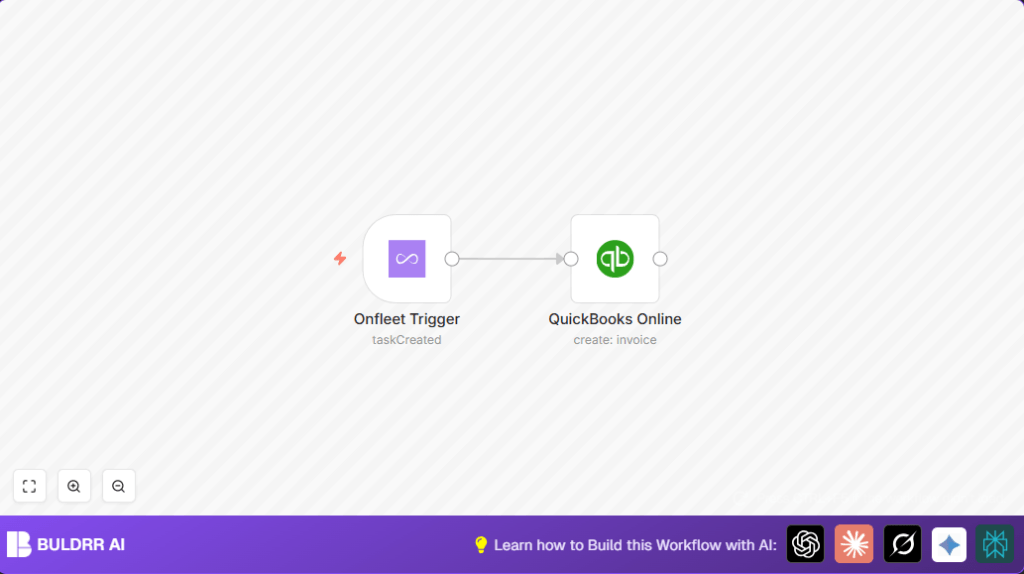
This workflow watches for new tasks created in Onfleet and then makes invoices automatically in QuickBooks Online.
It saves time by stopping the need for manual invoice creation.
It stops mistakes like missing or double invoices.
The main result is faster billing and less work for the team.
The workflow uses Onfleet to give task info as input.
It processes this data to fill invoice fields.
Then it sends this to QuickBooks Online to produce the invoice output.
Who should use this workflow
Logistics companies who create many delivery tasks and bill customers should use this.
Teams that want to cut down manual work, speed payments, and reduce billing errors will benefit.
If manual invoice creation is slow or error-prone, this workflow helps a lot.
Non-technical users can run it after simple setup.
Tools and services used
- Onfleet: Sends new delivery tasks when created.
- QuickBooks Online: Creates invoices from task data.
- n8n: Connects the services and runs the automation.
n8n should be self-hosted or cloud-run. For self-hosted setups, consider self-host n8n for stable operation.
Beginner step-by-step: How to use this workflow in n8n
1. Import the workflow
- Download the workflow file using the Download button on this page.
- Inside the n8n editor, click the menu and choose Import from File.
- Select the downloaded workflow file to load it into n8n.
2. Configure credentials
- Add your Onfleet API Key in the Onfleet Trigger node credentials section.
- Add your QuickBooks Online credentials in the QuickBooks Online node.
- Check if you need to update IDs, emails, or address fields in the QuickBooks node according to your business.
3. Test the workflow
- Create a new task in your Onfleet dashboard to trigger the workflow.
- Watch the workflow execution in n8n to see if an invoice is created successfully.
- Fix any errors from logs.
4. Activate for production
- Turn the workflow ON in n8n to run automatically.
- Monitor the workflow’s runs and add notifications if needed.
Inputs, processing steps, and outputs
Inputs: New delivery task data from Onfleet, including task details and customer info.
Processing steps:
- Use Onfleet Trigger to catch new tasks.
- Pass data to QuickBooks Online node.
- Fill invoice fields with task details, like date, billing, and balance.
- Create the invoice automatically.
Outputs: New invoice created inside QuickBooks Online for each new Onfleet task.
Common issues and fixes
- No data from Onfleet Trigger node: Check if API Key is correct and webhook URL is registered in Onfleet.
- QuickBooks Online node auth errors: Refresh OAuth credentials and confirm account permissions.
- Invoices missing required fields: Map invoice fields properly using n8n expressions and verify required fields in QuickBooks.
Ideas to customize the workflow
- Add expressions in the QuickBooks node to include task address, customer email, or fees dynamically.
- Add payment terms like due dates in invoice creation fields.
- Add notification nodes (Email or Slack) to inform the team when invoices are created.
- Use IF nodes to filter tasks for invoicing based on tags or priority.
- Update Onfleet tasks after invoice creation to mark them as invoiced.
Summary of the result
✓ Saves many hours of manual invoice work each week.
✓ Stops billing delays and human invoicing mistakes.
✓ Makes invoicing from Onfleet tasks automatic and fast.
✓ Helps finance flow move quicker and with fewer errors.
✓ Easy to test, run, and customize inside n8n.
