

Automate Excel Export from Webhook Data with n8n

Struggling to manually convert webhook JSON data into Excel files? This n8n workflow automates exporting webhook data directly into XLSX files, saving time and eliminating errors in data handling.
webhook
itemLists
spreadsheetFile
+1
Workflow Identifier: 1411
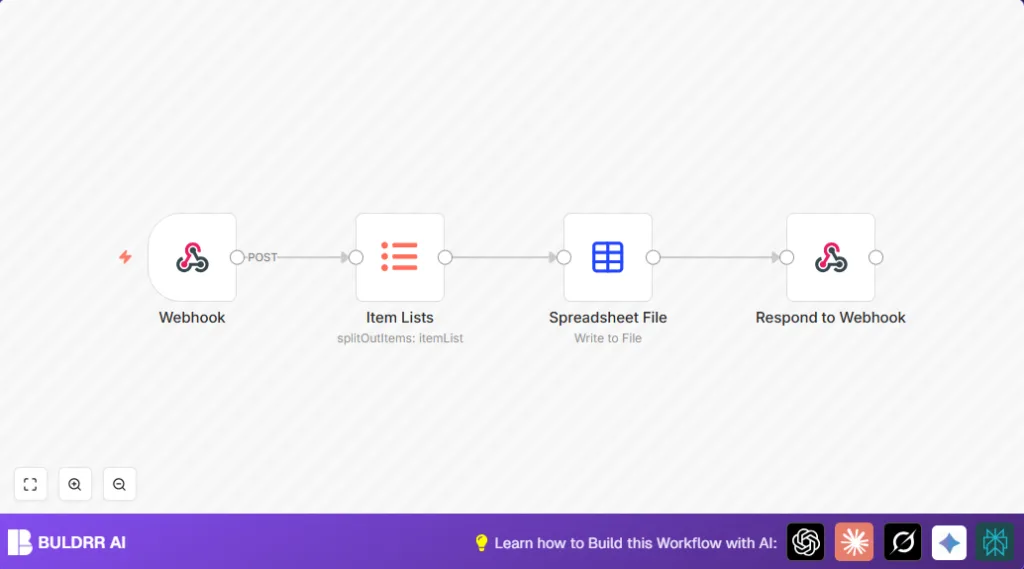
NODES in Use: Webhook, Item Lists, Spreadsheet File, Respond to Webhook

Press CTRL+F5 if the workflow didn't load.

Learn how to Build this Workflow with AI:

Visit through Desktop for Best experience

1. Opening Problem Statement

Meet Sarah, a data analyst at a small marketing firm. She often receives complex JSON data via webhooks from various advertising platforms. Every day, Sarah spends hours manually copying, formatting, and converting this data into Excel spreadsheets for her team to analyze. This process is not only time-consuming but also prone to human errors, which sometimes lead to costly delays and misinformed decisions.

Imagine spending nearly 2 hours daily just to transform raw webhook data into clean, shareable Excel files. Multiply that by 20 workdays a month, and that’s 40 hours lost each month—time Sarah could spend on more strategic tasks. The situation calls for automation that directly handles webhook payloads and exports them into Excel without manual intervention.

2. What This Automation Does

This is where our n8n workflow shines. Once set up, it automates the entire process of converting incoming webhook JSON payloads into downloadable Excel (XLSX) files. Here’s what happens when it runs:

  • The workflow listens for data sent via an HTTP POST webhook.
  • It extracts key JSON arrays from the incoming data to structure them properly.
  • Transforms that structured data directly into an Excel spreadsheet file (XLSX format).
  • Provides an automatic downloadable Excel file response back to the webhook caller with a custom filename.
  • Eliminates manual copy-pasting and formatting, drastically reducing errors and saving hours each day.

Sarah now gets perfectly formatted Excel reports instantly, freeing up almost 40 hours monthly and improving reporting accuracy.

3. Prerequisites ⚙️

  • n8n Account (Hosted or Self-Hosted) 🔌
  • Ability to send HTTP POST requests (where webhook data originates)
  • Basic JSON data knowledge (to understand what data you expect)
  • No other external integrations needed – this workflow is self-contained.

4. Step-by-Step Guide to Build This Webhook to Excel Export Automation

Step 1: Create a Webhook Node to Receive Data

In your n8n editor, click + Add Node → search for and select the Webhook node.

Configure the webhook as follows:

  • HTTP Method: POST
  • Path: Set a unique path e.g., export-excel or use the auto-generated ID.
  • Response Mode: Set to Response Node so that final response can be sent from downstream nodes.

Save and activate the workflow later to get the webhook URL.

Visual: You should see a webhook URL generated with your custom path, ready to receive JSON payloads.

Common Mistake: Forgetting to set the method to POST will cause your webhook not to receive data properly.

Step 2: Add an Item Lists Node to Extract JSON Array

After the Webhook node, add the Item Lists node. This node is designed to extract arrays from incoming JSON data.

Configure it as:

  • Field to Split Out: Set to =body to extract the main array from the webhook’s JSON body.

Visual: You will get multiple items split from the JSON array ready for processing.

Common Mistake: Setting this field incorrectly (e.g., to a wrong JSON key) will stop the data extraction.

Step 3: Add the Spreadsheet File Node to Create XLSX

Add Spreadsheet File node next. This node converts your JSON items into an Excel file.

Configure the node as:

  • Operation: toFile
  • File Format: xlsx

Visual: This node will prepare a binary Excel file as output.

Common Mistake: Not setting the operation to toFile will prevent file creation.

Step 4: Add Respond to Webhook Node to Send the Excel File Back

Finally, add the Respond to Webhook node to return the Excel file as an HTTP response.

Configuration steps:

  • Go to Response Headers and add a header:
  • Name: content-disposition
  • Value: =attachment; filename="{{$node["Webhook"].json["query"]["filename"] ? $node["Webhook"].json["query"]["filename"] : "Export"}}.xlsx"
  • This dynamic expression sets the filename based on URL query or defaults to “Export.xlsx”.
  • Respond With: binary

Visual: When triggered, the webhook caller receives a downloadable Excel file response.

Common Mistake: Forgetting to set Respond With to binary will cause the file to be unreadable.

Step 5: Connect All Nodes Sequentially and Activate the Workflow

Ensure connections are:

  • Webhook → Item Lists
  • Item Lists → Spreadsheet File
  • Spreadsheet File → Respond to Webhook

Finally, activate the workflow in n8n and note the webhook URL.

Step 6: Test by Sending JSON Data to Your Webhook

Using a tool like Postman or curl, send an HTTP POST payload with JSON containing an array under the key body. Optionally, add a query parameter filename to customize the Excel filename.

Example payload:

{
  "body": [
    {"Name": "Alice", "Sales": 300},
    {"Name": "Bob", "Sales": 450}
  ]
}

You should get an immediate STLX file named as specified, downloadable via the webhook response.

5. Customizations ✏️

  • Change Excel Filename Dynamically: Modify the query parameter key in the Respond to Webhook node from filename to anything you want, e.g., reportName. This changes the file’s name dynamically.
  • Adjust JSON Array Path: If your incoming JSON key isn’t body, adjust the Item Lists node’s Field to Split Out setting to that key. This lets you handle different JSON structures.
  • Add Email Notification: Insert a Gmail or Email node after the Spreadsheet File node to automatically email the Excel file.
  • Support Multiple File Formats: Change the Spreadsheet File node’s fileFormat to CSV or other supported types as needed.

6. Troubleshooting 🔧

  • Problem: “Webhook doesn’t trigger or receives no data.”

    Cause: Incorrect webhook URL or HTTP method.

    Solution: Check your webhook URL in n8n, ensure HTTP method is POST, and confirm you’re sending JSON data properly.
  • Problem: “Spreadsheet File node outputs corrupt or empty file.”

    Cause: Wrong input data structure or missing array.

    Solution: Verify that the Item Lists node extracts the correct array and that the JSON matches expected keys.
  • Problem: “Filename in download is always ‘Export.xlsx'”

    Cause: No filename query parameter sent.

    Solution: Send a query parameter named ‘filename’ with your POST request URL or adjust expression in Respond to Webhook accordingly.

7. Pre-Production Checklist ✅

  • Confirm Webhook node’s HTTP method is POST and path is unique.
  • Test payloads include correct JSON array under expected key.
  • Validate the spreadsheet file output by inspecting the Spreadsheet File node in n8n’s execution preview.
  • Test downloadable response by triggering the webhook with a real request.
  • Backup your workflow before activation.

8. Deployment Guide

Activate the workflow in n8n once all tests pass.

Share the webhook URL with any system that can POST JSON data.

Monitor executions in n8n for errors or data issues in real-time.

Update the workflow as needed for changes in input data structure or filename requirements.

9. FAQs

  • Q: Can I use this with other webhook sources?
    A: Yes, as long as the JSON structure matches or is adjustable in the Item Lists node.
  • Q: Does this consume API credits?
    A: No, all processing is local within n8n.
  • Q: Is my data secure?
    A: Your data stays within n8n environment. Secure your n8n instance accordingly.
  • Q: Can I customize the output file format?
    A: Yes, Spreadsheet File node supports formats like CSV and XLSX.

10. Conclusion

You’ve just built an efficient webhook-to-Excel export automation using n8n’s Webhook, Item Lists, Spreadsheet File, and Respond to Webhook nodes. This workflow eliminates tedious manual data conversion, saving you about 40 hours per month and drastically reduces errors.

Next steps? Try expanding this automation by adding email notifications, integrating multiple data sources, or exporting to different file formats. With n8n, your data pipeline just got a whole lot smoother!

Feel empowered to automate more and reclaim your time!

Promoted by BULDRR AI

Related Workflows

Automate Viral UGC Video Creation Using n8n + Degaus (Beginner-Friendly Guide)

Learn how to automate viral UGC video creation using n8n, AI prompts, and Degaus. This beginner-friendly guide shows how to import, configure, and run the workflow without technical complexity.
Form Trigger
Google Sheets
Gmail
+37
Free

AI SEO Blog Writer Automation in n8n (Beginner Guide)

A complete beginner guide to building an AI-powered SEO blog writer automation using n8n.
AI Agent
Google Sheets
httpRequest
+5
Free

Automate CrowdStrike Alerts with VirusTotal, Jira & Slack

This workflow automates processing of CrowdStrike detections by enriching threat data via VirusTotal, creating Jira tickets for incident tracking, and notifying teams on Slack for quick response. Save hours daily by transforming complex threat data into actionable alerts effortlessly.
scheduleTrigger
httpRequest
jira
+5
Free

Automate Telegram Invoices to Notion with AI Summaries & Reports

Save hours on financial tracking by automating invoice extraction from Telegram photos to Notion using Google Gemini AI. This workflow extracts data, records transactions, and generates detailed spending reports with charts sent on schedule via Telegram.
lmChatGoogleGemini
telegramTrigger
notion
+9
Free

Automate Email Replies with n8n and AI-Powered Summarization

Save hours managing your inbox with this n8n workflow that uses IMAP email triggers, AI summarization, and vector search to draft concise replies requiring minimal review. Automate business email processing efficiently with AI guidance and Gmail integration.
emailReadImap
vectorStoreQdrant
emailSend
+12
Free

Automate Email Campaigns Using n8n with Gmail & Google Sheets

This n8n workflow automates personalized email outreach campaigns by integrating Gmail and Google Sheets, saving hours of manual follow-up work and reducing errors in email sequences. It ensures timely follow-ups based on previous email interactions, optimizing communication efficiency.
googleSheets
gmail
code
+5
Free