
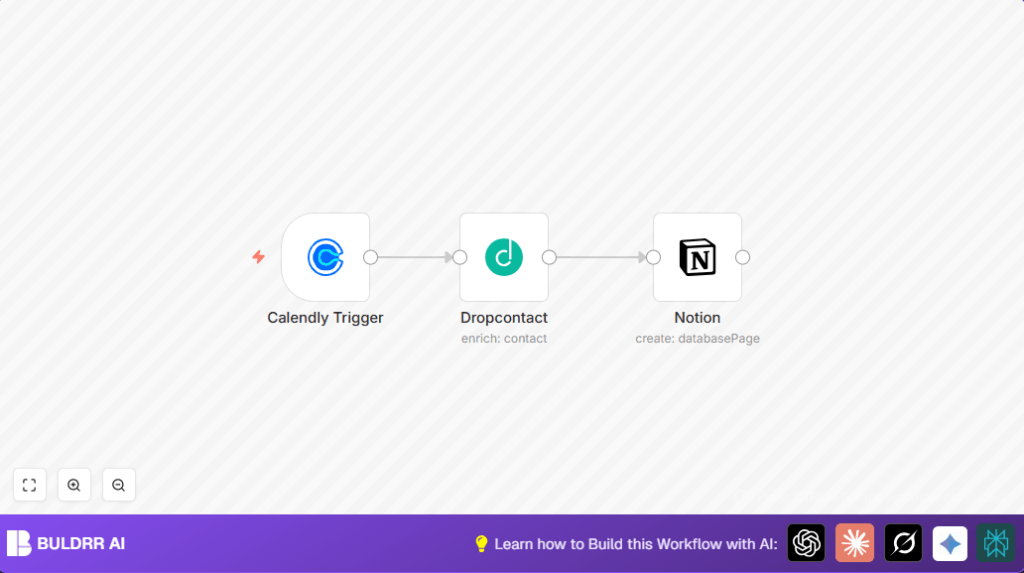

What This Workflow Does
This workflow catches new meetings from Calendly.
It grabs the invitee’s contact info and updates it with Dropcontact data.
Then it adds all this info into a Notion database automatically.
This saves time and stops mistakes from manual entry.
Who Should Use This Workflow
- People who schedule meetings on Calendly and want to log contacts easily.
- Teams needing accurate and enriched lead info in Notion.
- Anyone looking to spend less time copying appointment details.
Tools and Services Used
- Calendly API: Sends event data when new meetings set.
- Dropcontact API: Enriches contacts with verified info and company links.
- Notion API: Creates new lead pages in a specified database.
- n8n Automation: Connects all parts and runs workflow.
Inputs, Processing Steps, and Output
Inputs:
- New Calendly invitee event with name, email, meeting dates.
Processing Steps:
- Trigger on Calendly invitee.created event.
- Extract contact info from event payload.
- Send email to Dropcontact for enrichment (adds full name, LinkedIn, company data).
- Map enriched data fields to Notion database properties.
- Create a new Notion page reflecting the enriched lead info.
Output:
- A detailed entry in Notion with accurate contact and meeting info.
Beginner Step-by-Step: How to Use This Workflow in n8n
Step 1: Import Workflow
- Download the ready workflow file using the Download button on this page.
- Open the n8n editor.
- Click the menu and select “Import from File”.
- Choose the downloaded workflow file to import it.
Step 2: Configure Credentials and Settings
- Add API credentials for Calendly, Dropcontact, and Notion inside n8n.
- Update database IDs in the Notion node if different from default.
- Check the email field path in the Dropcontact node matches incoming data.
- Adjust any specific emails, folders, or channels needed for your setup.
Step 3: Test the Workflow
- Trigger a test by scheduling a dummy meeting on Calendly.
- Observe the workflow execution in the n8n editor.
- Verify that a new lead page appears in your Notion database.
Step 4: Activate for Production
- Toggle the workflow status to active in n8n.
- Monitor initial runs to catch any errors.
- Make adjustments as needed based on results.
Using self-host n8n can increase control and security for this workflow.
Common Issues and Solutions
Issue: No data from Calendly
Make sure the Calendly Trigger webhook is activated after setup.
Check Calendly’s webhook URL matches what n8n provides.
Issue: Dropcontact API calls stop
User exceeded the allowed API usage.
Monitor usage in Dropcontact dashboard and reduce requests or upgrade plan.
Issue: Notion data not saved
Verify Notion database ID is correct.
Confirm n8n integration has write permission for the database.
Customization Ideas
- Add more fields like phone numbers or addresses in the Notion node if your database supports them.
- Change Dropcontact language parameter if contacts are outside France.
- Insert a Switch or If node to only process certain invitees (by domain or location).
Summary
✓ Saves time by stopping manual entry of meeting leads.
✓ Improves contact data accuracy using Dropcontact enrichment.
✓ Automatically creates detailed lead records in Notion.
→ Works by capturing Calendly invitee data, enriching it, then adding it to Notion.
→ You get error-reduced, updated lead info without lifting a finger.
