

Automate Daily Berlin Weather Updates to LINE with n8n

Save time and stay informed by automatically sending daily weather updates for Berlin via LINE using n8n automation. This workflow fetches weather data every morning and messages you directly, eliminating manual checking and keeping you updated efficiently.
cron
openWeatherMap
line
Workflow Identifier: 1382
NODES in Use: Cron, OpenWeatherMap, Line

Press CTRL+F5 if the workflow didn't load.

Learn how to Build this Workflow with AI:

Visit through Desktop for Best experience

1. Opening Problem Statement

Meet Anna. Every morning, before heading out, she struggles to check the current weather in Berlin. She opens her phone, searches multiple sites, and sometimes misses timely updates, causing outfit mismatches or forgotten umbrellas. This small but daily inconvenience costs Anna about 10 minutes each day, amounting to over an hour a week wasted on simple weather checks. What if the weather update could come to her automatically, with no extra effort? This is exactly what our automation workflow built with n8n solves.

2. What This Automation Does

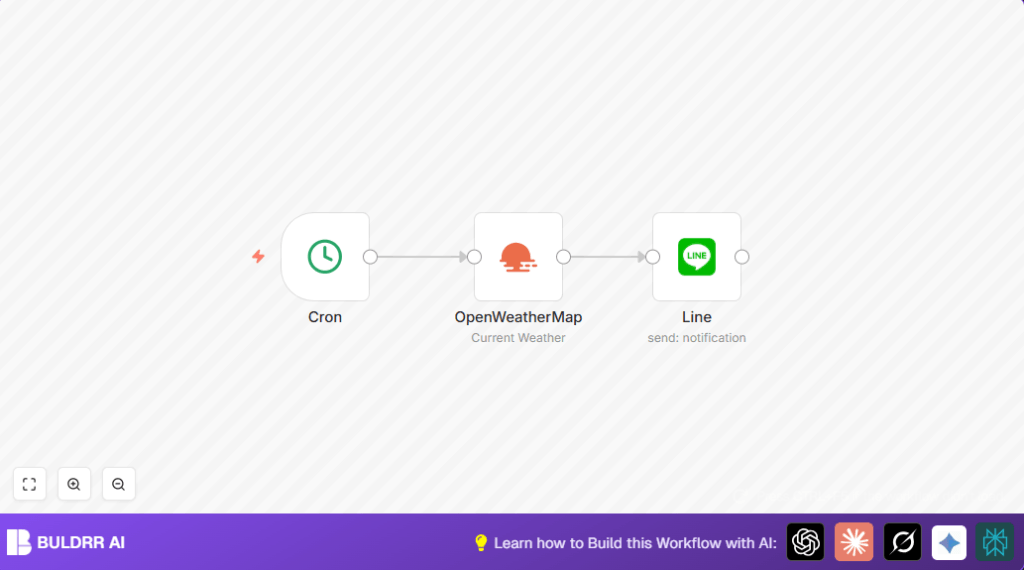
This workflow automatically fetches the current weather data for Berlin at 9 AM every day and sends a personalized message with the temperature via LINE messenger. Here’s what happens when it runs:

  • At 9 AM sharp, it triggers a weather data request for Berlin.
  • It retrieves the latest temperature information using the OpenWeatherMap API.
  • Formats a friendly message including the temperature in Celsius.
  • Sends that message directly to you on LINE messenger.
  • Runs reliably every day without manual intervention.

This saves Anna the hassle of manually checking the weather each morning, saving her about 10 minutes daily or roughly 60 minutes weekly to focus on more important tasks.

3. Prerequisites ⚙️

  • n8n account (cloud or self-hosted)
  • Line Notify OAuth2 credentials (to send messages via LINE)
  • OpenWeatherMap API key credentials (for fetching weather data)
  • Basic familiarity with n8n interface to import and activate workflow

4. Step-by-Step Guide

Step 1: Setting Up the Cron Trigger Node

Open your n8n editor and add a Cron node by clicking + Add Node → search for “Cron” → select Cron.

Configure the node to run daily at 9:00 AM by setting the hour field to 9. Ensure the timezone matches your desired region (Berlin time).

After saving, you should see the cron node scheduled to trigger once a day at 9 AM. A common mistake is forgetting to set the hour, which defaults to 0 (midnight). Always verify your time zone.

Step 2: Adding and Configuring OpenWeatherMap Node

Add an OpenWeatherMap node: Go to + Add Node → search “OpenWeatherMap” → select it.

In the node parameters, enter the city name as berlin (lowercase or uppercase both work). Connect this node to the Cron node’s output so it runs right after the cron triggers.

Attach your OpenWeatherMap API credentials by selecting your saved API key under credentials.

After configuration, the node fetches real-time weather data for Berlin every day at 9 AM.

Step 3: Configuring the LINE Node to Send Messages

Add a Line node (+ Add Node → search “Line” → select).

In the message field, enter the template: =Hey! The temperature outside is {{$node["OpenWeatherMap"].json["main"]["temp"]}}°C.

This uses n8n’s expression editor to dynamically pull the temperature from the previous OpenWeatherMap node.

Select your Line Notify OAuth2 credentials to authorize sending messages.

Connect this node to the OpenWeatherMap node to send the message after data retrieval. When triggered, the message “Hey! The temperature outside is XX°C.” will be sent to your LINE account.

Step 4: Linking Nodes in Workflow

Confirm connections: Cron node’s output connects to OpenWeatherMap node’s input, and OpenWeatherMap node’s output connects to the Line node’s input. This flow ensures daily weather data fetching is followed by sending the message.

Step 5: Testing the Workflow

Manually trigger the Cron node by clicking the Execute Node button in n8n. Verify OpenWeatherMap returns valid JSON with temperature data, then confirm the Line node sends the test message.

You should receive a LINE message: “Hey! The temperature outside is XX°C.” Replace XX with current temperature.

Step 6: Activating Your Workflow

Once tested successfully, activate your workflow using the toggle switch in n8n. Your workflow will now run automatically every day at 9 AM, sending you daily weather updates.

5. Customizations ✏️

  • Change City: In the OpenWeatherMap node’s cityName parameter, replace “berlin” with any city you want weather updates for, e.g., “paris” or “new york”.
  • Adjust Message Format: In the Line node, customize the message template by altering text before or after the temperature data, e.g., add weather condition or greeting.
  • Change Notification Time: In the Cron node, modify the hour to send messages at a different time, such as 7 AM or 12 PM, to suit your schedule.

6. Troubleshooting 🔧

Problem: “OpenWeatherMap node returns an empty or error response.”
Cause: Invalid or expired API key, or city name typo.
Solution: Double-check API credentials in n8n under OpenWeatherMap credentials. Verify the city name spelling. Test API key on OpenWeatherMap site.

Problem: “No messages are sent to LINE after workflow runs.”
Cause: Incorrect or expired Line OAuth2 credentials.
Solution: Re-authenticate Line credentials in n8n settings. Make sure your LINE Notify token has proper permissions.

7. Pre-Production Checklist ✅

  • Ensure your OpenWeatherMap API key is valid and has sufficient request quota.
  • Verify your Line Notify credentials are authorized and test message works manually.
  • Confirm the Cron node timing matches your preferred notification hour and timezone.
  • Test workflow execution fully before activating to avoid silent failures.

8. Deployment Guide

Once your workflow is tested and active, keep your n8n instance running continuously (recommended cloud or self-hosted). Monitor message delivery daily for the first few days.

If using self-hosting, consider providers like Hostinger for reliable uptime and performance (Hostinger).

Set up n8n event logs to track executions & failures for peace of mind.

10. Conclusion

With this n8n workflow, you have automated the tedious morning task of checking Berlin’s weather by sending a direct message to your LINE app daily at 9 AM. This saves you approximately 10 minutes each morning, reducing the risk of being caught unprepared by weather shifts.

Next, you could expand this by adding forecasts, sending updates to groups, or integrating other messaging platforms like Slack or Telegram for multi-channel notifications.

Happy automating and enjoy your always-up-to-date weather updates!

Promoted by BULDRR AI

Related Workflows

Automate Viral UGC Video Creation Using n8n + Degaus (Beginner-Friendly Guide)

Learn how to automate viral UGC video creation using n8n, AI prompts, and Degaus. This beginner-friendly guide shows how to import, configure, and run the workflow without technical complexity.
Form Trigger
Google Sheets
Gmail
+37
Free

AI SEO Blog Writer Automation in n8n

A complete beginner guide to building an AI-powered SEO blog writer automation using n8n.
AI Agent
Google Sheets
httpRequest
+5
Free

Automate CrowdStrike Alerts with VirusTotal, Jira & Slack

This workflow automates processing of CrowdStrike detections by enriching threat data via VirusTotal, creating Jira tickets for incident tracking, and notifying teams on Slack for quick response. Save hours daily by transforming complex threat data into actionable alerts effortlessly.
scheduleTrigger
httpRequest
jira
+5
Free

Automate Telegram Invoices to Notion with AI Summaries & Reports

Save hours on financial tracking by automating invoice extraction from Telegram photos to Notion using Google Gemini AI. This workflow extracts data, records transactions, and generates detailed spending reports with charts sent on schedule via Telegram.
lmChatGoogleGemini
telegramTrigger
notion
+9
Free

Automate Email Replies with n8n and AI-Powered Summarization

Save hours managing your inbox with this n8n workflow that uses IMAP email triggers, AI summarization, and vector search to draft concise replies requiring minimal review. Automate business email processing efficiently with AI guidance and Gmail integration.
emailReadImap
vectorStoreQdrant
emailSend
+12
Free

Automate Email Campaigns Using n8n with Gmail & Google Sheets

This n8n workflow automates personalized email outreach campaigns by integrating Gmail and Google Sheets, saving hours of manual follow-up work and reducing errors in email sequences. It ensures timely follow-ups based on previous email interactions, optimizing communication efficiency.
googleSheets
gmail
code
+5
Free