

Opening Problem Statement
Meet Alex, a cryptocurrency analyst who spends hours every day manually gathering coin prices, market caps, and conversion rates across multiple platforms to prepare insightful reports. The repetitive nature of switching between CoinMarketCap’s various API endpoints and deciphering raw data leads to wasted time, increased chances of error, and delayed insights that affect timely decision-making in a fast-moving market. Alex needs a streamlined solution tailored specifically to crypto-level queries that delivers real-time, on-demand data without the hassle.
This is exactly the problem solved by the CoinMarketCap Crypto Agent Tool built in n8n, a powerful workflow automation platform. It automates querying CoinMarketCap’s extensive APIs through an AI agent, enabling Alexa and other users to ask natural language questions and instantly receive precise, data-driven responses.
What This Automation Does ⚙️
This workflow listens for external triggers containing user questions about cryptocurrencies and interacts intelligently with CoinMarketCap’s APIs using an AI-powered agent. It delivers crisp, context-aware answers to a diverse range of queries.
- Processes natural language inputs like “What’s the current price of ADA?” or “Convert 1000 DOGE to BTC.”
- Retrieves up-to-date cryptocurrency metadata including whitepapers, social links, and logos.
- Provides ranked cryptocurrency listings sorted by market capitalization with pagination and currency conversion options.
- Delivers global market metrics such as total market cap and Bitcoin dominance instantly.
- Performs live price conversions between crypto and fiat currencies efficiently.
- Maintains session memory for ongoing, contextual conversations with users.
By automating these tasks, Alex gains hours back weekly and eliminates manual data lookup errors, enabling faster, smarter crypto market analysis.
Prerequisites ⚙️
- 📧 An active CoinMarketCap API Standard subscription with API key configured in n8n credentials.
- 🔑 Valid OpenAI API credential to power the AI language model node (GPT-4o Mini used here).
- ⏱️ n8n account environment (cloud or self-hosted) configured with workflow execution and credential management.
- 🧠 Basic familiarity with n8n nodes and triggering workflows programmatically for integration.
Step-by-Step Guide to Build This Workflow
Step 1: Set up the Workflow Trigger Node
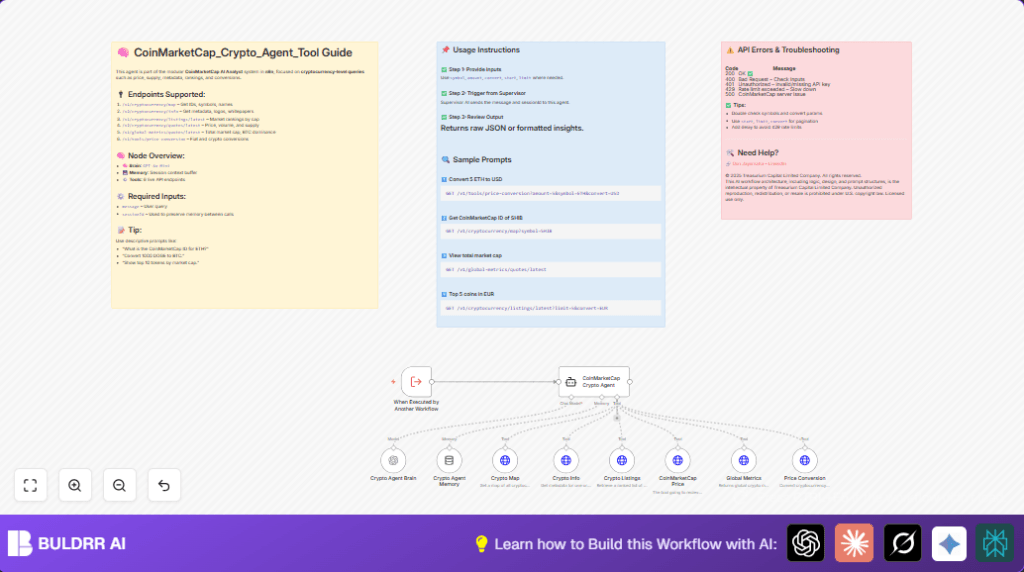
Navigate to Trigger Nodes and add the Execute Workflow Trigger node named “When Executed by Another Workflow.” Configure it to accept input parameters named message (user query) and sessionId for context retention. This node enables this crypto agent to be triggered by supervisor workflows or external calls. After saving, you should see the trigger ready to accept inputs.
Common Mistake: Forgetting to define the input names exactly causes errors downstream.
Step 2: Add the CoinMarketCap Crypto Agent Node (Agent Node)
Add the node CoinMarketCap Crypto Agent which is an advanced Langchain AI Agent node. Configure it with the expression {{ $json.message }} to dynamically feed user queries into the agent’s prompt.
Within its parameters, define the system prompt explaining the agent’s role as a cryptocurrency analyst with access to six live CoinMarketCap API tools. This detailed prompt enumerates each tool’s function and supported inputs clearly to guide the agent.
After configuring, link the trigger node’s output to this agent node.
Expected Outcome: The agent understands queries and decides which of the six connected tools to call.
Common Mistake: Not including precise tool descriptions will reduce accuracy.
Step 3: Add the AI Brain Node (Language Model)
Add the Crypto Agent Brain node (lmChatOpenAi) using GPT-4o Mini. Set your OpenAI credentials here. This node enables natural language understanding and response generation.
Connect this node as the language model input for the Crypto Agent node.
Expected Outcome: The agent efficiently processes user messages and crafts intelligent replies.
Common Mistake: Using invalid or missing OpenAI API credentials.
Step 4: Add Memory Buffer Node for Session Context
Insert the Crypto Agent Memory node (memoryBufferWindow) to preserve session context by buffering conversation history. This helps maintain ongoing dialogue quality.
Connect this memory node to the agent as the AI memory.
Expected Outcome: User sessions retain context for multi-turn queries.
Common Mistake: Omitting this step loses conversation history causing generic answers.
Step 5: Configure the Six CoinMarketCap API Tool Nodes
Add six toolHttpRequest nodes, each connected as AI tools to the agent. These nodes are configured as follows, all using the “CoinMarketCap Standard” API key credential:
- Crypto Map: Calls
/v1/cryptocurrency/mapto fetch cryptocurrency IDs, symbols, and names. - Crypto Info: Calls
/v2/cryptocurrency/infofor metadata including description and social links. - Crypto Listings: Calls
/v1/cryptocurrency/listings/latestto retrieve ranked coin lists by market cap. - CoinMarketCap Price: Calls
/v2/cryptocurrency/quotes/latestfor real-time price and volume data. - Global Metrics: Calls
/v1/global-metrics/quotes/latestfor total market stats like BTC dominance. - Price Conversion: Calls
/v1/tools/price-conversionendpoint to convert between crypto and fiat.
Expected Outcome: The agent selects the correct API node based on the query and fetches live data.
Common Mistake: Mismatched parameter and header names causing API call failures.
Step 6: Connect All Tool Nodes Back to the Agent
Set each API node’s output as connected AI tools input back to “CoinMarketCap Crypto Agent.” This circular integration lets the agent pick, call, and interpret API responses automatically.
Expected Outcome: The workflow runs smoothly end-to-end on queries.
Common Mistake: Not linking all tools to the agent will reduce functionality.
Step 7: Test the Workflow
Trigger the workflow with an example input such as:
{
"message": "What is the CoinMarketCap ID for ETH?",
"sessionId": "session123"
}Watch the agent invoke the Crypto Map API and return the ID. Try other sample queries like price checks and conversions.
Expected Outcome: Clean, precise JSON results are returned matching the user query.
Common Mistake: Improper JSON formatting in inputs causes trigger failures.
Customizations ✏️
- Add More API Endpoints: Extend the agent by configuring additional CoinMarketCap APIs (e.g., historical data) through extra toolHttpRequest nodes linked to the agent.
- Modify AI Prompt: Edit the system message inside the agent node to include custom trading strategies or user preferences for personalized analysis.
- Extend Memory Buffer: Increase the window size of the memoryBufferWindow node to retain longer conversation history for sophisticated dialogues.
- Real-Time Alerts: Integrate an email or messaging node downstream to notify users when price thresholds are met based on agent responses.
- Switch Language Model: Replace GPT-4o Mini with a more advanced OpenAI model in the brain node for higher complexity or specific language needs.
Troubleshooting 🔧
Problem: “Unauthorized – Invalid/missing API key”
Cause: Incorrect or missing CoinMarketCap API credential.
Solution: Go to the credential section in n8n, re-enter the correct CoinMarketCap API key under the HTTP Header Auth credentials and save.
Problem: “Rate limit exceeded” error (HTTP 429)
Cause: Too many requests sent to CoinMarketCap API too quickly.
Solution: Implement a delay node or throttle triggers to reduce request frequency. Spread out API calls to stay within limits.
Problem: Agent returns irrelevant answers or no data.
Cause: Missing or inaccurate system prompt or tool descriptions.
Solution: Refine the AI agent’s system message with detailed tool usage rules to guide accurate API calls.
Pre-Production Checklist ✅
- Confirm CoinMarketCap API key is active and permissions are correct.
- Verify OpenAI API credentials work and the GPT-4o Mini model is accessible.
- Test each API tool node individually with sample queries to validate responses.
- Trigger the workflow with dummy inputs to confirm end-to-end response accuracy.
- Backup your workflow configuration and API keys securely before deployment.
Deployment Guide
Activate the workflow in your n8n environment by toggling it active after thorough local testing. For best reliability, consider hosting n8n on your own VPS or use a managed cloud environment to ensure uptime. Monitor usage logs in n8n to track any errors or API rate limits. Optionally, set up alerting nodes downstream to notify your team of failures.
FAQs
Q1: Can I use alternative APIs instead of CoinMarketCap?
A1: Yes, but you will need to create equivalent toolHttpRequest nodes adapted to other API formats and update the agent’s system prompt accordingly.
Q2: Does this workflow consume many OpenAI API credits?
A2: The AI language model usage depends on query frequency and complexity. Optimize by caching frequent queries or adjusting the conversation length limits.
Q3: Is my data secure when using this workflow?
A3: Yes, as long as your API keys and n8n environment are secured. Avoid sharing keys publicly and use HTTPS endpoints.
Q4: Can this handle high volumes of crypto queries?
A4: It can handle moderate volumes but may require scaling your n8n instance and upgrading API plan limits for very high throughput.
Conclusion
By following this detailed guide, you’ve set up a specialized CoinMarketCap Crypto Agent in n8n that automates real-time cryptocurrency data retrieval, metadata access, market rankings, and currency conversions. This workflow saves hours Alex previously spent on manual data searches, reducing errors and delivering fast, accurate insights to help you keep pace with the dynamic crypto market.
As next steps, consider integrating alert notifications for price thresholds, expanding to historical data queries, or embedding this agent into larger portfolio management automation systems.
With this workflow, you are equipped to harness the power of AI and CoinMarketCap APIs for smarter crypto research and decision-making, all within the intuitive n8n platform.