

1. What This Automation Does
This workflow automatically backs up all workflows from an n8n instance into a GitHub repository as JSON files.
It solves the problem of manual exporting and backups that waste lots of time and risk losing changes.
The result is that every workflow is saved safely and versioned in GitHub without extra work.
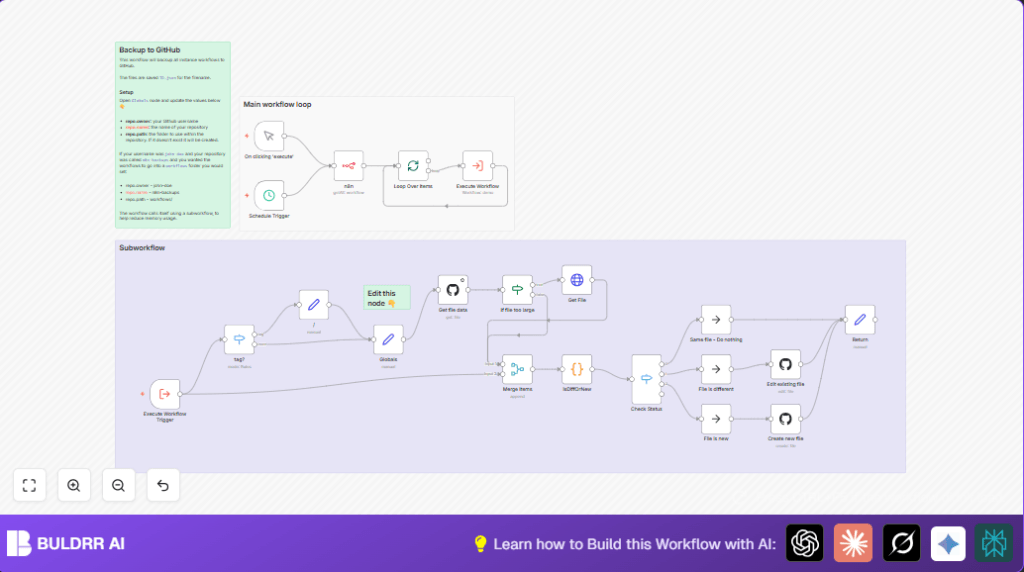
The workflow first collects a list of all workflows inside n8n.
It checks the GitHub repository to find existing backup files.
It compares the current workflow data with the backed-up version.
If a workflow is new or changed, it creates or updates the JSON file on GitHub.
If no change is detected, it skips that workflow to save time and API calls.
This logical check-and-commit method keeps backups accurate and does not flood GitHub with needless commits.
Status like “new,” “different,” or “same” controls the workflow behavior.
2. How the Workflow Works: Inputs, Processing, Outputs
Inputs
- n8n instance workflows: Metadata list of all workflows currently active.
- GitHub repository files: JSON backup files for each workflow stored under folders named by tags.
Processing Steps
- Retrieve workflows from n8n API.
- For each workflow, fetch existing backup file from GitHub repo.
- Check if backup file exists; if not, mark as new.
- Compare JSON structures with normalized keys to find differences.
- Branch logic: skip if same, create file if new, or edit file if different.
- Commit changes with meaningful messages including workflow names.
Outputs
- Updated GitHub repository with backed-up workflows as JSON files.
- GitHub commit history indicating changes over time.
- Clean workflow execution results with status flags.
3. Who Should Use This Workflow
This workflow is great for anyone using n8n who want a simple way to protect workflows.
It helps users who forget to export or keep versions manually.
Small teams or automation users without complex DevOps setups gain a straightforward backup method.
People running self-host n8n also benefit from scheduled backups.
4. Tools and Services Used
- n8n: The automation platform running workflows.
- GitHub API: For reading and writing files in repository.
- GitHub repository: Storage location for JSON workflow backups.
5. Beginner Step-by-Step: How to Use This Workflow in n8n
Download and Import
- Download the backup workflow using the Download button on this page.
- Open the n8n editor.
- Click “Import from File” and upload the downloaded workflow JSON.
Configure Credentials and Settings
- Add your GitHub API Key credentials in the GitHub nodes.
- Check the Globals node for GitHub repo info: update repo owner, name, and folder path if needed.
- Update any IDs, emails, or channels if this workflow integrates with other tools.
Test and Activate
- Run the workflow once manually using the manualTrigger node to check for errors.
- Verify backups appear correctly in your GitHub repository.
- Activate the workflow by enabling the Schedule Trigger node to run daily or at your preferred interval.
6. Customizations and Tips
- Change backup folder path in the Globals node to organize backups by project or category.
- Add extra metadata or dates inside JSON files by adjusting the isDiffOrNew
Codenode. - Run backups more often by modifying the schedule trigger settings.
- Filter workflows by tags with the tag? switch node to backup only needed flows.
- Swap GitHub credentials easily in GitHub nodes when using different tokens or accounts.
7. Troubleshooting Common Failures
GitHub API Rate Limit Exceeded
If backups run too often or many commits happen, GitHub blocks requests.
Reduce backup frequency or skip unchanged workflows to avoid this.
File Too Large to Download
The workflow has a fallback for big files but frequent triggers here may indicate very large workflows.
Consider splitting workflows or adjusting fallback logic.
Workflows Without Tags Saved in Root
If workflows have no tags, the backup files go into the root folder.
Add tags or update the path logic in the Globals node to change this.
8. Pre-Production Checklist
- Check GitHub credentials have proper repo write permissions.
- Manually test access to GitHub repo and confirm correct write access.
- Run manual trigger and verify n8n workflow list is fetched correctly.
- Confirm backups create or change files in GitHub repository as expected.
- Test with workflows having tags and no tags to verify output paths.
- Backup any existing GitHub repo content before first run as safety.
9. Deployment Guide
Enable the Schedule Trigger node to do backup every day or as needed.
Use manual run first to test and see file creation in GitHub.
Watch GitHub repo commits to track backup status.
Use execution logs in n8n if any step fails or doesn’t behave as expected.
10. Summary
✓ backs up all n8n workflows automatically to GitHub as JSON files
✓ detects new or changed workflows and updates backups only when needed
✓ saves time and reduces mistakes from manual export
✓ organizes backups by workflow tags for easy navigation
✓ provides history with GitHub commit records for version tracking
→ users get safe, versioned backups without extra effort
→ workflow runs cleanly with clear status messages
→ flexible for customization and scaling
Code Snippet for Comparing Workflows
The code below inside the isDiffOrNew Code node compares workflows properly by normalizing JSON keys.
It marks files as “same,” “different,” or “new,” and prepares content for new or changed files.
const orderJsonKeys = (jsonObj) => {
  const ordered = {};
  Object.keys(jsonObj).sort().forEach(key => {
    ordered[key] = jsonObj[key];
  });
  return ordered;
}

// Check if file returned with content
if (Object.keys($input.all()[0].json).includes("content")) {
  const origWorkflow = JSON.parse(Buffer.from($input.all()[0].json.content, 'base64').toString());
  const n8nWorkflow = $input.all()[1].json;

  const orderedOriginal = orderJsonKeys(origWorkflow);
  const orderedActual = orderJsonKeys(n8nWorkflow);

  if (JSON.stringify(orderedOriginal) === JSON.stringify(orderedActual)) {
    $input.all()[0].json.github_status = "same";
  } else {
    $input.all()[0].json.github_status = "different";
    $input.all()[0].json.n8n_data_stringy = JSON.stringify(orderedActual, null, 2);
  }
  $input.all()[0].json.content_decoded = orderedOriginal;
} else {
  const n8nWorkflow = $input.all()[1].json;
  const orderedActual = orderJsonKeys(n8nWorkflow);
  $input.all()[0].json.github_status = "new";
  $input.all()[0].json.n8n_data_stringy = JSON.stringify(orderedActual, null, 2);
}

return $input.all();
