

Opening Problem Statement ⚙️
Meet Sarah, a marketing manager at East Coast Concrete Coating. Every week, Sarah manually creates unique UTM links for various digital campaigns, generates corresponding QR codes for offline materials, and logs all this data into Airtable for future reference. On top of that, she spends hours retrieving Google Analytics data and compiling performance reports to present to her team. This tedious process takes several hours each week, prone to errors like typos in UTM parameters or lost tracking data, impacting campaign analysis accuracy and delaying crucial marketing decisions.
Sarah’s challenge is common for many marketers – creating consistent UTM-tagged URLs, linking them to QR codes, storing everything in an accessible format, and automating insightful analytics reporting. Doing all this manually wastes valuable time, causes missed insights, and introduces costly human error.
What This Automation Does
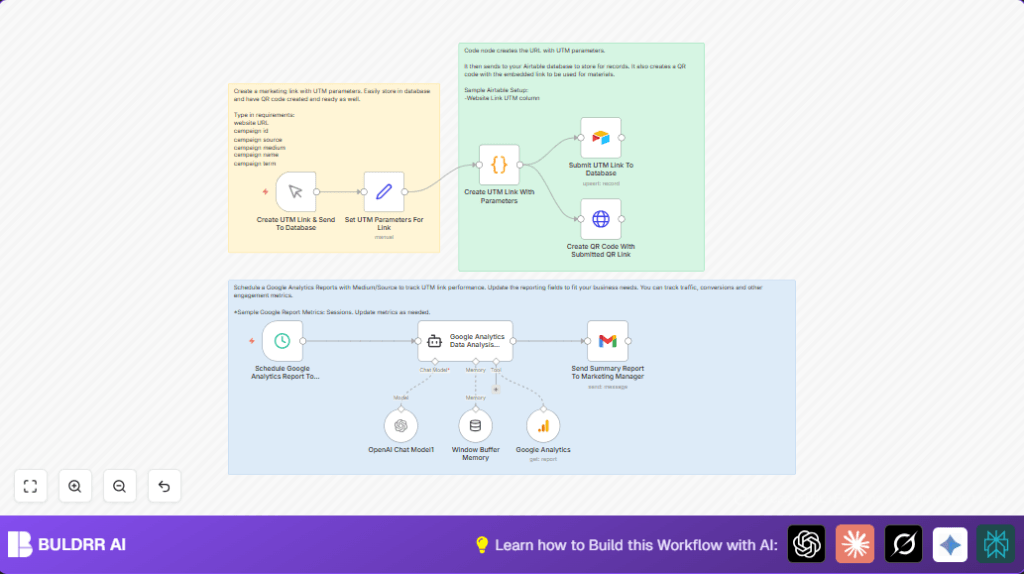
This n8n workflow turns Sarah’s entire process into a seamless automation. When triggered, it:
- Generates UTM-tagged links based on provided campaign parameters like source, medium, campaign name, term, and content ID.
- Creates QR codes from these UTM links, ready for print or digital distribution.
- Stores all generated URLs in an Airtable base for centralized record-keeping and easy future reference.
- Schedules Google Analytics reports focusing on session data filtered by source and medium, linked to these UTM campaigns.
- Uses AI to analyze Google Analytics metrics and crafts professional summary reports for marketing managers.
- Automatically emails these AI-generated report summaries to stakeholders, saving hours of manual report creation weekly.
By automating Sarah’s tasks, this workflow saves multiple hours weekly, eliminates manual input errors, ensures consistent tracking with UTM parameters, and delivers data-driven insights promptly to decision makers.
Prerequisites ⚙️
- n8n account (self-hosting optional via platforms like Hostinger)
- OpenAI account for ChatGPT (model: GPT-4o-mini) API access
- Google Analytics account with access to the specific property ID
- Airtable account with a base and table set up to store UTM URLs
- Gmail account with OAuth2 credentials for sending emails
Step-by-Step Guide
1. Set Up Manual Trigger for UTM Creation
First, open n8n and create a new workflow. Add the Manual Trigger node named Create UTM Link & Send To Database. This node allows you to initiate the workflow manually for testing or on-demand link creation.
After this, you will configure nodes that specify UTM parameters.
2. Define UTM Parameters with Set Node
Add a Set node named Set UTM Parameters For Link connected from the trigger. Enter these parameters exactly as below using the node’s assignments feature:
website_url: https://ecconcretecoating.com/campaign_id: 12246campaign_source: googlecampaign_medium: displaycampaign_name: summerfuncampaign_term: conretecoating
This node structures the campaign data which will be combined later into a UTM link.
3. Create UTM Link with Code Node
Next, add a Code node named Create UTM Link With Parameters to dynamically build the full tracking URL with all UTM components.
Paste this JavaScript code inside the node:
const items = $input.all();
const updatedItems = items.map((item) => {
const utmUrl = `${item?.json?.website_url}?utm_source=${item?.json?.campaign_source}&utm_medium=${item?.json?.campaign_medium}&utm_campaign=${item?.json?.campaign_name}&utm_term=${item?.json?.campaign_term}&utm_content=${item?.json?.campaign_id}`;
item.json.utmUrl = utmUrl;
return item;
});
return updatedItems;
This script reads the parameters from the incoming JSON, constructs a full URL with UTM query parameters, and outputs the new URL as utmUrl.
4. Store the Generated UTM Link in Airtable
Use the Airtable node named Submit UTM Link To Database. Connect it from the Code node.
Configure it by selecting the Airtable Base and Table where you want to store the generated URLs. Map the utmUrl field to the URL column in Airtable.
This ensures all created URLs are saved centrally for team access and audits.
5. Generate a QR Code for the UTM Link
Add an HTTP Request node named Create QR Code With Submitted QR Link. This node calls the QuickChart API to generate a QR code image from the UTM link.
Set the URL parameter to:
https://quickchart.io/qr?text={{ $json.utmUrl }}&size=300&margin=10&ecLevel=H&dark=000000&light=FFFFFF
This will return a QR code image for scanning the UTM-enabled URL.
6. Schedule Google Analytics Report Trigger
Add a Schedule Trigger node named Schedule Google Analytics Report To Marketing Manager. Configure it to run your reports daily, weekly, or as needed by adjusting the interval.
This node will initiate the analytics reporting flow automatically.
7. Collect Google Analytics Data
Use the Google Analytics node named Google Analytics. Enter the property ID for the tracking website, and select the session metric with dimension by source/medium to focus on your UTM campaigns.
This delivers up-to-date campaign traffic and engagement data.
8. Analyze Data with AI Agent Node
Connect the analytics node to the AI Agent node named Google Analytics Data Analysis Agent, which uses OpenAI GPT-4o-mini for advanced insights.
The agent receives the analytics data and a system prompt to generate executive summaries highlighting KPIs, trends, and recommendations.
9. Send the Summary Report via Gmail
Finally, add a Gmail node named Send Summary Report To Marketing Manager to email the AI-generated report to your marketing manager directly.
Configure the recipient (e.g., [email protected]) and subject line. The message body will be fed by the AI agent node output.
Customizations ✏️
- Change UTM Parameters: In the Set UTM Parameters For Link node, modify values like
campaign_mediumorcampaign_nameto match different campaigns. - Adjust Google Analytics Metrics: In the Google Analytics node, add or remove metrics (like conversions or bounce rate) to customize reports.
- Modify Report Frequency: In the Schedule Trigger node, change the interval to send reports daily, weekly, or monthly.
- Customize QR Code Appearance: Change parameters in the Create QR Code With Submitted QR Link HTTP Request node (size, colors) to fit branding needs.
- Add More Airtable Fields: Expand the Submit UTM Link To Database node to save extra metadata like campaign start dates or notes.
Troubleshooting 🔧
Problem: “Invalid Airtable API Key or Access Denied”
Cause: Airtable credential might be incorrect or the user lacks access rights to the specified base/table.
Solution: Go to Credentials in n8n, re-enter or update your Airtable Personal Access Token. Check Airtable to confirm you have permissions for the base and table used.
Problem: “Google Analytics Reports Return No Data”
Cause: The property ID may be wrong, or no data exists for selected metrics/dimensions in the time window.
Solution: Verify your Google Analytics property ID in the node matches your account. Adjust the date range or metrics to ensure data is available.
Problem: “QR Code Not Generated or Broken”
Cause: The HTTP Request URL may have wrong parameters or the text parameter has invalid characters.
Solution: Check the URL in the HTTP request node. Test it manually in a browser by pasting the generated UTM URL to QuickChart.io documentation.
Pre-Production Checklist ✅
- Confirm all credentials for Airtable, Google Analytics, OpenAI, and Gmail are correctly configured and tested.
- Run a manual test triggering link creation and confirm UTM links and QR codes are generated correctly.
- Verify Airtable records show the created URLs accurately.
- Test the scheduled Google Analytics reports and ensure AI-generated summary emails are sent correctly.
- Backup your Airtable base and workflow configuration before deploying.
Deployment Guide
Activate your workflow by setting it to active in n8n. The scheduling node will automate daily or weekly Google Analytics reports based on your chosen interval. Use the manual trigger anytime to generate new campaign UTM links and QR codes on demand.
Monitor workflow runs from the n8n dashboard to catch any errors early. Logs and error messages are available for debugging.
FAQs
Can I use another database instead of Airtable?
Yes, you can replace the Airtable node with another database node supported by n8n, such as Google Sheets or MySQL. Just adjust mappings accordingly.
Does this consume many OpenAI API credits?
The AI agent uses the GPT-4o-mini model, a cost-effective option. Report frequency affects usage; daily reports will use more tokens.
Is my data secure?
All data passes securely through API credentials managed by you in n8n. Make sure to restrict credentials access to trusted users only.
Can this handle large volumes of UTM links?
Yes, this workflow can scale with added Airtable capacity or switching to a more robust database.
Conclusion
By completing this automation, you have built a robust system that creates UTM-tagged marketing links and QR codes, stores them systematically in Airtable, and schedules insightful, AI-generated Google Analytics reports delivered via email. This solution saves marketing teams hours each week and reduces manual errors significantly.
Next, consider automating campaign budget alerts based on analytics trends or integrating Slack notifications for real-time campaign performance updates to enhance your marketing automation ecosystem.
This workflow makes marketing tracking more efficient, insightful, and scalable—all powered by n8n and smart AI integration.