

Optimize WordPress Blog Posts with AI Automation

This workflow automates WordPress blog post creation by leveraging AI to generate SEO-friendly articles, titles, images, and metadata, saving hours of manual content work. It connects Google Sheets, OpenAI, and WordPress for seamless publishing with optimized SEO tags.
googleSheets
wordpress
openAi
+5
Workflow Identifier: 1295
NODES in Use: Manual Trigger, Google Sheets, Set, Langchain OpenAI, WordPress, HTTP Request, Langchain ChainLLM, Structured Output Parser

Press CTRL+F5 if the workflow didn't load.

Learn how to Build this Workflow with AI:

Visit through Desktop for Best experience

Opening Problem Statement

Meet Emma, a content manager for a busy marketing agency. She spends countless hours every week brainstorming blog post ideas, writing drafts, generating engaging titles, creating featured images, and optimizing metadata for SEO on their WordPress site. Often, Emma juggles between multiple tools — Google Sheets for planning, WordPress for publishing, and various AI applications for content creation. Yet, despite her hard work, the process is tedious, time-consuming, and error-prone. Mistakes like inconsistent SEO metadata or missing images frequently arise, costing the agency both traffic and revenue. Emma needs a streamlined, reliable way to automate the entire content creation workflow while maintaining high SEO standards.

What This Automation Does

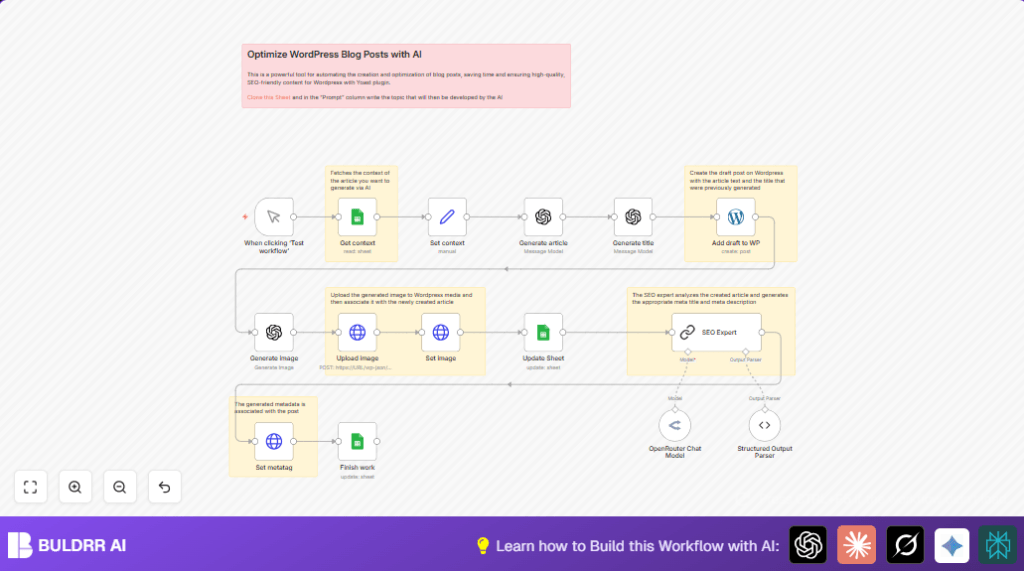
This unique n8n workflow automates the entire process of drafting, optimizing, and publishing WordPress blog posts using AI and integration with Google Sheets and WordPress. When triggered, it:

  • Fetches the blog post context or topic idea from a Google Sheets document via the “Get context” node.
  • Uses an AI-powered text generation (Langchain with DeepSeek model) to create a well-structured, SEO-friendly article based on the provided prompt.
  • Generates a compelling, keyword-rich blog post title optimized for SEO constraints (max 60 characters) via the “Generate title” node.
  • Automatically creates a realistic featured image for the post using AI image generation based on the article title.
  • Publishes the drafted article as a WordPress post in “draft” status, including title and AI-generated content.
  • Uploads the featured image to WordPress media library and assigns it as the post’s featured image.
  • Invokes an SEO expert AI module that analyzes the post content to generate optimized meta title and meta description tailored for Yoast SEO plugin compatibility.
  • Updates the WordPress post metadata with these optimized SEO tags via HTTP requests.
  • Maintains update records back into Google Sheets including post ID, URL, SEO meta tags, and timestamps.

The workflow saves Emma hours of repetitive manual tasks, ensuring consistent SEO optimization and professional-quality blog posts every time with minimal intervention.

Prerequisites ⚙️

  • Google Sheets account for blog content planning and context input 📊
  • WordPress site with REST API enabled and Yoast SEO plugin installed 📁
  • OpenAI account and DeepSeek AI model credentials for text and image generation 🔑
  • n8n automation platform account for building and running the workflow ⏱️
  • Access credentials for connecting Google Sheets, WordPress API, and OpenAI inside n8n
  • Optional: Self-hosting for n8n (consider hosting solutions like Hostinger)

Step-by-Step Guide

Step 1: Trigger the Workflow Manually

Go to your n8n dashboard and click Workflows → The Ultimate Guide to Optimize WordPress Blog Posts with AI → ‘Test workflow’ button. This starts the automation manually.

You should see the workflow begin executing from the Manual Trigger node named “When clicking ‘Test workflow’”.

Common mistake: Forgetting to save credential connections before testing will cause authentication failures later.

Step 2: Fetch Context from Google Sheets

The Google Sheets (Get context) node retrieves the blog post topic and prompt from a specified spreadsheet. Navigate to this node, set your sheet document ID and sheet name (usually gid=0), and configure filters if needed.

Example: Pull the row where the “ID POST” matches your input trigger. You’ll see the JSON output containing the post prompt text.

Common mistake: Not setting the “Return First Match” option might return multiple rows and cause processing errors.

Step 3: Set Prompt Context

The Set node labeled “Set context” assigns the prompt string for passing to the AI generation.

Here, ensure that the expression = {{ $json.PROMPT }} correctly maps the prompt text extracted from the previous node.

Outcome: Prepares prompt data cleanly for AI calls.

Step 4: Generate SEO-Friendly Article Content

The Langchain OpenAI (Generate article) node uses the DeepSeek model to produce a well-structured SEO article in HTML format.

Configuration includes input prompt, output max tokens, and message instructions like including introduction, chapters, conclusion, and formatting rules.

Example prompt content:
“an SEO-friendly article on these topics:
{{ $json.prompt }}…”

Common mistake: Ignoring HTML output format instructions can result in badly formatted content.

Step 5: Generate Keyword-Rich Blog Post Title

The Langchain OpenAI (Generate title) node produces a maximum 60-character SEO-optimized title. It uses a tailored prompt requesting no HTML, no quotes, and keyword inclusion.

Example: “The Best Strategies to Optimize Your WordPress Blog”

Step 6: Add Draft Article to WordPress

The WordPress node “Add draft to WP” sends the title and HTML content from previous nodes into your WordPress site as a draft post.

You must configure your WordPress API credentials beforehand.

Outcome: A new draft post appears on your WordPress admin posts list.

Step 7: Generate Featured Image

The Langchain OpenAI (Generate image) node constructs a realistic photo image prompt using the generated title, requesting a 1024×1024 px HD photography-style image.

Example prompt: “Generate a real photo image used as a blog post cover: The Best Strategies to Optimize Your WordPress Blog, photography, realistic, sigma 85mm f/1.4”

Outcome: An AI-created image file is ready for upload.

Step 8: Upload Image to WordPress Media Library

The HTTP Request node “Upload image” sends the generated binary image data to the WordPress media endpoint with appropriate headers including content disposition configured dynamically.

Common mistake: Incorrect filename or missing authentication cause upload failure.

Step 9: Set Featured Image for the Post

The second HTTP Request node “Set image” sets the uploaded image ID as the featured media for the newly created post via a POST request to the WordPress posts endpoint.

Step 10: Update Google Sheets with Post Info

The Google Sheets (Update Sheet) node writes post metadata such as URL, published date, post ID, and title into the original spreadsheet row for record-keeping.

Step 11: Generate Optimized SEO Metadata

The Langchain ChainLLM (SEO Expert) node analyzes the post content and title to create perfectly optimized meta title and meta description following best SEO practices for Yoast.

It uses detailed prompt instructions to ensure meta tags comply with length limits, keyword inclusion, and actionable language.

Step 12: Parse Structured SEO Output

The Structured Output Parser node validates and extracts the JSON schema fields (metatitle, metadescription) to ensure compatibility with downstream HTTP request nodes.

Step 13: Update WordPress Post Metadata

The HTTP Request node “Set metatag” updates the WordPress post metadata with the SEO meta title and description.

Step 14: Final Update to Google Sheets

The last Google Sheets node “Finish work” updates the original sheet row with the new SEO meta tags.

Customizations ✏️

  • Change AI Model: In all Langchain nodes, switch from DeepSeek to another OpenAI or custom model by changing the modelId property. This allows experimenting with different AI capabilities.
  • Modify Image Style & Size: Adjust the prompt and options fields of the “Generate image” node to request different artistic styles, resolutions, or image themes based on your blog niche.
  • Publish Directly Instead of Draft: In the WordPress node “Add draft to WP,” change the status field from “draft” to “publish” for automatic live posting.
  • Expand Google Sheets Schema: Add columns like keywords, categories, or blog tags in Sheets and update the Google Sheets nodes accordingly to enrich your post metadata management.
  • Custom SEO Rules: Modify the prompt text in the “SEO Expert” node to tailor meta tag guidelines to your specific branding or SEO strategy requirements.

Troubleshooting 🔧

  • Problem: “Authentication failed” errors in Google Sheets or WordPress nodes.
    Cause: Invalid or expired OAuth or API credentials.
    Solution: Re-authenticate the respective credentials in n8n Credentials settings and save your workflow again.
  • Problem: “Binary data upload failed” in “Upload image” HTTP node.
    Cause: Incorrect Content-Disposition header or missing authentication.
    Solution: Verify the header value uses dynamic filename referencing the Post ID, ensure proper WordPress API permissions.
  • Problem: SEO meta title or description exceeds length limits.
    Cause: AI output does not adhere strictly to prompt rules.
    Solution: Refine the prompt in “SEO Expert” node to emphasize length constraints and preview output in test runs.

Pre-Production Checklist ✅

  • Verify Google Sheets document ID and sheet name are correct and accessible.
  • Test WordPress API connectivity with proper credentials and REST permissions.
  • Ensure OpenAI credentials and AI model access are active.
  • Confirm all Langchain messages and prompts contain proper content formatting.
  • Run end-to-end test with a sample prompt and inspect WordPress draft post creation.
  • Verify image upload and correct featured media assignment in WordPress admin.
  • Check SEO meta tags appear in post source code after publishing.
  • Backup your Google Sheets data before running large batches.

Deployment Guide

Activate this workflow in n8n by toggling the active state to “ON.” Schedule the trigger if desired (e.g., trigger via webhook or cron for routine publishing). Monitor execution logs in n8n dashboard for errors.

Since this workflow intensely uses third-party APIs, consider implementing error notifications or retries in n8n for production stability.

FAQs

  • Can I use other AI models besides DeepSeek for content generation?
    Yes, you can swap the Langchain OpenAI nodes to use other models supported in your OpenAI account or custom Langchain integrations.
  • Does this workflow consume API credits quickly?
    Depending on your AI usage and image generation frequency, yes. Monitor your OpenAI plan limits carefully.
  • Is my data secure using this workflow?
    All communication is via encrypted API calls using OAuth and API tokens. Keep credentials safe and limit workflow access.
  • Can it handle bulk post creation?
    Yes, but you’ll need to batch your Google Sheets inputs carefully to avoid API throttling.

Conclusion

By completing this tutorial, you’ve built a powerful automation to optimize WordPress blog posts leveraging AI. You automated article generation, title crafting, image creation, metadata optimization, and publishing while syncing everything with a centralized Google Sheet planning tool.

Emma and her team can now save hours each week, reduce errors, and boost SEO effectiveness — all without manual drudgery.

Next up, consider extending this workflow with:

  • Automated social media posting of new blog drafts
  • Integration with Google Analytics to monitor post performance
  • Multi-language blog post generation for wider audience reach

With this foundation, scaling your content marketing efforts with precision and efficiency is within reach.

Promoted by BULDRR AI

Related Workflows

Automate Viral UGC Video Creation Using n8n + Degaus (Beginner-Friendly Guide)

Learn how to automate viral UGC video creation using n8n, AI prompts, and Degaus. This beginner-friendly guide shows how to import, configure, and run the workflow without technical complexity.
Form Trigger
Google Sheets
Gmail
+37
Free

AI SEO Blog Writer Automation in n8n (Beginner Guide)

A complete beginner guide to building an AI-powered SEO blog writer automation using n8n.
AI Agent
Google Sheets
httpRequest
+5
Free

Automate CrowdStrike Alerts with VirusTotal, Jira & Slack

This workflow automates processing of CrowdStrike detections by enriching threat data via VirusTotal, creating Jira tickets for incident tracking, and notifying teams on Slack for quick response. Save hours daily by transforming complex threat data into actionable alerts effortlessly.
scheduleTrigger
httpRequest
jira
+5
Free

Automate Telegram Invoices to Notion with AI Summaries & Reports

Save hours on financial tracking by automating invoice extraction from Telegram photos to Notion using Google Gemini AI. This workflow extracts data, records transactions, and generates detailed spending reports with charts sent on schedule via Telegram.
lmChatGoogleGemini
telegramTrigger
notion
+9
Free

Automate Email Replies with n8n and AI-Powered Summarization

Save hours managing your inbox with this n8n workflow that uses IMAP email triggers, AI summarization, and vector search to draft concise replies requiring minimal review. Automate business email processing efficiently with AI guidance and Gmail integration.
emailReadImap
vectorStoreQdrant
emailSend
+12
Free

Automate Email Campaigns Using n8n with Gmail & Google Sheets

This n8n workflow automates personalized email outreach campaigns by integrating Gmail and Google Sheets, saving hours of manual follow-up work and reducing errors in email sequences. It ensures timely follow-ups based on previous email interactions, optimizing communication efficiency.
googleSheets
gmail
code
+5
Free