

Opening Problem Statement
Meet Julia, a knowledge manager handling an ever-growing Notion database filled with crucial project documents, guidelines, and research notes. Every day, Julia spends several hours just scanning through hundreds of pages manually to answer specific team queries — a tedious, error-prone process that often delays project decisions. Worse, when new or updated information arrives, embedding all that fresh content for accurate AI retrieval becomes a complex task.
Julia needs a way to keep her knowledge base automatically updated in the vector store and leverage AI-powered retrieval-augmented generation (RAG) to respond to queries instantly and accurately. Without automation, she faces hours of repetitive manual data processing, the risk of outdated answers, and growing frustration among team members relying on quick, contextual insights.
What This Automation Does
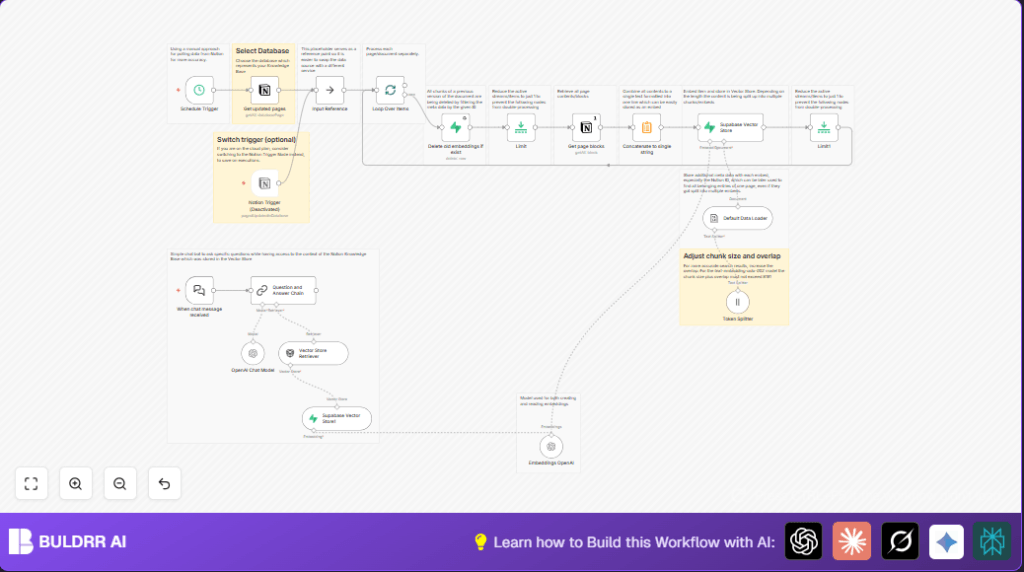
This specific n8n workflow automates the entire process of updating and querying a Notion knowledge base using OpenAI embeddings and Supabase vector database for retrieval-augmented generation (RAG). When triggered, the workflow:
- Pulls updated pages from a specified Notion database (Knowledge Base) within the last minute on a schedule trigger
- Deletes old embeddings related to updated pages from the Supabase vector store to avoid outdated data
- Retrieves all page content blocks for the updated pages from Notion
- Concatenates page blocks into a single text string suitable for embedding
- Splits the text into token chunks for optimized embedding processing
- Generates embeddings for these chunks using OpenAI’s embedding model
- Stores embeddings and metadata back into the Supabase vector store
- Supports dynamic question answering via a chat trigger integrated with an OpenAI chat model and retrieval QA chain that taps into the vector store for context
This results in automation that reduces hours of manual knowledge base maintenance into minutes, ensures fresh, relevant data for AI retrieval, and enables instant, context-aware chatbot responses for users.
Prerequisites ⚙️
- n8n Account – Either self-hosted or n8n cloud to run workflows and connect nodes.
- Notion API Integration 🔐 – Access and permissions to your Knowledge Base database in Notion.
- OpenAI API Key 🔑 – For embeddings & chat language model access, e.g. GPT-4o and text-embedding-ada-002.
- Supabase Account & API 🔐 – Supabase vector store configured for storing embeddings with a table named 2documents.
- Basic understanding of vector embeddings and knowledge bases will help but is not mandatory.
Step-by-Step Guide
Step 1: Set Up Notion API Credentials
Navigate in n8n to Credentials → API Credentials and create a new Notion API credential linked to your workspace containing the Knowledge Base database.
Test it with a simple Notion node configured to Get All Database Pages using your database ID. You should see pages from your Knowledge Base. Common mistake: forgetting to share the database with your integration user in Notion.
Step 2: Configure Schedule Trigger to Poll Updates
Add a Schedule Trigger node and set it to trigger every minute or as per your use frequency requirements using the interval setting under rule. This node initiates the update-check process for new or edited pages.
Expect it to run uninterrupted at your chosen frequency. Issue: workflow runs too often and hits rate limits — adjust intervals accordingly.
Step 3: Get Recently Updated Pages
Connect the trigger node to a Notion node configured for databasePage getAll operation with a filter condition on Last edited time to capture pages updated exactly one minute ago.
Use the expression = {{$now.minus(1, 'minutes').toISO()}} to filter changes dynamically. Check output for pages list. Mistake: incorrect time expressions filtering no pages.
Step 4: Reference Input and Loop Over Each Page
Use a NoOp node called “Input Reference” to pass input downstream without modification. Then use a Split In Batches node to process pages individually to avoid overwhelming later nodes.
Notice the batch loop behavior. Mistake: skipping batching, which overloads vector store operations.
Step 5: Remove Old Embeddings for Updated Pages
Add a Supabase node with the operation set to delete targeting the “documents” table. Use a filter string referencing the page ID to delete all previous embeddings for that page. This keeps the vector store clean.
Common error: misconfiguring filter string syntax leading to failed deletions.
Step 6: Retrieve All Content Blocks From Notion
Chain a Limit node to ensure singular batch processing followed by a Notion node set to fetch all blocks of the page using the page ID.
Expect JSON array of content blocks. Mistake: incomplete fetching due to pagination not handled.
Step 7: Concatenate Blocks to Single Text String
Connect to a Summarize node configured to concatenate the “content” field of all blocks into one long text string separated by line breaks.
This prepares the text for chunk splitting.
Step 8: Split Text into Token Chunks
Use the Token Splitter node configured with chunk size of 500 tokens. The node splits the single long string from previous step into manageable chunks ready for embedding.
Note sticky note advice: for text-embedding-ada-002, chunk size and overlap must not exceed 8191.
Step 9: Load Default Data for Embedding
Pass each chunk to the Document Default Data Loader to prepare metadata such as page ID and name alongside text for embedding.
Ensures metadata is kept for traceability with chunks.
Step 10: Generate Embeddings Using OpenAI
Connect to Embeddings OpenAI node with your OpenAI API configured for embedding generation. The node creates vector embeddings for each chunk of Notion page text.
Model used is generally text-embedding-ada-002 or similar.
Step 11: Insert Embeddings into Supabase Vector Store
Finally, insert each embedding vector plus associated metadata into the Supabase Vector Store node configured for the “documents” table.
Sticky notes remind to store Notion IDs to retrieve all related chunks later.
Step 12: Set Up Chat Trigger for Q&A
Add a When chat message received LangChain Chat Trigger node with a public webhook URL that enables users to send questions.
Connect it to a Question and Answer Chain node configured to use a Retriever and OpenAI Chat Model for context aware answers from your vector indexed knowledge base.
Step 13: Retrieve Context with Vector Store Retriever
Use the Vector Store Retriever node connected from your Supabase Vector Store1 node (read mode) to get relevant embeddings for each question.
This node handles matching your query to stored vectors for accurate RAG responses.
Step 14: Generate Answer with OpenAI Chat Model
The OpenAI Chat Model node powers the language generation based on retrieved context from the vector store. Model set to GPT-4o for advanced capabilities.
The Question and Answer Chain composes the final chat answer.
Customizations ✏️
- Change Chunk Size: In the Token Splitter node, adjust
chunkSizeto control how large each text chunk is for embedding. Increase for fewer chunks but higher token load. - Switch Embedding Model: In the Embeddings OpenAI node, switch to different OpenAI embedding models supported via credentials depending on accuracy or cost needs.
- Use Notion Trigger Instead of Schedule: Enable and configure the Notion Trigger node (currently disabled) to automatically listen for database updates, reducing polling calls.
- Expand Vector Store Metadata: In the Supabase Vector Store node, add more metadata fields like author, timestamp, or tags to enrich search capabilities.
Troubleshooting 🔧
- Problem: “No pages found on update check.”
Cause: Incorrect time filter expression or no recent edits.
Solution: Verify time filter in “Get updated pages” node; adjust filter duration or test with manual updates. - Problem: “Embeddings not inserting into Supabase.”
Cause: Wrong table name or missing metadata key field.
Solution: Confirm “documents” table exists and check node field mappings carefully. - Problem: “Chat Trigger webhook not reachable.”
Cause: Network restrictions or workflow inactive.
Solution: Ensure workflow is active, webhook URL is public, and no firewall blocks inbound traffic.
Pre-Production Checklist ✅
- Test Notion API connection by fetching Knowledge Base pages manually.
- Run Schedule Trigger manually to confirm retrieval of recently updated pages.
- Ensure deletion of old embeddings runs correctly on page update.
- Verify embeddings are created and stored with correct metadata in Supabase.
- Test chat trigger webhook by sending test questions, check answers relevance.
Deployment Guide
Activate your workflow on n8n after final testing. Keep the Schedule Trigger active for automatic periodic updates or swap to Notion Trigger for reducing API calls on n8n cloud plan.
Monitor workflow executions in n8n dashboard. Track errors and performance metrics to ensure smooth operation. For self-hosted n8n, consider backup and logging solutions for audit and failover.
FAQs
- Can I use Google Docs instead of Notion?
Yes, but you will need to swap the Notion nodes with Google Docs API nodes and adjust accordingly. - Does this workflow consume many OpenAI credits?
Embedding generation can consume tokens, so monitor usage according to your API plan. - Is my data secure?
Data resides in your Notion workspace and Supabase vector store, secured by your credentials and API protections.
Conclusion
With this detailed n8n workflow, you transformed Julia’s time-consuming manual knowledge base updates into an automated RAG powerhouse connected to Notion and OpenAI. You now have a reliable pipeline that keeps your vector store fresh, splits content intelligently, and supports smart, instant chat-based querying for your team.
This saves hours daily, improves answer accuracy, and empowers your team with up-to-date knowledge retrieval. Next, consider adding multi-database support, advanced NLP summarization, or Slack integration for chat-based notifications on knowledge base updates. Keep innovating your workflows!