
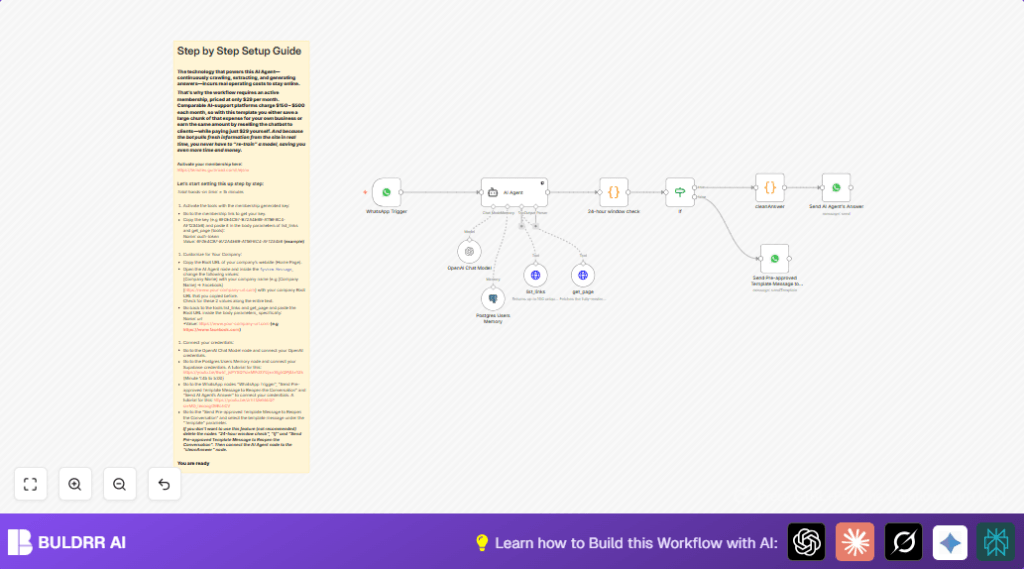

Opening Problem Statement
Meet Carlos, a small business owner running an online retail store. Every day, Carlos spends hours responding to the same questions on WhatsApp about product availability, shipping policies, payment methods, and company policies. This repetitive work not only drains his energy but also leads to delayed replies and occasional mistakes that frustrate customers. He knows automating responses could save time but worries about maintaining accuracy and up-to-date answers as his website content frequently changes.
This is where the AI Customer-Support Assistant workflow for WhatsApp using n8n steps in. It’s designed specifically to handle real-time customer queries by dynamically crawling Carlos’s website for fresh information, ensuring trustworthy and current responses. Instead of canned replies, the assistant searches the live site on demand, providing precise answers while reducing Carlos’s response time from hours to seconds.
What This Automation Does
This workflow transforms WhatsApp into a smart customer support channel powered by AI and real-time website crawling. When a customer sends a message to your business WhatsApp account:
- The WhatsApp Trigger node captures the incoming message in real-time.
- The AI Agent node processes the customer’s question, using a custom LangChain agent configured to crawl and analyze your website.
- list_links and get_page nodes dynamically fetch internal site links and extract clean, visible text from relevant pages to find the best answer.
- Postgres Users Memory node maintains conversation history personalized by user ID to provide context for ongoing chats.
- The Code node (cleanAnswer) cleans up the AI’s response text by removing formatting markers and converting URLs for WhatsApp-friendly messages.
- Conditional logic with the If node and the 24-hour window check ensures compliance with WhatsApp’s policies by optionally sending a pre-approved template message to reopen conversations.
- Finally, the WhatsApp nodes send the clean, accurate answer back to the user or reopen the chat as necessary.
By automating these steps, this solution can reduce customer service time by hours daily and increase response accuracy dramatically, as answers reflect the latest website content. It also scales effortlessly to any business size without hiring more staff.
Prerequisites ⚙️
- WhatsApp Business API account with OAuth credentials — for receiving and sending messages via WhatsApp nodes.
- OpenAI account (gpt-4o-mini model preferred) — for processing natural language and running the LangChain AI agent.
- Postgres database (e.g., Supabase) — to store users’ chat memory sessions.
- Active Lemolex membership for API access to list_links and get_page tools — these dynamically crawl website links and extract page text.
- n8n automation platform account — to run and manage the workflow.
Optionally, you can self-host n8n for greater control and privacy. Hosting guides like Hostinger’s n8n tutorial can help with setup.
Step-by-Step Guide to Build Your AI WhatsApp Customer Support Assistant
- Set up the WhatsApp Trigger node: Log into n8n. Drag the WhatsApp Trigger node onto the canvas. Configure the webhook to connect with your WhatsApp Business API OAuth credentials. Under “Updates,” select “messages” to capture incoming customer texts.
Expected: You get a webhook URL after saving, which listens for WhatsApp messages.
Common mistake: Forgetting to connect or properly authorize the WhatsApp API credentials.
- Configure the AI Agent node: Find the AI Agent node labeled “AI Agent” and open its parameter window. Paste your user message with expression {{$json.messages[0].text.body}} into the text input. Customize the system message to include your company name and root website URL. The system message contains instructions and tool usage details like list_links and get_page API calls to crawl your site and search for answers.
Expected: The AI should prepare to use tools to analyze user input and web content dynamically.
Common mistake: Not updating the company name and URL in the system message, causing irrelevant or no responses.
- Activate and customize the list_links node: This node sends a POST request to Lemolex’s API to get internal links from your website. Enter your root URL and your Lemolex auth token in the request body parameters.
Expected: It returns a JSON list of up to 100 unique internal website links.
Common mistake: Failing to supply or copy the correct auth token and root URL properly.
- Configure the get_page node: Similar to list_links, this node posts URLs to the API to receive clean text content of those pages. Insert the same auth token and a dynamic URL field.
Expected: Plain text of the website page, stripped of HTML, suitable for analysis.
Common mistake: Calling get_page on off-site URLs or incorrect URLs resulting in 404 errors.
- Integrate OpenAI Chat Model node: This node uses your OpenAI API key to enable language processing with the GPT-4o-mini model. Connect your OpenAI credentials securely.
Expected: Language model ready to generate natural, helpful replies based on crawled data.
Common mistake: Using the wrong OpenAI model or missing credentials.
- Set up Postgres Users Memory: Configure the Postgres Users Memory node to store and retrieve chat context using the user’s WhatsApp ID as the session key.
Expected: Conversation history for each user is maintained for richer interactions over time.
Common mistake: Mismatched session keys or unconfigured database credentials.
- Add the Code node to clean AI responses: Implement the provided JavaScript code that removes formatting symbols and converts markdown-style URLs for WhatsApp messages.
// cleanAnswer – run once per item let txt = $('AI Agent').first().json.output || ''; // 1. Remove bold / italic / strike markers txt = txt.replace(/[*_~]+/g, ''); // 2. Convert [Texto](https://url) → Texto https://url txt = txt.replace(/[([^]]+)]((https?://[^s)]+))/g, '$1 $2'); // 3. Collapse 3+ blank lines txt = txt.replace(/n{3,}/g, 'nn').trim(); return [{ json: { answer: txt } }];Expected: Text is WhatsApp-formatted without markdown artifacts.
Common mistake: Copying the code incorrectly or placing the node at the wrong point in the flow.
- Implement the 24-hour window check and If node: This logic checks the message timestamp to confirm if a user interaction occurred within the last 24 hours. If yes, the AI agent’s answer is sent; if not, a pre-approved WhatsApp template (hello_world) is sent to reopen the conversation complying with WhatsApp policies.
Expected: Conversation reopens smoothly without policy violations.
Common mistake: Incorrect timestamp handling causing failure to send messages.
- Configure WhatsApp nodes to send messages: – “Send AI Agent’s Answer” node sends the cleaned AI response back to the user’s WhatsApp number.
– “Send Pre-approved Template Message to Reopen the Conversation” sends a WhatsApp template if the chat is outside the 24-hour window.Expected: Users receive prompt, accurate replies or polite re-opening messages.
Common mistake: Misconfigured phone number IDs or recipient phone number expressions.
Customizations ✏️
- Change the company name and website URL in the AI Agent’s system message: This tunes the search context and ensures domain-specific answers. Edit the “systemMessage” parameter with your brand info.
- Modify the pre-approved WhatsApp template message: In the “Send Pre-approved Template Message to Reopen the Conversation” node, select a different template or even customize your own approved by WhatsApp.
- Extend chat memory duration: Adjust the Postgres database retention policy or modify how session IDs are managed to keep longer user chat histories for better context.
- Switch AI model: Replace OpenAI model “gpt-4o-mini” with any supported model you prefer to balance performance and cost.
Troubleshooting 🔧
- Problem: “Non-subscribed user.” response from AI Agent.
Cause: The Lemolex API tools require an active membership; if the auth-token is missing/invalid, this occurs.
Solution: Verify your Lemolex membership and update the “auth-token” parameter in list_links and get_page nodes with the correct key.
- Problem: WhatsApp messages do not trigger the workflow.
Cause: Invalid or missing WhatsApp API OAuth credentials.
Solution: Reconnect valid WhatsApp OAuth credentials in the WhatsApp Trigger node, then retest.
- Problem: AI agent returns empty or irrelevant answers.
Cause: The company name or URL in the AI Agent’s system message is incorrect or unchanged.
Solution: Update system message placeholders accurately with your company name and URL.
- Problem: 404 errors from get_page API calls.
Cause: The get_page node is called with bad or off-site URLs.
Solution: Ensure list_links fetches only internal URLs and that get_page receives valid site links.
Pre-Production Checklist ✅
- Check all credentials for WhatsApp, OpenAI, Postgres, and Lemolex tools are correctly connected.
- Verify the system message in AI Agent node contains your real company name and root URL.
- Test sending WhatsApp messages to verify trigger activation and end-to-end response flow.
- Confirm the storage of chat session data in Postgres by checking the message_history table after conversations.
- Run requests through list_links and get_page nodes manually to verify API responses.
- Validate that the 24-hour window check and conditional logic nodes behave as expected.
Deployment Guide
To deploy this workflow, switch n8n from inactive to active mode using the toggle at the top right. Ensure all nodes have their credentials set before activation. Once active, the workflow listens for WhatsApp messages and processes them automatically.
Monitor workflow runs in the n8n execution logs for errors and performance insights. Adjust configurations if needed based on real user data.
Conclusion
By following this guide, you have built a dynamic AI-powered customer support assistant that answers WhatsApp queries by crawling your live website content. You’ve reduced manual responses from hours to seconds and kept answers fresh without retraining models.
This solution saves hundreds of hours monthly and dramatically improves customer satisfaction by providing instant, accurate answers. Next, explore integrating with CRM systems to log chats or extending AI capabilities with sentiment analysis nodes to personalize interactions further.
With this n8n workflow, you are well set to revolutionize your customer support using AI and automation tailored to WhatsApp messaging.