

Opening Problem Statement
Meet Sarah, a product manager at a fast-paced startup in Singapore. Every week, Sarah is scheduled to meet with new potential partners and clients. However, she finds herself scrambling to gather relevant background information about these individuals and their companies before each meeting. This tedious manual process can take up to 3 hours per week, often resulting in incomplete information and missed opportunities during conversations.
Sarah desperately needs a reliable way to automate this research process, ensuring she is always well-prepared with insightful data about each attendee and their company. This is where our unique n8n workflow steps in, harnessing the power of automation and AI to do the heavy lifting for her.
What This Automation Does
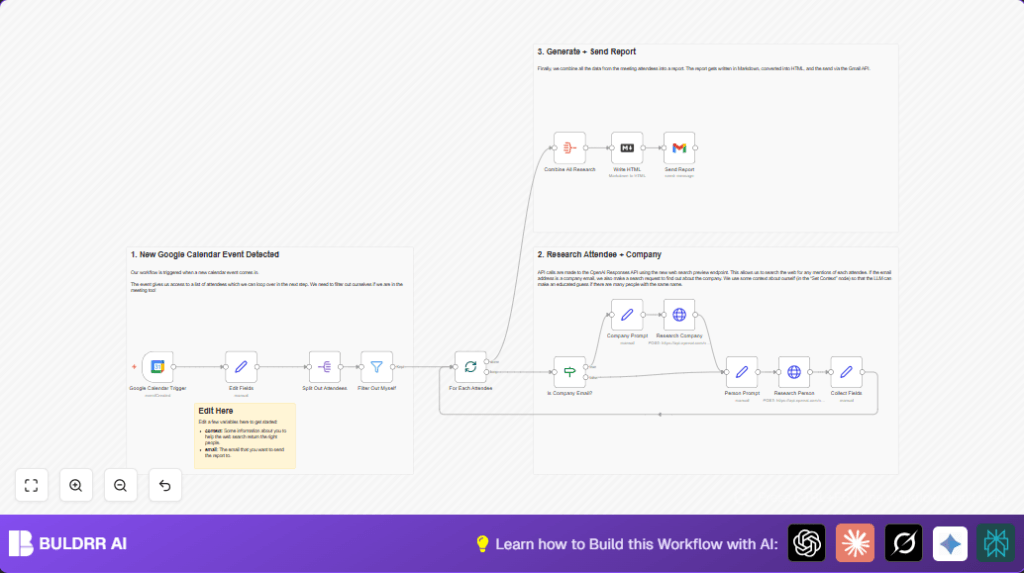
This n8n workflow triggers whenever a new event is created in your Google Calendar. It then systematically researches each attendee and their associated companies using OpenAI’s web search preview capabilities and compiles a comprehensive meeting briefing email. Here’s what it accomplishes:
- Automatically detects new calendar events with attendees.
- Filters out your own email to avoid redundant processing.
- Splits attendee list to process each person individually.
- Identifies whether each attendee has a company or generic email.
- Performs web-based research via OpenAI API to gather personal and company info.
- Aggregates all findings into a well-formatted HTML briefing report.
- Sends the personalized briefing email through Gmail before your meeting.
This workflow saves valuable time, typically reducing hours of manual research to a few minutes of automated processing. It also helps you avoid embarrassing moments in meetings by providing insightful, objective background information on the people you plan to talk with.
Prerequisites ⚙️
- n8n account (cloud or self-hosted) 🔌
- Google Calendar account with OAuth2 credentials 🔑
- Gmail account with OAuth2 credentials 📧
- OpenAI API access with valid header authentication 🔐
If you prefer self-hosting your n8n instance, Hostinger offers easy deployment options to run n8n securely.
Step-by-Step Guide
1. Set up Google Calendar trigger for new events
Navigate to the n8n dashboard and add the Google Calendar Trigger node.
Click on the node, select your calendar under calendarId, and ensure the trigger is set to eventCreated.
You should see your Google account connected via OAuth2 credentials.
This node will poll for new events every minute, so any fresh calendar invite will kick off the workflow.
Common mistake: Forgetting to select the correct calendar or not authenticating Google Calendar credentials.
2. Extract event attendees and filter out yourself
Add a Set node named Edit Fields.
Here, define variables for context (your role), the email for sending reports, and pass the attendees array from the calendar event.
Example context: “I am working in web development, based in Singapore/Australia, and I work with startups.”
Example email: your email address to receive the briefing.
Next, add a Split Out node to separate the attendees array into individual records.
Then use a Filter node named Filter Out Myself to exclude your own email from processing based on the self flag.
After this, use a Split In Batches node For Each Attendee to process each attendee sequentially.
This ensures the workflow handles one person at a time, avoiding overload.
Common mistake: Not handling cases where you are not listed as an attendee, resulting in errors downstream.
3. Detect company vs. personal email
Insert an If node Is Company Email? that uses a regular expression to check if the attendee’s email domain matches common personal email providers (e.g., gmail.com, hotmail.com).
If it does not match, the workflow treats the email as company-associated.
This difference is vital because it determines whether extra research on the company should be conducted.
4. Generate AI prompts for person and company research
Add two Set nodes: Person Prompt and Company Prompt.
Each node crafts a JSON prompt with specific instructions for the OpenAI API to extract meaningful and concise info about each person and company.
These prompts incorporate details like email address, company URL, and your context for better accuracy.
Examples include asking for the person’s profession, interests, and unknown facts, or the company’s business model and problems solved.
5. Call OpenAI Responses API for research
Add two HTTP Request nodes: Research Person and Research Company.
Both nodes are configured to make POST requests to https://api.openai.com/v1/responses, using your header auth credentials.
The request body sends the JSON prompt you generated in the Set nodes.
Example request body JSON:
{
"model": "gpt-4o",
"tools": [{ "type": "web_search_preview" }],
"input": "Your prompt text here"
}Common mistake: Not setting the correct authentication or formatting the JSON incorrectly.
6. Collect research outputs and assign fields
Use a Set node Collect Fields to organize the AI responses.
Assign variables for person info, company info (if available), and attendee email.
Fallback logic ensures generic email domains output “No company information found.” to keep the briefing meaningful.
7. Combine all attendee research data
Add an Aggregate node Combine All Research to merge all individual attendee data into one dataset.
This step prepares the data for the final briefing report generation.
8. Convert Markdown to HTML for professional email
Use a Markdown node Write HTML to transform a dynamic Markdown template into HTML.
The template generates headings and sections for each person and their company complemented with emails.
9. Send the meeting briefing report by Gmail
Finally, add the Gmail node Send Report.
Configure it to send to the email configured in Edit Fields, with a subject including the meeting summary and date.
The HTML content from the previous node is sent as the email message.
Common mistake: Not having Gmail OAuth2 credentials properly set or misconfiguring the recipient email.
Customizations ✏️
- Change context info: Update the context field in the Edit Fields node to tailor AI search for your industry or role.
- Modify email recipient: Edit the email field in Edit Fields to send briefings to a different address or distribution list.
- Add more email domain patterns: Extend the regex in Is Company Email? to cover more personal or company domains specific to your region or use case.
- Include additional OpenAI models or tools: Modify the HTTP Request node JSON payload to experiment with other AI models or tools for richer research results.
Troubleshooting 🔧
Problem: “Authentication failed” in OpenAI HTTP Request node.
Cause: Incorrect or expired API key or header credentials.
Solution: Go to the credentials section in n8n, re-enter your OpenAI API key, and test the connection.
Problem: “No attendees found” or empty attendee list errors.
Cause: Event doesn’t contain attendees or erroneous JSON path.
Solution: Verify that the Google Calendar event includes attendees and that the input expressions extract the array correctly in Edit Fields and Split Out Attendees nodes.
Problem: Gmail node fails to send email.
Cause: Missing or invalid OAuth2 credentials or wrong recipient.
Solution: Check Gmail credentials in n8n, ensure OAuth2 is active, and verify the recipient email in the Send Report node settings.
Pre-Production Checklist ✅
- Verify Google Calendar trigger detects event creation and attendees are extracted.
- Test filtering logic excludes your own email correctly.
- Confirm OpenAI API authentication and test sample requests for person and company research.
- Check aggregation and Markdown to HTML conversion produce readable report format.
- Perform test email sends with Gmail node to your own email address.
- Backup the workflow in n8n before deploying live.
Deployment Guide
To deploy this workflow, ensure all credentials for Google Calendar, OpenAI, and Gmail are connected and validated.
Activate the Google Calendar Trigger node to listen for new events.
Monitor executions in n8n’s workflow run log to verify no errors occur.
Optional: Set up alerting or logging for failed runs to ensure reliable operation.
FAQs
Can I use another email provider besides Gmail?
This workflow specifically uses n8n’s Gmail node for sending emails. While you could substitute a different email node, you would need to configure OAuth2 credentials and adjust node settings accordingly.
Does the OpenAI API usage consume credits?
Yes, each call to the OpenAI Responses API counts against your API usage and billing. Be mindful of limits when processing many attendees.
Is my data secure during this automation?
All data processing happens within your n8n instance, and credentials are securely stored with OAuth2. However, the attendee info is sent via OpenAI for research, so consider privacy policies accordingly.
Conclusion
By following this detailed guide, you’ve built a powerful n8n automation that transforms a tedious meeting prep task into a swift, AI-enhanced briefing report. You now save hours each week and approach every meeting confidently, backed by insightful attendee knowledge.
Next, consider expanding this automation by integrating CRM updates, Slack notifications for instant briefs, or advanced sentiment analysis on attendee communications.
Automation like this not only improves productivity but also boosts your professional presence—giving you a clear edge in every conversation.